
How can I limit an employee’s record in a certain location?
The restriction on clocking in outside the location is enabled by default for all new employees. However, to ensure it works correctly, you need to complete a few setup steps.
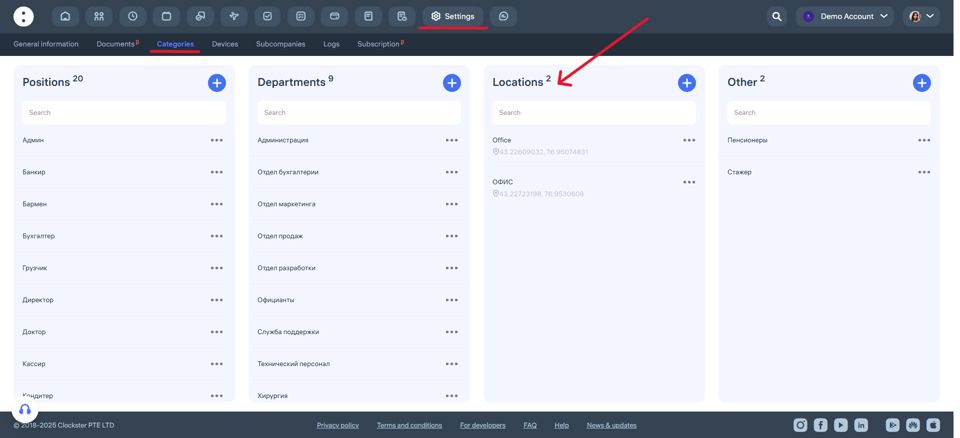
Step 1: Set the office coordinates (location)
Log in to the Clockster web version.
Go to the Company Settings section.
In Categories open the Locations tab.
Find the required location and click Edit.
Select the exact office coordinates on the map.
Save your changes.
Step 2: Adjust permissions for a specific employee
Go to the Employees section.
Find the required employee.
Click the three dots to the right of their name and click Edit.
Navigate to Roles and Permissions.
Find the Attendance section.
Disable the option Create a check-in outside the locations.
After this, the employee will only be able to clock in within the coordinates specified in their assigned location.
Step 3: Important condition
For the new settings to take effect, the employee must restart the mobile app (fully close and reopen it).
Additional: Using permission templates
If you have multiple employees with the same restrictions, we recommend creating a permission template. This will make setup faster and simplify permission management.
You can create a template in:
Employees → Permissions → Templates
Once created, you can apply the template to individual employees or an entire group.
If you still have questions — contact our support team. We’re here to help.
Updated at