
How do I view or download the Attendance report?
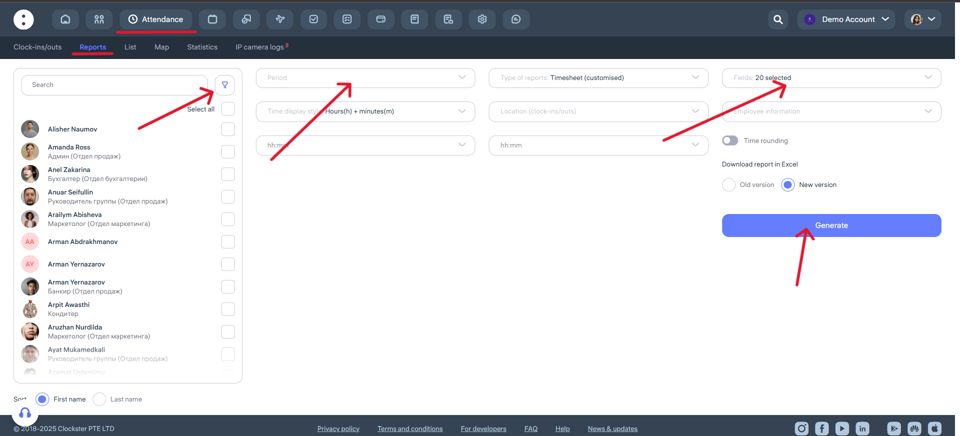
Go to Attendance → Reports
Choose the report type
The most flexible and commonly used option is the Timesheet (customizable) report.
Here you can select which data to include in the export:Clock-in/clock-out times
Total worked hours
Overtime
Late arrivals
Scheduled time
Absence reasons, etc.
Set the report period
Choose the start and end dates for the report (for example, from 01.07.2025 to 31.07.2025).Select employees and locations (if needed)
You can select specific employees or include all of them. Filtering by location is also available.Configure columns
In the Fields section, check the boxes for the data you want to display in the report, such as:Date
Employee
Location
Clock-in/out
Total worked time
Scheduled time
Difference (actual – planned)
Lateness, etc.
Generate the report
Click Generate — the report will appear below.Download the report
In the top-right corner of the table, click the Download icon to export the report.
Updated at