
How does an admin create a manual clock-in in the web version for an employee?
How to Restore a Missed Check-In in Clockster
There are two ways to restore a missed check-in in Clockster:
An employee can submit a request for a missed check-in through the mobile app:
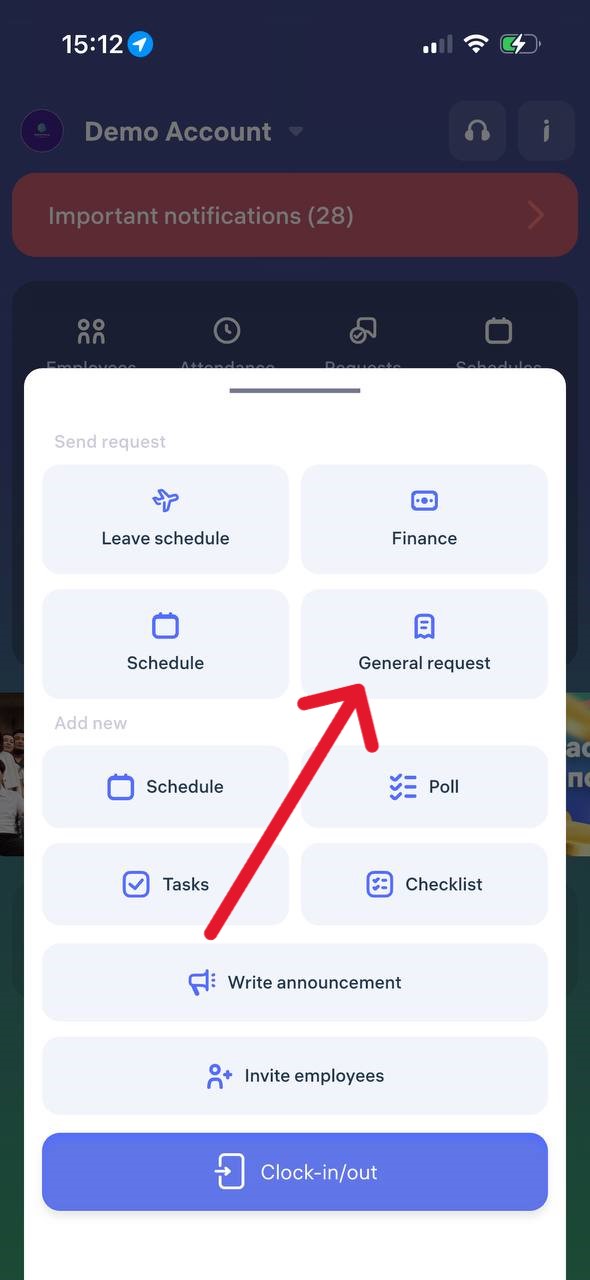
Tap the “+” button on the main screen.
Go to “General requests“
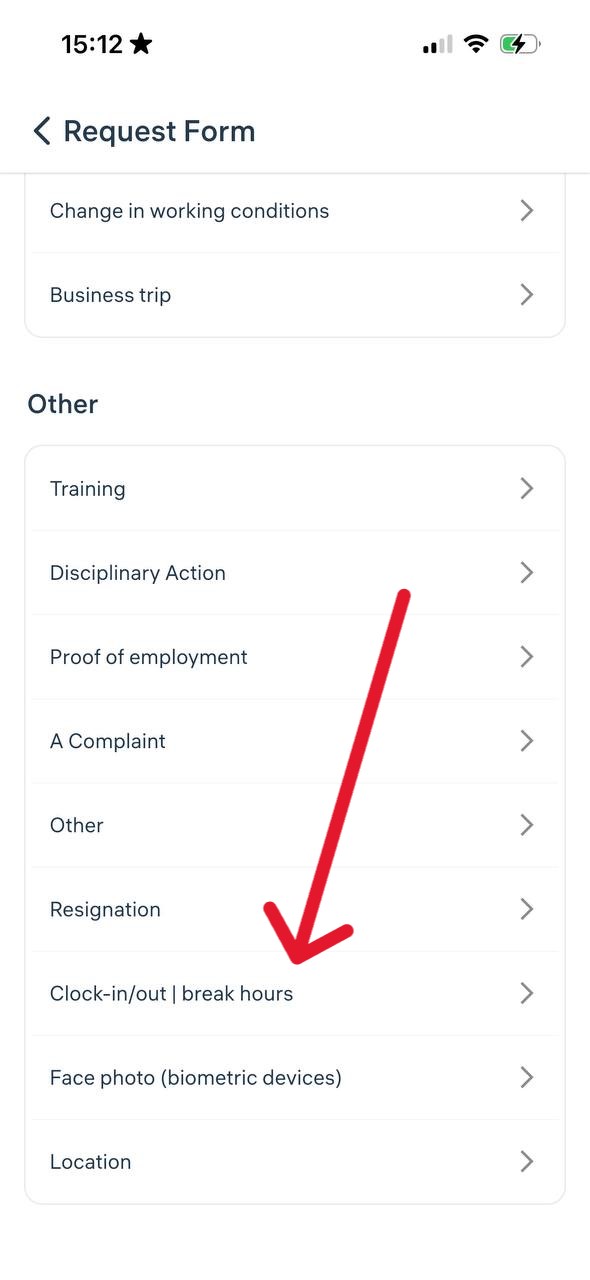
In “Other” section find “Clock-in/out | break hours“
Specify the date, time, and reason.
Send the request to the administrator.
🟢 If the administrator approves the request, the system will automatically create the check-in.
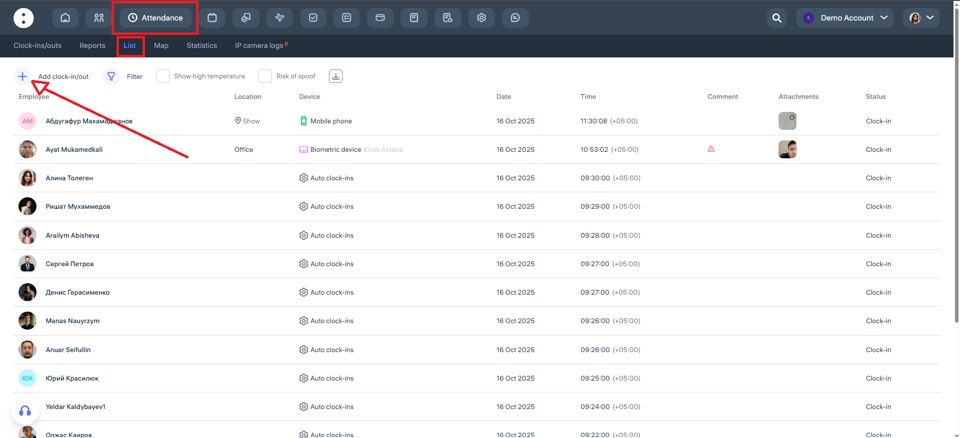
2. An administrator can manually add a check-in in the web version:
Go to Attendance → List;
or open Schedules and click on the day cell;
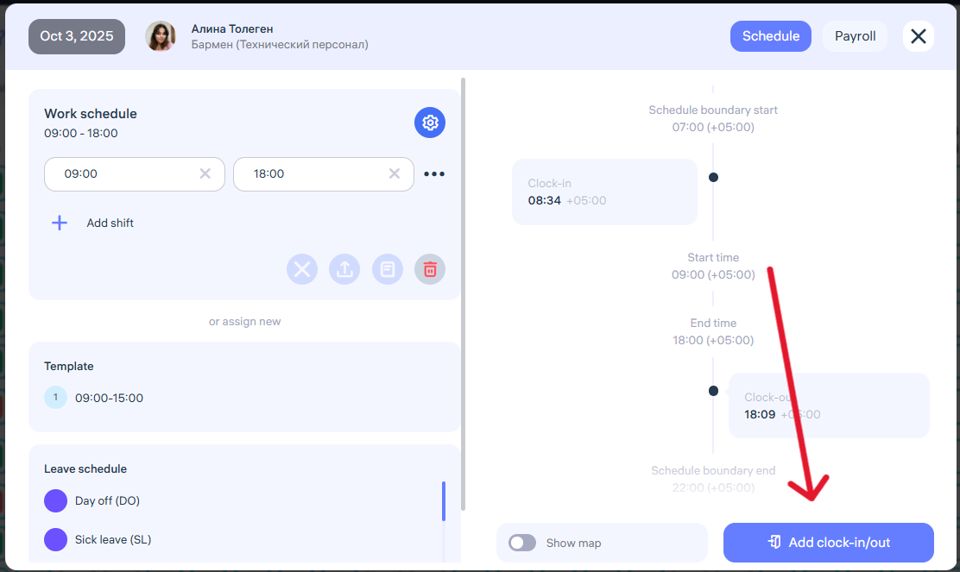
or open Employees, find the desired employee, and click Edit Profile.
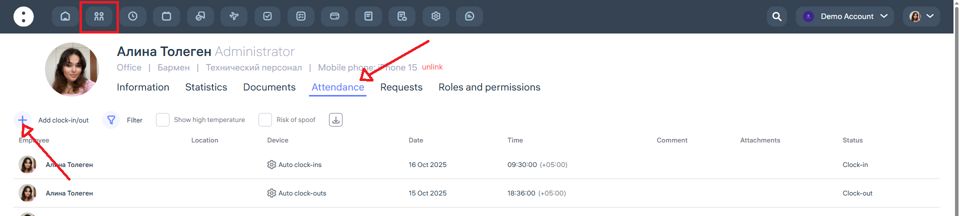
⚠️ The administrator can only perform this action if they have the appropriate system permission.
If neither option is available, please contact your company administrator or Clockster Support.
Updated at