
What is there on the Attendance page?
On the “Attendance” page, you can:
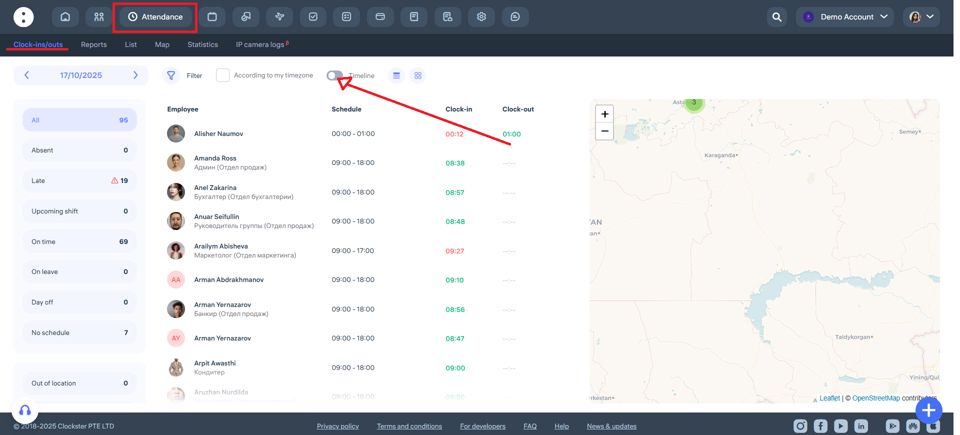
Monitor employee clock-ins
Here you can see all employee clock-ins: arrival and departure times for the selected day.
You’ll be able to see who has arrived today, who is absent, who is late, and who has not yet checked in.
Check schedule availability
You can view which employees have a schedule assigned for the selected day and who do not.
View employee status
For example, who is currently at work (present), who is on leave, has a day off, or has not yet started their shift.
Use filters
Filter employees by department, location, position, shift, and other parameters.
View the map
On the right side, you can see a map showing the geolocation of check-ins (if geolocation was used when marking attendance via the mobile app).
Analyze data in the timeline
When the “Timeline” feature is enabled, you can view a time chart showing when and who made check-ins throughout the day.
Download reports
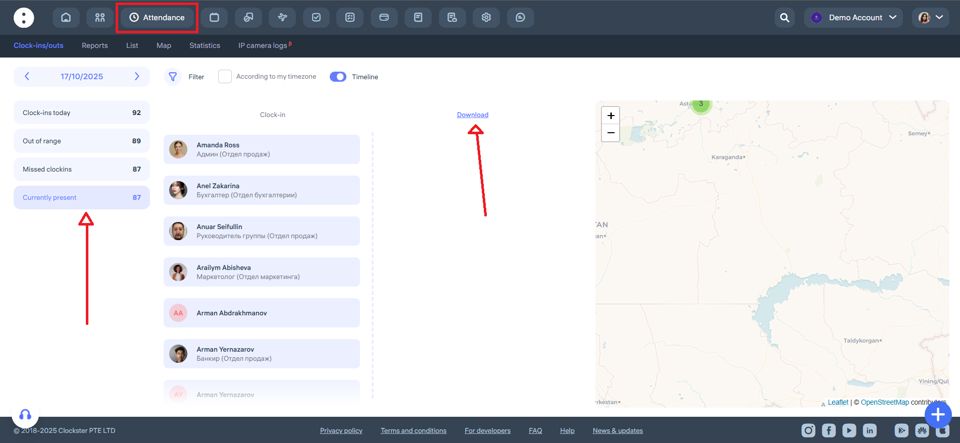
If necessary, you can generate and download a report of employees currently present at the location by selecting “Timeline” → “Currently present“
8. Switch between tabs
At the top of the page, you’ll find tabs: Clock-ins/outs, Reports, List, Map, Statistics.
This allows you to quickly access complete analytics on attendance for a day, week, month, or any selected period.
Updated at