
How to create a schedule 5/2 or 6/1? / Schedule – Days of the week.
If your company has a fixed weekly schedule, such as 5/2 (Monday–Friday — workdays, Saturday–Sunday — days off) or 6/1, Clockster makes it easy to use the “By days of the week” repeat type.
Step 1: Go to the “Schedules” section
In the web version, click the “+ Add Schedule” button in the top left corner of the screen.
Step 2: Select “Work Schedule”
Set the start date of the schedule — this will be the first working day.
Specify the period for which the schedule will apply (for example, 1 month).
In the repeat type, choose “Weekdays”
Step 3: Mark workdays and days off
For example:
For a 5/2 schedule — mark Mon–Fri as working days and Sat–Sun as days off.
For a 6/1 schedule — mark Mon–Sat as working days and Sun as the day off.
You can also set different shifts for different days — for example, a shorter shift on Saturday.
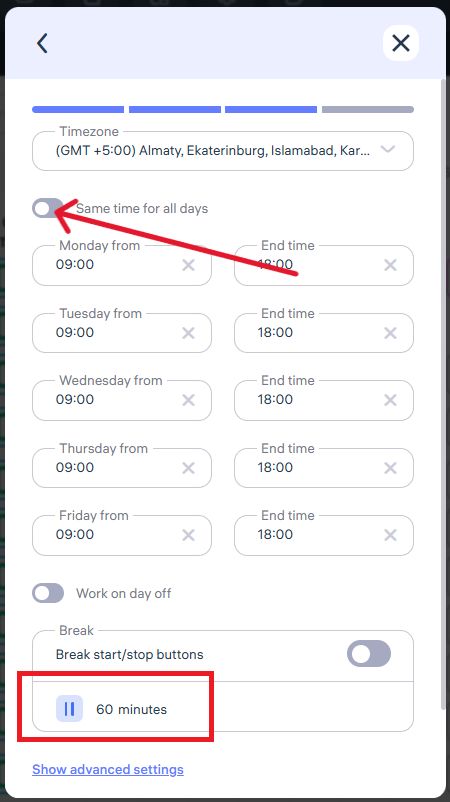
Step 4: Set working hours
Specify:
Start and end of the shift (e.g., 09:00–18:00).
Lunch break — 60 minutes (optional).
If no break is needed, enter 0.
Step 5: Assign employees
Check the boxes next to the employees you want to apply the schedule to.
If needed, specify the location to enable biometric tracking.
Click “Save.”
Important:
This method is ideal for employees with a stable schedule.
It is recommended not to change additional settings — they are predefined in Company Settings → Schedule Settings.
Updated at