
How to create a business trip?
Option 1: Through the Clockster Web Version (by Administrator)
If an employee is going on a business trip, the administrator can manually mark it in the schedule using the Clockster web dashboard.
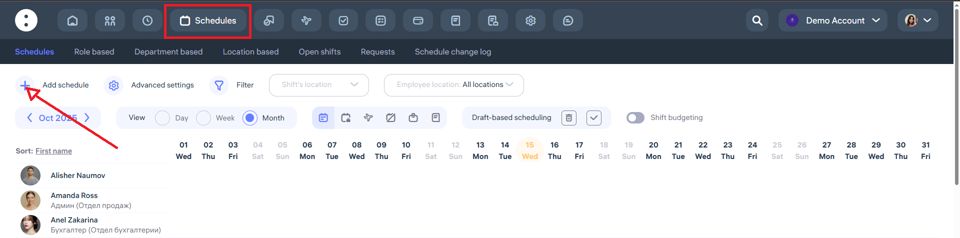
Step 1. Go to the “Schedules” section
Open the admin panel.
In the top menu, select “Schedules”.
Click “+ Add Schedule.”
Step 2. Set up the business trip parameters
In the form that opens:
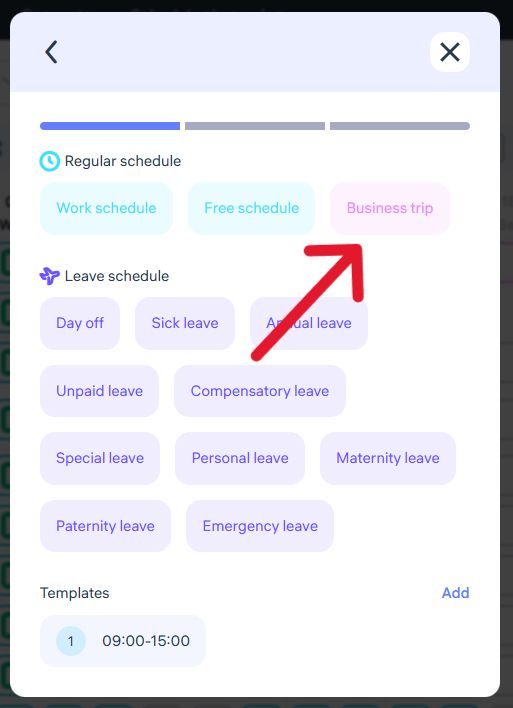
In the “Title“ field, select Business Trip.
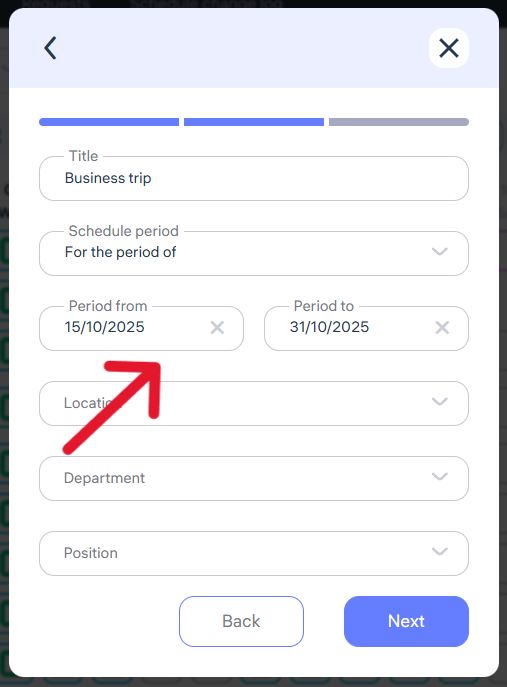
In the “Schedule Period” field, choose For the period of.
Specify the start and end dates of the business trip (for example, from October 15, 2025 to October 31, 2025).
Select the location (for example, “Almaty Office”).
Step 3. Select employee(s)
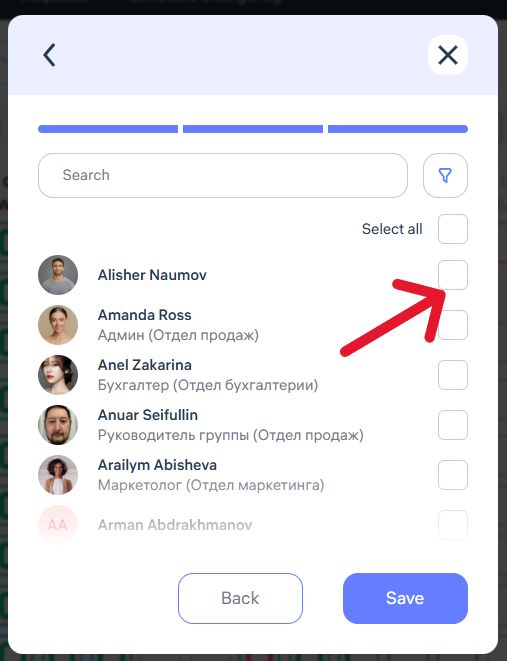
Mark the employee who will be assigned the business trip.
One or multiple employees can be assigned.
Click “Save.”
Option 2: Through the Mobile App (by Employee)
Employees can also submit a business trip request through the Clockster mobile app.
The request is automatically sent to the assigned manager for review.
Step 1. Go to “General Request”
Open the Clockster mobile app.
On the main page, tap the “+” button (at the bottom).
Select “General Request.”
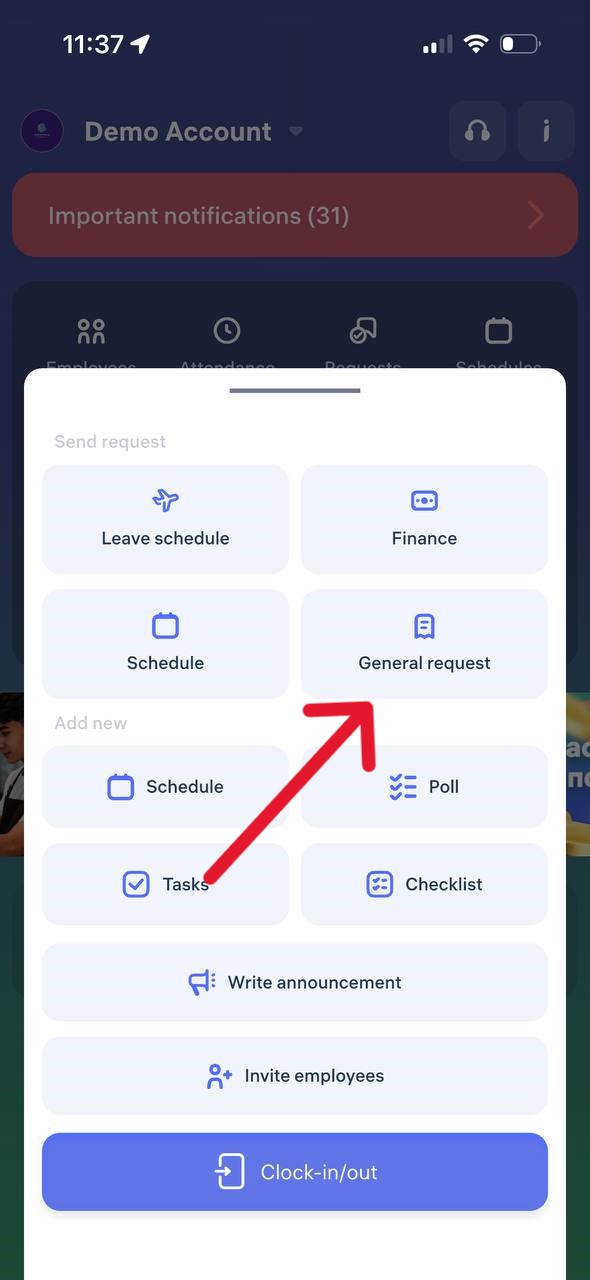
Step 2. Choose the request type — “Business Trip”
In the Work Schedule section, choose “Business Trip.”
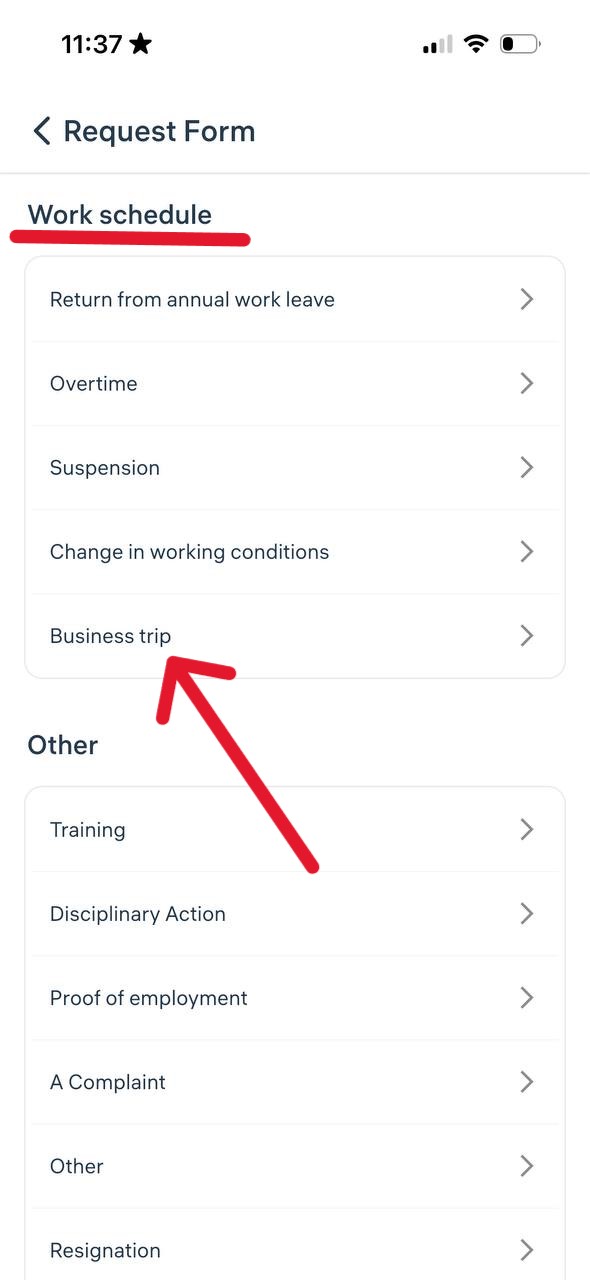
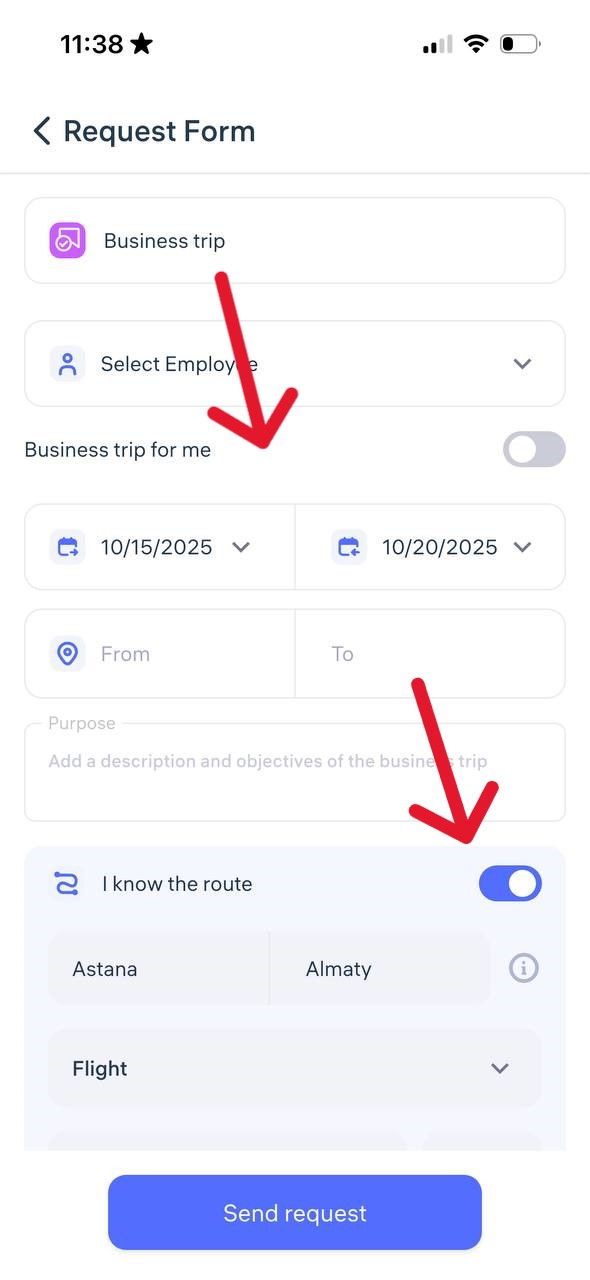
Step 3. Fill in trip details
Provide the following information:
Business trip dates (for example, Oct 15–20, 2025).
Departure and destination cities.
Purpose of the trip (e.g., audit, meeting, equipment installation).
Type of transport (plane, train, bus, etc.).
Route details, transfers, and ticket cost. You can also indicate whether the price includes a return ticket.
Step 4. Specify accommodation details (if known)
Enable the option “I know where I will stay.”
Enter the type of accommodation (e.g., hotel), dates, and total cost of stay.
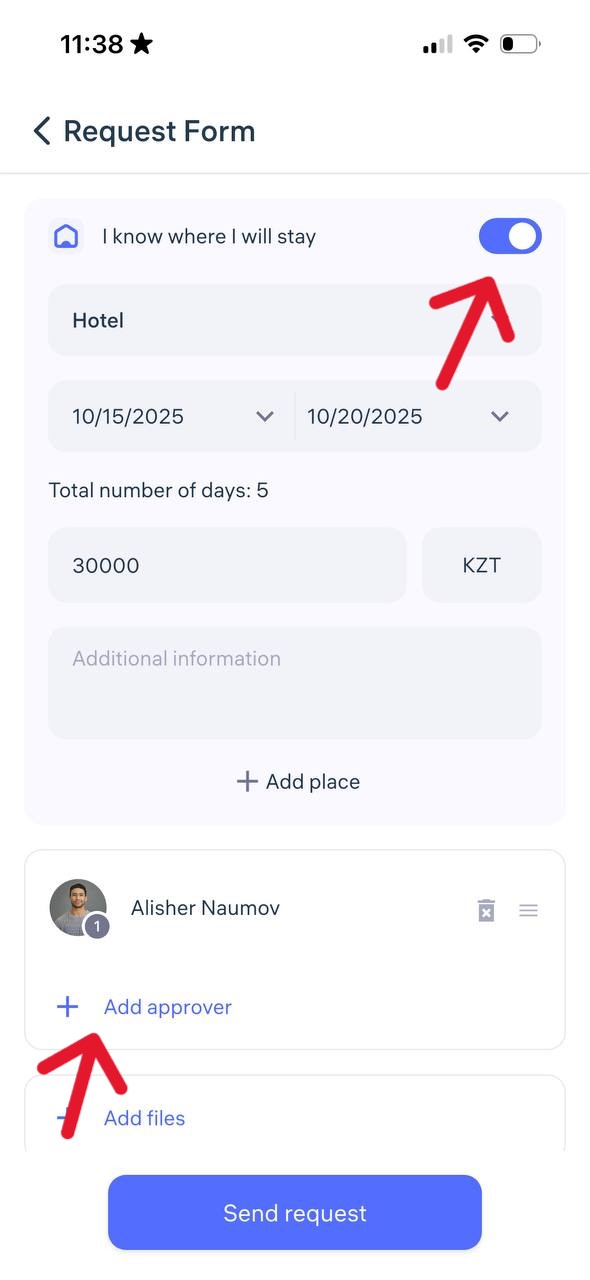
Step 5. Select a manager and submit the request
Assign the manager who should review the request.
Attach files if needed (e.g., booking confirmation or travel itinerary).
Add a comment, for example:
“Permission required for off-location check-ins” — especially important if the employee will be using mobile check-ins during the trip.Tap “Send Request.”
What happens next?
The manager will receive a notification and can either approve or reject the business trip request. Once approved, the trip will automatically appear in the employee’s schedule and will be counted toward working hours.
Updated at
Related questions
- What types of schedules are there?
- How to create a schedule 5/2 or 6/1? / Schedule – Days of the week.
- How to create a schedule 2/2 or 14/14? / Schedule – shift schedule.
- How do I create a day off/holiday/sick day schedule? / Leave schedule
- How do I create a schedule without a specific time period? / Free schedule