
What are Templates and how to use them?
Templates are predefined one-day schedules (working or free). Adding schedules using templates works as follows:

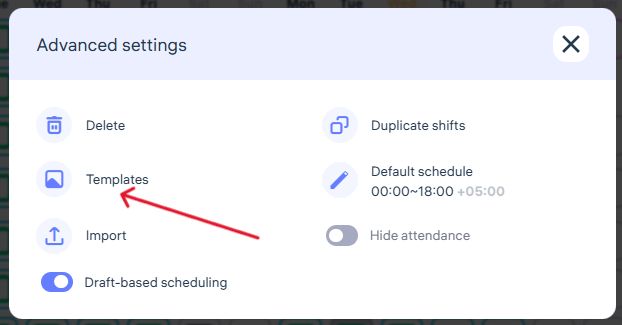
How to create and use a template
Create a template (for example, a working schedule from 9:00 to 18:00).
Select a date (click on the desired square).
Choose the template.
Templates are a very convenient feature, especially for mass scheduling.
You can select different dates for different employees (for example, the 1st and 16th for one employee, and the 3rd and 7th for another), then click the Add schedule button in the lower-right corner of the page and choose a template.
As a result, you’ll create schedules for multiple employees on different dates in one action.
Template codes and hotkeys
When creating templates, the Code field must contain numbers (1–9) or Latin letters (A–Z).
These codes can later be used as hotkeys when editing schedules.
How to quickly edit schedules using hotkeys
For Windows users:
Hold Ctrl to select individual days,
Or hold Alt to set the first day of a period, then click the last day to select the entire range.
After that, press the code of the template you want to apply.
For macOS users:
Hold Cmd to select individual days,
Or hold Alt to select the first and last day of a range.
Then press the template code to apply the desired schedule.
Updated at
Related questions
- What types of schedules are there?
- How to create a schedule 5/2 or 6/1? / Schedule – Days of the week.
- How to create a schedule 2/2 or 14/14? / Schedule – shift schedule.
- How do I create a day off/holiday/sick day schedule? / Leave schedule
- How do I create a schedule without a specific time period? / Free schedule