
How do I upload a photo of an employee to be recognized by a biometric device?
Prepare the photo
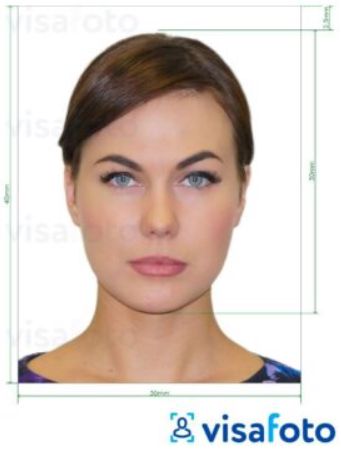
To ensure the photo works correctly for facial recognition, follow these requirements:
Clear, high-quality image.
Direct gaze at the camera (frontal view) with a neutral facial expression.
No headwear, sunglasses, masks, etc.
Good lighting without shadows on the face.
Only one face in the frame — no other people or objects.
Format: JPEG or PNG. File size: up to 5 MB.
2. Log in to the Clockster admin web panel
Go to the Employees section.
Find the required employee or add a new one.
Click the employee’s name to open their profile.
3. Upload the photo
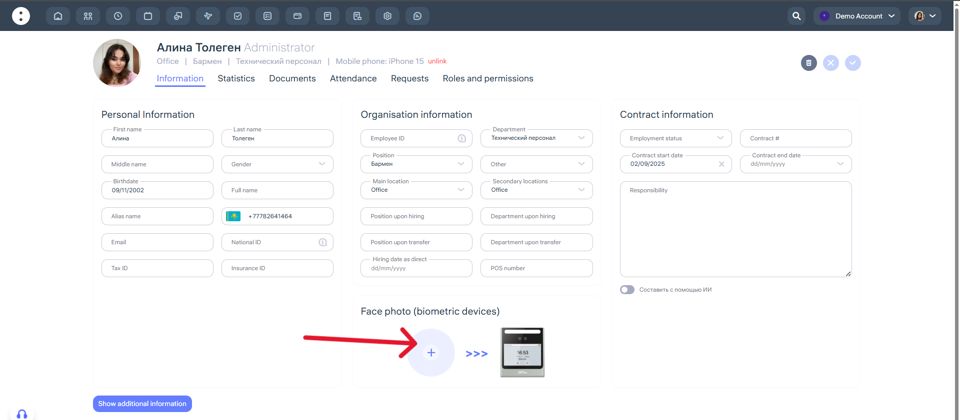
In the employee’s profile, click the photo area (Face Photo – Biometric Devices).
Select a file from your computer.
Make sure the image uploads correctly.
Save the changes.
After uploading, the system will automatically sync the photo with the biometric device if:
The device is connected to the internet,
It’s linked to the same location as the employee,
The correct Clockster server address is set in the device settings.
All done!
If everything is set up properly, the biometric device will start recognizing the employee within a few minutes.
If you encounter any issues, contact Clockster Support — we’re always here to help!
Updated at