
How to switch between profiles?
Each Clockster user initially has a personal profile — this is a profile not linked to any company. In it, the user provides basic information such as full name, photo, contact details, and other personal settings.
When the user joins at least one company (a Clockster client), an employee profile is automatically created for that company. This profile gives access to all Clockster features, including:
Clock-in and clock-out tracking,
Submitting requests (for leave, sick days, etc.),
Viewing personal statistics and schedules.
If the user works for multiple companies, switching between profiles is simple depending on the context or task.
In the mobile app
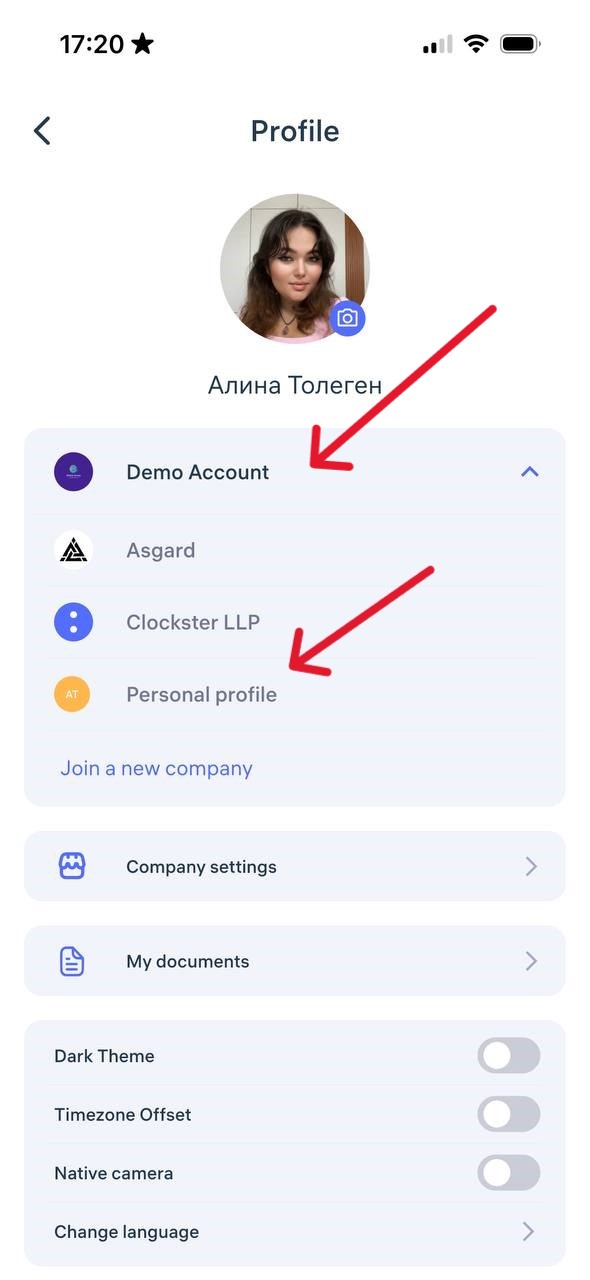
Go to the Profile section — the button is in the bottom-right corner.
At the top, you’ll see a list of all available profiles: the names of companies you’re connected to and your personal profile.
Tap the desired profile — the app will instantly switch to that work environment.
In the web version
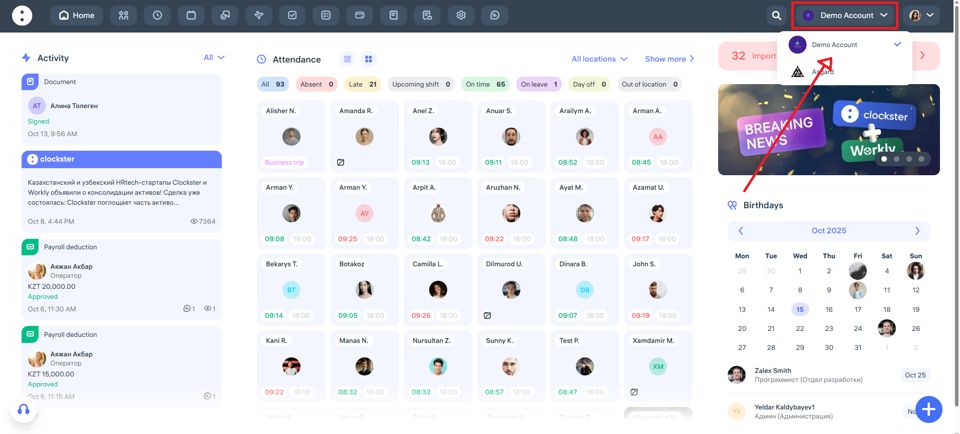
In the top-right corner, click on the name of the current company.
From the drop-down list, select the desired organization or personal profile.
To access personal profile settings (change photo, language, theme, etc.), click your name in the top-right corner.
💡 Note: Actions and data are not shared between companies. Each profile has its own record of attendance, requests, and schedules.
Updated at