
What is located on the Home page?
What’s Inside Each Section of Clockster
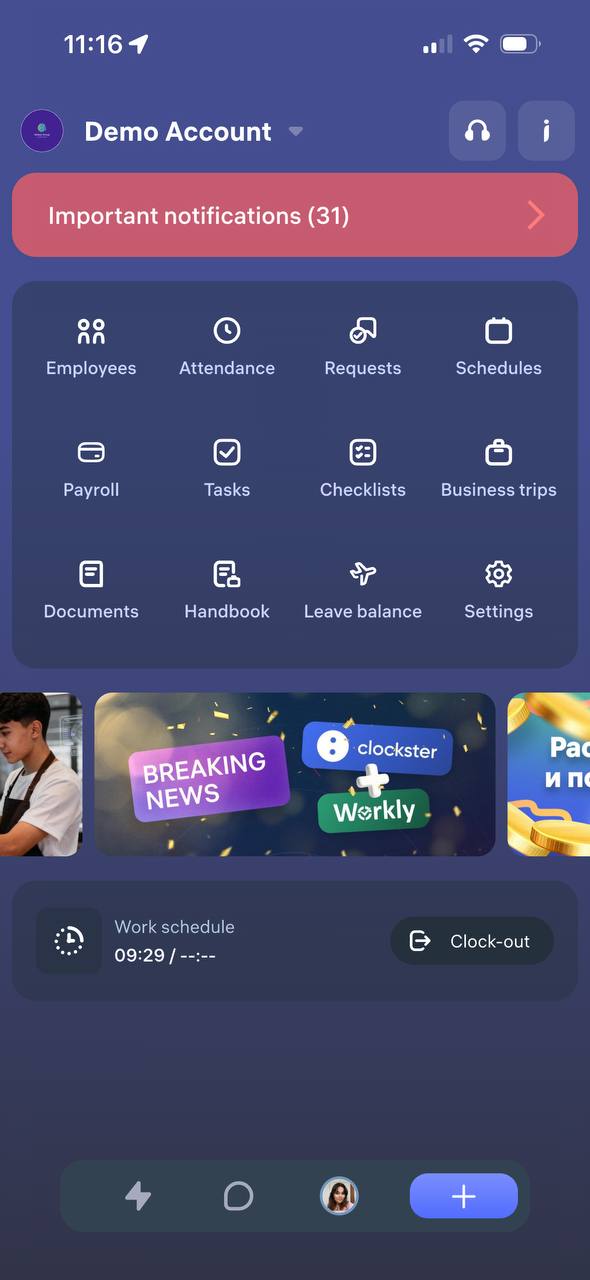
“Colleagues” section
Displays a list of all company employees. You can see each colleague’s position, department, and contact details.
“Attendance” section
Shows your check-in and check-out times, breaks, late arrivals, overtime, and the total number of hours worked.
“Requests” section
Here you can send requests to your manager — for vacation, sick leave, day off, overtime, or other internal approvals.
“Schedule” section
Displays your work schedule, showing which days are work shifts, days off, and public holidays.
“Payroll” section
Shows your earnings and deductions, the final payout amount, and your payment history.
“Tasks” section
Contains assignments from your manager. You can accept tasks, complete them, and mark them as done.
“Checklists” section
Includes step-by-step instructions for performing work processes.
You can mark items as completed — for example, when opening or closing a shift.
“Business Trips” section
Tracks your business travel requests. You can submit a new trip request or view details of approved trips.
“Documents” section
Contains the company’s internal documents such as orders, instructions, policies, and guidelines.
You can open and read documents directly in the app.
It also includes personal employee documents uploaded from your mobile gallery.
“Handbook” section
Provides useful information, including: SOPs, Company organizational structure, Banners, Announcements, Surveys
“Leave Balance” section
Shows how many vacation days you have for the current year, how many you’ve already used, and how many remain available.
It also displays your contract start date, sick leaves, and unpaid leaves, among other related data.
Updated at
Related questions
- The app is properly installed, I am inside my account. How do I make clock-ins/outs?
- What’s an additional record and how to use it?
- Notification: “Account does not exist or the password is incorrect”.
- Notification: “This device is already assigned to (user). Please contact your administrator.”
- How to switch between profiles?