
Checklist
How to Create a Checklist in Clockster
1. Open the “Checklists” Section
From the main menu at the top of the screen, go to the “Checklists” section.
2. Click “Add Checklist”
The button is located in the upper left part of the page.
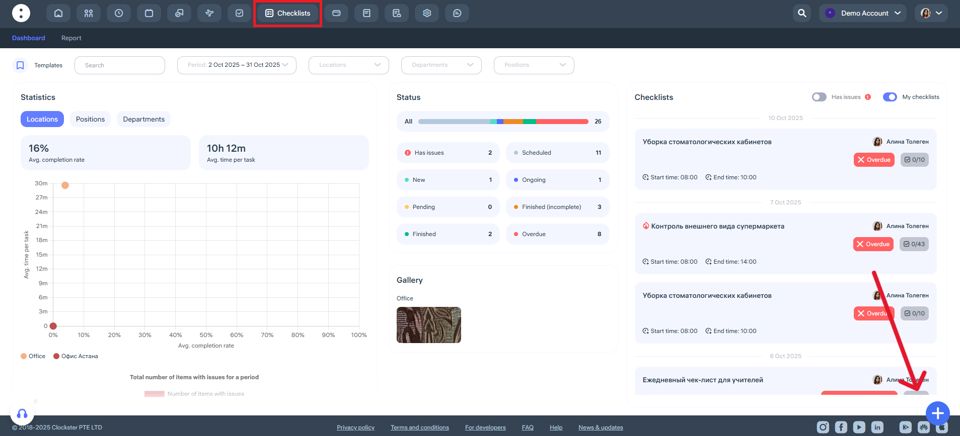
A new checklist creation form will open.
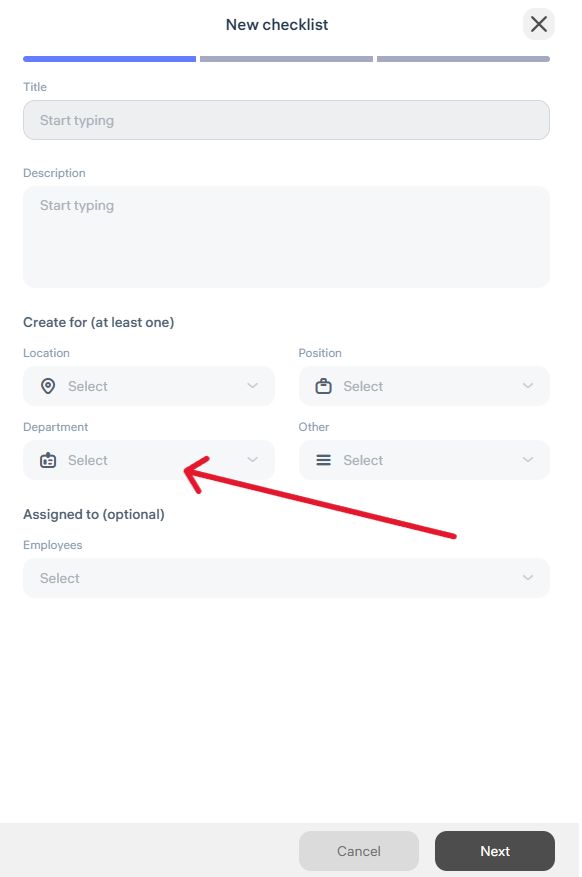
3. Enter Basic Information
In the first step, fill in the following fields:
Checklist name
Description (optional)
Location, department, and position — at least one combination is required
Assign a specific employee as responsible (optional)
Select “Save as template” if you plan to reuse this checklist later
4. Set Task Parameters
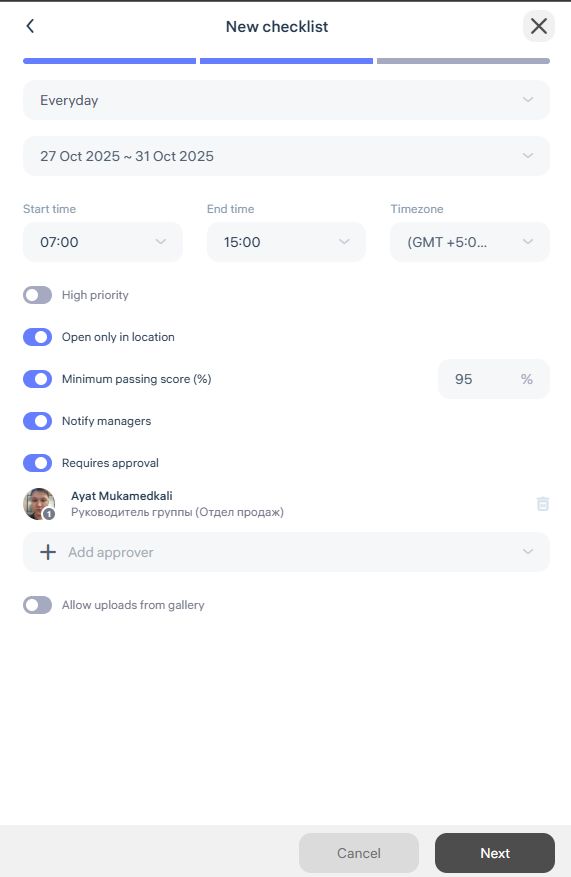
In the second step, specify:
Recurrence type (one-time, daily, weekly, etc.)
Start and end time
Time zone
Minimum passing score (in %)
Optional settings:
Allow checklist completion only within a specific location
Enable manager notifications
Require manager approval
Assign managers responsible for review
Allow or restrict photo uploads from the gallery
5. Add Sections and Items
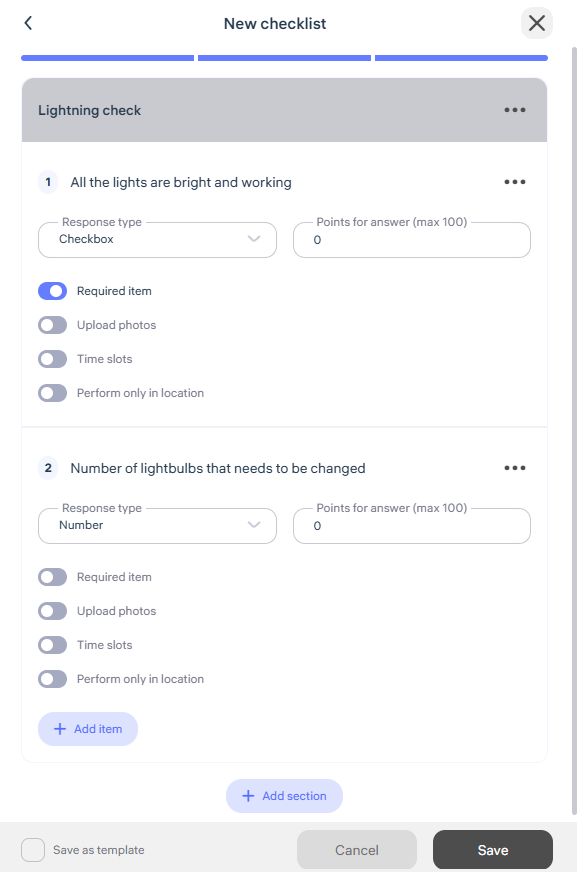
In the final step, build your checklist structure:
Add one or more sections
Within each section, create individual items
Enter the task text
Choose the answer type (text, Yes/No, multiple choice, etc.)
Assign points for correct completion
Mark if an item is mandatory, requires a photo, or must be completed on-site
6. Save the Checklist
Once all fields are filled in, click “Save.”
Your checklist will be created and ready to assign to employees.