
Using Clockster as an Administrator
Administrator Role in Clockster
An Administrator is an authorized company representative responsible for managing all key processes related to time tracking and system administration in Clockster.
This is a critical role: accurate data, correct payroll calculations, and transparent HR processes depend on it.
🕒 Time Tracking
Configure and monitor work schedules (fixed, shift-based, flexible).
Maintain employee timesheets: hours worked, overtime, late arrivals, and early departures.
👥 Attendance Management
Monitor employee check-ins via mobile app, kiosk, or biometric devices.
Review and correct entries in case of missing data or errors.
🧑💼 Employee Management
Add new employees, update profiles, assign job positions and locations.
Manage access rights (e.g., location administrator, department administrator, or category-specific administrator).
📅 Scheduling & Leave Management
Create and edit work schedules of any type.
Manage vacations, sick leaves, and business trips.
📢 Internal Communication
Publish announcements, banners, and internal news.
Conduct surveys and collect employee feedback.
💰 Payroll & Financial Tracking
Calculate wages based on actual hours worked.
Export data for integration with accounting software (e.g., 1C ZUP).
📊 Reporting & Analytics
Generate standard and customizable reports.
Analyze performance, discipline, and labor costs.
⚙️ Device Management
Configure biometric devices and kiosks for employee check-ins.
🌟 Why the Administrator Role Matters
The administrator ensures:
Accuracy in time tracking and payroll,
Transparency in employee management,
Automation of HR processes.
This role is at the heart of a company’s effective use of Clockster.
Creating and Assigning an Administrator
Key Administrator in Clockster
When a company is registered in the Clockster system, the employee who completes the initial registration is automatically assigned the status of Key Administrator.
The Key Administrator is the primary user with full access to all functions and sections of the system within the connected subscription plan.
Responsibilities of the Key Administrator:
Manages all company sections and system settings.
Adds and removes other administrators.
Assigns permissions and access levels to administrators.
Controls organizational structure, schedules, and employee data management.
Ensures overall order and data security in the system.
⚠️ Important: Only the Key Administrator can create other administrators and manage their permissions. It is strongly recommended that this level of access be granted only to a trusted individual.
🛠 How to Add a New Administrator and Configure Access Rights
Log in to the Clockster Administrator Dashboard using the Key Administrator’s credentials.
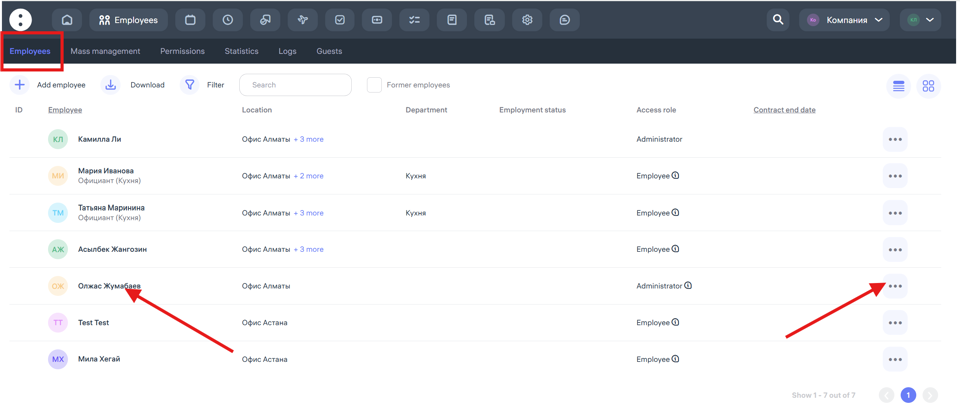
Navigate to the Employees section.
Select the employee from the list (if the employee is not yet in the system, first send them an invitation to join).
Click on the three-dot menu next to the employee’s name, or click directly on the employee’s profile to edit:
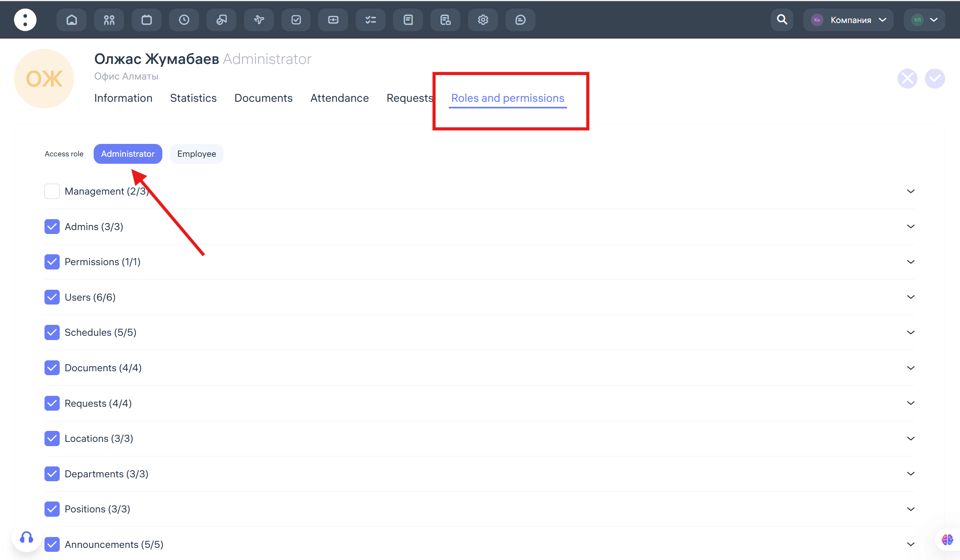
Assign the role Administrator and specify the required access rights to modules (e.g., Schedules only, Payroll only, Reports only, etc.):
Save your changes.
💡 Tip: You can modify or restrict administrator rights at any time, depending on organizational needs.
Creating Unified Permission Templates for Administrators
Purpose of Permission Templates
If you need to assign identical administrator rights to multiple employees, you can create a unified permission template.
This simplifies configuration and eliminates the need to manually set access rights for each administrator individually.
🛠 How to Create a Permission Template
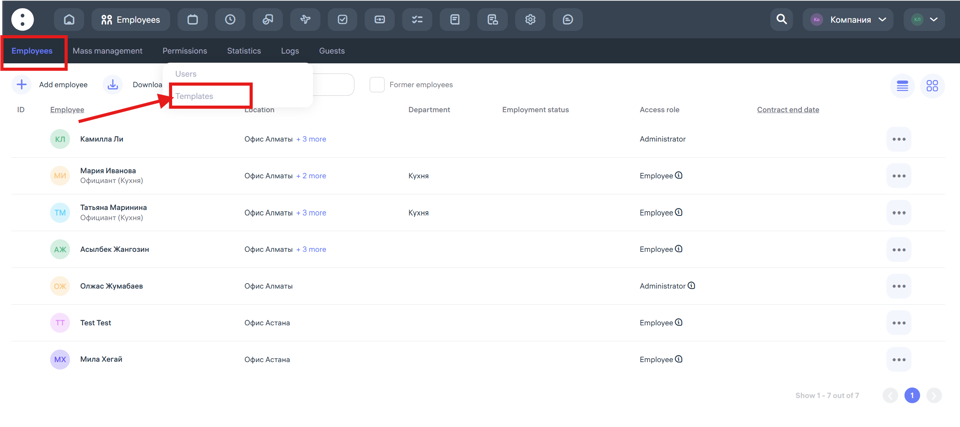
Go to Employees → Permissions.
Click Create Template.
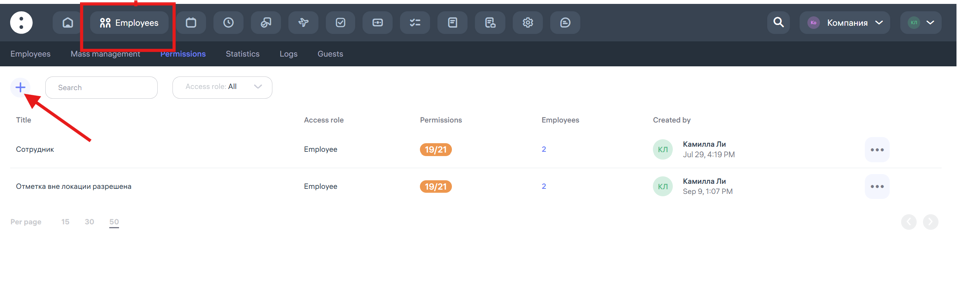
Enter the template name (e.g., HR Administrator, Payroll Administrator).
Select the sections and functions the administrator should have access to.
🌍 Assigning Administrators by Departments and Locations
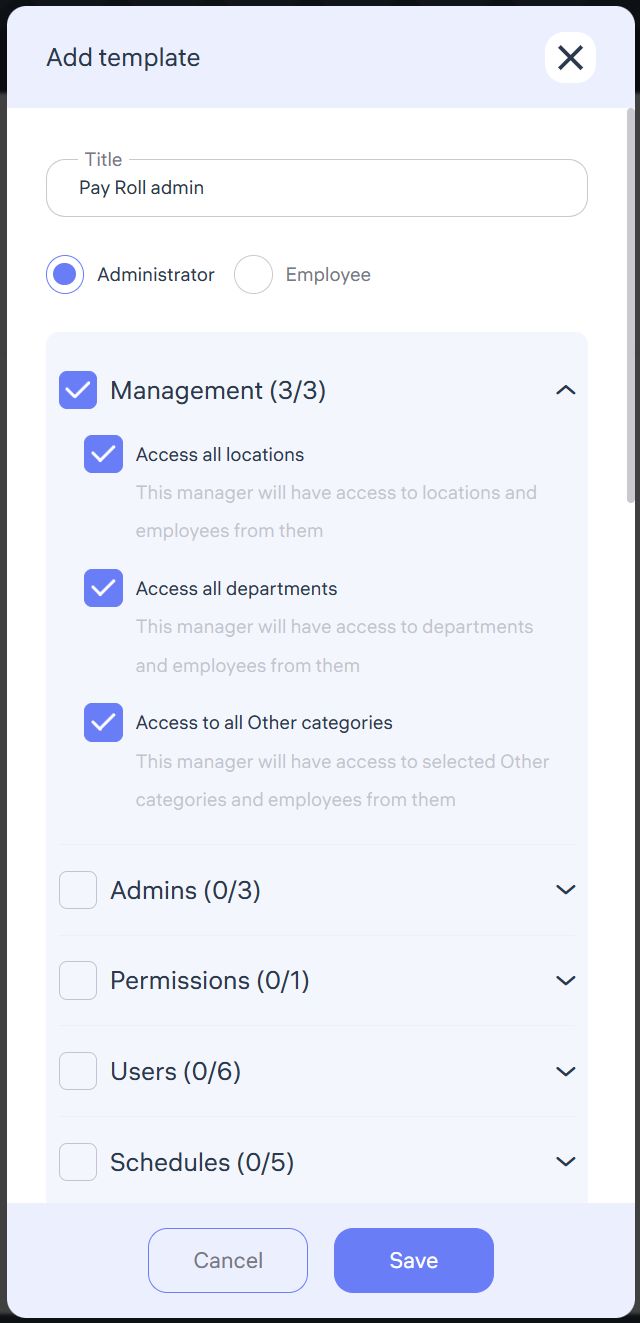
Clockster allows flexible access management: administrators can be assigned to specific departments or locations depending on their functional responsibilities.
For companies with multiple locations:
Go to Management.
Deselect Access to All Locations.
Assign administrators to specific locations.
For companies with one location:
You can delegate management by department.
Deselect Access to All Departments to restrict control.
The “Other” administrator category can be used for isolated groups of employees (temporary projects, external teams, etc.).
👥 Employee & Administrator Management Rights
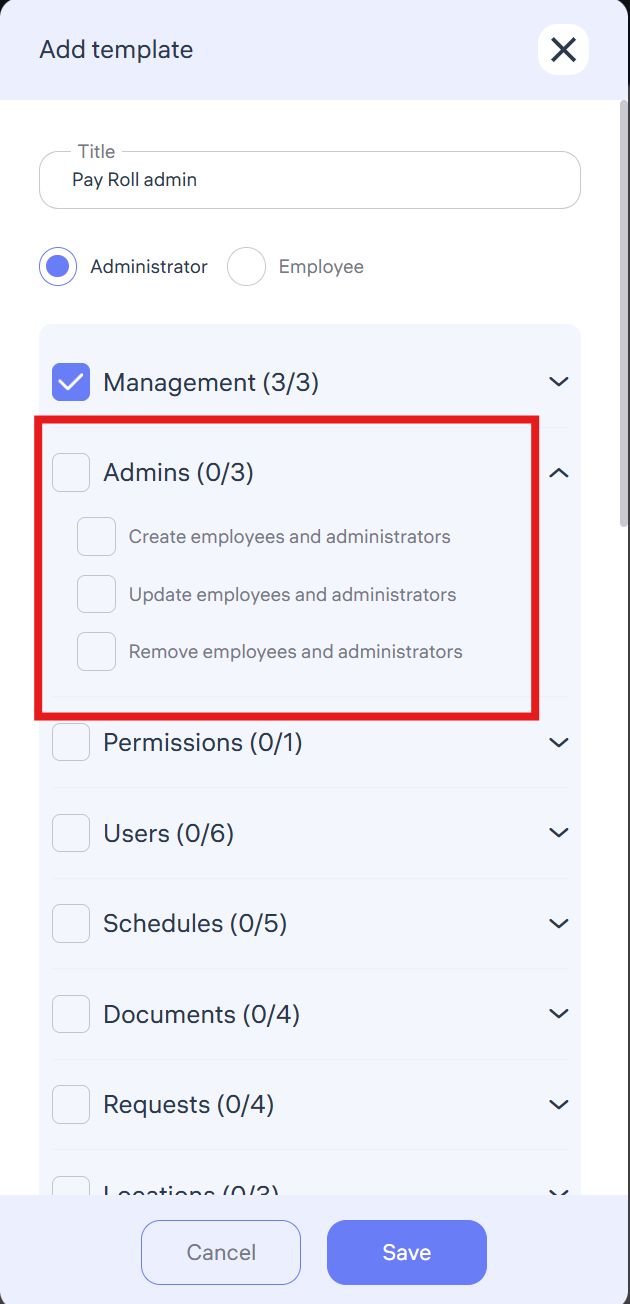
If a permission template includes rights to create, update, and delete employees or administrators, the assigned administrator will be able to:
Add new employees;
Assign new administrators (if permitted);
Edit or remove existing employees and administrators.
⚠️ For cases where an administrator should only be able to create new employees, a separate permission is available. This ensures fine-tuned access based on job responsibilities.
🔑 Managing Permissions and Templates
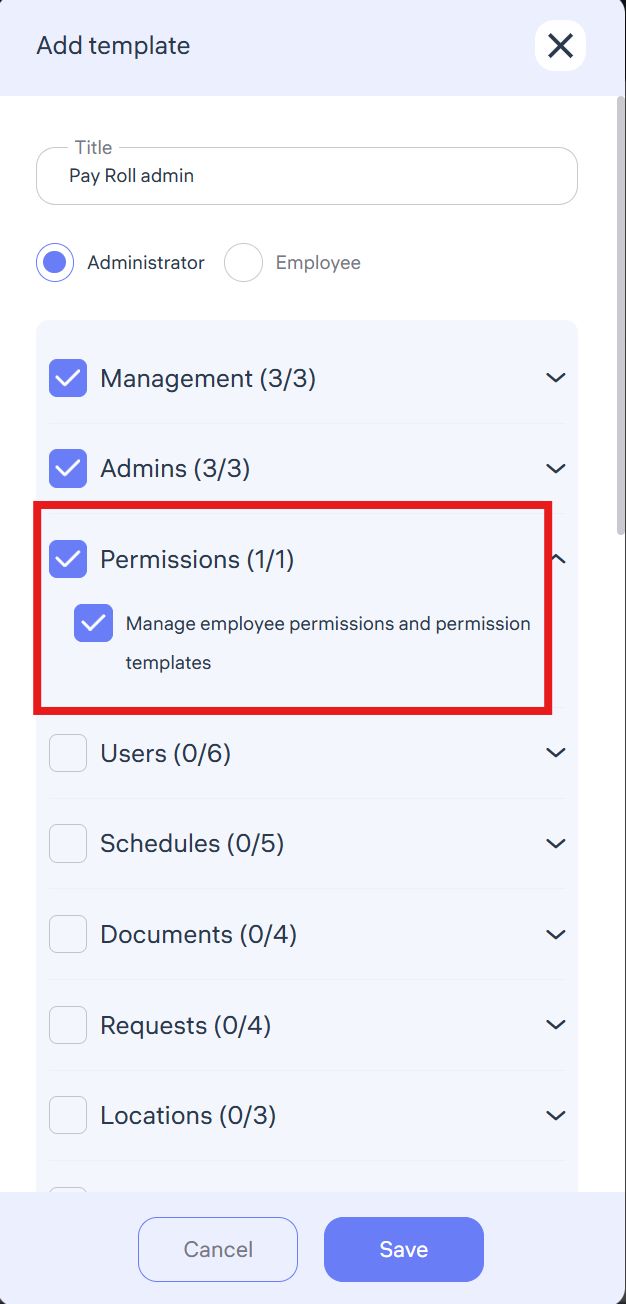
If an administrator has the “Manage Employee Permissions and Templates” right, they can:
Assign permission templates to other employees;
Edit existing access templates;
Grant access to subordinates within the limits of their own rights.
This enables delegated access control within departments or locations without granting full system-wide authority.
👤 Access to User Profiles
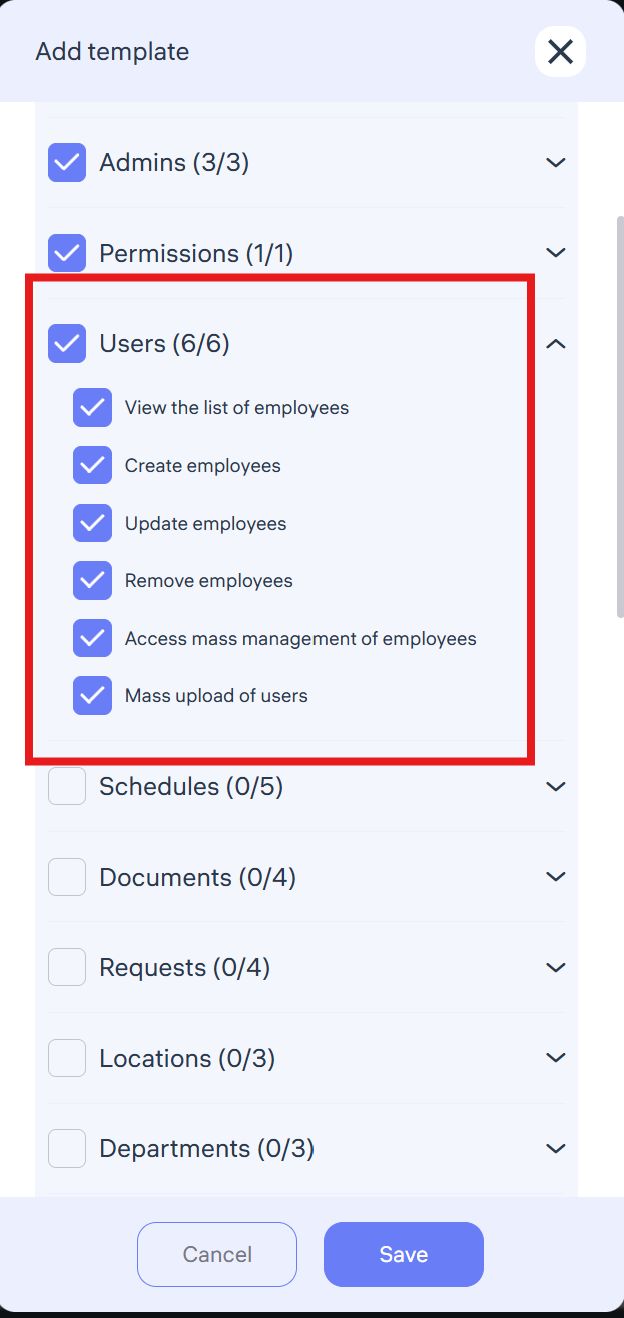
The “Access to Users” permission allows administrators to:
View employee profiles;
Edit personal and employment-related data;
Update records;
Delete employees from the system.
⚠️ This permission is recommended only for HR and personnel administrators directly responsible for employee records.
📅 Access to Schedules
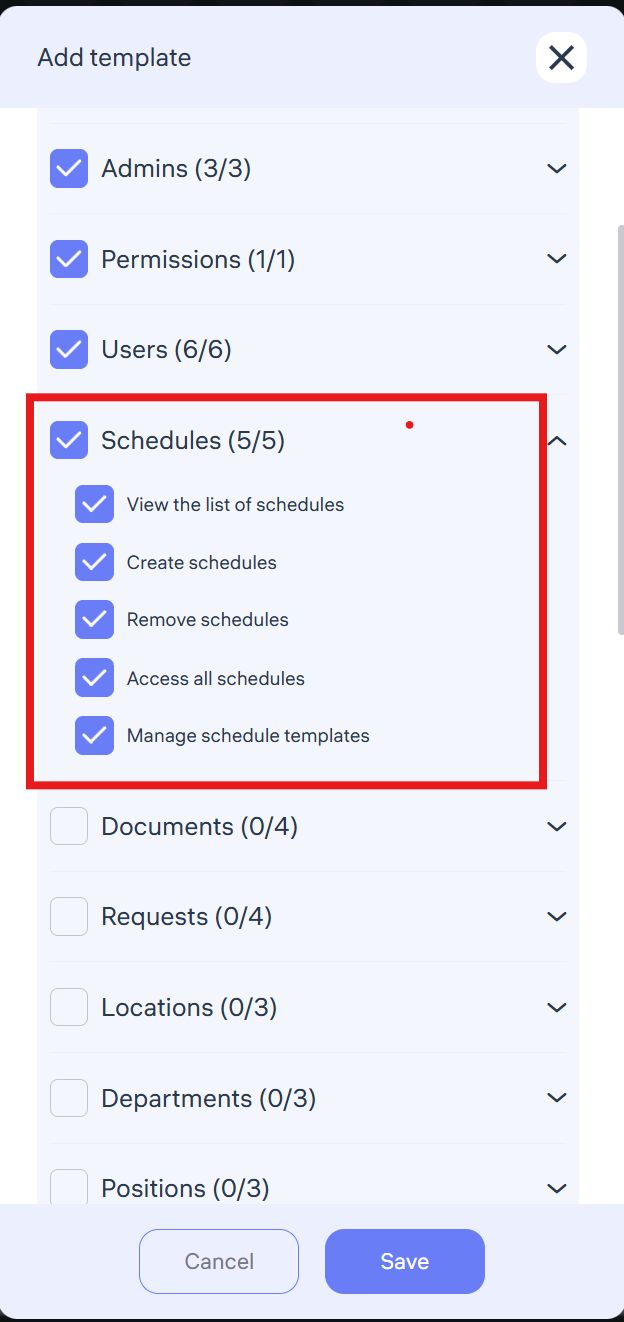
With schedule access, administrators can:
Edit, update, and delete work schedules.
Rights are defined by markers in the permission settings.
⚠️ Be sure to grant only the necessary actions to avoid accidental changes.
📂 Access to Documents
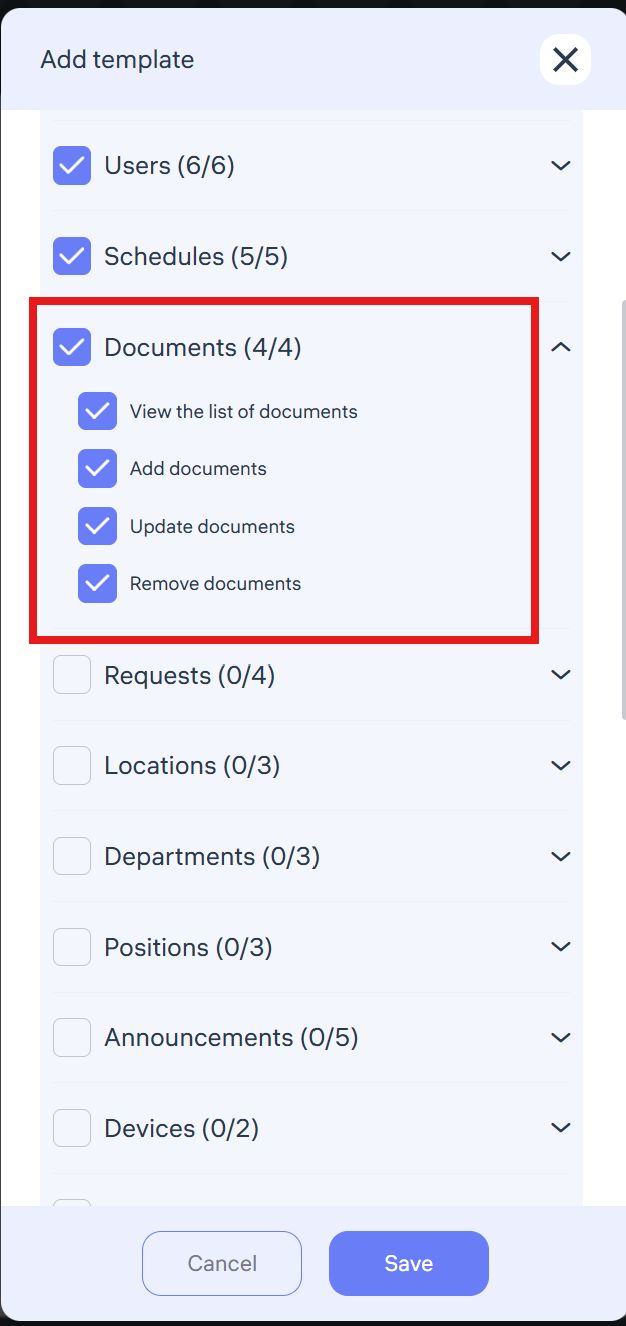
This permission grants administrators the ability to:
Manage documents uploaded by employees via the mobile app;
View, edit, delete, and organize files according to assigned rights.
📨 Access to Requests
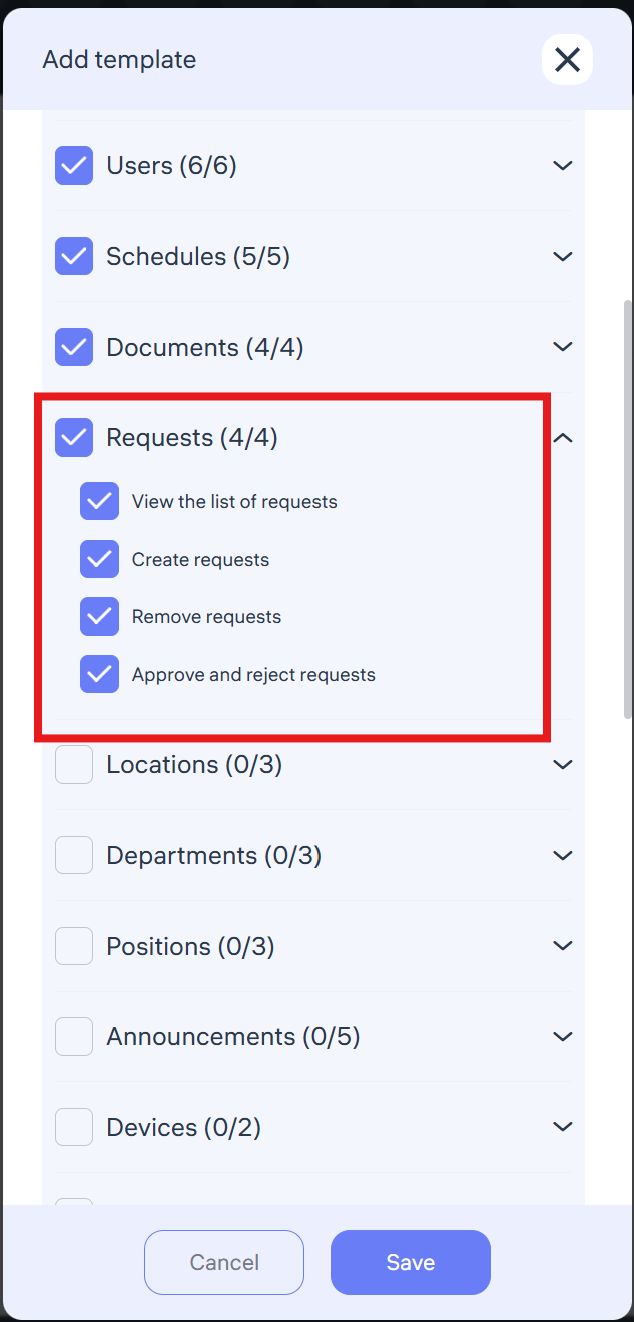
Administrators with this access can:
View all requests (within their departments or locations);
Create new requests;
Approve or reject employee requests assigned to them.
📢 Access to Announcements
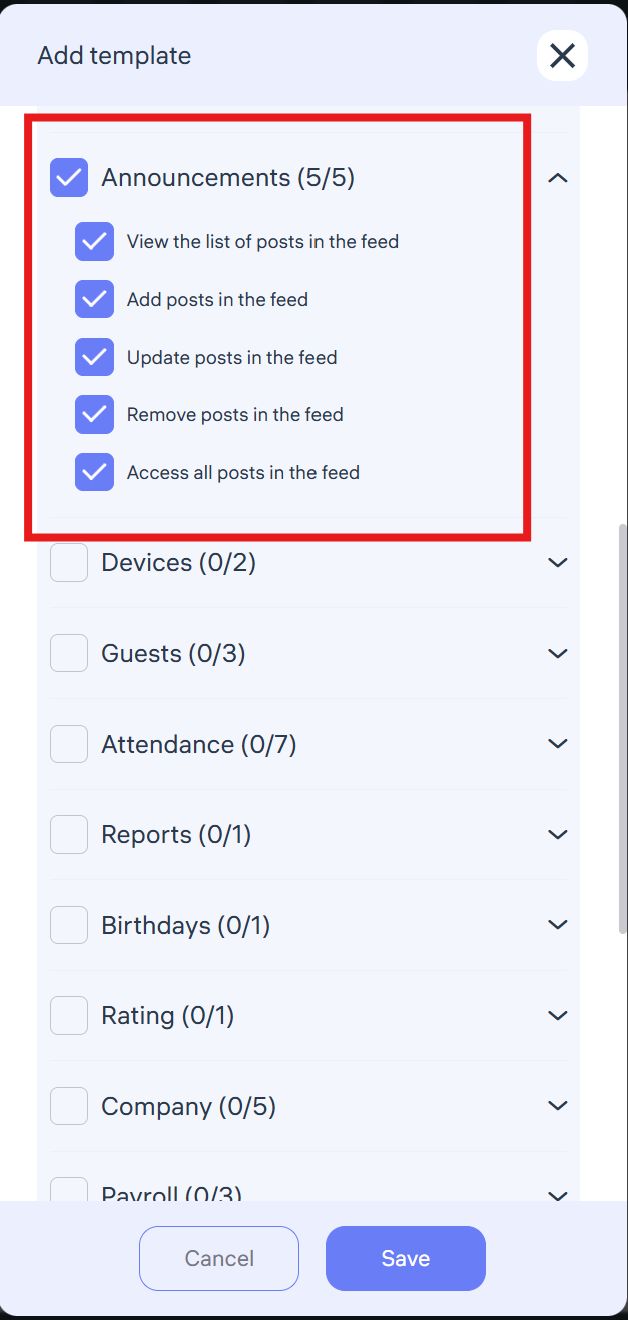
Administrators with announcement rights can:
Create and publish announcements (e.g., company news, policy updates, events).
Edit existing announcements to update or expand content.
Delete outdated announcements.
Download announcement reports and view read-statistics.
Announcements are displayed in both the mobile app and web version depending on employee roles and access.
🖥 Access to Devices
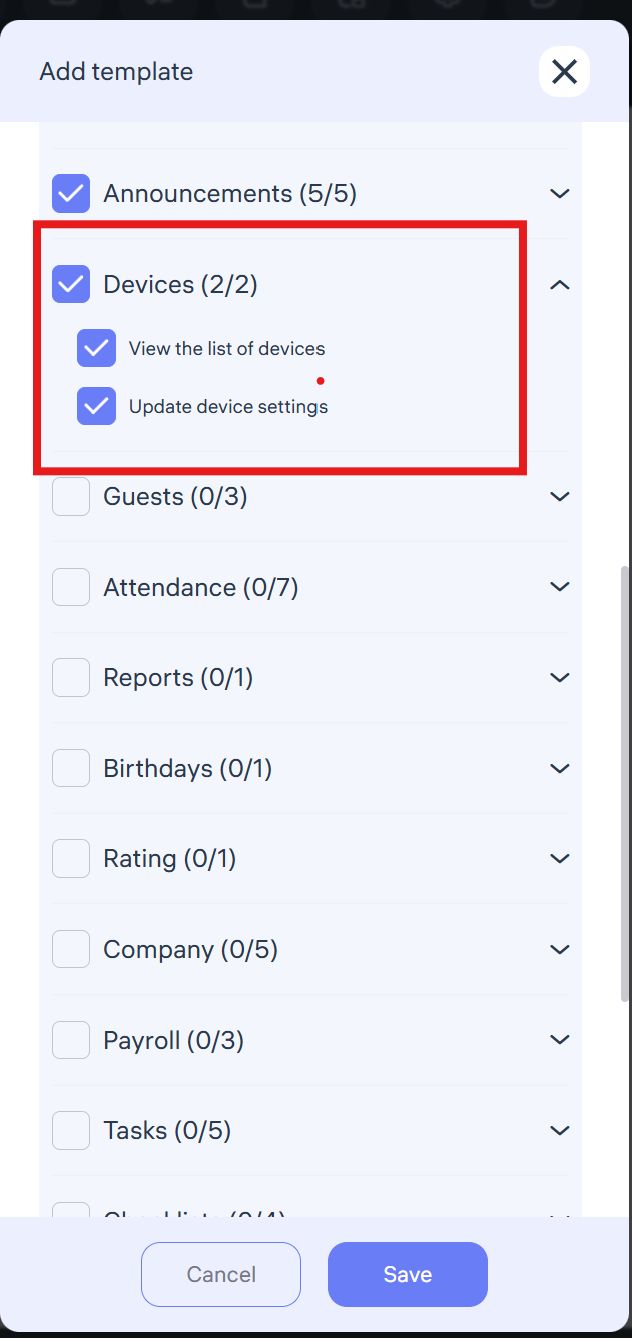
With device access, administrators can:
View the list of connected devices (e.g., biometric terminals).
Monitor device activity (online/offline status, last sync time).
Link devices to specific locations.
Access the master password to configure biometric devices.
🎟 Access to Guests
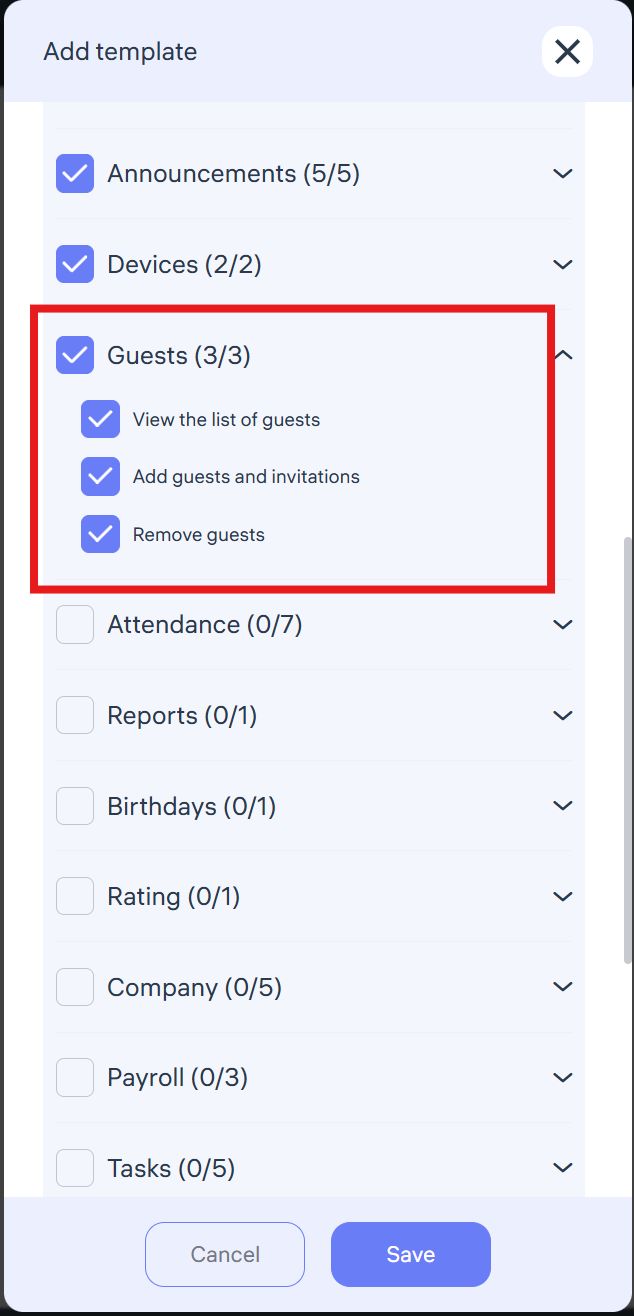
Administrators with guest access can:
View guest lists (visit date, status, location).
Add guests manually, specify purpose of visit, upload or capture a photo for biometric recognition, and send invitations via email.
Delete guest records (e.g., cancelled meetings).
This access is typically assigned to office managers, receptionists, security staff, and location managers.
⏱ Access to Attendance
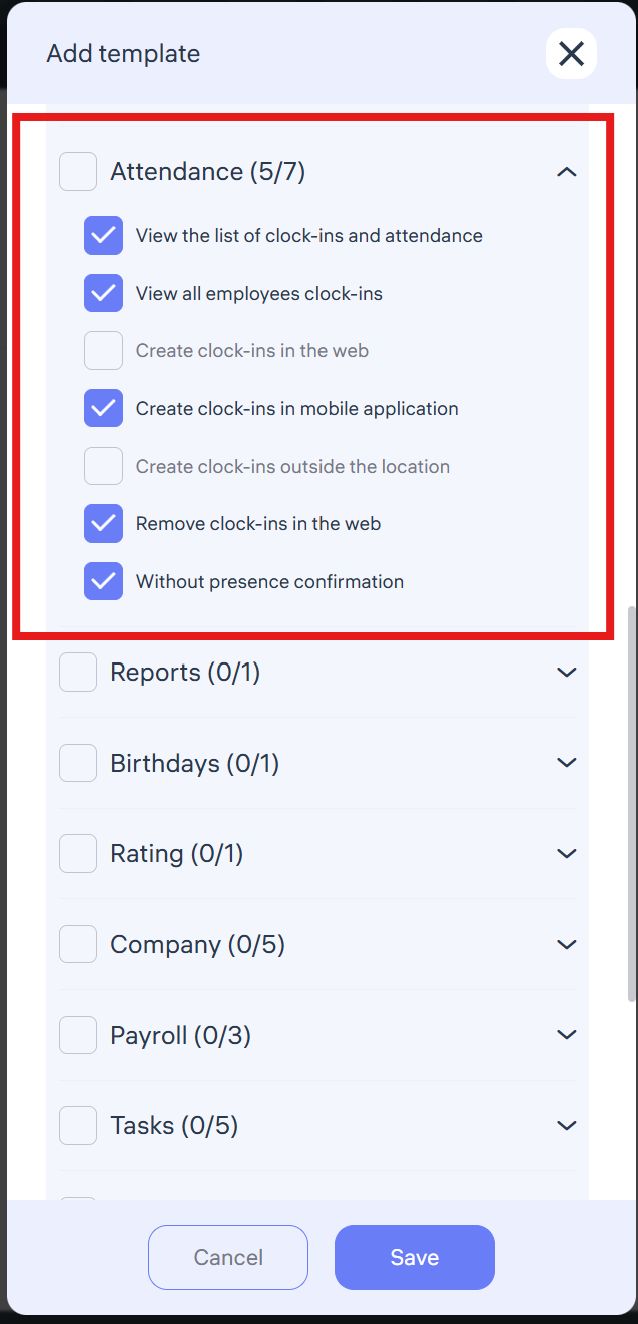
Administrators with attendance rights can:
View their own attendance history.
View employee check-ins (by department/location).
Add check-ins manually through the mobile app.
Delete manually created check-ins in the admin dashboard.
Configure presence verification (random location checks during shifts).
⚠️ Manual check-in creation/deletion is sensitive and should only be assigned to trusted HR administrators.
📊 Access to Reports
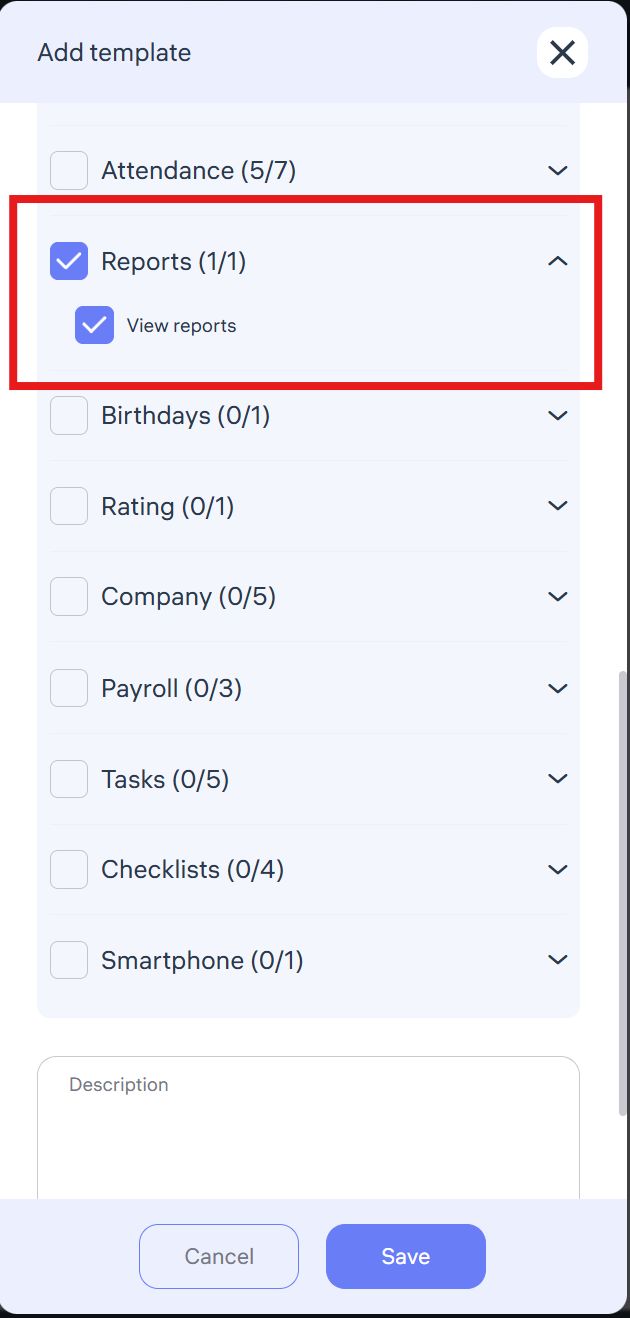
With report access, administrators can:
View all system-generated reports (attendance, time tracking, requests, tasks, performance metrics).
Use data for analysis and decision-making.
Recommended for department heads, HR managers, and efficiency specialists.
🎂 Access to Birthdays
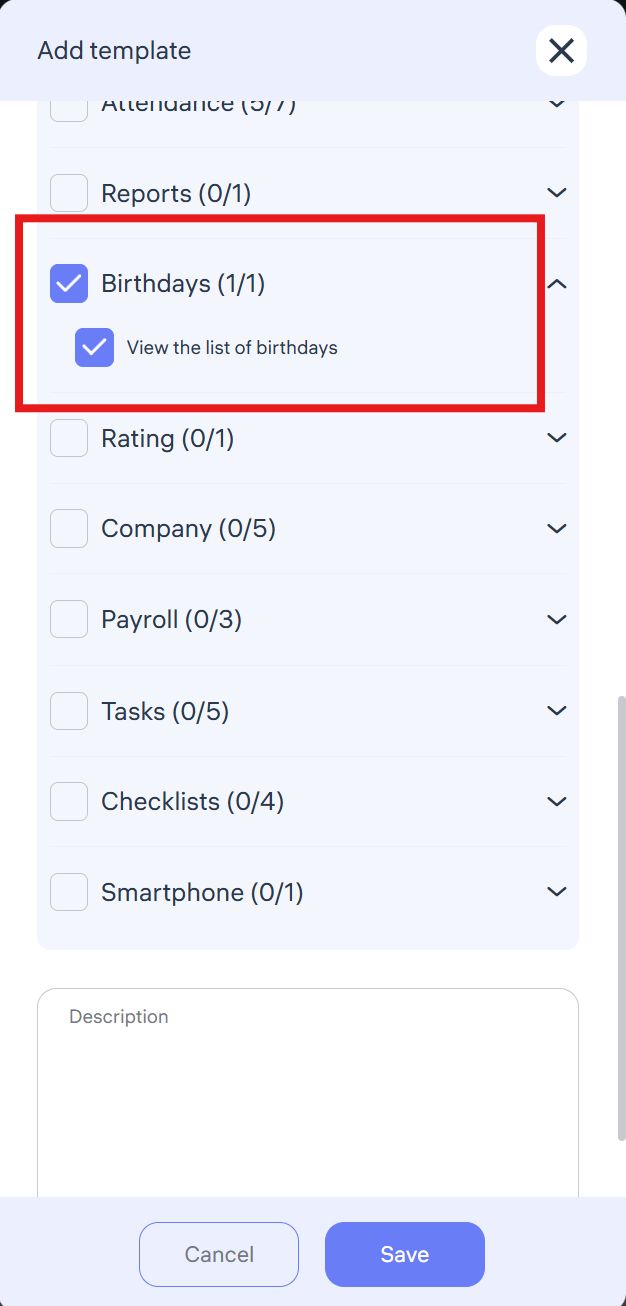
Administrators with this access can view a list of employee birthdays (name, date, position, location).
The list appears in the admin dashboard under Home → Birthdays.
⭐ Access to Ratings
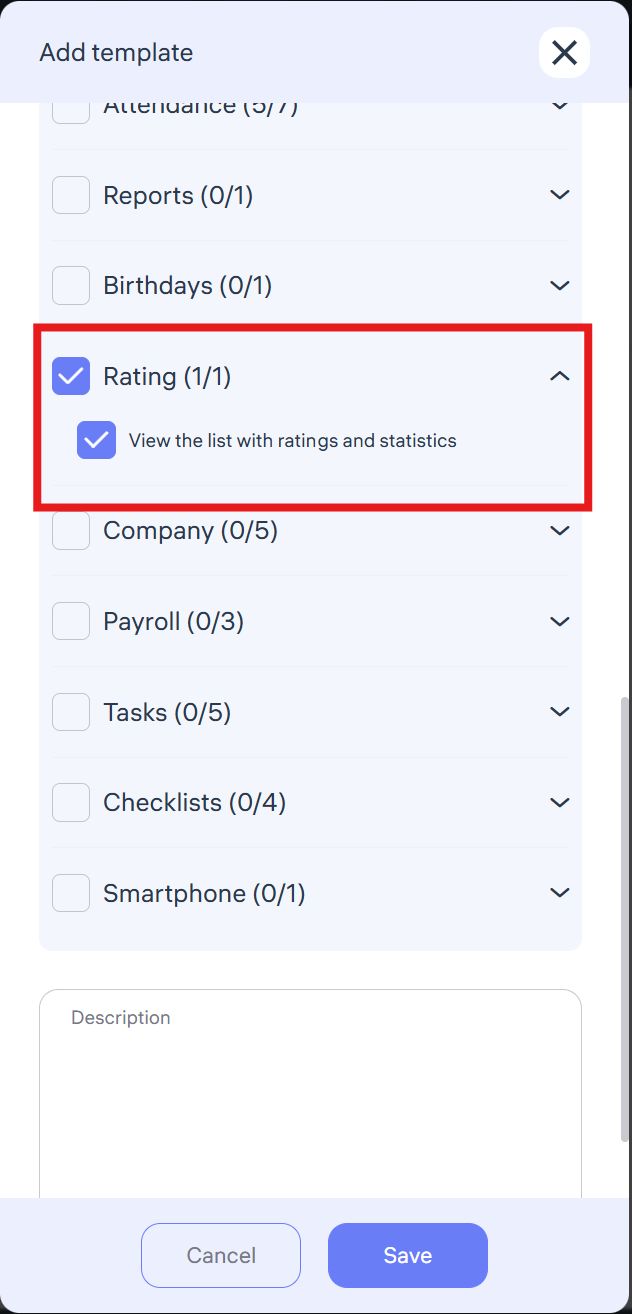
Administrators can:
View employee ratings (attendance, schedule adherence, activity).
Compare performance across departments, locations, and positions.
Identify top performers and underperformers.
Use cases:
Motivation and recognition (e.g., Employee of the Month).
Tracking engagement trends.
Encouraging healthy competition.
🏢 Access to Company
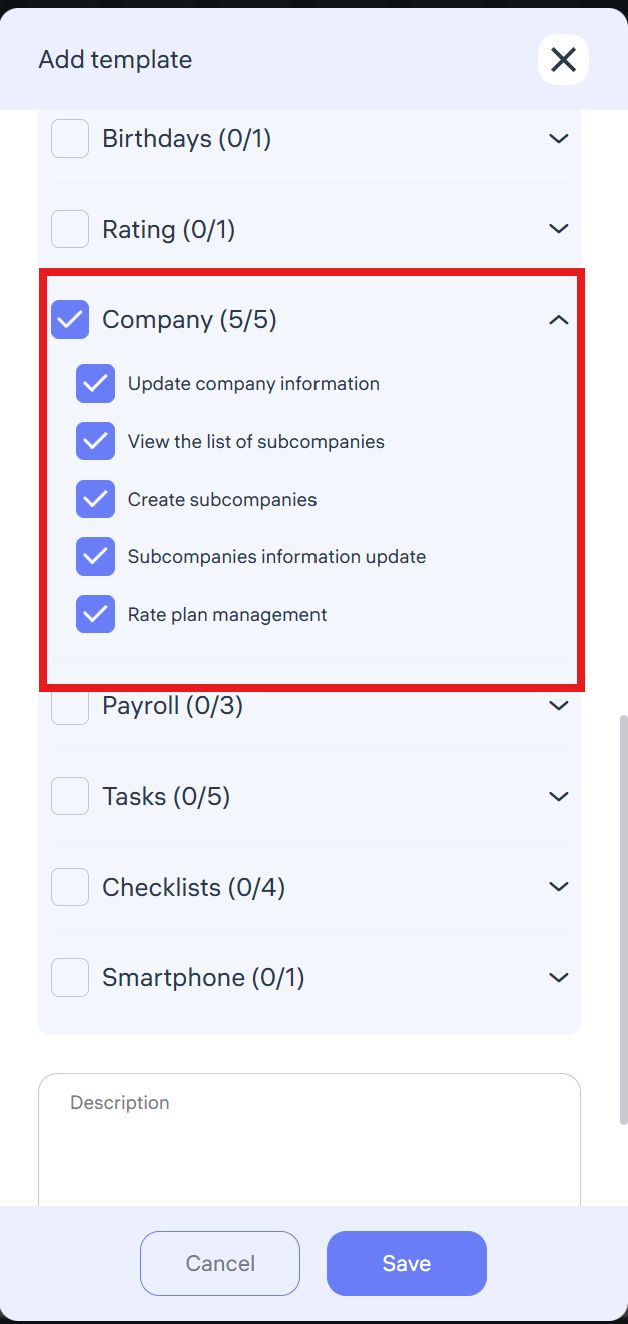
With full access, administrators can:
Update company details (name, logo, contacts, address).
View and manage subsidiaries or branches.
Create new sub-companies.
Edit subsidiary details.
⚠️ Recommended only for Key Administrators or Account Owners, as changes affect the entire system.
💵 Access to Payroll
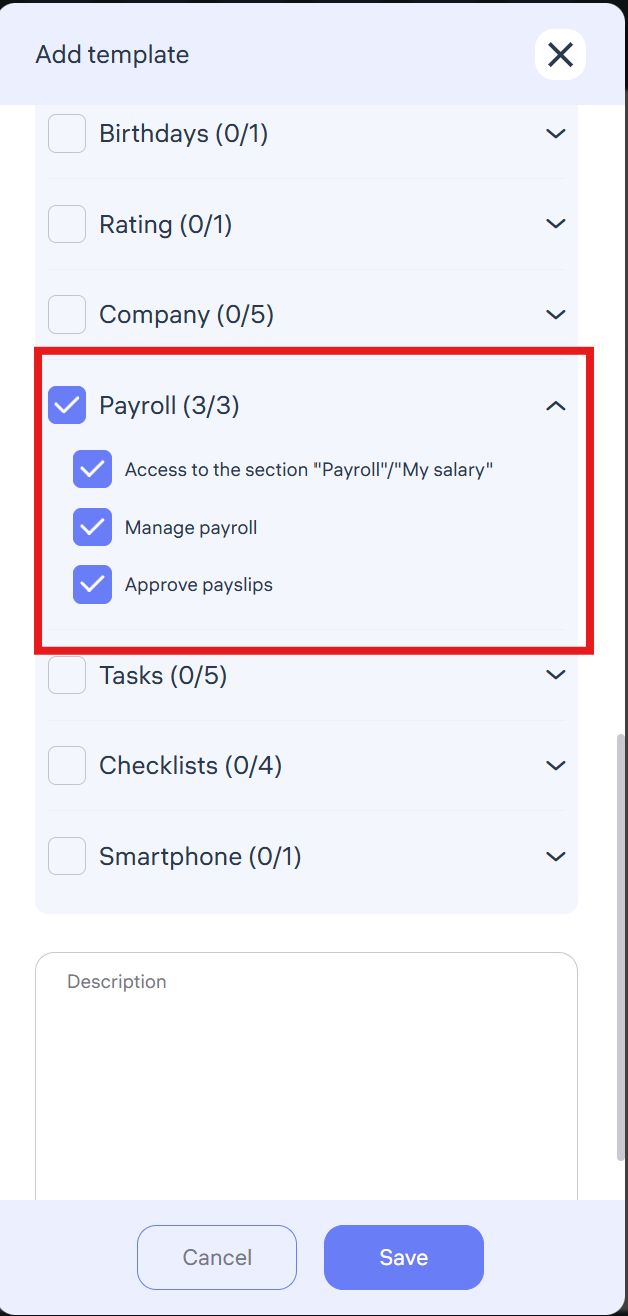
Full payroll access allows administrators to:
View salary details (earnings, deductions, net pay).
Configure payroll data (base salary, bonuses, deductions).
Approve payslips before final payouts.
⚠️ This is highly confidential access. Assign only to payroll specialists, HR, finance managers, or business owners.
✅ Access to Tasks
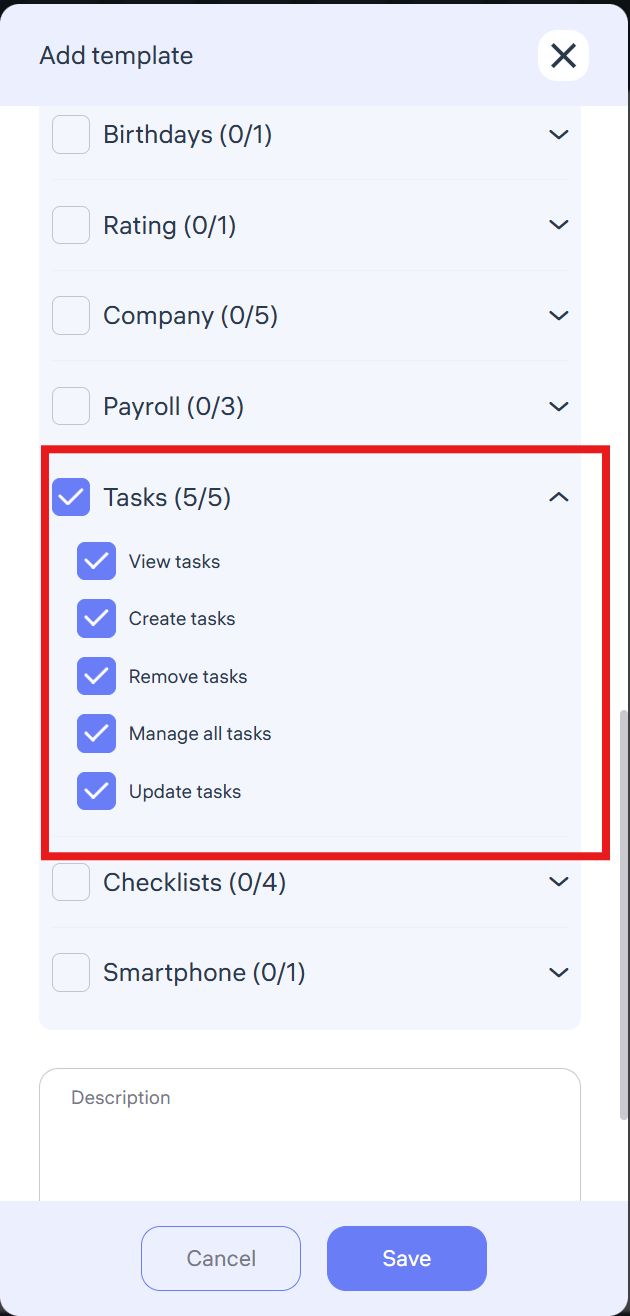
With full task management rights, administrators can:
View all employee tasks and statuses.
Create and assign new tasks.
Delete outdated or erroneous tasks.
Reassign, edit, and update task deadlines.
Modify priorities and task details.
Recommended for team leads, project managers, HR coordinators.
✅ Access to “Checklists”
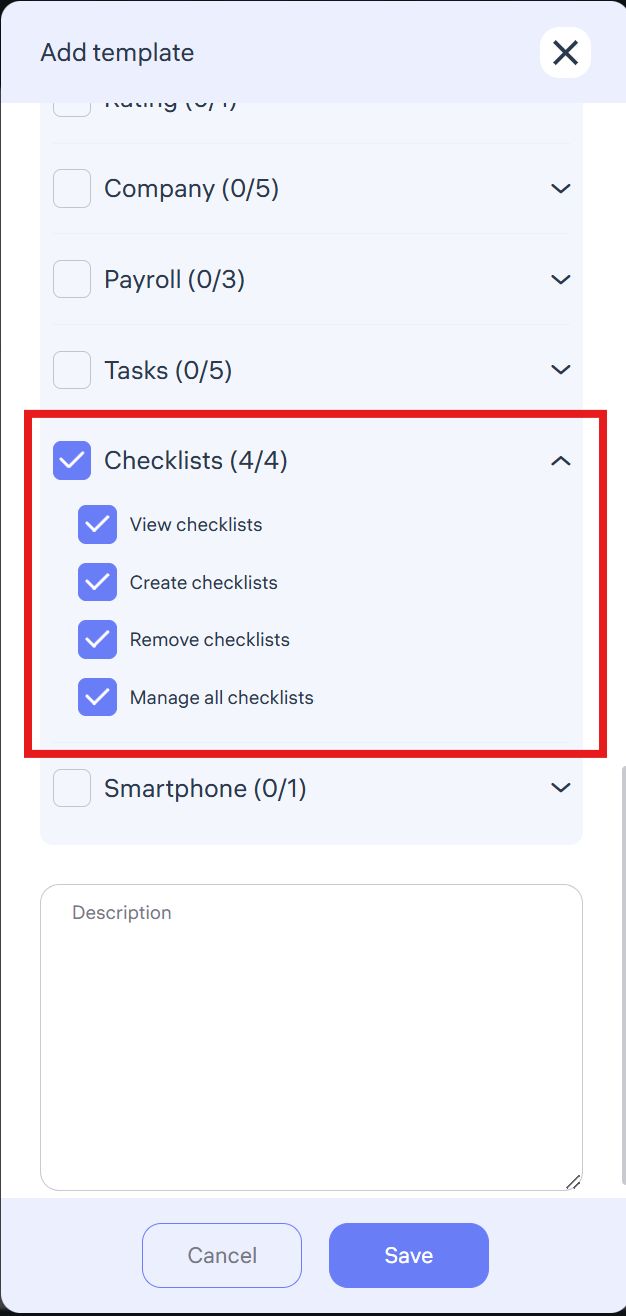
The Checklists section allows administrators to manage task lists and monitor process execution within the company.
Depending on the permissions granted, an administrator can:
View checklists
Access to view all checklists within their assigned location or department.Create checklists
Ability to create new task lists and assign them to employees or teams.Remove checklists
Permission to delete outdated or incorrect checklists.Manage all checklists
Full control: editing, updating, and administrating all company checklists.
Full access to checklists is recommended only for administrators responsible for process organization, quality control, and compliance with internal standards.
✅ Access to the “Smartphone” Section
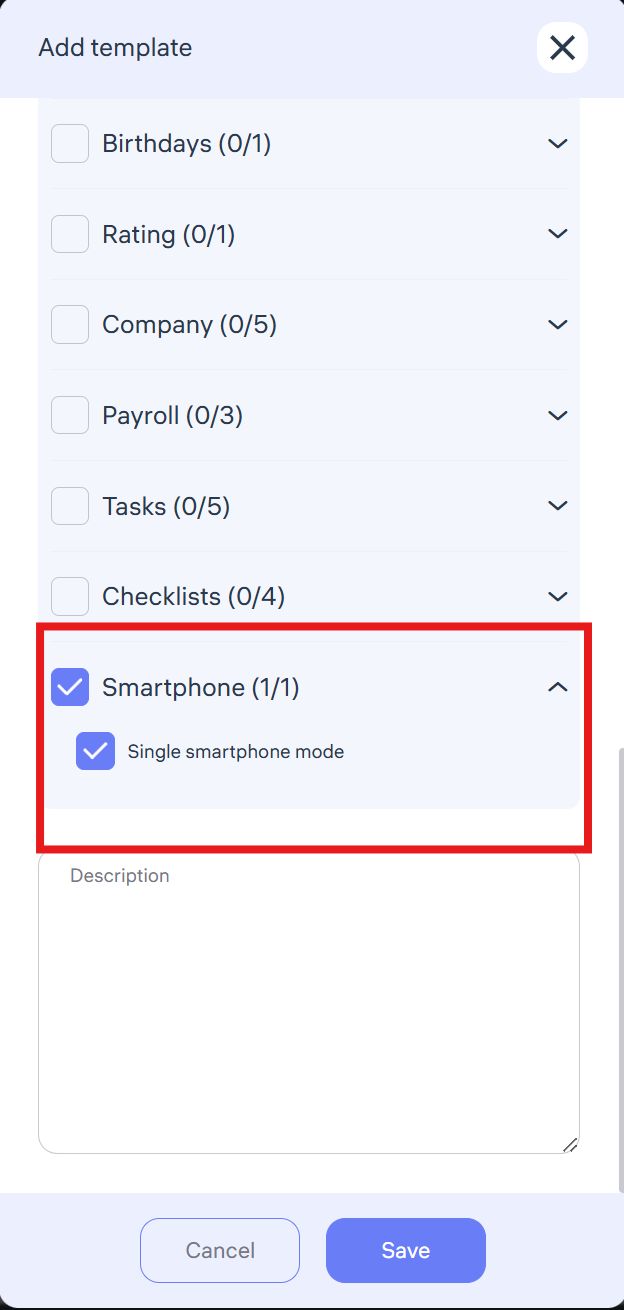
The Single Smartphone Mode setting means that an employee can log into the Clockster mobile app using their personal login and password only from one mobile device.
This restriction ensures:
Data security and transparency,
Prevention of multiple device usage under a single account,
Elimination of attempts to share accounts between employees.
Enabling this mode is recommended to maintain strict control over attendance tracking and to avoid unauthorized access from different devices.
🎯 Key Takeaways
Permission templates simplify and standardize administrator rights management.
Access can be fine-tuned by role, department, or location.
Sensitive permissions (e.g., Payroll, Attendance edits, User management) should only be assigned to trusted individuals.
By using templates, companies can scale administration efficiently while ensuring security and accountability.