
Payroll
Guide to Using the “Payroll” Module
The “Payroll” module allows you to automate employee payroll calculation based on worked hours, rates, and additional earnings. Follow this guide to set up and use the module effectively.
Block 1. Preparing to Use the Module
Before you start, make sure that:
Employees are correctly added to the system.
Work schedules and shifts are properly configured.
Employees regularly check in and out.
These data are necessary for the system to correctly account for working time in payroll calculations.
Block 2. Main Payroll Settings
Open the “Payroll” section in the Clockster menu.
Go to the “Settings” tab.

3. Set up basic employee pay rates:
Enter the name of the rate.
If you want overtime to be rounded (so extra hours aren’t counted with decimals), turn on the rounding toggle.
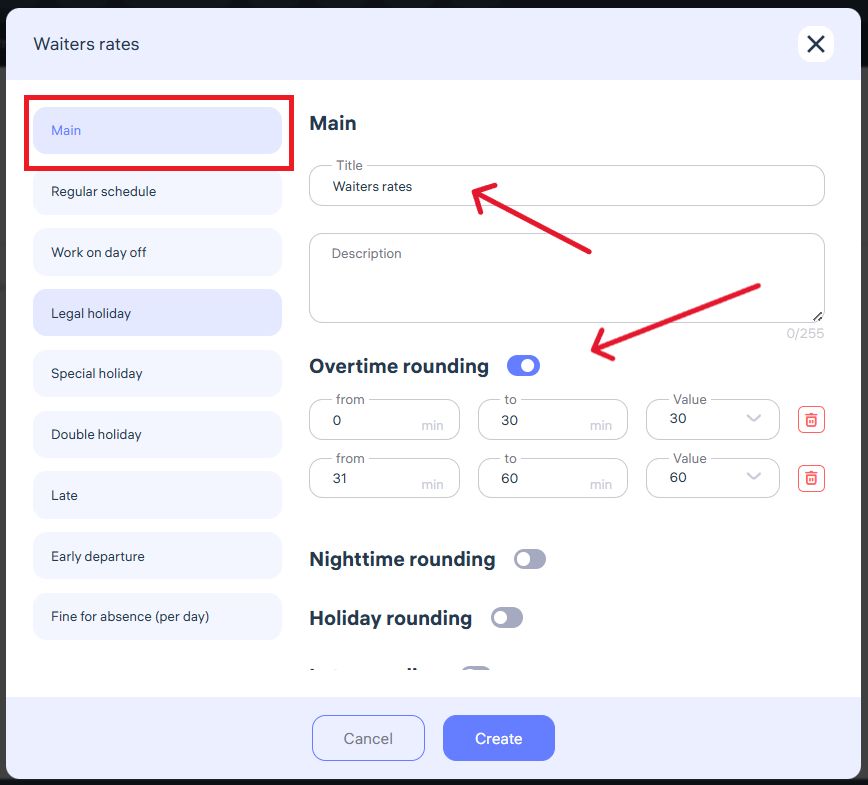
4. Configure bonuses and deductions:
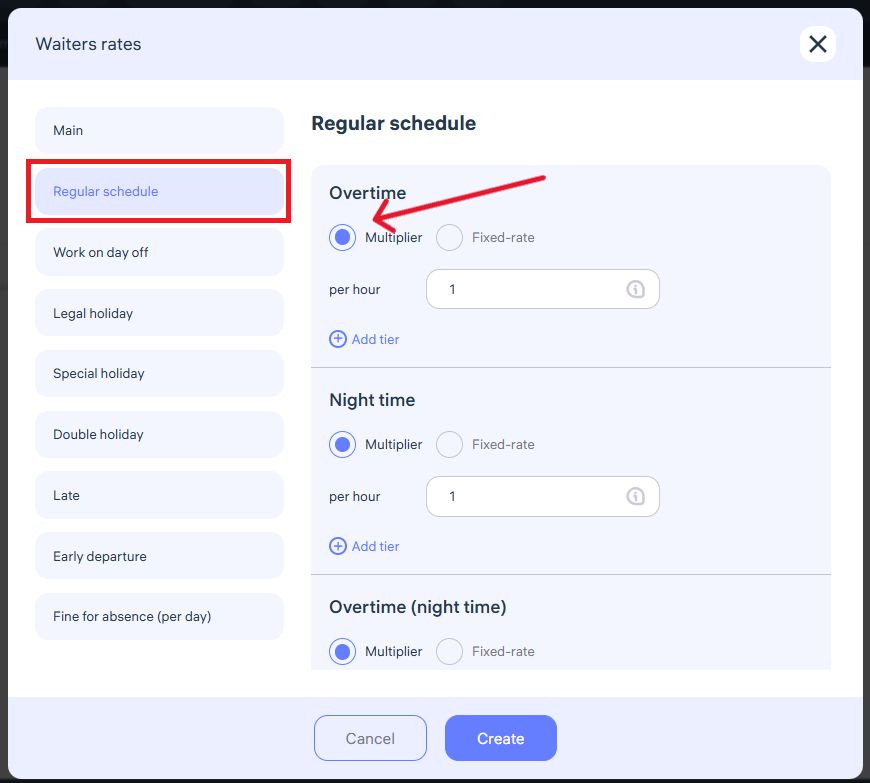
If an employee’s pay is set as a monthly rate, Clockster automatically calculates the hourly rate based on the planned number of working hours in the current month. This ensures accurate payment for overtime, night shifts, and other additional hours.
If you set a fixed hourly rate manually, Clockster will use that rate for all additional hours worked.
5. Setting pay for work on the employee’s day off:
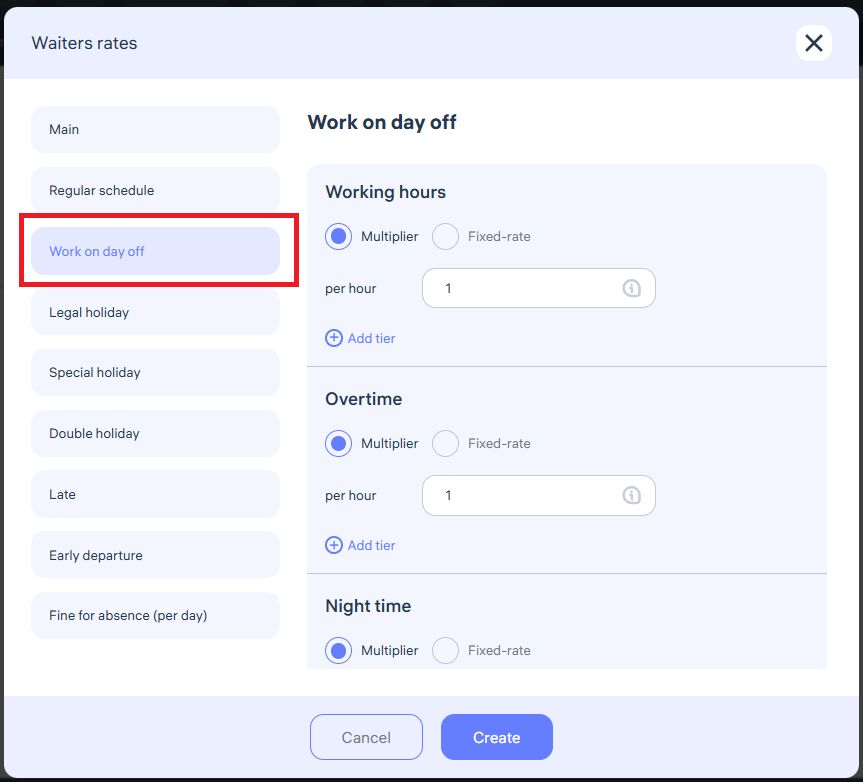
Clockster calculates payment for working on a day off as follows:
If an employee works on their day off, you can set payment either by a multiplier (e.g., double pay = multiplier 2) or by a fixed-rate.
Clockster automatically calculates the payment using the multiplier or fixed rate for each worked hour.
Overtime and night shifts can be configured separately for day-off work.
Example: If the multiplier is “2”, the employee receives double the standard hourly rate. If a fixed rate is used, Clockster bases the calculation strictly on that rate.
6. Setting pay for work on a legal holiday:
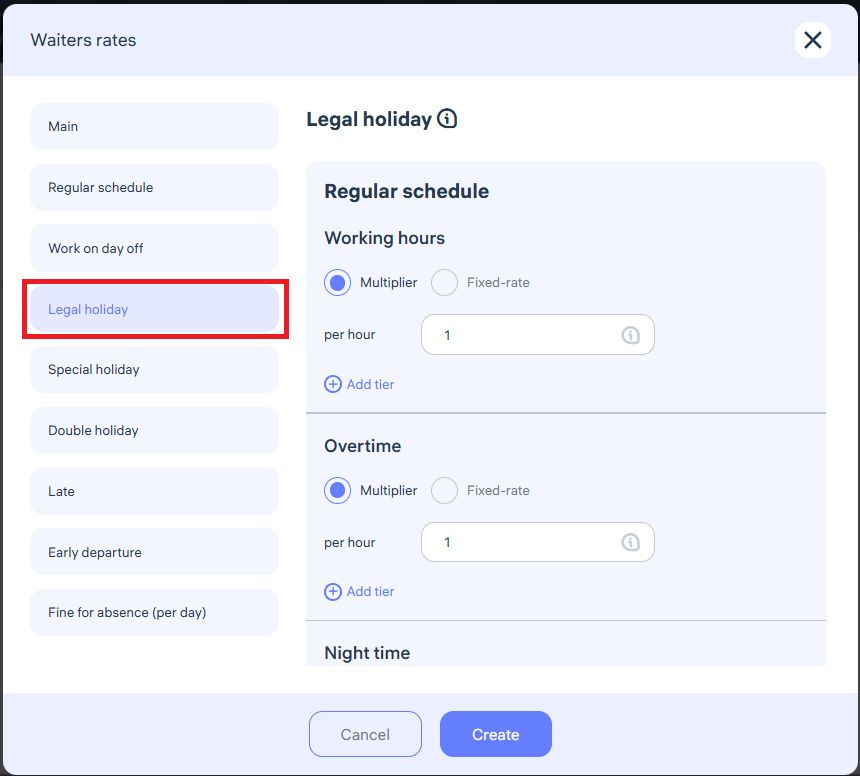
If an employee works on a legal holiday, you can choose between a multiplier or a fixed hourly rate.
With a multiplier (e.g., 2×), the system automatically increases the pay for each hour worked on the holiday.
With a fixed hourly rate, Clockster uses only the value you specify, regardless of the standard rate.
Overtime and night hours can also be configured for holidays in the same way.
This gives you flexibility in managing pay for employees working on holidays.
7. Setting pay for work on a special holiday:
Clockster calculates pay for special holidays as follows:
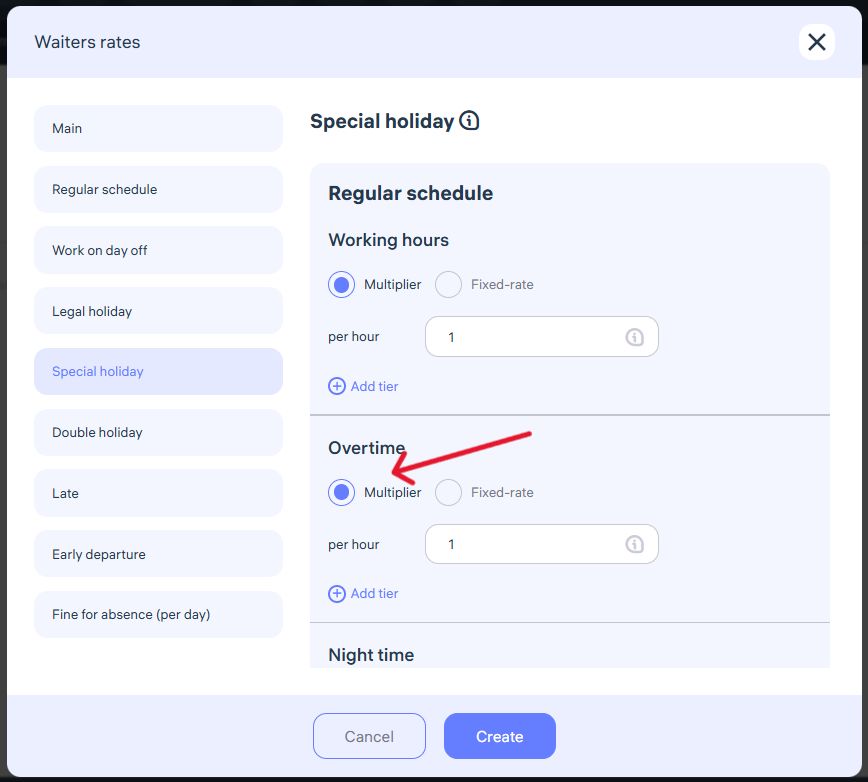
You can choose to pay using a multiplier (e.g., 1.5 or 2) or set a fixed hourly rate.
When using a multiplier, the system multiplies the employee’s standard hourly rate by the specified coefficient.
When using a fixed rate, Clockster calculates pay strictly based on the entered value.
Overtime and night hours for special holidays can also be configured separately.
8. Setting pay for work on a double holiday:
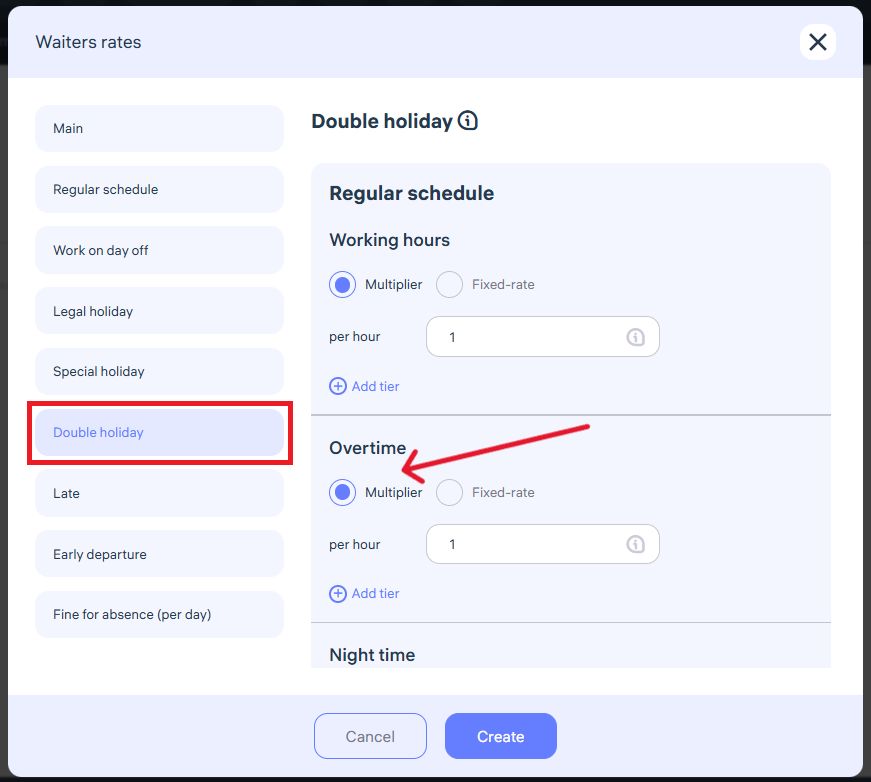
A double holiday occurs when a legal holiday coincides with an employee’s regular day off.
You can pay using a multiplier (e.g., 1.5 or 2) or a fixed hourly rate.
With a multiplier, Clockster multiplies the standard hourly rate by the coefficient for each worked hour.
With a fixed rate, Clockster uses that value for all calculations.
Overtime and night shift settings work the same way as for special holidays.
In the example, a fixed overtime rate of “0.00” means no pay for overtime during double holidays.
To enable overtime pay, set the fixed rate above zero or use a multiplier relative to the employee’s standard rate.
9. Setting a late arrival penalty:
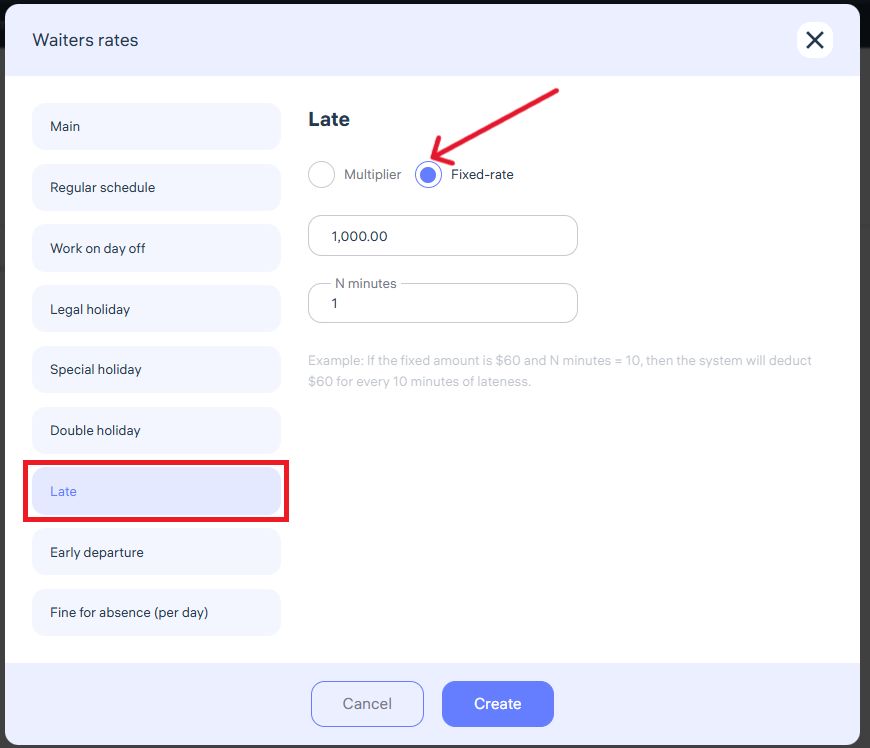
Clockster allows you to automatically deduct penalties for lateness.
Example: A fixed rate of “1000 per minute” means the system deducts 1000 units from the employee’s payroll for each minute late.
You can adjust this setting:
Multiplier – the deduction is proportional to the employee’s standard hourly rate.
Fixed rate – the deduction is a constant amount for every N minutes of lateness.
10. Setting an early departure penalty:
Setting an absence penalty:
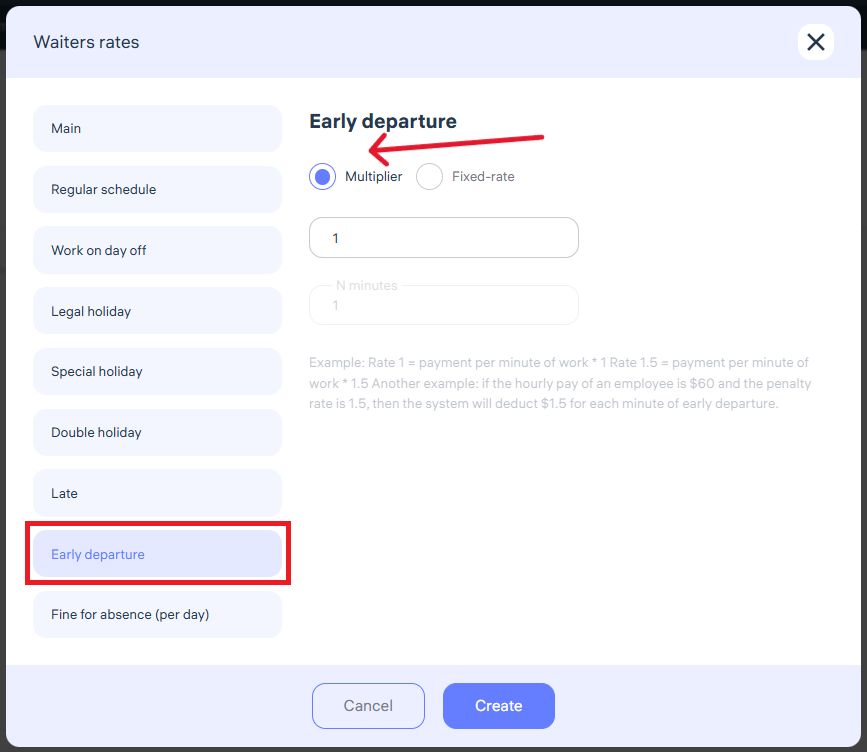
Clockster can also deduct pay for leaving work early.
Example: A multiplier of “1” means the system deducts the employee’s standard per-minute pay for every minute of early departure.
You can configure this in two ways:
Multiplier – the penalty equals the employee’s per-minute rate × the multiplier.
Fixed rate – a constant deduction regardless of the employee’s standard rate.
11. Setting an absence penalty:
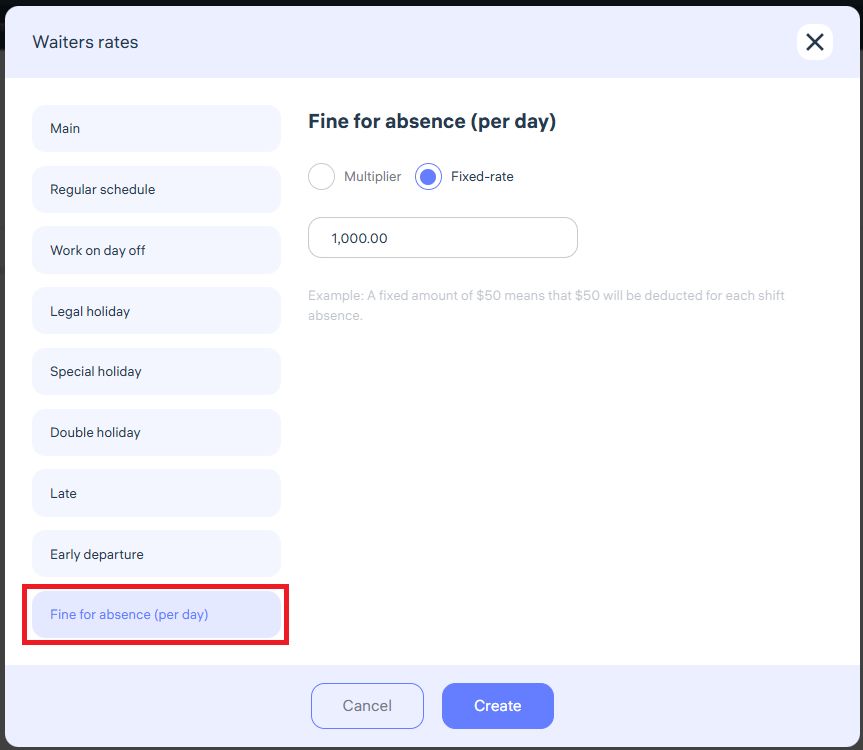
Clockster automatically applies penalties for unexcused absences:
Example: A fixed rate of 1,000 means that if an employee misses a full day without checking in, the system deducts 1,000 from their payroll.
You can choose between:
Multiplier – the penalty equals the employee’s daily rate × multiplier.
Fixed rate – a constant deduction regardless of the salary.
⚠️ Important:
If there’s no check-in, check-out, or both during a working day, Clockster counts it as an absence. The penalty applies automatically.
To avoid unnecessary deductions, make sure employees always check in and out on time.
Save your rate changes!
Clockster allows you to create multiple pay rates depending on your company’s needs, including:
Basic payroll rates
Overtime rates
Weekend and holiday pay
Night shift pay
Penalties for lateness, early leave, or absences
These rates can be applied to different employee categories depending on their position, work conditions, and motivation system.
This flexibility allows for accurate and fully automated payroll calculations across your company.
How to Set Up Additions and Deductions in Clockster
If you need to provide an employee with additional payments beyond their base salary — such as compensations, benefits, bonuses, or other fixed payments — use the “Additions” section.
This section is especially convenient if you have standard monthly payments that need to be automatically added to employee payrolls.

To set up an additions:
Go to the “Additions” section.
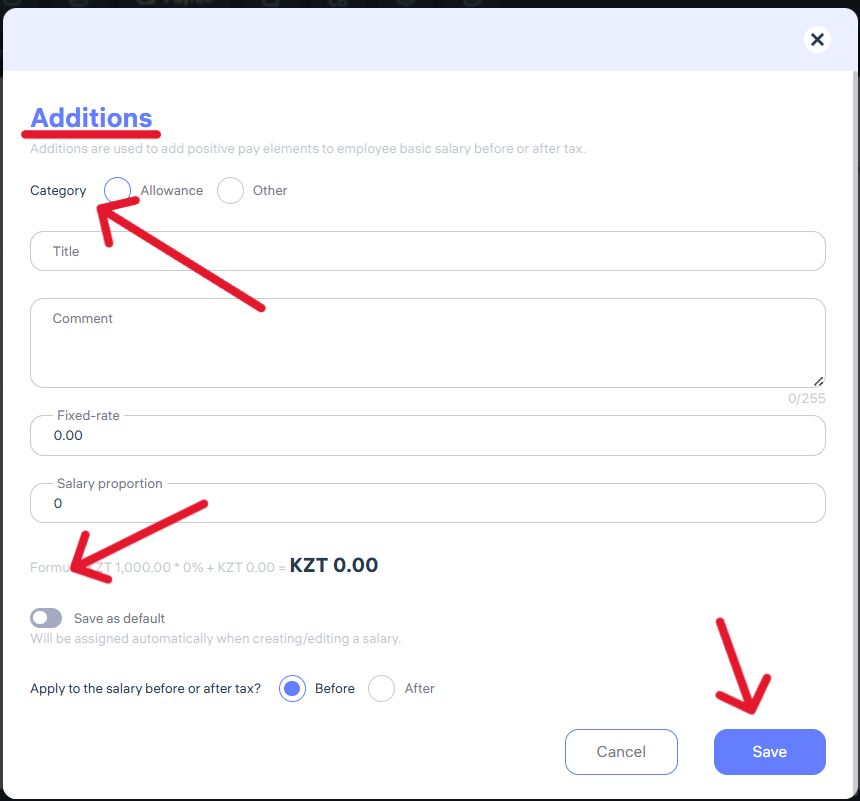
Select the payment category (allowance, other).
Enter the title (for example, “For participation in extra shifts” or “Bonus”).
Add a comment if you need to provide clarification for accounting or employees.
Specify a fixed amount (a specific sum) or set a percentage of the salary if the addition depends on the base rate.
Choose whether the addition applies before or after taxation, depending on your company’s policy and legal requirements.
If needed, activate “Save as default” — this allows the same addition to be automatically applied when creating or editing employee payrolls.
Click “Save” to apply the changes.
Once assigned, the addition will automatically appear in the employee’s payslip every month. This helps you easily manage additional payments without manual recalculations each time.
How to Set Up Deductions in Clockster
If you need to record a payroll deduction for an employee — for example, for broken dishes, property damage, or other withholdings — use the “Deductions” section.
To set up a deduction:
Go to the “Deductions” section.

2. In the “Title” field, specify the reason for the deduction (for example, “Broken 12 cm plate”).
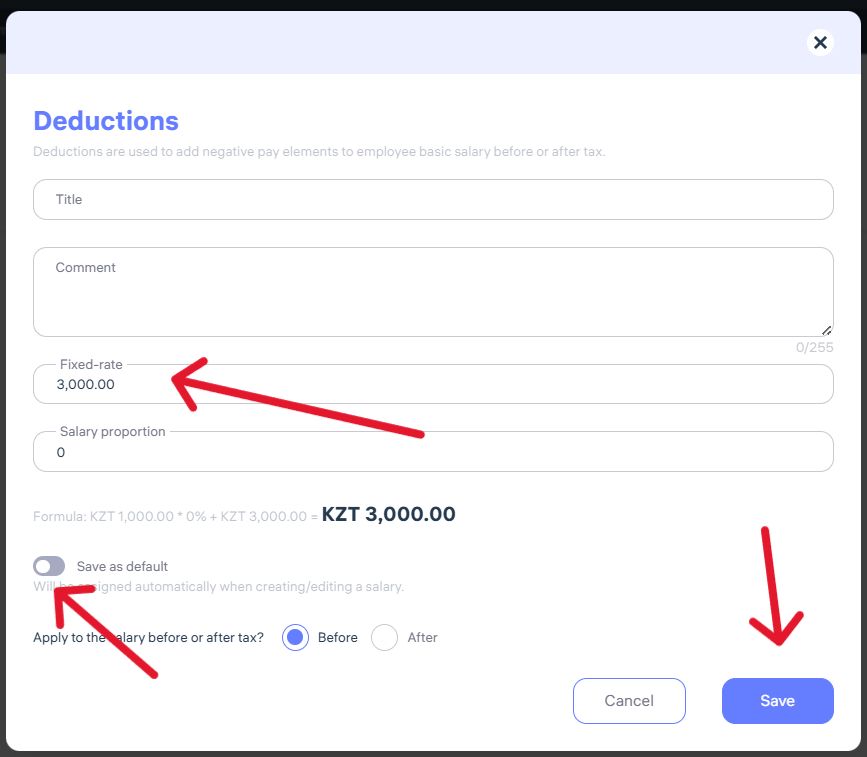
3. Add a comment if necessary.
4. Enter the fixed amount, i.e., the exact deduction sum (for example, 3,000 KZT).
5. Optionally, you can specify the deduction as a percentage of the salary.
6. Choose whether the deduction applies before or after taxation, depending on company policy.
7. To make this deduction appear automatically when creating or editing payrolls, activate “Save as default”
8. Click “Save” to apply the changes.
This way, you can easily manage payroll deductions, ensuring transparency and compliance with your company’s internal policies.
Public Holidays in Clockster
By default, Clockster automatically adds public holidays for the following countries:
Kazakhstan
Indonesia
Philippines
If your company is registered in another country, you can manually add holidays:
Go to the “Payroll” section.
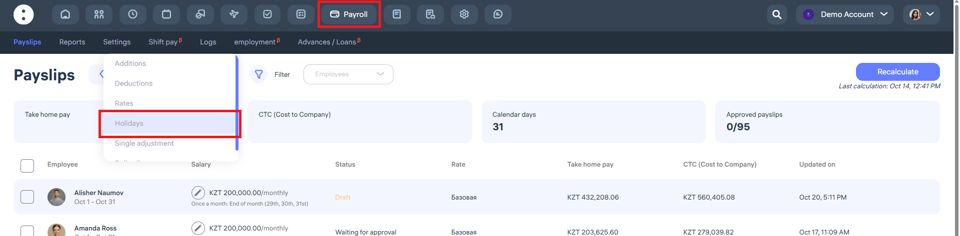
Open the “Settings” tab and select “Holidays.”
Click “+” to add a new holiday.
Specify the holiday name, date, and type (e.g., national holiday).
Save your changes.
This ensures payroll calculations correctly account for public holidays in your country.
How to make Single Adjustments in Clockster
If you need to assign a one-time bonus or deduction (for example, a special reward or penalty), use this section.
To set up:
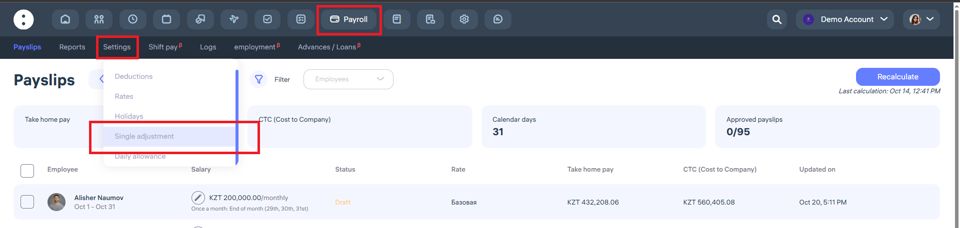
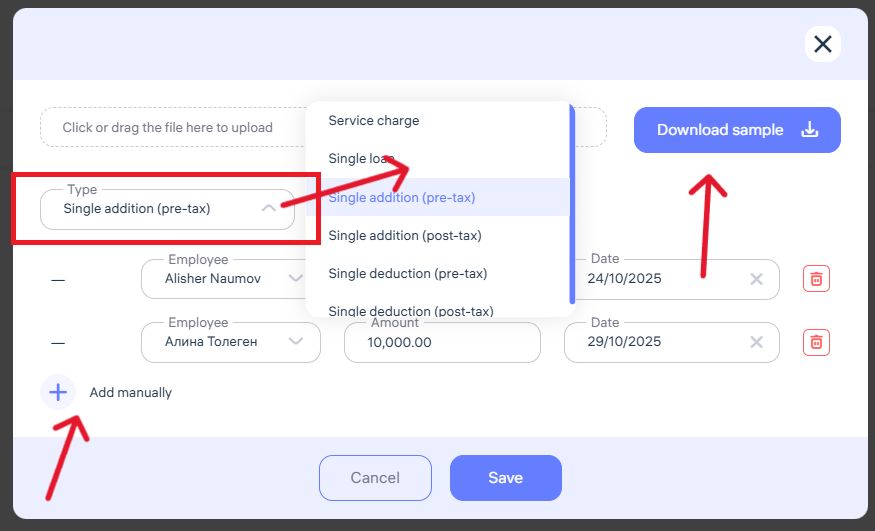
In the “Type” field, choose the required option from the list:
Service fee
Single loan
Single addition (pre-tax)
Single addition (post-tax)
Single deduction (pre-tax)
Single deduction (post-tax)
Select the employee to whom the payment or deduction applies.
Enter the amount.
Set the date when this operation should be included in the payroll.
To add multiple records manually, click “Add manually.”
For bulk additions, click “Download sample,” fill it out, and upload it back to the system.
Click “Save” to apply the changes.
This allows you to easily include one-time payments or deductions when processing payrolls.
When One-Time Additions and Deductions Are Commonly Used
One-time additions:
Bonuses for meeting targets (monthly, quarterly, or yearly)
Overtime payments for work on non-working days without a prior agreement
Financial assistance (in difficult circumstances or as company support)
Gifts and incentives (e.g., for holidays such as March 8, New Year, or Company Day)
One-time deductions:
Penalties for property damage, broken items, shortages, or policy violations
Cash register shortages for employees handling money
In short:
One-time additions and deductions are used for non-regular payments or withholdings that are not part of the company’s standard pay structure.
Attendance-Based and Other Additions in Clockster
Clockster allows you to assign various types of employee payments — including attendance bonuses, meal additions, transport additions, and more.
To set up:

Go to the “Payroll” section.
Open the “Settings” tab and select “Daily allowance”
Click “+” to add a new payment.
From the “Type” dropdown, select the appropriate option:
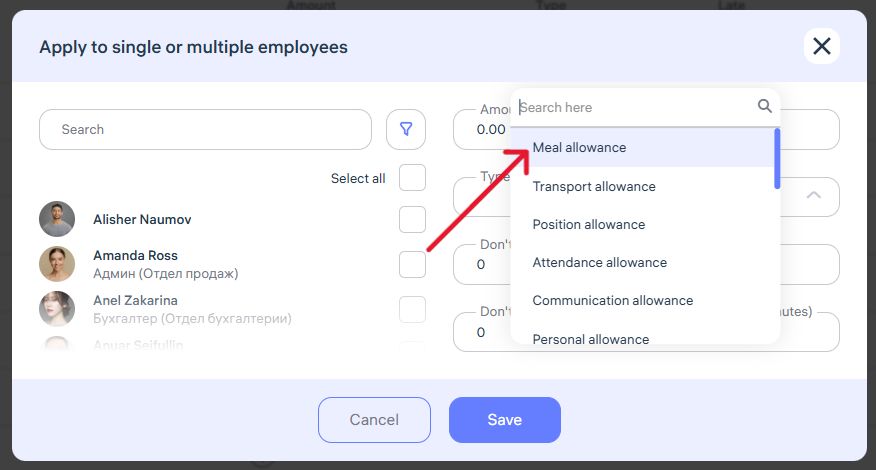
Meal allowance
Transport allowance
Position allowance
Attendance allowance
Communication allowance
Personal allowance
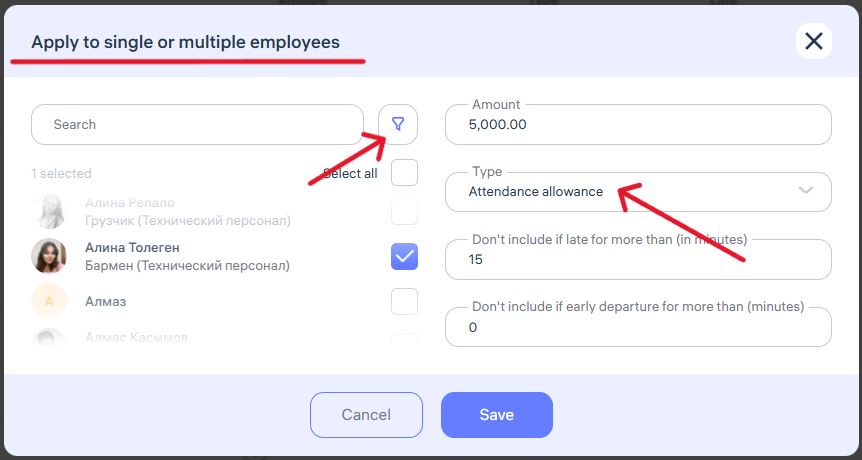
Enter the amount.
Select one or multiple employees to assign this payment.
Configure conditions, if needed, such as:
Exclude the addition if an employee is late beyond a set limit.
Exclude if the employee leaves early beyond the allowed limit.
Click “Save” to apply changes.
These additions are applied daily if the employee meets the defined conditions.
They help companies motivate employees, track benefits, and automate compensations.
Taxes are not applied to these additions.
Payroll Calculation
Setting Up Salary and Payroll Schedule in Clockster
1. Setting the Employee’s Salary
In the “Payroll” → “Payslips” section, select the employee for whom you want to add a salary, or click “+ Add Salary” to assign the same salary to multiple employees.
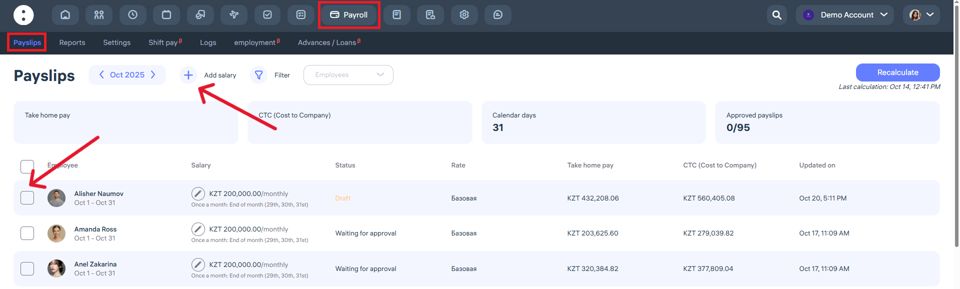
Click “Add Salary.”
In the pop-up window, specify:
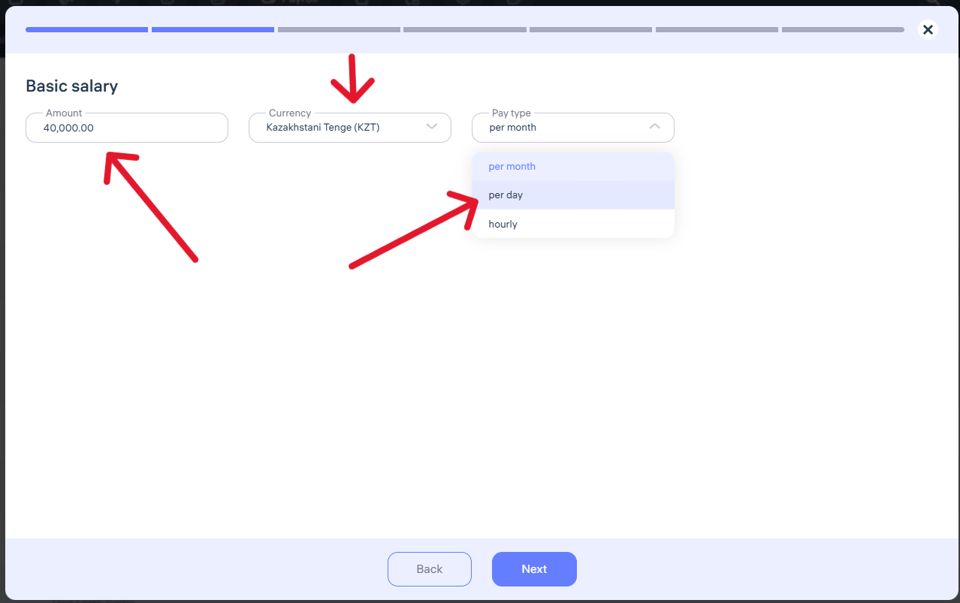
The salary amount (e.g., 40,000 KZT).
The payment currency (Kazakhstani Tenge).
The payment type:
per month
per day
hourly
Click “Next” to continue to the next step.
2. Setting the Payroll Schedule
Choose the payment frequency:
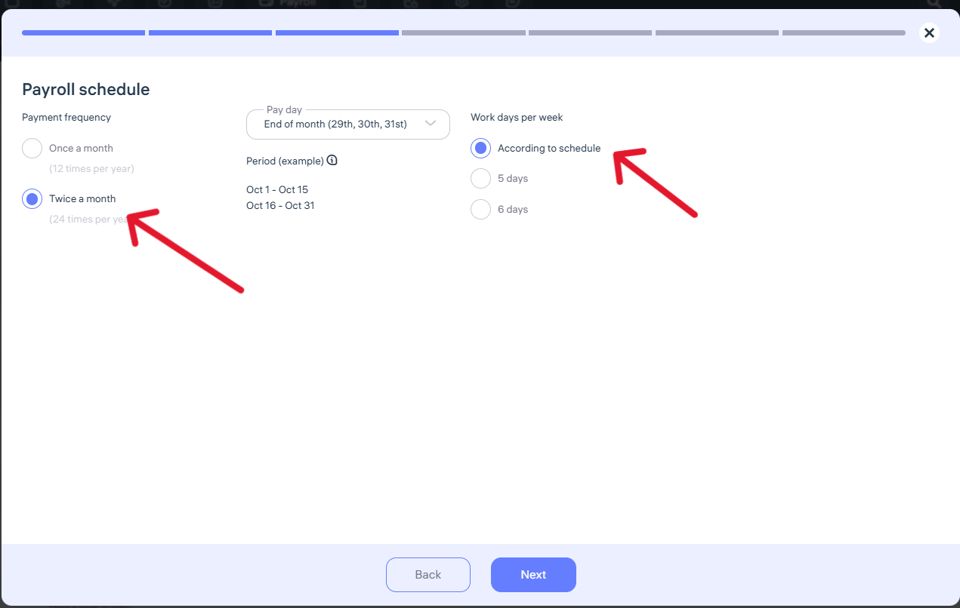
Once a month
Twice a month
How “Work Days per Week” Works When Setting Up Payroll Schedule
In this section, you can choose one of the following options:
1. “As per Schedule”
If you select “According to schedule,” then:
Clockster will calculate worked hours strictly based on the schedule you set for each employee.
This means the system uses the actual shift schedule (e.g., 2/2, 5/2, rotating shifts) and calculates salary according to the number of shifts completed.
The production calendar will not be considered.
This option suits companies with shift-based, rotating, or flexible work schedules, where the number of working days per week can vary.
2. “5 Days” or “6 Days” per Week
If you select “5 days” or “6 days”, then:
Clockster will calculate hours and salary based on the production calendar.
The production calendar is a government-approved calendar that defines:
Working days
Weekends
Public holidays
Hourly norms for the month, quarter, and year
For example:
If you choose “5 days,” the system assumes a five-day work week with two days off and will include official holidays in calculations.
If you choose “6 days,” the system assumes a six-day work week with one day off and accounts for holidays as well.
Final Difference
“As per Schedule” — calculation is based only on your internal shift schedule, without using the production calendar.
“5 or 6 days” — calculation follows the production calendar, regardless of the internal schedule.
This parameter directly affects how working hours and total payroll are calculated.
If your company works with custom shifts, choose “As per Schedule.”
If you have a standard five- or six-day week, choose the respective option for accurate calculations.
Setting Up Taxes and Social Contributions in Clockster
In this section, you can define tax rules and specify who the taxpayer is.
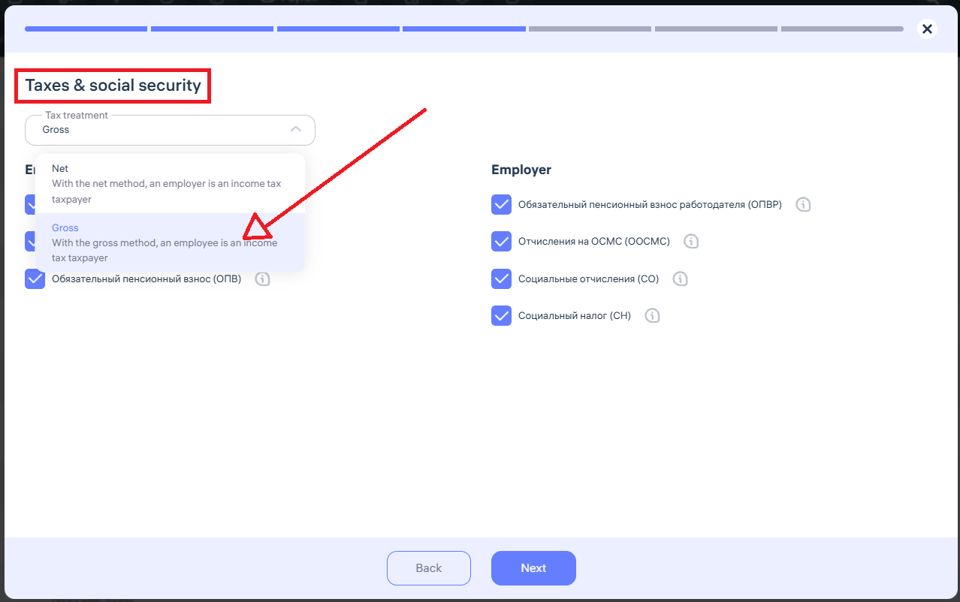
Two main options are available:
Gross (Taxes included in salary)
Taxes are withheld from the specified salary.
The salary already includes taxes, and the employee receives the net amount.
Net (Taxes added on top of salary)
Taxes are added on top of the specified salary.
The employer pays the employee the full salary and covers the taxes separately, increasing company expenses.
Choosing the Taxpayer
For Direct, the employee is the taxpayer.
For Reverse, the employer is the taxpayer.
3. Tax and Contribution Options
On the right side, you can select the applicable taxes and contributions:
Employer’s Mandatory Pension Contribution (ОПВР)
Compulsory Social Medical Insurance (ОСМС)
Social Contributions (СО)
Social Tax (СН)
You can enable only those that apply under your company’s tax system.
After configuring all parameters, click “Next” to proceed with payroll setup.
This step is essential for accurate payroll reports and expense tracking in Clockster.
“Additions” Section in Clockster
In this section, you can configure template-based additions for employees.
How It Works
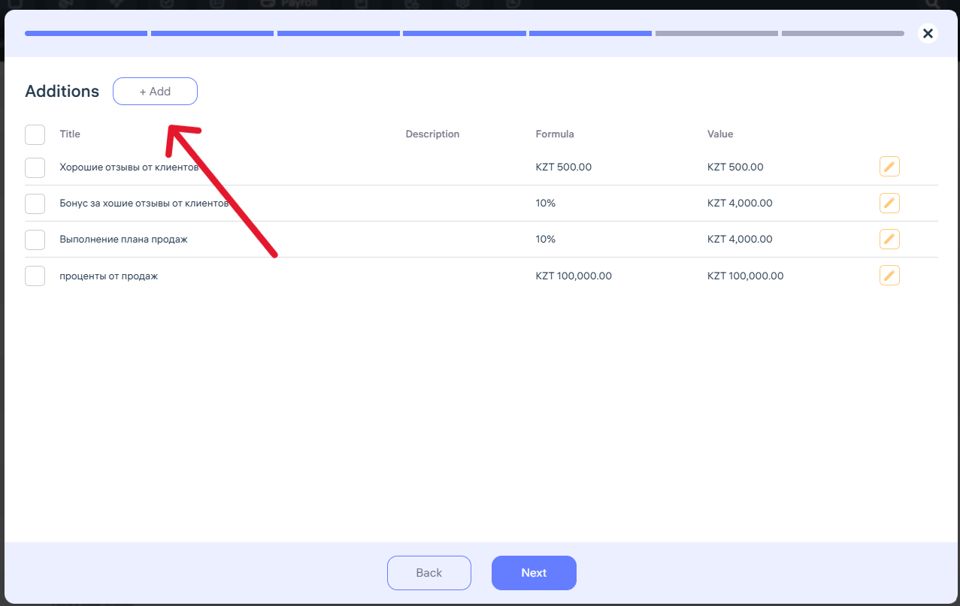
Click “+ Add” to create a new addition.
Specify the type, amount, and conditions of application.
Usage Details
When processing payroll for one month:
You can apply this addition only for the selected payroll month.
If the payslip is not edited later:
Template-based additions will automatically repeat each month during payroll processing.
This helps you automate regular additions and save time when preparing monthly payslips.
“Deductions” Section in Clockster
In this section, you can create deductions that will be withheld from the employee’s salary.
How Deductions Are Applied
If you add a deduction as a template:
It will apply to payroll for the selected month.
If the payslip is not edited in following months, this deduction will automatically repeat every month.
This section helps automate recurring deductions (e.g., for damages, fines, or other withholdings), reducing manual recalculations each payroll cycle.
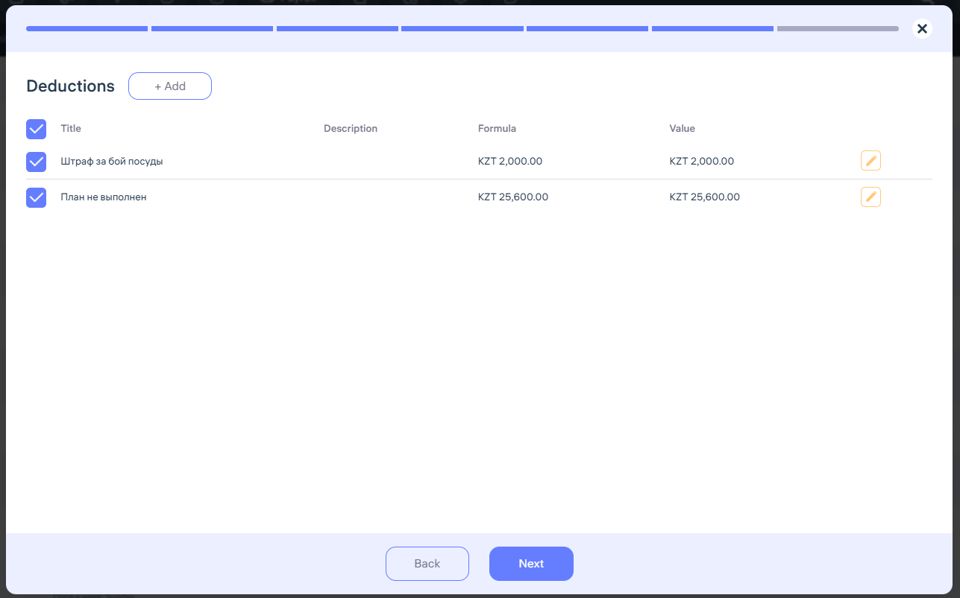
Click “+ Add” to create a new deduction.
Specify:
The deduction name (e.g., “Broken plate, 12 cm diameter”).
The fixed deduction amount or a percentage of the salary.
Add a description if needed for internal tracking.
How Deductions Are Applied
If you add a deduction as a template:
It will apply to payroll for the selected month.
If the payslip is not edited in following months, this deduction will automatically repeat every month.
This section helps automate recurring deductions (e.g., for damages, fines, or other withholdings), reducing manual recalculations each payroll cycle.
“Rates” Section in Clockster
Link a Rate to Payroll
If you haven’t created rates in the Payroll settings yet:
Click “+” to add a new rate.
Enter rate parameters according to your company’s pay structure (e.g., standard shift, holiday work, overtime, or night hours).
Select the needed rate so it applies to the chosen employee when calculating salary.
General Rate Settings
Click the “Settings” button to open general rate settings, where you can choose:
Work Hours Calculation Method:
Standard – hours are calculated based on the employee’s assigned shifts.
Custom – you can set a fixed number of working hours per month, and the system will calculate based on this norm, regardless of the schedule.
Overtime Settings:
Enable or disable counting overtime before the shift starts.
Enable or disable counting overtime after the shift ends.
Why This Section Is Important
The Rates section helps you:
Set unified rate templates for different employee categories.
Automate salary calculations, including additions, bonuses, and overtime.
Simplify payroll and HR work when processing employee payments.
When finished, don’t forget to click “Save” so all changes are applied.

Updating Data in Payslips
The payslip must have the status “Waiting approval”
If the payslip is in “Draft” status, data will not update automatically — even if you click “Recalculate”
Why This Matters
Because when a payslip is marked as “Draft,” it is not yet ready for calculation, and all changes will only apply after it’s moved to “Waiting for approval”
Save this as a small tip — for precise payroll calculations in the future.