
Schedules and Reports
Step 3: Schedules
In Clockster, it is extremely important that every employee has a work schedule assigned, as without it the system cannot provide accurate information on worked hours, lateness, or missed time.
When a new employee joins your company, a default schedule is automatically assigned. If necessary, this schedule should be edited to match the employee’s actual working hours.
There are three ways to create schedules in Clockster:
1️⃣ Create a new schedule manually
If you need to set a schedule for a specific time period or define specific working days, this option is for you.
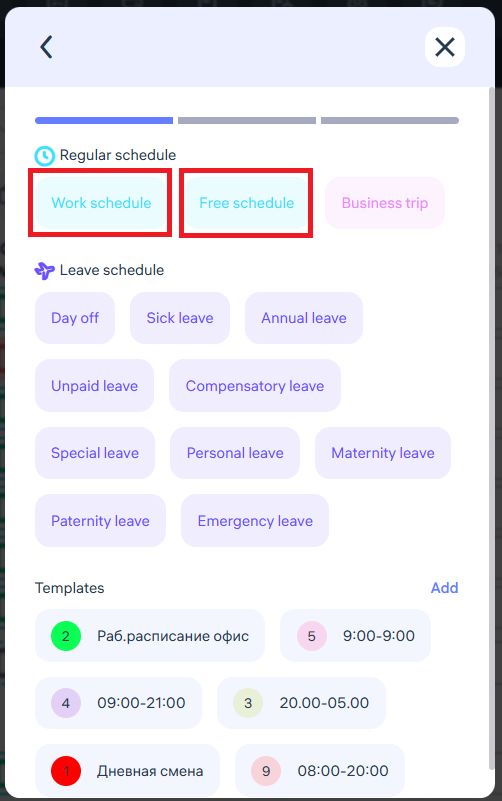
Click “+ Add Schedule” to create a new one, and select a type:
Work,
Free, or
Leave.
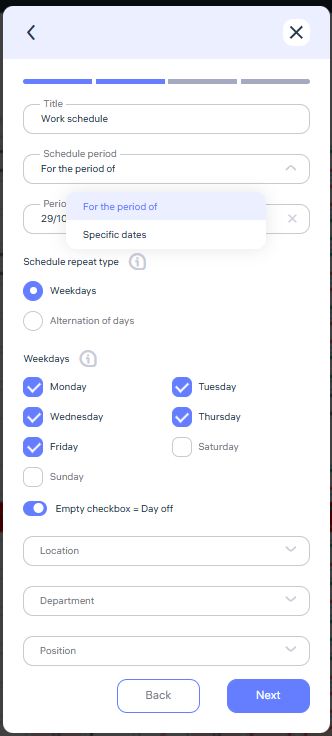
Then specify:
The schedule period — either “For the entire period” or “Specific dates”
The period or exact dates
Working days of the week
The location, position, or department
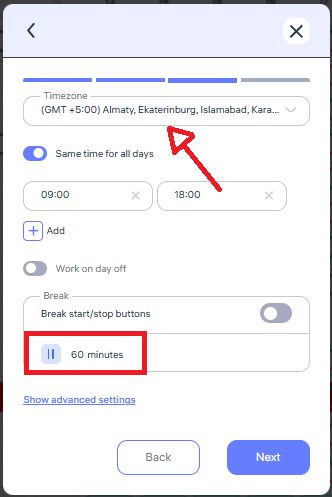
Start and end times of the workday
The employees for whom this schedule applies (you can select them using filters or from the list).

2️⃣ Use schedule templates
This option is convenient if you often edit schedules or have various work patterns in your company.
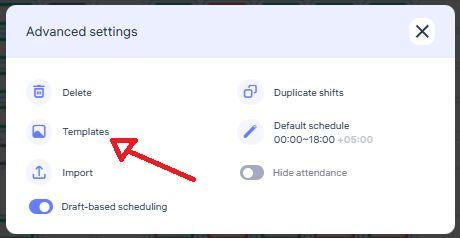
Templates can be created in the Clockster web app → Schedules → Advanced Settings.

Each template can be assigned a unique code consisting of numbers (1–9) or Latin letters (A–Z).
This allows you to apply templates quickly using hotkeys:
Hold CTRL/CMD and select specific days to edit
Hold ALT and select a time range
Then press the template code (number or letter) to apply it.
If you prefer not to use hotkeys, you can click the “Continue” button in the lower-right corner during editing and select the desired template manually.
Once selected, the schedule will be automatically applied to the chosen days.
You can also use created templates when adding new schedules through “+ Add Schedule”.
3️⃣ Copy existing schedules
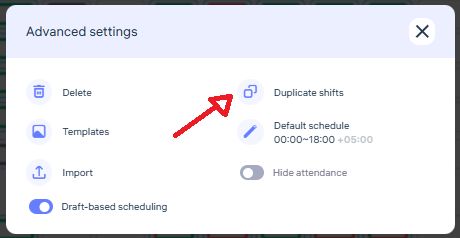
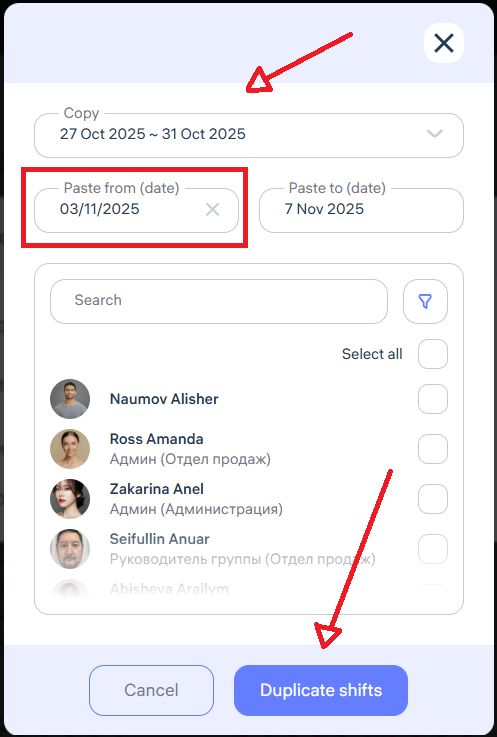
You can copy an employee’s schedule for a selected period (up to 7 days) and apply it to another time interval.
This option is also found under Advanced Settings → Duplicate Shifts.
Important Notes About Schedules in Clockster
Working vs. Free vs. Leave (Day Off) schedules
A Working schedule sets exact start and end times for each shift.
→ Clockster will calculate detailed attendance data: total worked hours, lateness, early departures, and overtime.A Free schedule does not track lateness or early departures.
→ The system measures attendance based on time intervals between “Clock-In” and “Clock-Out” marks.
For example, if an employee checks in in the morning and again midday, the system records two separate time segments and sums them up for the day.A Leave (Vacation or Day off) schedule functions the same way as the Free schedule.
Shift Schedules
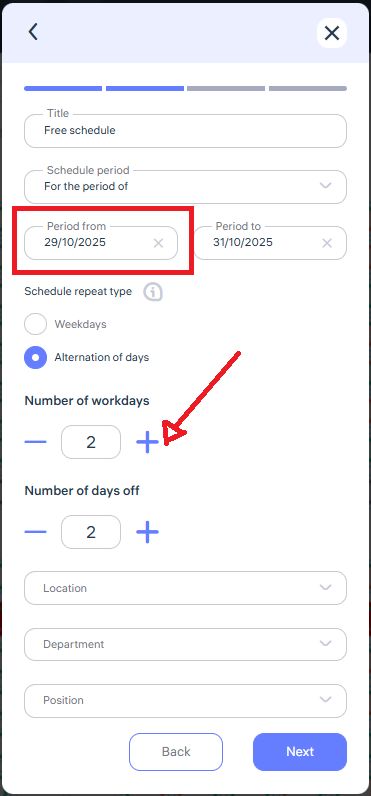
When setting up a rotating schedule (e.g., 2/2 — two working days followed by two off days), note that the pattern starts from the start date specified.
For example:
If the start date is May 8, the system will mark May 8–9 as workdays and May 10–11 as days off, repeating the pattern until the end date.
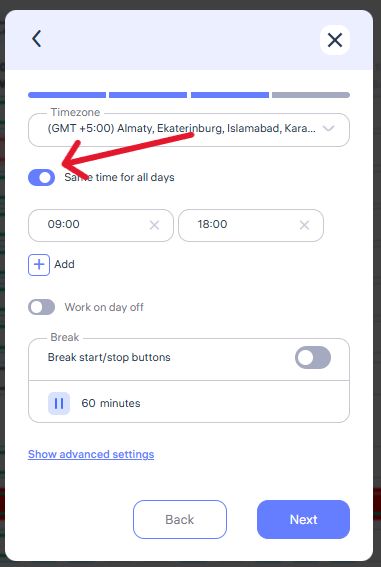
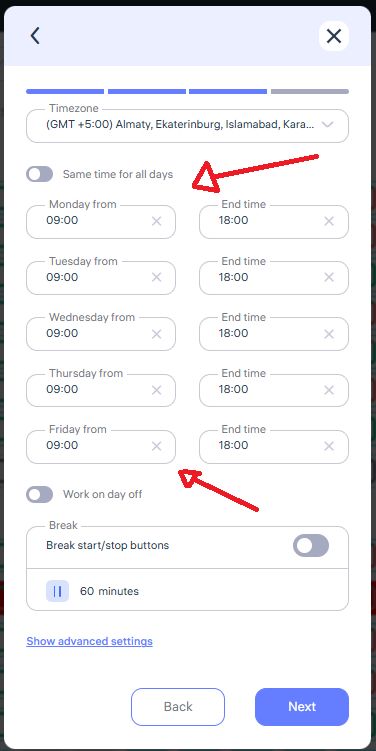
If each day in the shift schedule needs a different start/end time, disable “Same time for all days” to manually set times for each day.
Breaks in Schedules
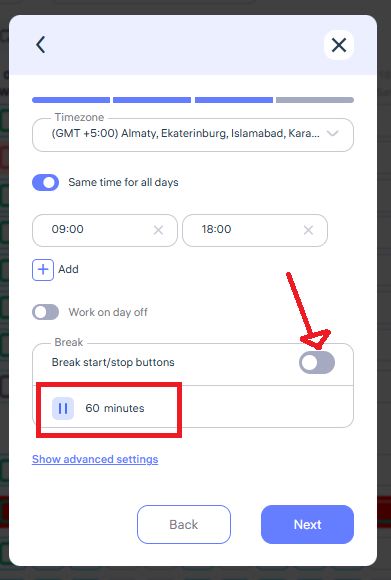
If a fixed break time is specified, the system automatically deducts it from total working hours.
To include break time as part of total working hours, set the break duration to 0 minutes.
For precise tracking of break duration, enable the “Start/End Break Buttons” option.
Employees can then manually mark the beginning and end of their breaks via the Clockster mobile app or kiosk mode.
⚠️ Note: Biometric devices do not support this break-marking feature.
Reports
Where to Find It
Log in to your Administrator account.
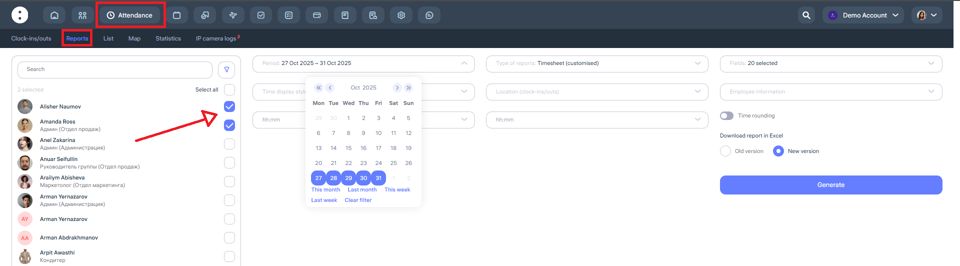
In the top bar, go to the “Attendance” section, then select “Reports” from the menu below.
Choose the employees for whom you want to generate the report. Use filters to quickly search by location, department, or other categories.
Be sure to specify the time period for generating the report.
In the “Report Type” section, Clockster offers 7 types of reports:
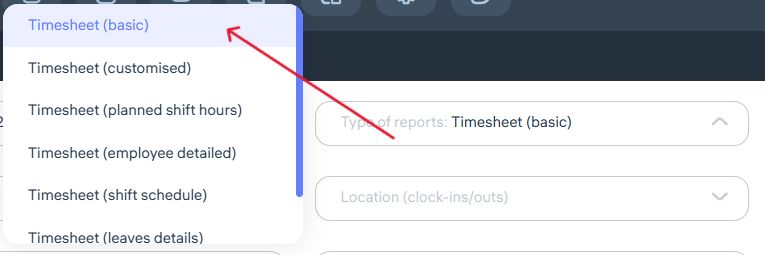
1. Timesheet (Basic)
In this report, you can include additional employee details such as Middle Name, Code, Location, Department, and Position.
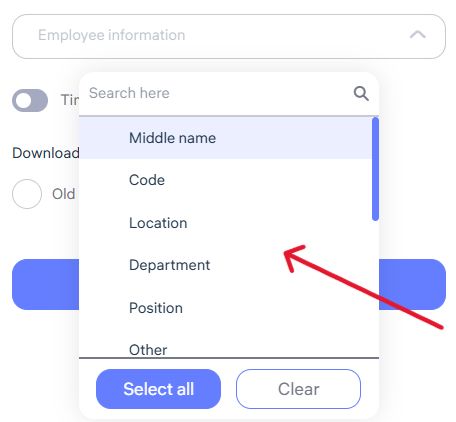
Once the required fields are selected, you can export a report that includes:
Planned working hours according to the employee’s schedule
Whether a break was included
Actual worked hours
Undertime hours
Worked hours on weekends
Temporary absences approved via requests
2. Customised Timesheet
This report allows you to choose which data fields to display — such as clock-in and clock-out times, total worked hours, deviations, department, position, etc.
Clockster provides 20 data fields for reporting, including:
Created schedules
Schedule types
Employee attendance (clock-in/out marks)
Planned hours according to the schedule
Actual worked hours
Overtime (hours worked beyond the schedule)
Approved overtime via requests
Undertime
Worked hours on days off
Late arrivals
Early departures
Break time
Worked hours during night shifts (according to account settings)
Days with incomplete clock-ins
All employee clock-ins with address info
Absences (according to leave schedule)
Total of worked + overtime hours
Overtime before the shift start
Overtime after the shift end
Before generating the report, you can also choose the report format: Old or New version.
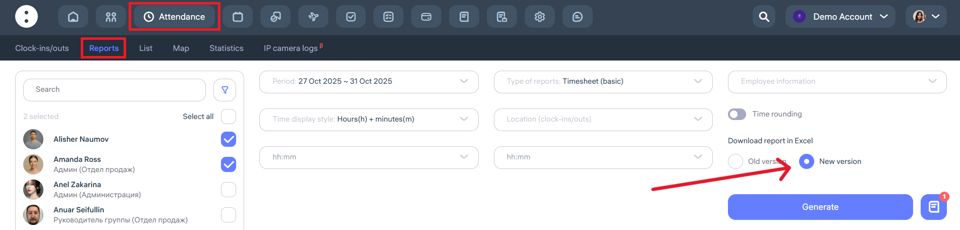
Difference between versions:
In the old version, all selected fields appear in a single table grouped by employee — allowing you to view all data at once.
In the new version, each selected parameter is shown in a separate subreport — scroll horizontally to view all data.
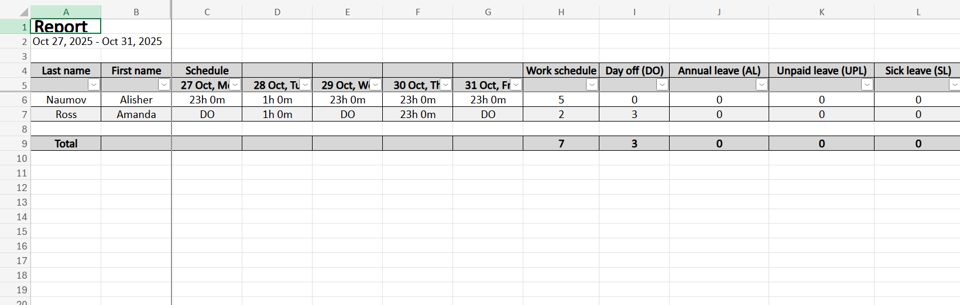
3. Timesheet (Planned Shift Hours)
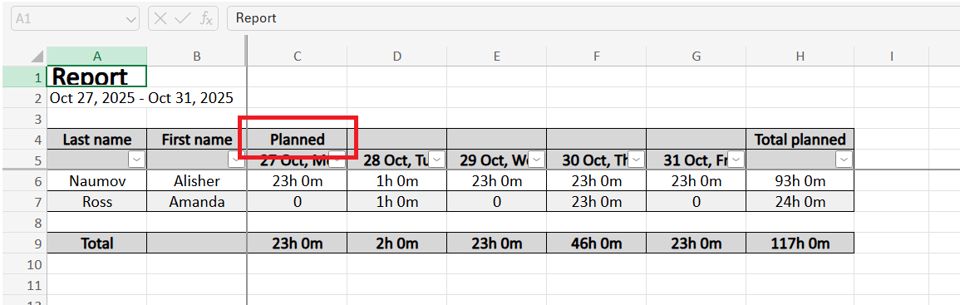
This report displays the total planned working hours for each employee according to their assigned shift schedule, regardless of actual attendance.
The report shows:
How many hours the employee was scheduled to work
Number and duration of planned shifts
Useful for analyzing workload and planning workforce capacity
Note: The “Planned” report does not include actual clock-ins or clock-outs.
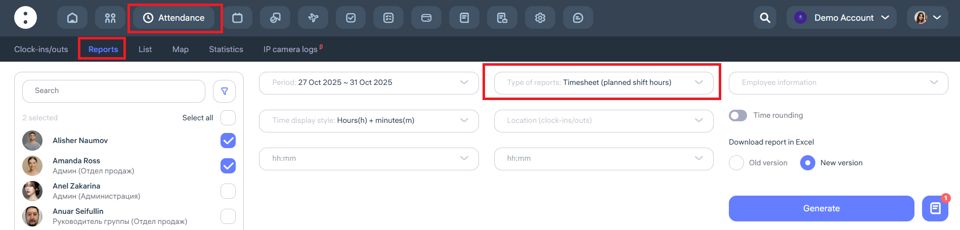
Once all fields are selected, click “Generate” — you’ll see a preview and can download it as an Excel file.
4. Timesheet (Employee Detailed)
This is a comprehensive daily report for each employee. It combines planned vs actual working times to analyze compliance and identify deviations.
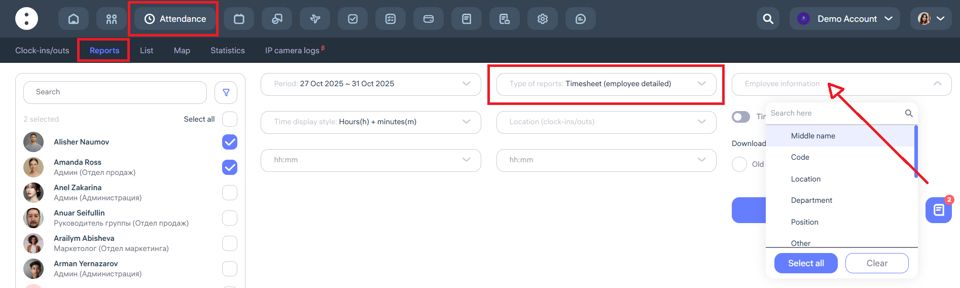
The report includes:
Employee information (optional)
Date and weekday
Planned start and end times
Actual clock-in and clock-out times
Total worked hours
Duration of lateness, early departures, and overtime
5. Timesheet (Shift Schedule)
This report displays the planned distribution of employee shifts for the selected period. It shows on which days and hours each employee is scheduled to work.
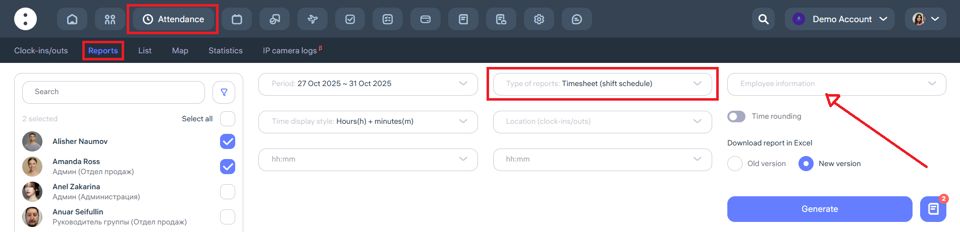
The report includes:
Weekends, holidays, and absences (if specified in the schedule)
Optional employee details
Dates and weekdays
Assigned shifts for each employee
Start and end times of each shift
6. Timesheet (Leave Details)
This report lists all periods of employee absences recorded in the system — such as vacations, sick leaves, time off, and other types of leave schedules.
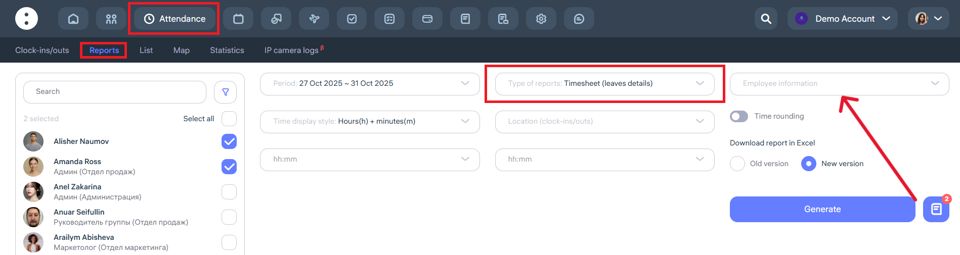
The report includes:
Optional employee details
Full name
Type of leave (vacation, sick leave, time off, etc.)
Total number of days
7. Timesheet (Man-Hours)
This report is the Clockster equivalent of a 1C work-hour timesheet.
It displays actual worked hours for employees by day within the selected period.
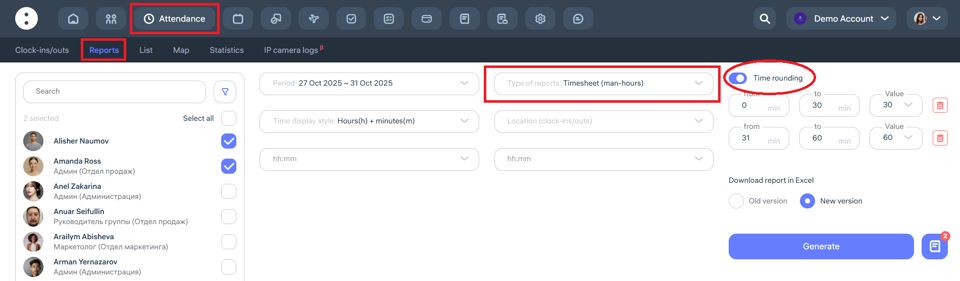
The report accounts for:
Scheduled hours
Overtime
Undertime
Lateness and early departures
Absences and leaves
The timesheet is generated automatically based on:
Clock-in/out marks
Work schedules
Leave and business trip data
This report is ideal for submission to accounting or for payroll calculation.