
Setting Up Clockster for Your Organization – Getting Started
Where to start first
Setting up your company account
Start by configuring the basic information about your company:
On the left panel of the Clockster interface, you will find the main system sections. Please go to the “Settings” section.
Setting up the Attendance section
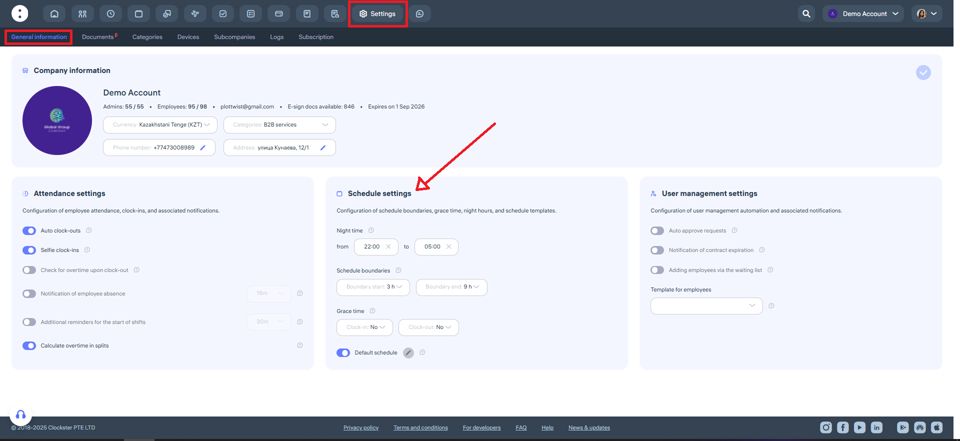
If desired, you can enable automatic check-out records. This means the system will automatically create check-out entries for your employees according to their work schedule, regardless of whether they actually left work at that time.
You can also enable the “Selfie clock-ins” feature, which requires employees to take a photo using their phone camera when clocking in or out in the Clockster mobile app. Uploading photos from the gallery is not allowed — the photo must be taken in real-time using the camera.
If you use the Payroll module, enable the option to check for overtime upon clock-out when employees clock in or out outside their scheduled working hours via the mobile app.
When the absence notification feature is enabled, the system will send push notifications to all Administrators with the appropriate access rights if not all employees have clocked in.
An additional reminder for the start of shifts in Clockster are notifications that are sent to employees shortly before their scheduled work time, reminding them that their shifts are about to begin.
Setting up the Schedule section
Please note: all changes made in this section will affect only future schedules.
You can always set individual schedules manually for each employee when creating or editing them.
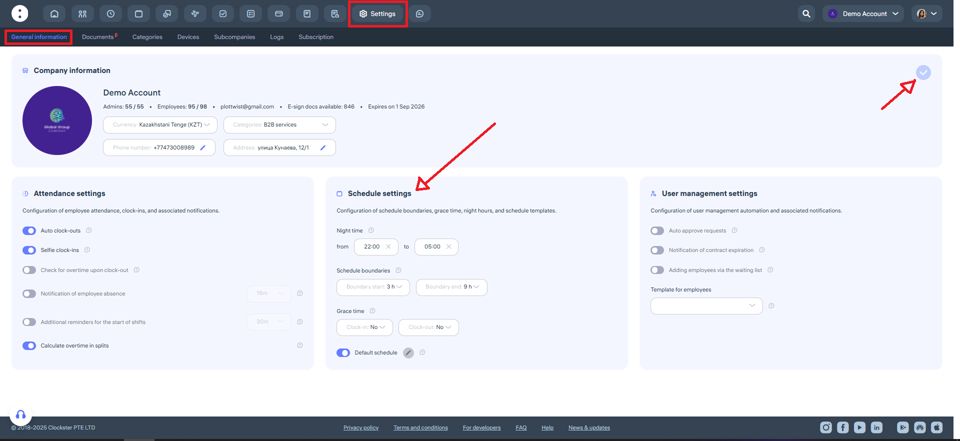
Specify the time interval for night shifts according to your company’s policies.
Set the lower and upper time limits for clock-ins and clock-outs:
The lower limit defines how early an employee can clock in before their shift starts.
The upper limit defines how late an employee can clock out after their shift ends.
If an employee clocks in or out outside of these limits, their working hours will not be counted.
In the timesheet, they will show “0 hours”, and in the Attendance section, they will appear as “Absent.”If this happens, you will need to either:
Edit the employee’s schedule for that day, or
Adjust the time limits in their individual work schedule.
You can also set grace time for lateness and early departures in minutes.
If the employee exceeds this limit, the system will record the full delay time
📘 Example:
If a 5-minute grace time allowed and the employee arrives 6 minutes late, the system records a 6-minute delay. However, if the lateness is less than 5 minutes, it will not appear in the report, and the employee will not be marked as late or as having left early.
Setting up the Employee Management section
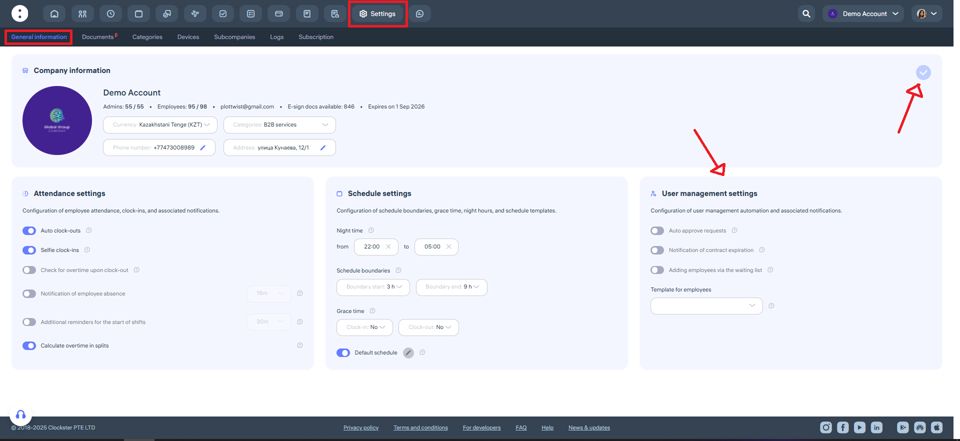
If desired, you can enable auto approve requests. This means all employee requests — regardless of type or reason — will be automatically approved by the system.
When the notification of contract expiration feature is enabled, the system will automatically inform the Administrator one month before an employee’s contract end date (if this date is specified in the employee’s profile).
You can also enable the adding employees via the waiting list feature. This means new employees will only be added to your company after being approved by Administrators with the proper access rights.
✅ Don’t forget to save all your changes in the company settings!
The save icon is located in the top-right corner of the page.
After setting up your company information, move on to the next important section — “Categories.”
We recommend setting up your workspace step by step, following the sequence outlined in this guide!
Next Step – Categories Section
Purpose of the main company categories in Clockster
1. Data organization:
Categories help organize employees by departments, job titles, and locations, simplifying data management within the company.
2. Access management:
Categories can be used to control access levels for employees, granting permissions based on their roles or responsibilities in the system.
3. Reporting and analytics:
By grouping employees into categories, you can easily generate reports and analyze data such as working hours, absences, and other metrics focused on specific employee groups.
4. Schedule management:
Categories can be used when creating and managing work schedules, making it easier to track time and provide flexible scheduling for different employee groups.
Creating Categories
1. Location category
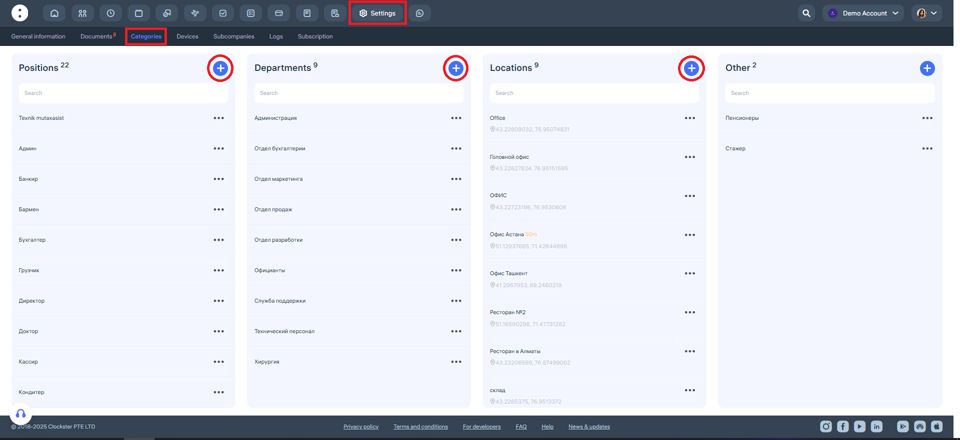
Go to the “Locations” category and click “ + ”.
Create and save all the current locations of your organization where employees are expected to clock in and out.
The created locations will appear in a list during new employee registration, allowing them to be linked to their main workplace.
Setting location coordinates in Clockster is crucial for geo-fencing employee attendance.
When coordinates are defined, the system can accurately verify the employee’s geographical location when they clock in or out.
2. Accessing the Categories section
Go to “Settings” on the left side of the screen.
This menu contains all company settings and information.
Find the “Categories” section and open it.
3. Positions category
In the “Positions” category, click “+” and enter all the positions that exist in your company.
4. Department category
In the “Department” category, click “+” and specify the names of your departments, divisions, or functional teams.
For example: “Sales Department,” “HR,” “IT Division,” etc.
5. Other category
The “Other” category is designed for grouping employees by a specific characteristic that:
Is not related to their job title,
Is not related to their department,
But is still important for separate tracking or management purposes.
You can also assign a dedicated manager to the “Other” category, who will be responsible only for the employees within that group.
Note: The “Other” category does not replace an employee’s main department or position — it serves as an additional organizational tool.
An employee can simultaneously have:
A Department,
A Position, and
An “Other” category assigned.
Adding New Employees to the System
Employees Section
Depending on the selected button configuration, you can change how the employee list is displayed.


To add new employees, go to the “Employees” section and select the “Add Employee” option. Depending on the configuration of the devices used for clock-in/out, there are two main methods for adding employees:
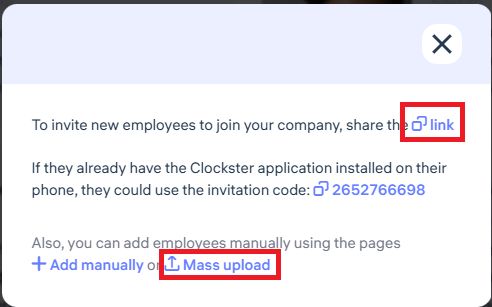
When using the mobile app together with facial recognition devices:
Send all employees a link to join the company.
Employees will fill out their own profiles by installing the mobile app via the link, and they will automatically appear in the “Employees” section in the Administrator’s dashboard.
Bulk upload via Excel form (for facial recognition devices):
If your company uses biometric devices for facial recognition, use the bulk upload feature via Excel. Beforehand, prepare a folder with employee photos on your desktop, as you can upload face images along with the completed Excel form that contains employee data.
Important!
Upload employees in batches of 10 people.
This limitation is due to technical processing capacity and helps prevent system lag, ensuring stable data upload.
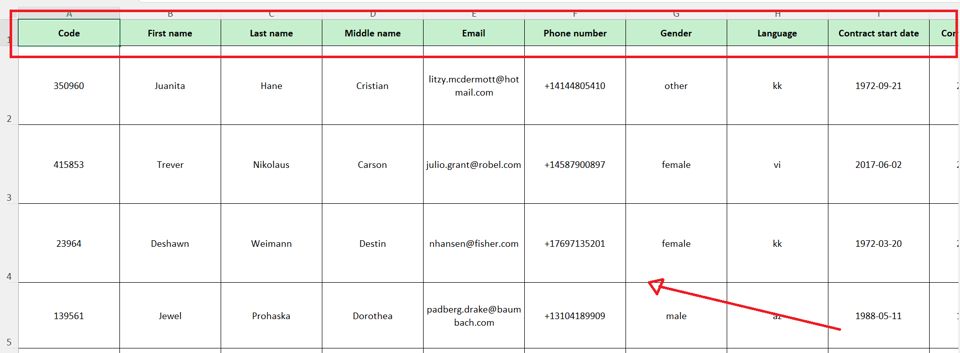
Do not modify the highlighted green row in the Excel template!
The sample employee data provided is for example only — delete it and fill in the fields following the same structure as shown in the examples.
When creating an employee profile via the Administrator’s dashboard, please note:
Creating an employee profile manually does not automatically generate a login account for the mobile app.
An employee’s account is only created when the user registers themselves in the Clockster mobile app, setting up their own login and password.
If you create a profile manually and plan for the employee to use the mobile app, make sure to enter their active phone number in the employee card.
This is important because, during registration, the system will search for a match by phone number and automatically link the mobile account to the existing profile.
✅ This way, you will avoid creating duplicate profiles, and all employee data will remain stored in one place.
Please note:
If the phone number is not added in advance, the employee will create a new separate account during registration, which may cause data inconsistencies.