
Employee Permissions
To ensure all employees have the same access and permissions, you need to create a unified template and then:
Apply it to all existing employees.
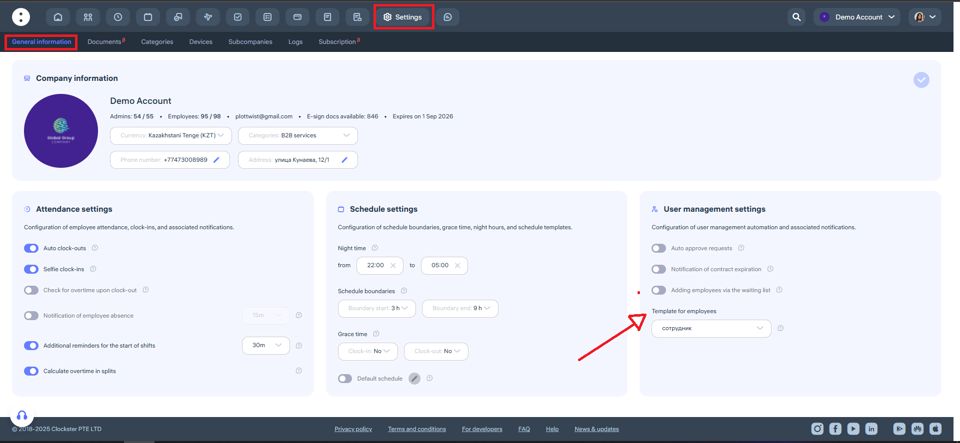
Set it as the default template — so it automatically applies to all new employees.
Step-by-step guide for the administrator:
Go to the Clockster Admin Panel.
Open the Employees section, then select Permissions in the top menu.
Click on Templates.
Click the + Add New Template button.

In the opened window:
Select the Role: Employee
Enter a template name that clearly indicates its purpose (for example, “Basic Access”)
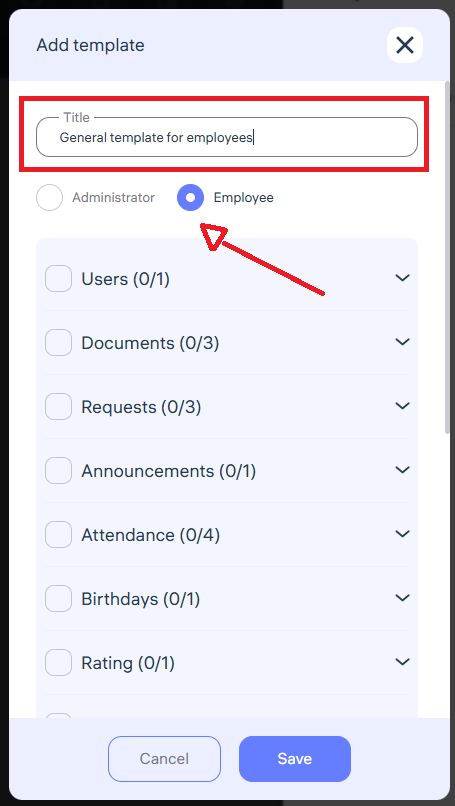
Permission settings:
Check the boxes for the features that employees should have access to in the mobile app, for example:
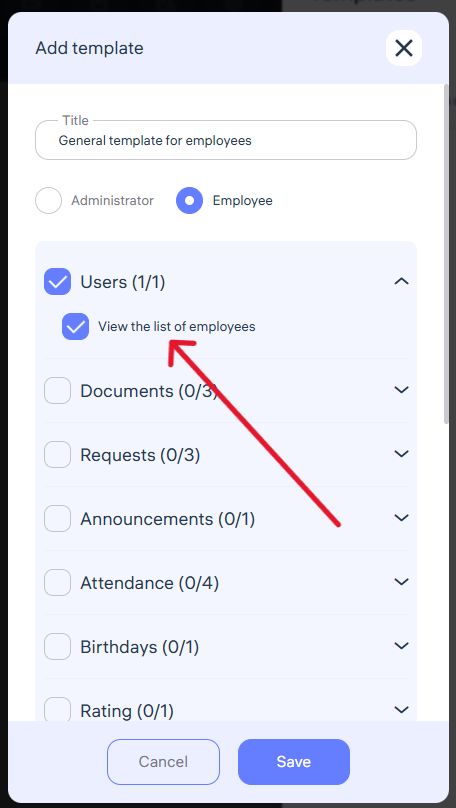
View Colleagues List
Employees will be able to see the full names, contact details, and job titles of their colleagues.
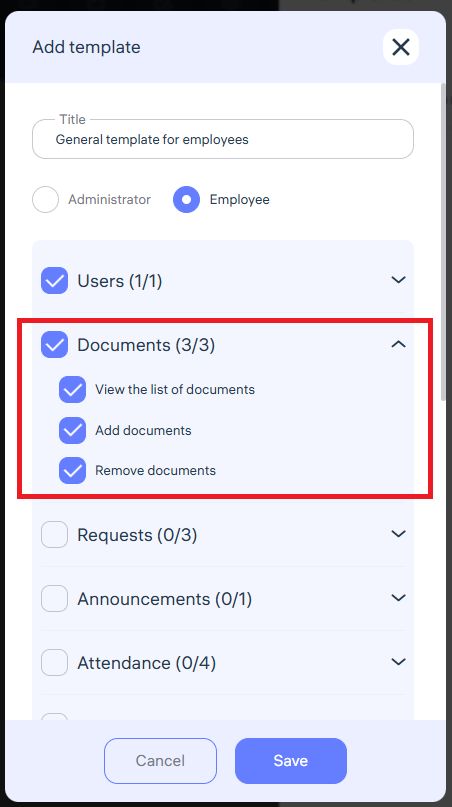
Access to Documents
Employees can upload and delete their personal documents from their phone gallery.
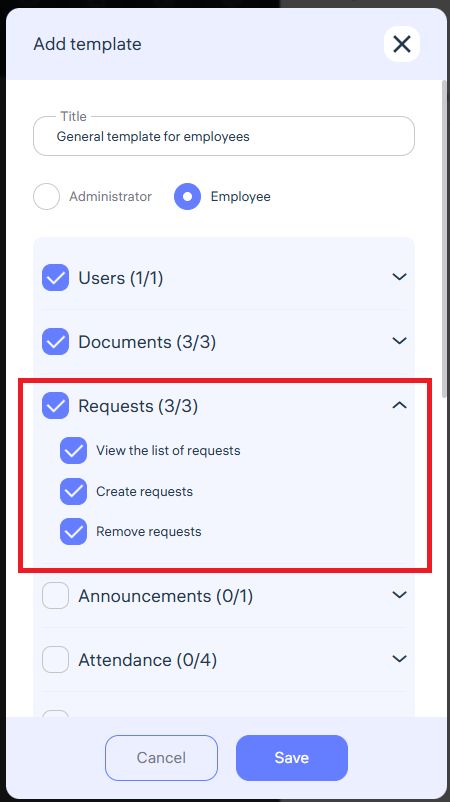
Access to Requests
Allows employees to submit various requests — for leave, sick days, financial issues, or schedule changes.
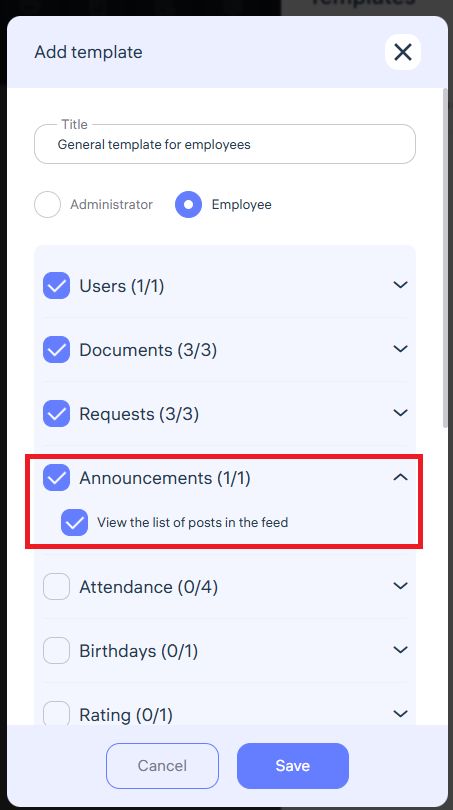
View Announcements
Employees will be able to view company news and announcements.
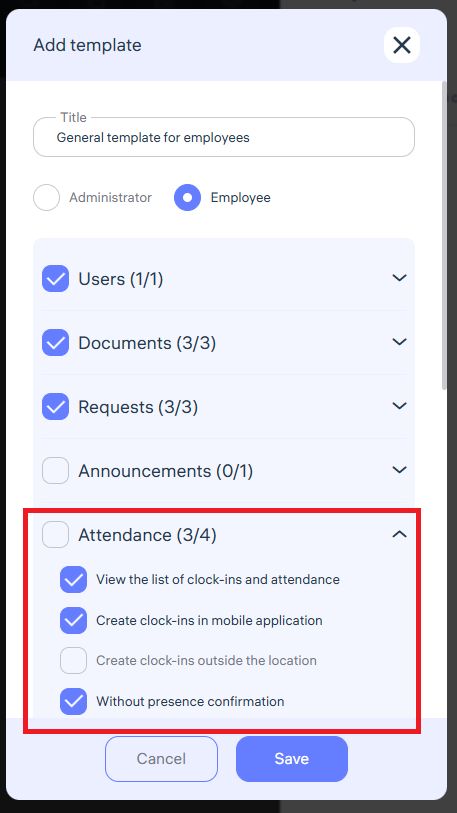
Clock-in/Clock-out Permission in Mobile App
Enables employees to record their attendance via the mobile app.
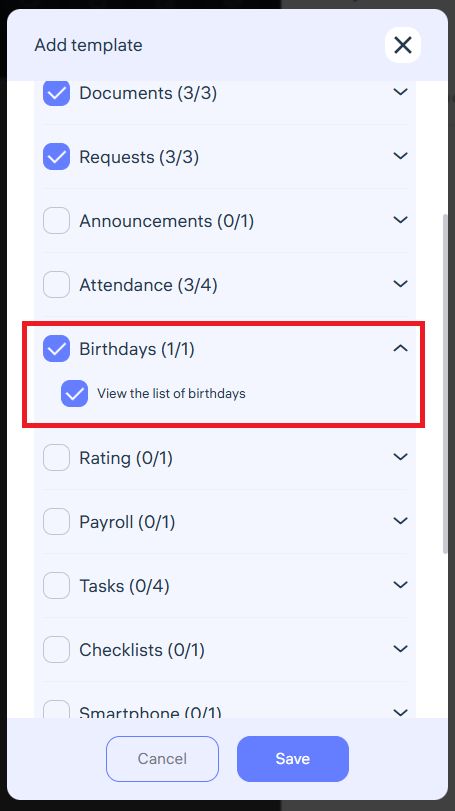
View List of Birthdays
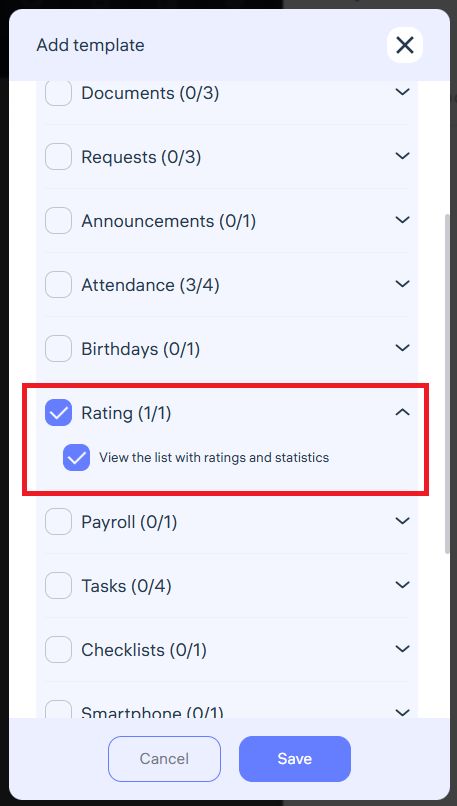
Access to Ratings and Statistics
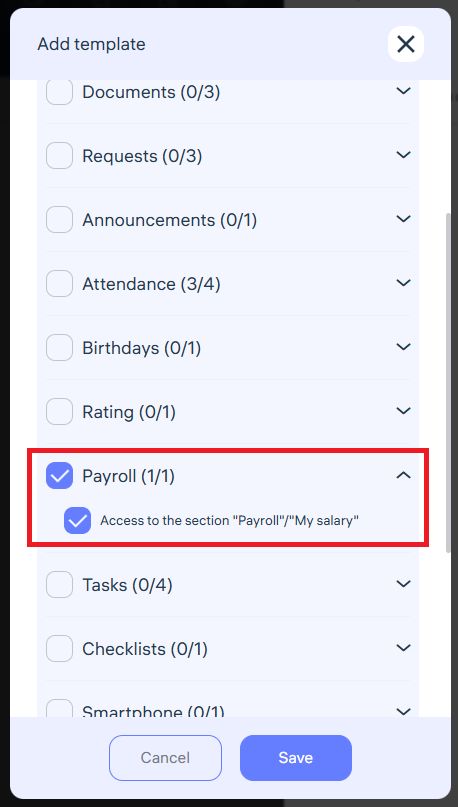
Access to Payroll
Employees can view approved payslips.
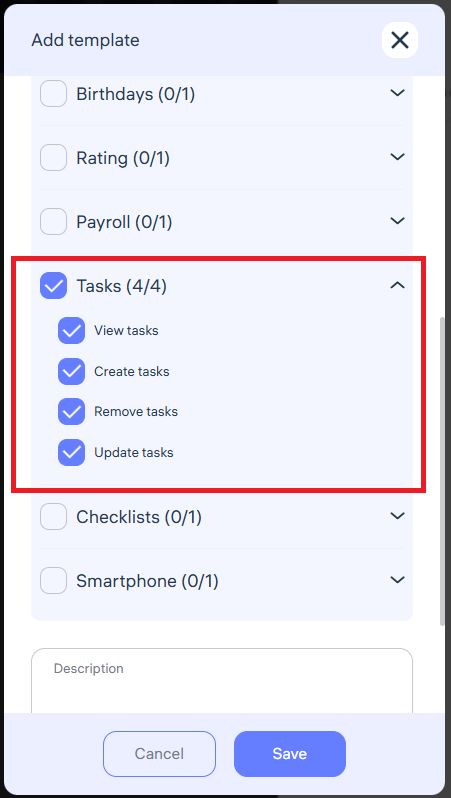
Access to Tasks
Employees can see the tasks assigned by managers, complete them, and submit reports.
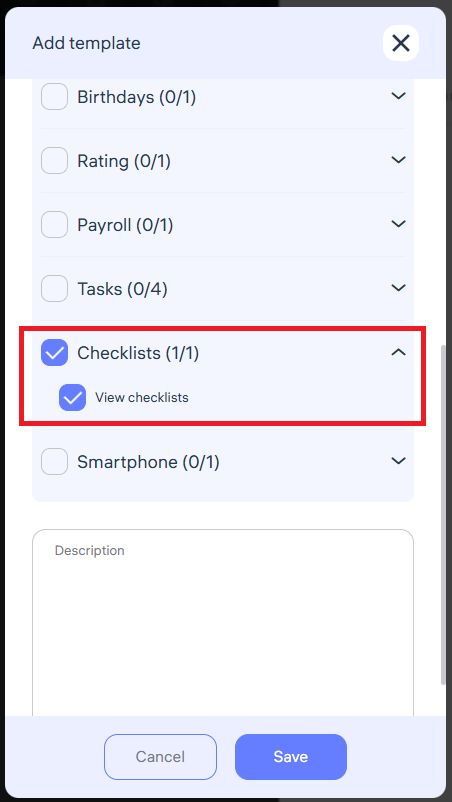
View Checklists
Single Device Mode
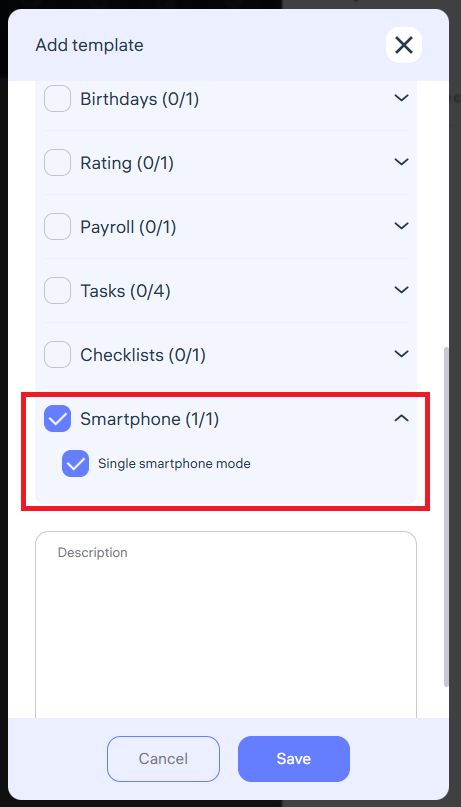
If the “Single smartphone mode” option is enabled, an employee can only use their account on one device (phone).
How it works:
When logging into Clockster from a new device, the system automatically unlinks the previous one.
Attempting to use the same login credentials on multiple devices at once will be blocked.
This ensures that attendance and actions are performed by the actual employee, not someone else.
When it’s useful:
To prevent employees from sharing their shifts or accounts with colleagues.
For additional security and accurate time tracking.
After completing the setup, save the template. Then:
Apply it manually to all current employees.
Set it as the default template for employees, so it automatically applies to all new users.
Done!
Now all employees will have consistent and correctly configured permissions — without any extra manual work.
Updated at