
Help
How to Set Up Additions and Deductions in Clockster
If you need to provide an employee with additional payments beyond their base salary — such as compensations, benefits, bonuses, or other fixed payments — use the “Additions” section.
This section is especially convenient if you have standard monthly payments that need to be automatically added to employee payrolls.

To set up an additions:
Go to the “Additions” section.
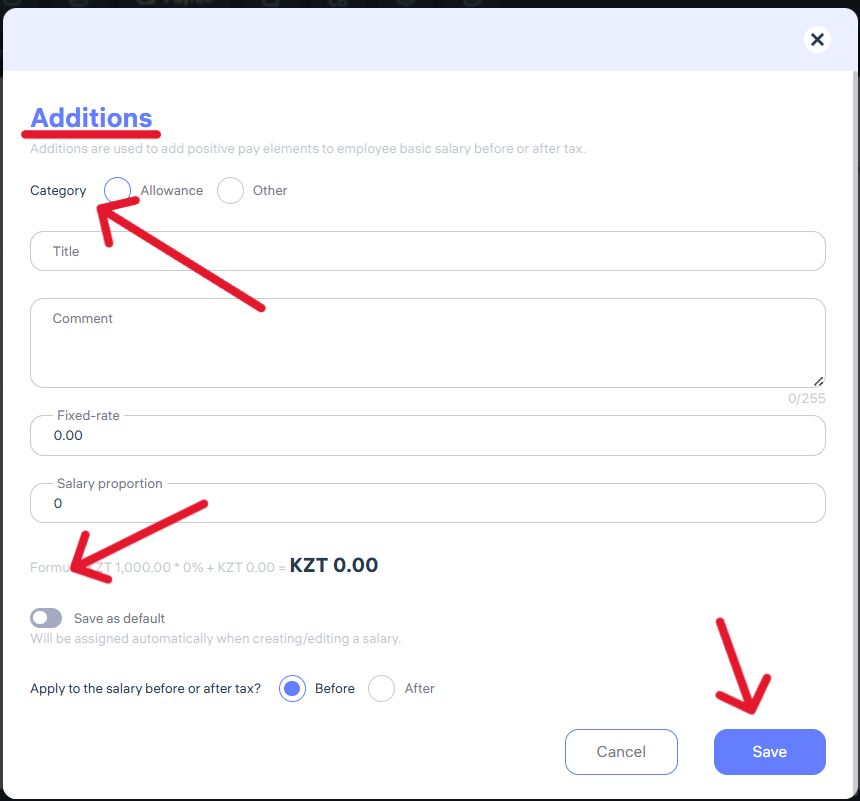
Select the payment category (allowance, other).
Enter the title (for example, “For participation in extra shifts” or “Bonus”).
Add a comment if you need to provide clarification for accounting or employees.
Specify a fixed amount (a specific sum) or set a percentage of the salary if the addition depends on the base rate.
Choose whether the addition applies before or after taxation, depending on your company’s policy and legal requirements.
If needed, activate “Save as default” — this allows the same addition to be automatically applied when creating or editing employee payrolls.
Click “Save” to apply the changes.
Once assigned, the addition will automatically appear in the employee’s payslip every month. This helps you easily manage additional payments without manual recalculations each time.
How to Set Up Deductions in Clockster
If you need to record a payroll deduction for an employee — for example, for broken dishes, property damage, or other withholdings — use the “Deductions” section.
To set up a deduction:
Go to the “Deductions” section.

2. In the “Title” field, specify the reason for the deduction (for example, “Broken 12 cm plate”).
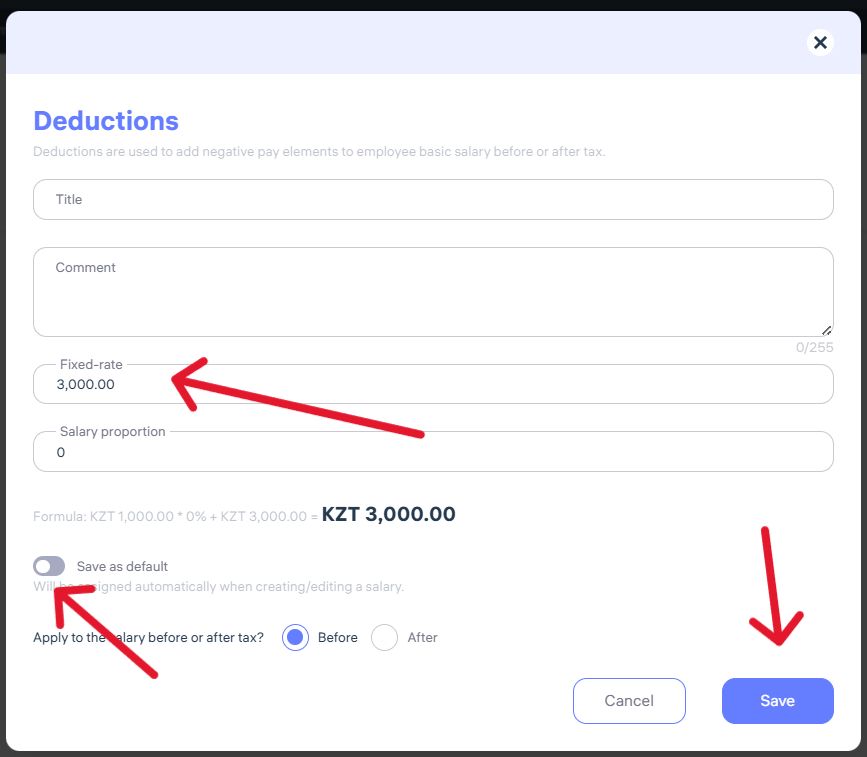
3. Add a comment if necessary.
4. Enter the fixed amount, i.e., the exact deduction sum (for example, 3,000 KZT).
5. Optionally, you can specify the deduction as a percentage of the salary.
6. Choose whether the deduction applies before or after taxation, depending on company policy.
7. To make this deduction appear automatically when creating or editing payrolls, activate “Save as default”
8. Click “Save” to apply the changes.
This way, you can easily manage payroll deductions, ensuring transparency and compliance with your company’s internal policies.
Public Holidays in Clockster
By default, Clockster automatically adds public holidays for the following countries:
Kazakhstan
Indonesia
Philippines
If your company is registered in another country, you can manually add holidays:
Go to the “Payroll” section.
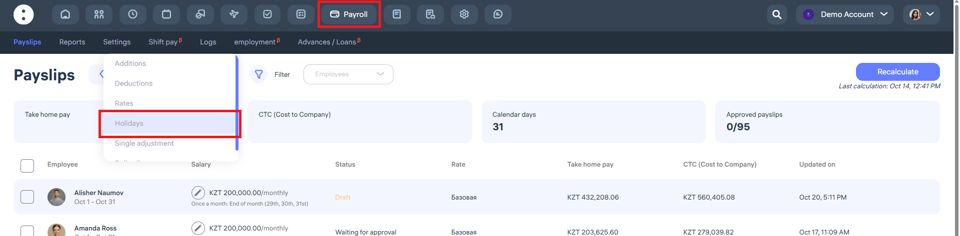
Open the “Settings” tab and select “Holidays.”
Click “+” to add a new holiday.
Specify the holiday name, date, and type (e.g., national holiday).
Save your changes.
This ensures payroll calculations correctly account for public holidays in your country.
How to make Single Adjustments in Clockster
If you need to assign a one-time bonus or deduction (for example, a special reward or penalty), use this section.
To set up:
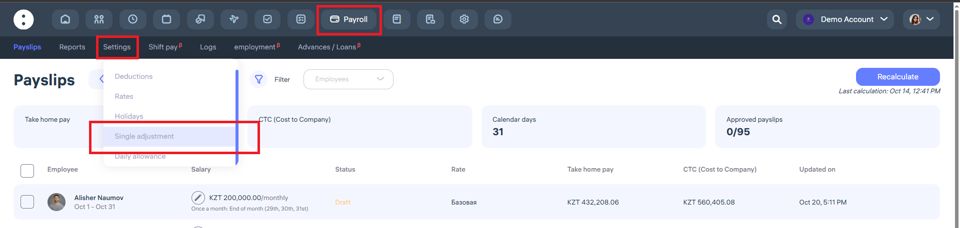
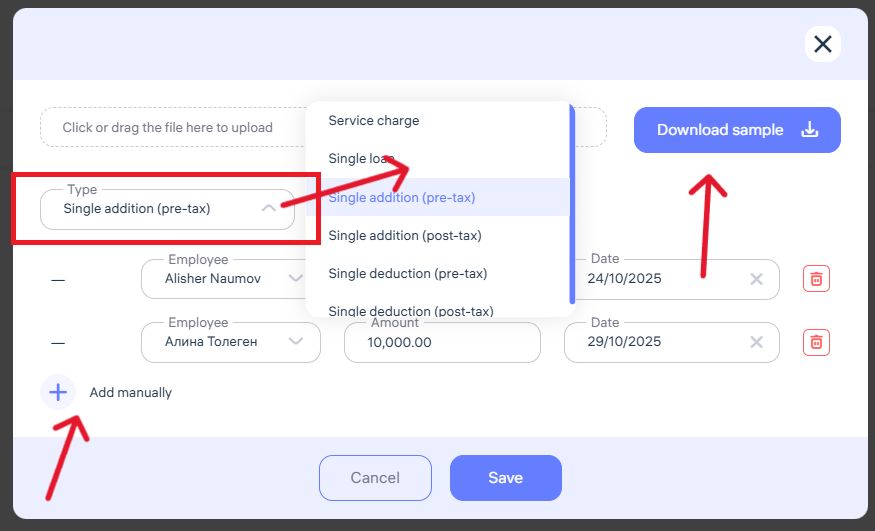
In the “Type” field, choose the required option from the list:
Service fee
Single loan
Single addition (pre-tax)
Single addition (post-tax)
Single deduction (pre-tax)
Single deduction (post-tax)
Select the employee to whom the payment or deduction applies.
Enter the amount.
Set the date when this operation should be included in the payroll.
To add multiple records manually, click “Add manually.”
For bulk additions, click “Download sample,” fill it out, and upload it back to the system.
Click “Save” to apply the changes.
This allows you to easily include one-time payments or deductions when processing payrolls.
When One-Time Additions and Deductions Are Commonly Used
One-time additions:
Bonuses for meeting targets (monthly, quarterly, or yearly)
Overtime payments for work on non-working days without a prior agreement
Financial assistance (in difficult circumstances or as company support)
Gifts and incentives (e.g., for holidays such as March 8, New Year, or Company Day)
One-time deductions:
Penalties for property damage, broken items, shortages, or policy violations
Cash register shortages for employees handling money
In short:
One-time additions and deductions are used for non-regular payments or withholdings that are not part of the company’s standard pay structure.
Attendance-Based and Other Additions in Clockster
Clockster allows you to assign various types of employee payments — including attendance bonuses, meal additions, transport additions, and more.
To set up:

Go to the “Payroll” section.
Open the “Settings” tab and select “Daily allowance”
Click “+” to add a new payment.
From the “Type” dropdown, select the appropriate option:
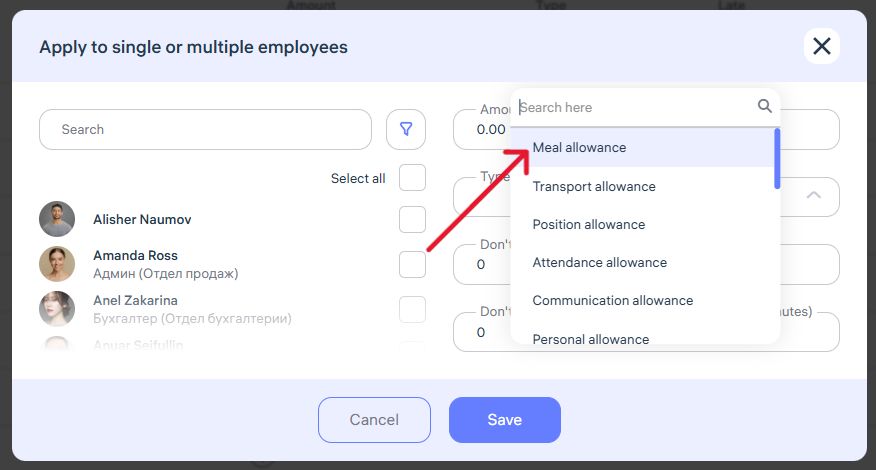
Meal allowance
Transport allowance
Position allowance
Attendance allowance
Communication allowance
Personal allowance
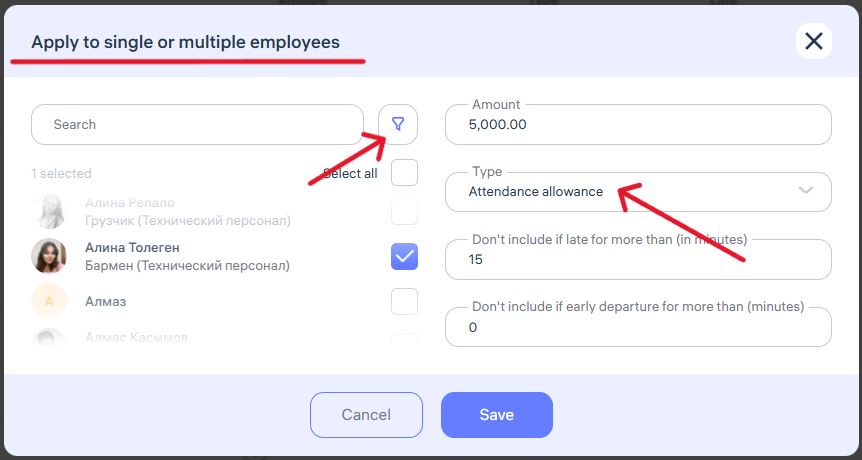
Enter the amount.
Select one or multiple employees to assign this payment.
Configure conditions, if needed, such as:
Exclude the addition if an employee is late beyond a set limit.
Exclude if the employee leaves early beyond the allowed limit.
Click “Save” to apply changes.
These additions are applied daily if the employee meets the defined conditions.
They help companies motivate employees, track benefits, and automate compensations.
Taxes are not applied to these additions.
Guide to Using the “Payroll” Module
The “Payroll” module allows you to automate employee payroll calculation based on worked hours, rates, and additional earnings. Follow this guide to set up and use the module effectively.
Block 1. Preparing to Use the Module
Before you start, make sure that:
Employees are correctly added to the system.
Work schedules and shifts are properly configured.
Employees regularly check in and out.
These data are necessary for the system to correctly account for working time in payroll calculations.
Block 2. Main Payroll Settings
Open the “Payroll” section in the Clockster menu.
Go to the “Settings” tab.

3. Set up basic employee pay rates:
Enter the name of the rate.
If you want overtime to be rounded (so extra hours aren’t counted with decimals), turn on the rounding toggle.
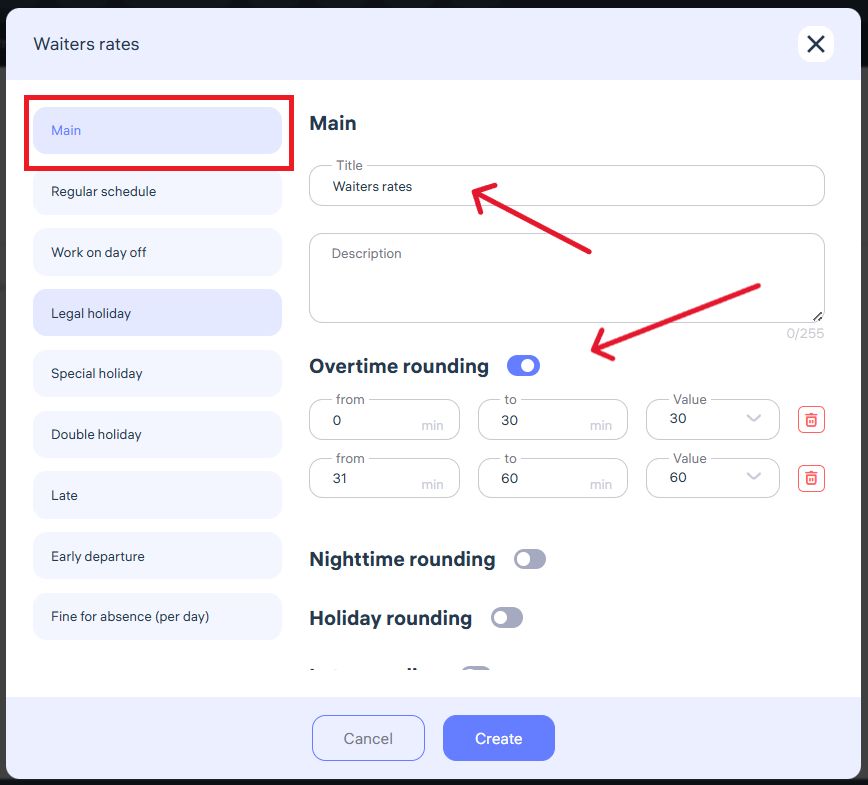
4. Configure bonuses and deductions:
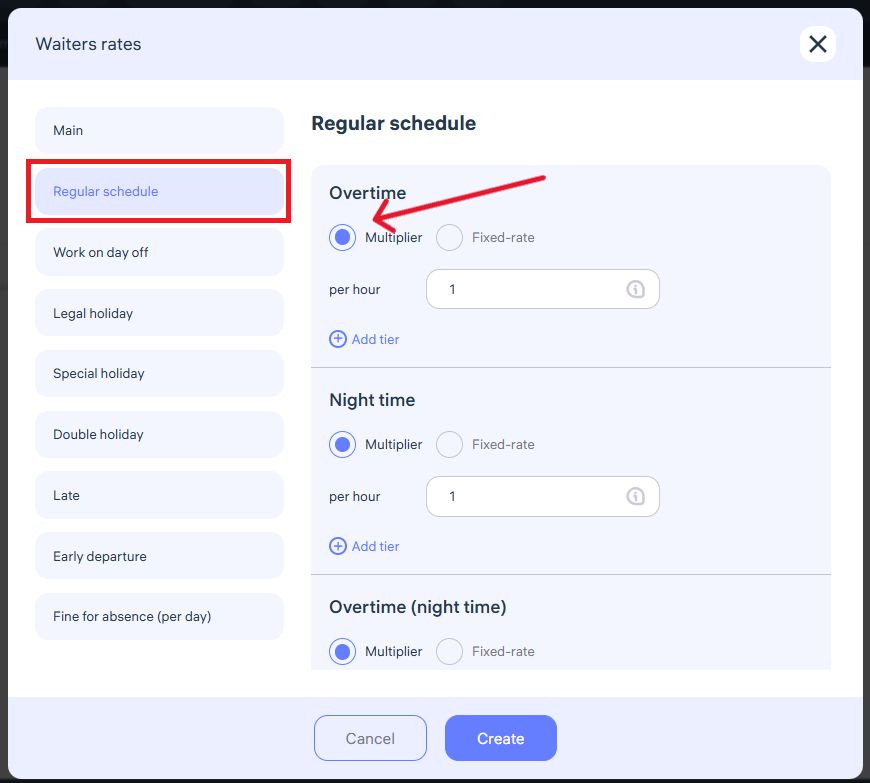
If an employee’s pay is set as a monthly rate, Clockster automatically calculates the hourly rate based on the planned number of working hours in the current month. This ensures accurate payment for overtime, night shifts, and other additional hours.
If you set a fixed hourly rate manually, Clockster will use that rate for all additional hours worked.
5. Setting pay for work on the employee’s day off:
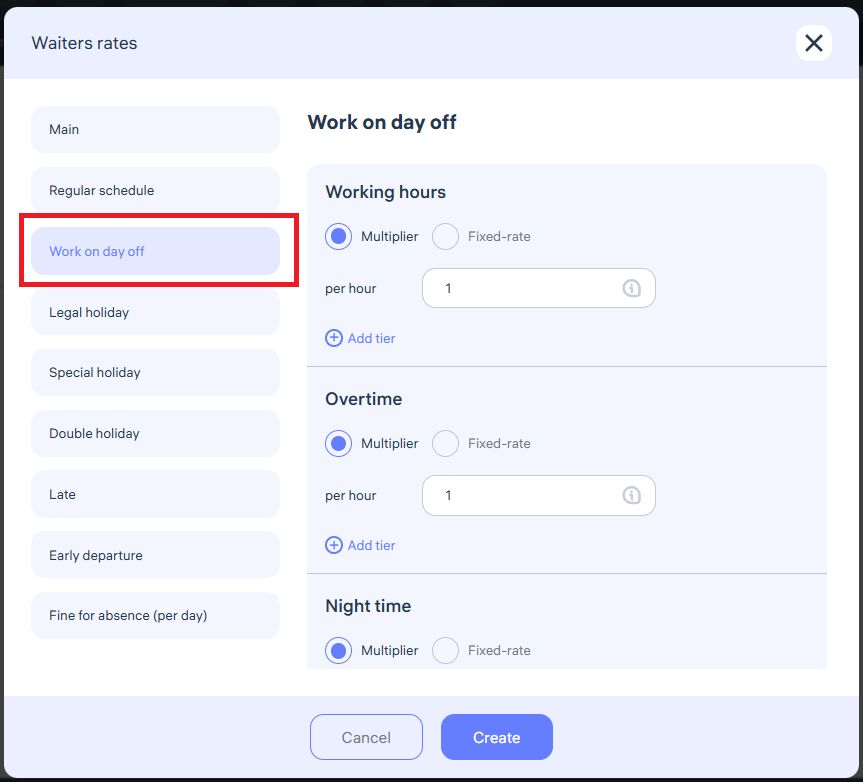
Clockster calculates payment for working on a day off as follows:
If an employee works on their day off, you can set payment either by a multiplier (e.g., double pay = multiplier 2) or by a fixed-rate.
Clockster automatically calculates the payment using the multiplier or fixed rate for each worked hour.
Overtime and night shifts can be configured separately for day-off work.
Example: If the multiplier is “2”, the employee receives double the standard hourly rate. If a fixed rate is used, Clockster bases the calculation strictly on that rate.
6. Setting pay for work on a legal holiday:
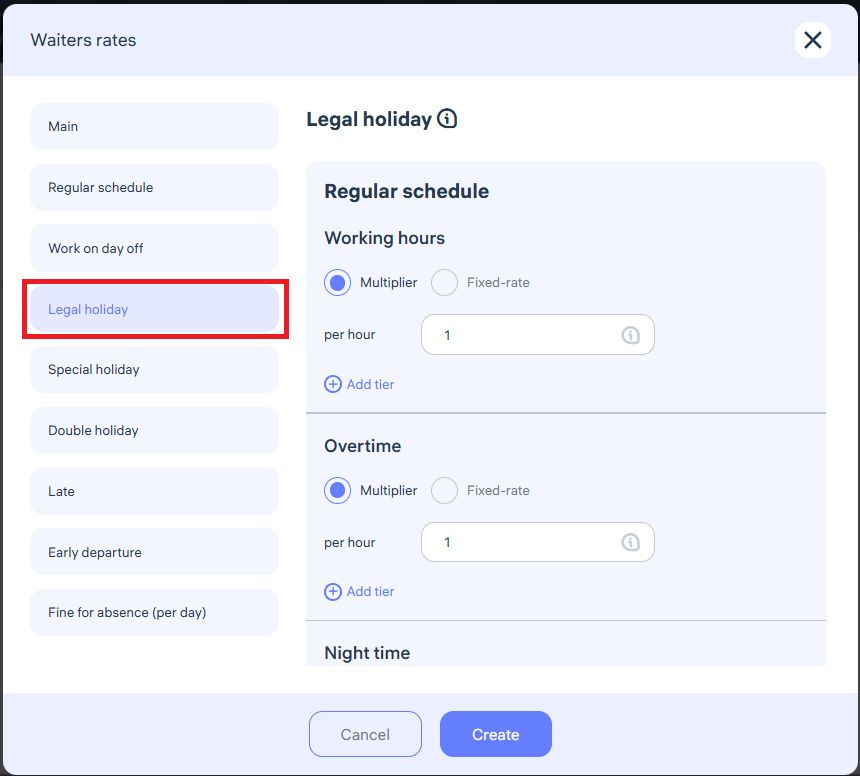
If an employee works on a legal holiday, you can choose between a multiplier or a fixed hourly rate.
With a multiplier (e.g., 2×), the system automatically increases the pay for each hour worked on the holiday.
With a fixed hourly rate, Clockster uses only the value you specify, regardless of the standard rate.
Overtime and night hours can also be configured for holidays in the same way.
This gives you flexibility in managing pay for employees working on holidays.
7. Setting pay for work on a special holiday:
Clockster calculates pay for special holidays as follows:
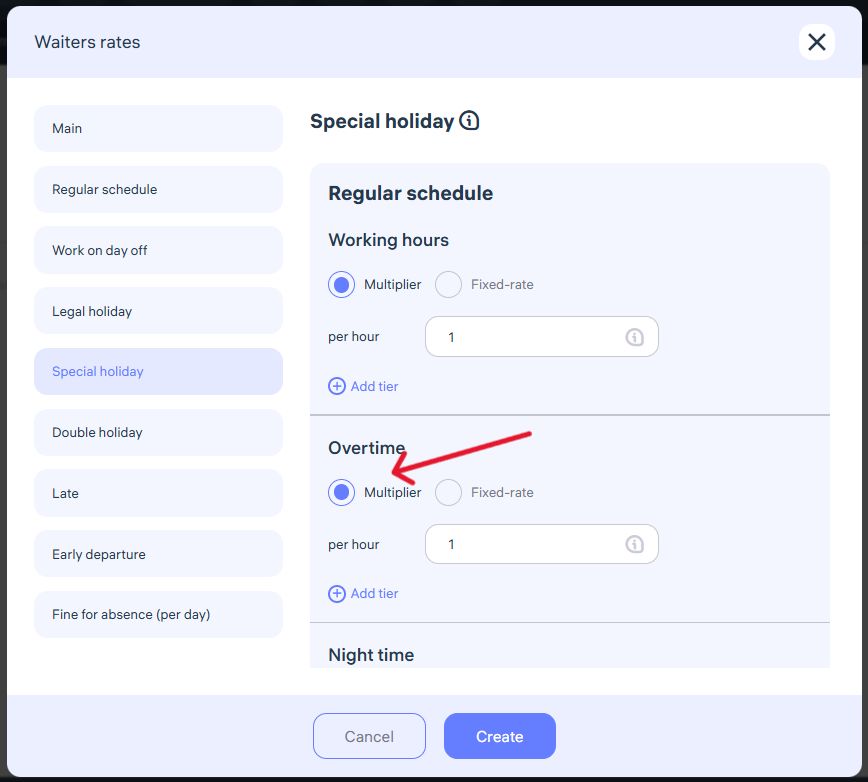
You can choose to pay using a multiplier (e.g., 1.5 or 2) or set a fixed hourly rate.
When using a multiplier, the system multiplies the employee’s standard hourly rate by the specified coefficient.
When using a fixed rate, Clockster calculates pay strictly based on the entered value.
Overtime and night hours for special holidays can also be configured separately.
8. Setting pay for work on a double holiday:
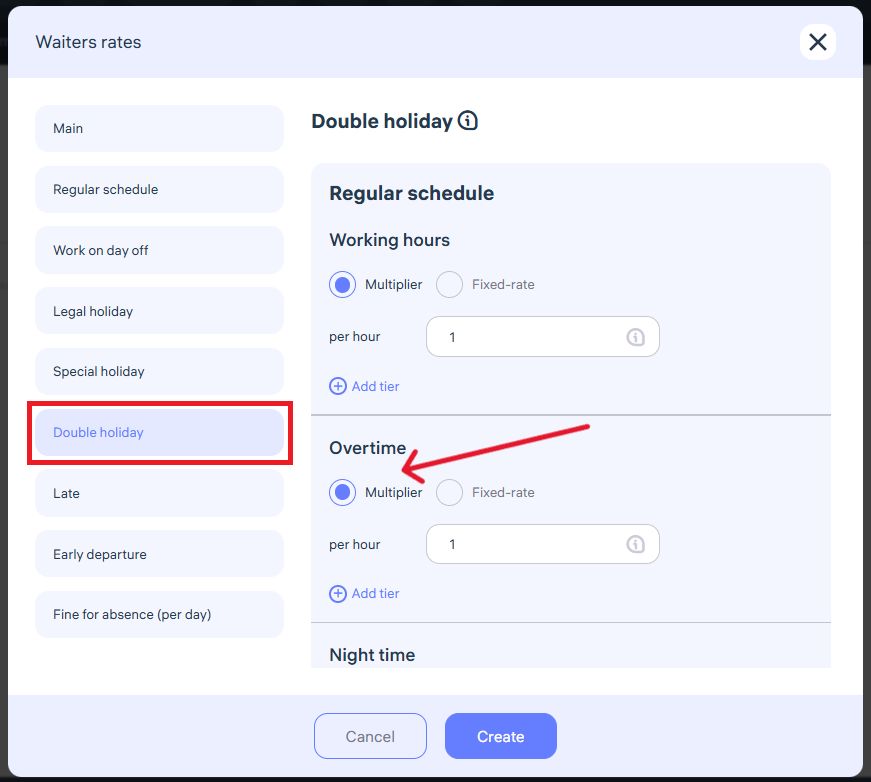
A double holiday occurs when a legal holiday coincides with an employee’s regular day off.
You can pay using a multiplier (e.g., 1.5 or 2) or a fixed hourly rate.
With a multiplier, Clockster multiplies the standard hourly rate by the coefficient for each worked hour.
With a fixed rate, Clockster uses that value for all calculations.
Overtime and night shift settings work the same way as for special holidays.
In the example, a fixed overtime rate of “0.00” means no pay for overtime during double holidays.
To enable overtime pay, set the fixed rate above zero or use a multiplier relative to the employee’s standard rate.
9. Setting a late arrival penalty:
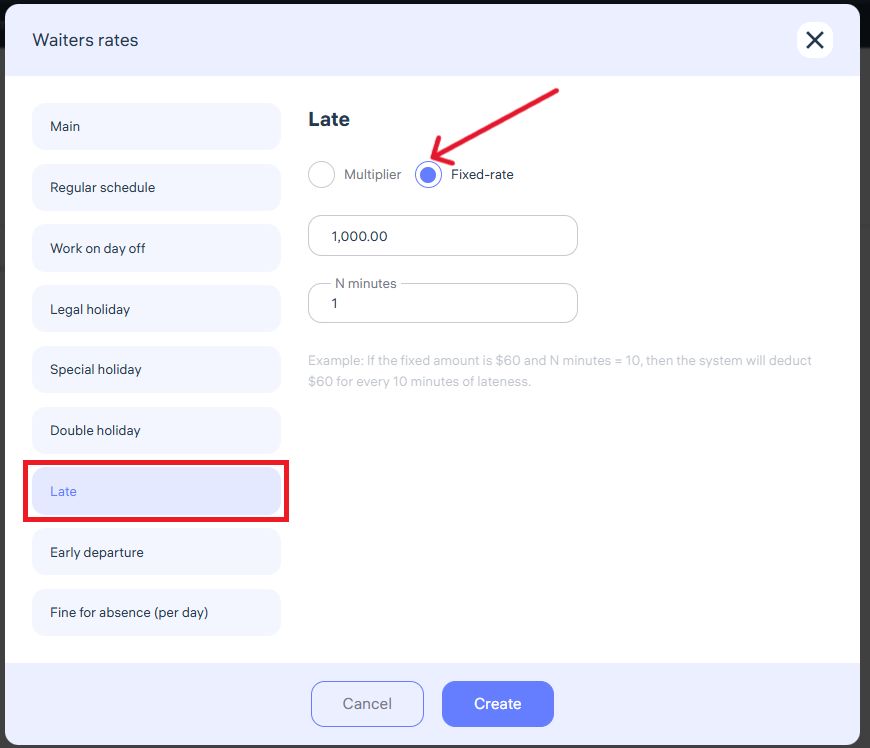
Clockster allows you to automatically deduct penalties for lateness.
Example: A fixed rate of “1000 per minute” means the system deducts 1000 units from the employee’s payroll for each minute late.
You can adjust this setting:
Multiplier – the deduction is proportional to the employee’s standard hourly rate.
Fixed rate – the deduction is a constant amount for every N minutes of lateness.
10. Setting an early departure penalty:
Setting an absence penalty:
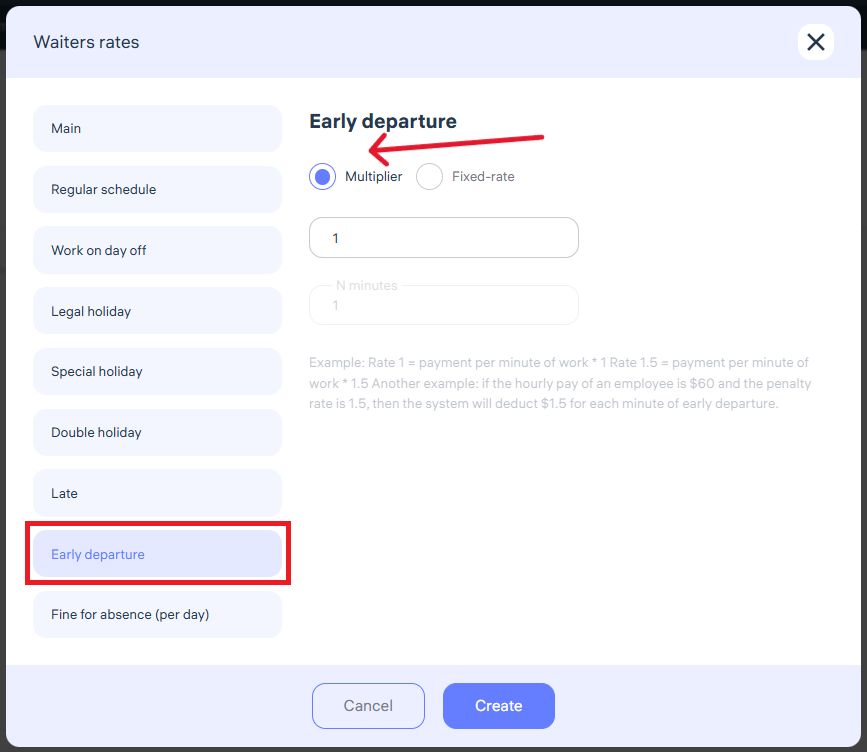
Clockster can also deduct pay for leaving work early.
Example: A multiplier of “1” means the system deducts the employee’s standard per-minute pay for every minute of early departure.
You can configure this in two ways:
Multiplier – the penalty equals the employee’s per-minute rate × the multiplier.
Fixed rate – a constant deduction regardless of the employee’s standard rate.
11. Setting an absence penalty:
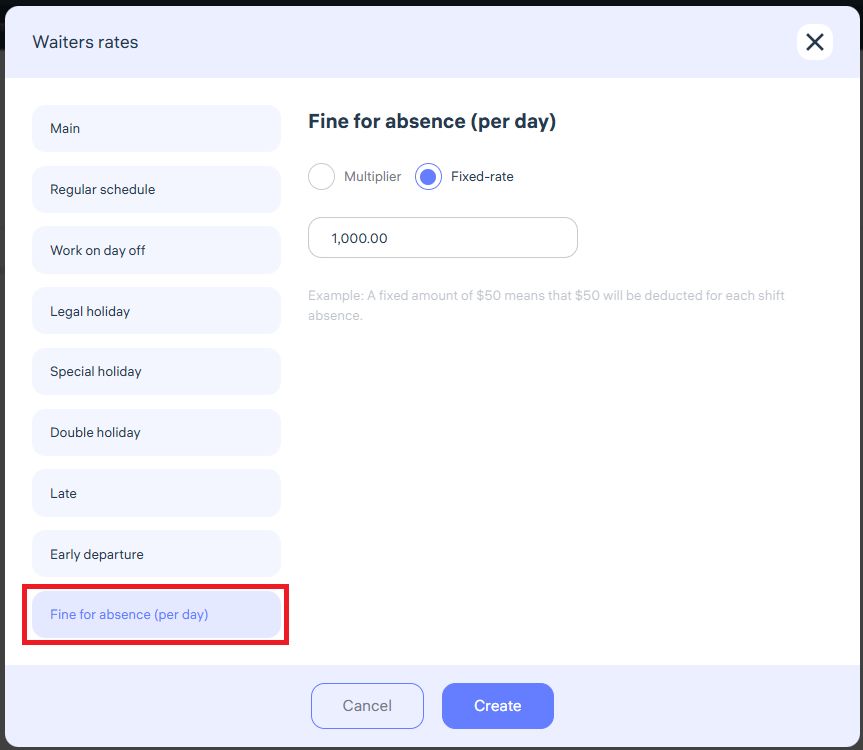
Clockster automatically applies penalties for unexcused absences:
Example: A fixed rate of 1,000 means that if an employee misses a full day without checking in, the system deducts 1,000 from their payroll.
You can choose between:
Multiplier – the penalty equals the employee’s daily rate × multiplier.
Fixed rate – a constant deduction regardless of the salary.
⚠️ Important:
If there’s no check-in, check-out, or both during a working day, Clockster counts it as an absence. The penalty applies automatically.
To avoid unnecessary deductions, make sure employees always check in and out on time.
Save your rate changes!
Clockster allows you to create multiple pay rates depending on your company’s needs, including:
Basic payroll rates
Overtime rates
Weekend and holiday pay
Night shift pay
Penalties for lateness, early leave, or absences
These rates can be applied to different employee categories depending on their position, work conditions, and motivation system.
This flexibility allows for accurate and fully automated payroll calculations across your company.
Advanced task settings
Advanced task settings
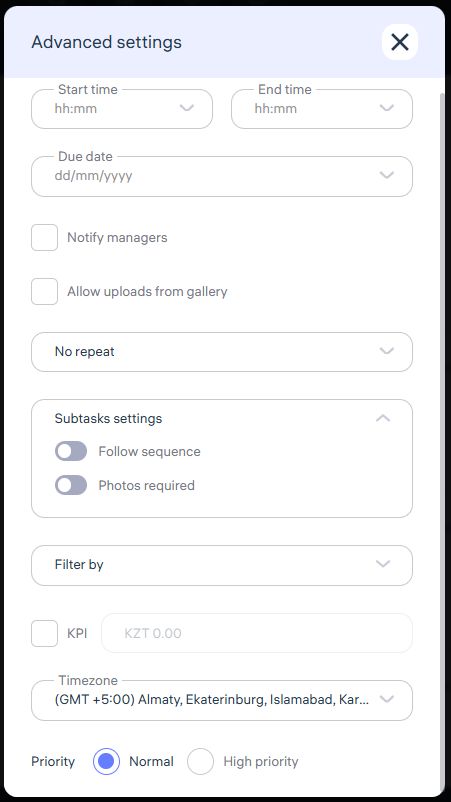
Start time, end time and due date
Notify Managers
When this option is enabled, managers will receive notifications about the creation and any changes made to the task.Allow Upload from Gallery
If this option is enabled, employees can attach photos not only taken in real time with the camera but also from their phone’s gallery.No repeat, As per the work shift, Every day, Every 2 days, Weekly, Specific dates
Here you can specify how often the task repeats.Subtasks settings
Follow sequence – when this setting is turned on, subtasks become sequential. The employee will only be able to complete the next subtask after finishing the previous one.
Require Photo Upload – if enabled, the employee will be required to attach a photo report when completing a subtask.
Filter by
You can link a task to specific parameters:Location – select the specific place where the task will be performed.
Department – select the department to which the task applies.
Position – select the position of the employees for whom the task is created.
KPI Plan
A field where you can specify the planned KPI amount for the task. This amount will be used to compare with actual data in reports.Timezone
High Priority
When activated, the task will be displayed as a high-priority task for the assignee.
Reports
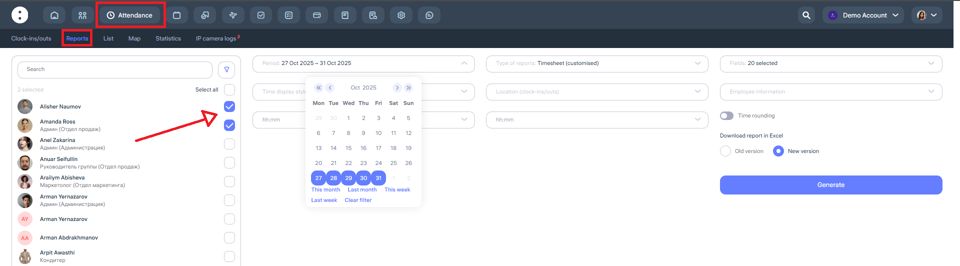
Where to Find It
Log in to your Administrator account.
In the top bar, go to the “Attendance” section, then select “Reports” from the menu below.
Choose the employees for whom you want to generate the report. Use filters to quickly search by location, department, or other categories.
Be sure to specify the time period for generating the report.
In the “Report Type” section, Clockster offers 7 types of reports:
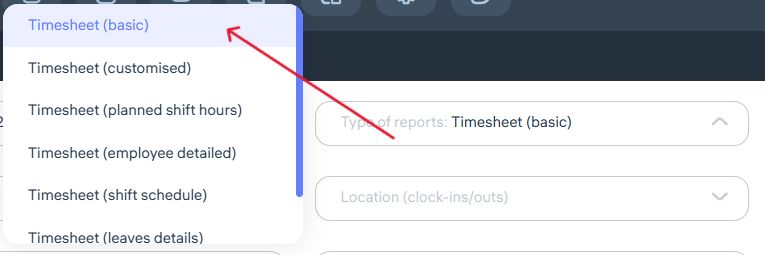
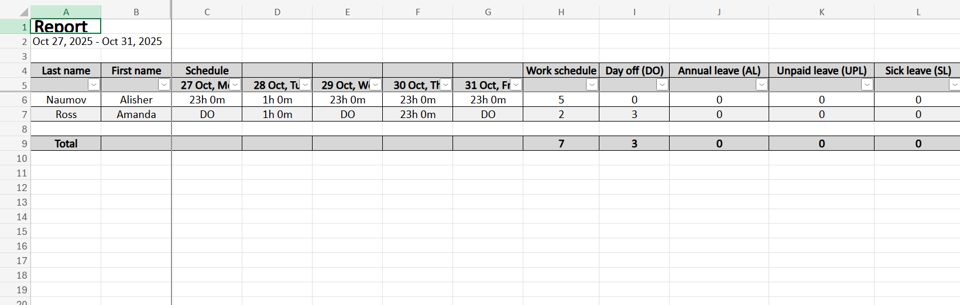
1. Timesheet (Basic)
In this report, you can include additional employee details such as Middle Name, Code, Location, Department, and Position.
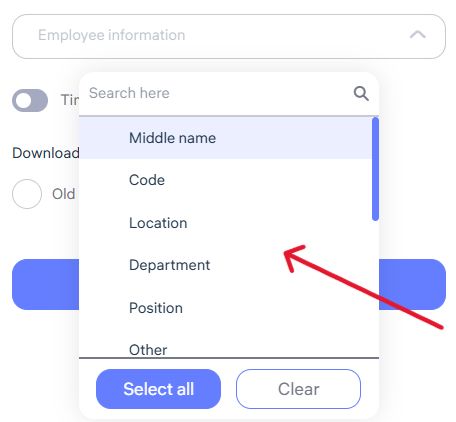
Once the required fields are selected, you can export a report that includes:
Planned working hours according to the employee’s schedule
Whether a break was included
Actual worked hours
Undertime hours
Worked hours on weekends
Temporary absences approved via requests
2. Customised Timesheet
This report allows you to choose which data fields to display — such as clock-in and clock-out times, total worked hours, deviations, department, position, etc.
Clockster provides 20 data fields for reporting, including:
Created schedules
Schedule types
Employee attendance (clock-in/out marks)
Planned hours according to the schedule
Actual worked hours
Overtime (hours worked beyond the schedule)
Approved overtime via requests
Undertime
Worked hours on days off
Late arrivals
Early departures
Break time
Worked hours during night shifts (according to account settings)
Days with incomplete clock-ins
All employee clock-ins with address info
Absences (according to leave schedule)
Total of worked + overtime hours
Overtime before the shift start
Overtime after the shift end
Before generating the report, you can also choose the report format: Old or New version.
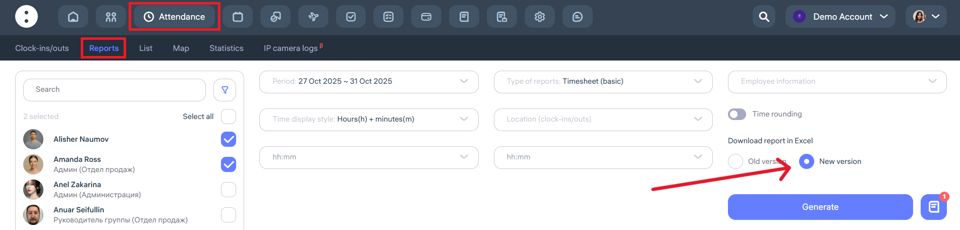
Difference between versions:
In the old version, all selected fields appear in a single table grouped by employee — allowing you to view all data at once.
In the new version, each selected parameter is shown in a separate subreport — scroll horizontally to view all data.
3. Timesheet (Planned Shift Hours)
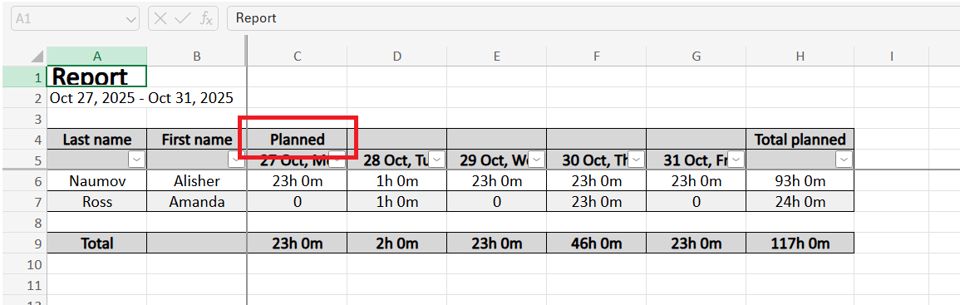
This report displays the total planned working hours for each employee according to their assigned shift schedule, regardless of actual attendance.
The report shows:
How many hours the employee was scheduled to work
Number and duration of planned shifts
Useful for analyzing workload and planning workforce capacity
Note: The “Planned” report does not include actual clock-ins or clock-outs.
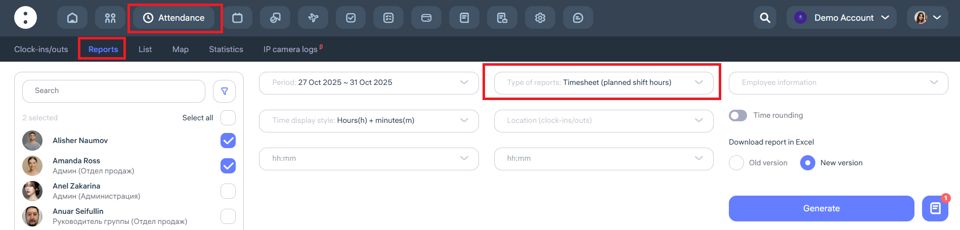
Once all fields are selected, click “Generate” — you’ll see a preview and can download it as an Excel file.
4. Timesheet (Employee Detailed)
This is a comprehensive daily report for each employee. It combines planned vs actual working times to analyze compliance and identify deviations.
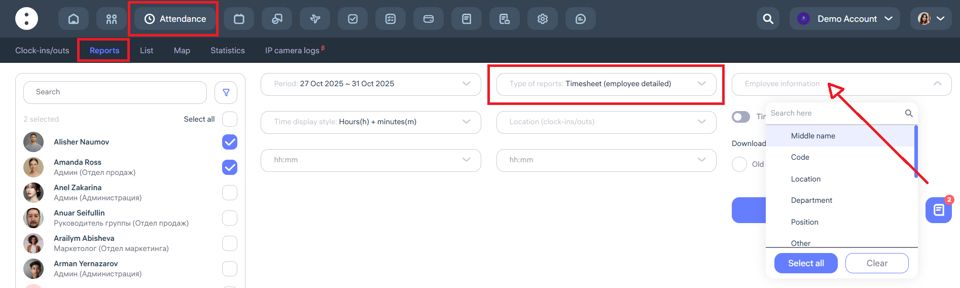
The report includes:
Employee information (optional)
Date and weekday
Planned start and end times
Actual clock-in and clock-out times
Total worked hours
Duration of lateness, early departures, and overtime
5. Timesheet (Shift Schedule)
This report displays the planned distribution of employee shifts for the selected period. It shows on which days and hours each employee is scheduled to work.
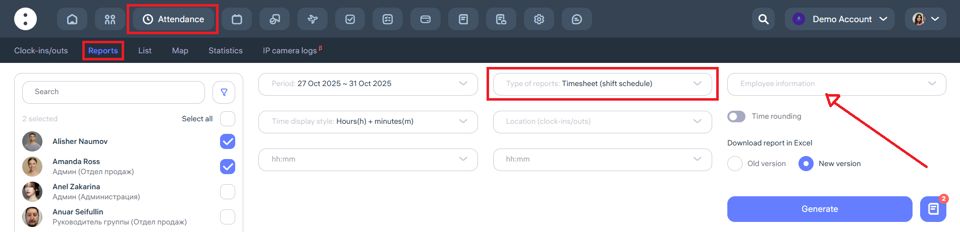
The report includes:
Weekends, holidays, and absences (if specified in the schedule)
Optional employee details
Dates and weekdays
Assigned shifts for each employee
Start and end times of each shift
6. Timesheet (Leave Details)
This report lists all periods of employee absences recorded in the system — such as vacations, sick leaves, time off, and other types of leave schedules.
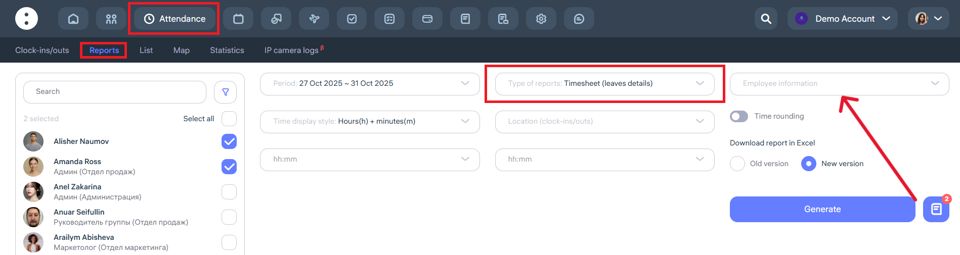
The report includes:
Optional employee details
Full name
Type of leave (vacation, sick leave, time off, etc.)
Total number of days
7. Timesheet (Man-Hours)
This report is the Clockster equivalent of a 1C work-hour timesheet.
It displays actual worked hours for employees by day within the selected period.
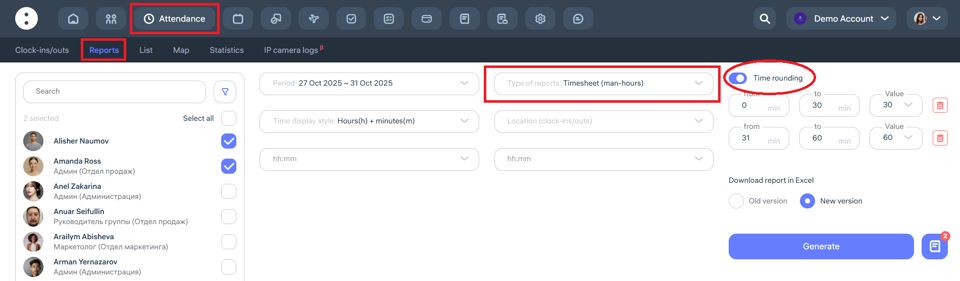
The report accounts for:
Scheduled hours
Overtime
Undertime
Lateness and early departures
Absences and leaves
The timesheet is generated automatically based on:
Clock-in/out marks
Work schedules
Leave and business trip data
This report is ideal for submission to accounting or for payroll calculation.
How to Create a Checklist in Clockster
1. Open the “Checklists” Section
From the main menu at the top of the screen, go to the “Checklists” section.
2. Click “Add Checklist”
The button is located in the upper left part of the page.
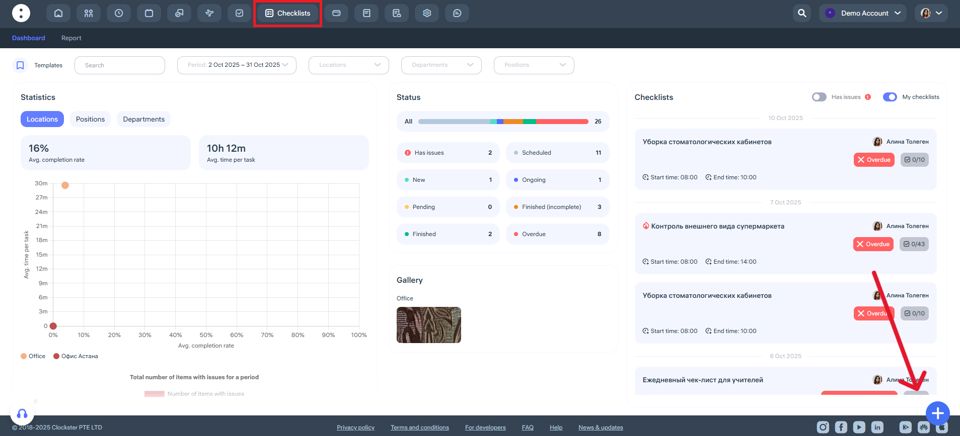
A new checklist creation form will open.
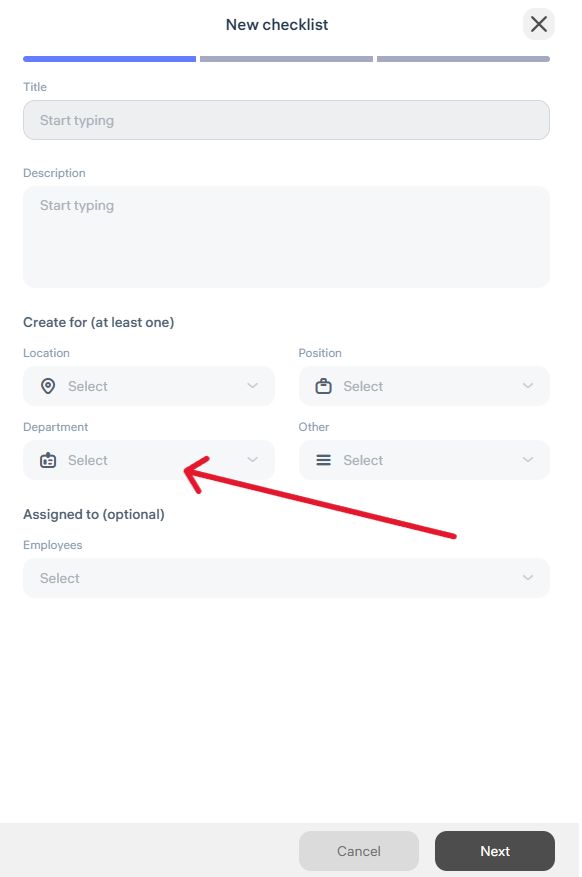
3. Enter Basic Information
In the first step, fill in the following fields:
Checklist name
Description (optional)
Location, department, and position — at least one combination is required
Assign a specific employee as responsible (optional)
Select “Save as template” if you plan to reuse this checklist later
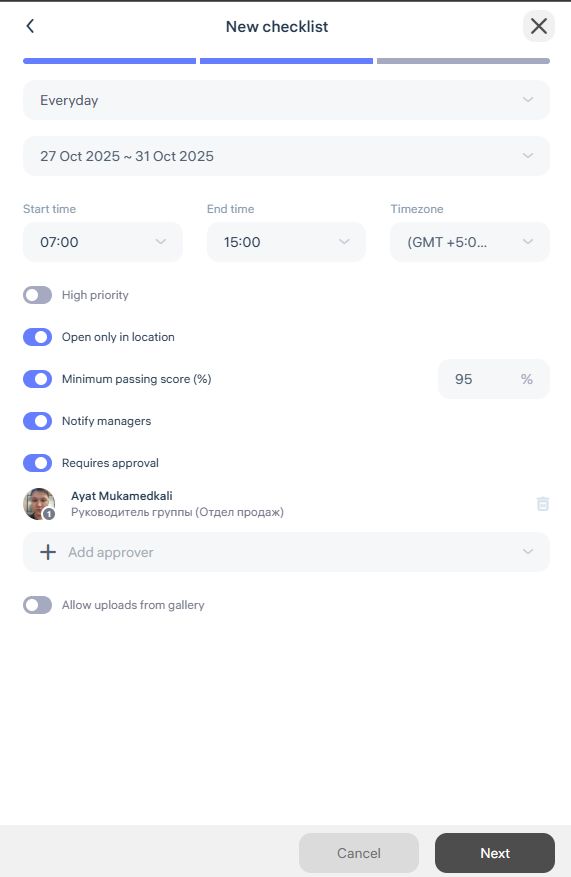
4. Set Task Parameters
In the second step, specify:
Recurrence type (one-time, daily, weekly, etc.)
Start and end time
Time zone
Minimum passing score (in %)
Optional settings:
Allow checklist completion only within a specific location
Enable manager notifications
Require manager approval
Assign managers responsible for review
Allow or restrict photo uploads from the gallery
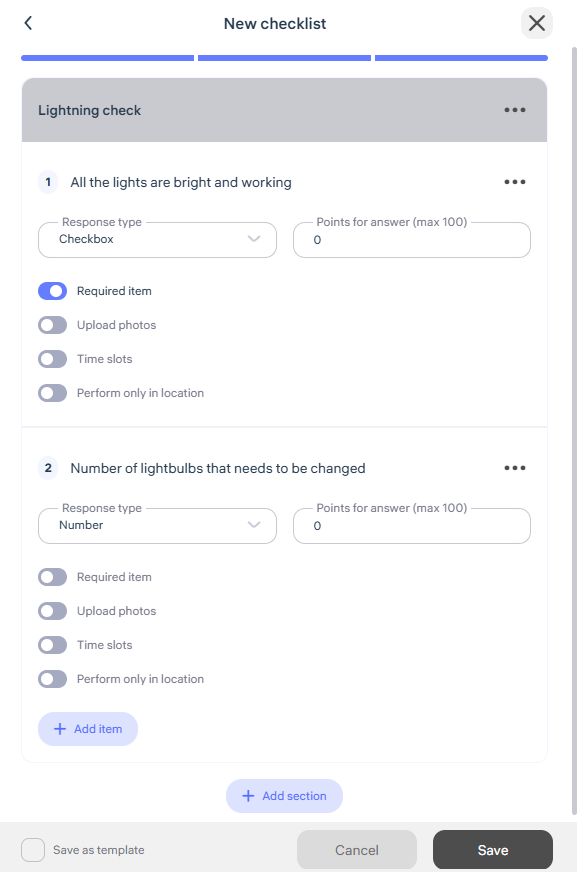
5. Add Sections and Items
In the final step, build your checklist structure:
Add one or more sections
Within each section, create individual items
Enter the task text
Choose the answer type (text, Yes/No, multiple choice, etc.)
Assign points for correct completion
Mark if an item is mandatory, requires a photo, or must be completed on-site
6. Save the Checklist
Once all fields are filled in, click “Save.”
Your checklist will be created and ready to assign to employees.
Clockster Kiosk
Clockster Kiosk is Clockster’s proprietary mobile application designed to track employee attendance.
The app can be installed on any Android device and serves as an alternative to biometric terminals — helping companies avoid additional hardware costs.
Key Features of Clockster Kiosk
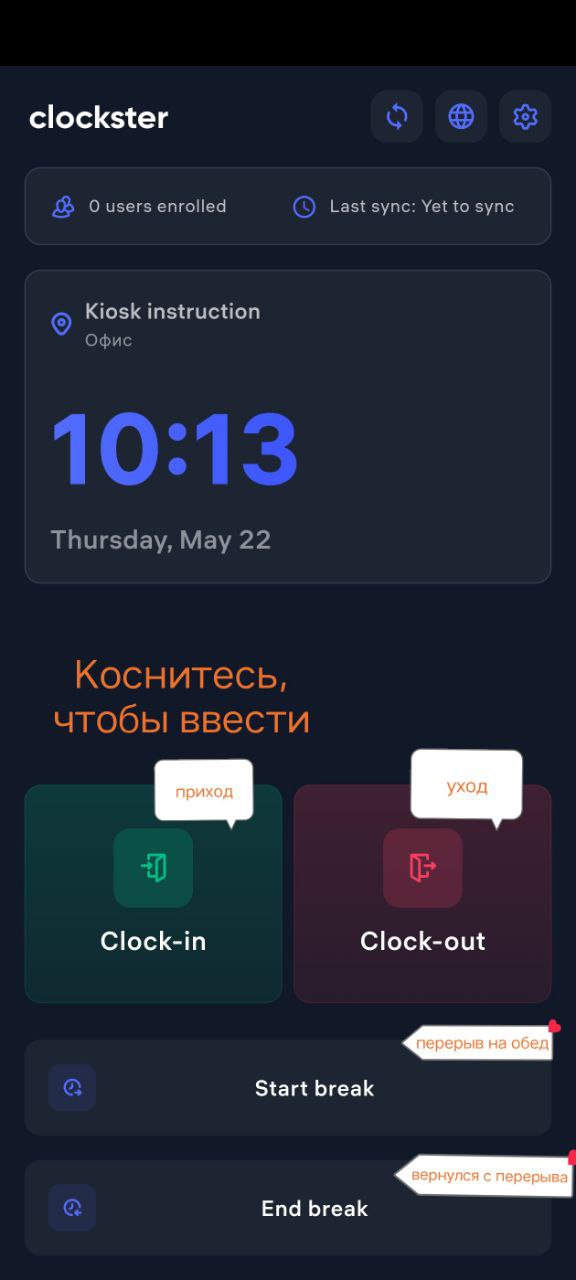
Records employee clock-ins, clock-outs, and break start/end times
Supports facial recognition for authentication
Sends attendance data to the system in real time
Easy installation via Google Play Market
Clockster Kiosk is a convenient solution for companies that want to manage employee time tracking efficiently — without investing in extra technical resources.
How to Install and Set Up Clockster Kiosk
1. Get Access from Clockster
Before installation, contact our support team to obtain:
Admin login and password for the Kiosk
These credentials are required to sign in and link the device to your company account.
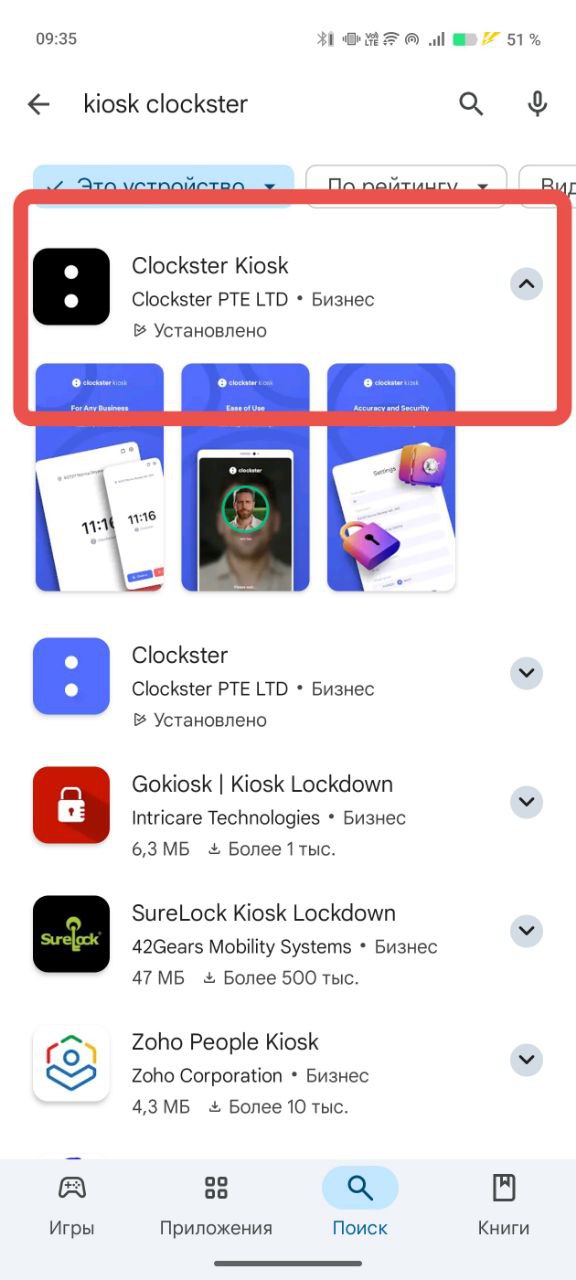
2. Download the Clockster Kiosk App
Open Google Play Market on your Android device and search for Clockster Kiosk,
or use the direct link: Clockster Kiosk on Google Play.
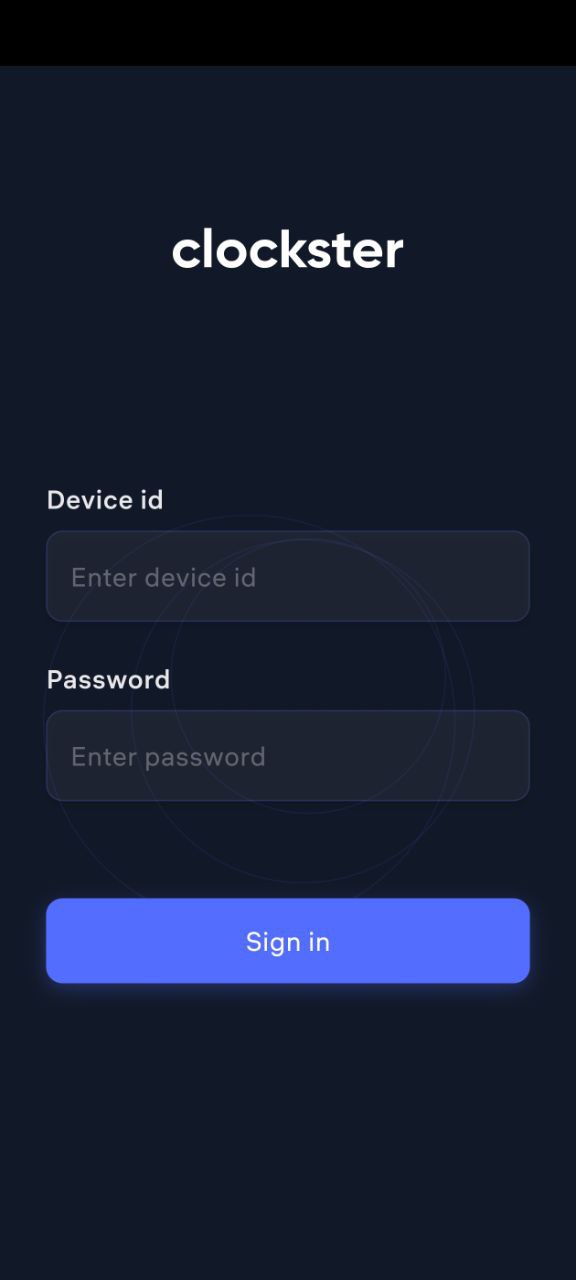
3. Install and Open the App
After installation, launch the app and log in using the provided admin credentials to authorize the device.
4. Place the Device in a Convenient Location
Mount the tablet or smartphone in an easily accessible area (e.g., at the office entrance) so employees can quickly clock in, clock out, and mark breaks.
How Clockster Kiosk Recognizes Employees
Once the Clockster Kiosk app is installed, it must be linked to a specific company location:
Open the admin dashboard.
Go to Settings → Devices.
Link the installed device to the corresponding location where it will be used.

Facial Recognition Requirements
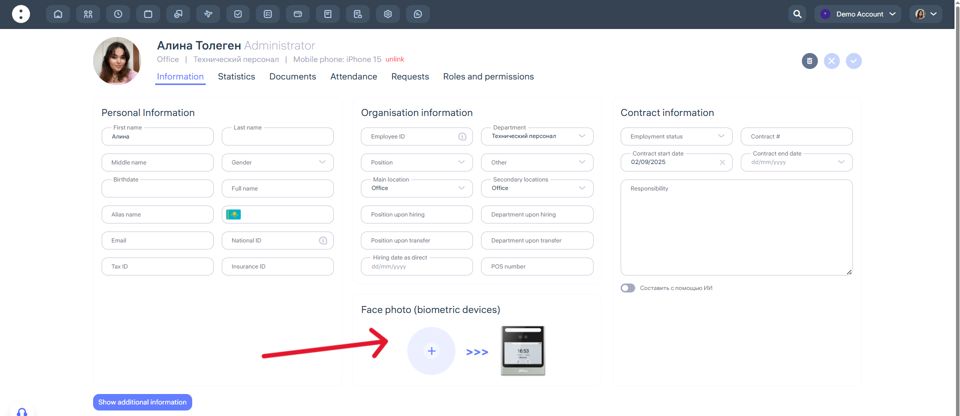
To enable accurate facial recognition, upload a photo of the employee’s face in their profile under Face Photo (Biometric Device).
Photo requirements:
Format: JPEG / JPG / PNG
Minimum resolution: 600×600 px
Background: light and plain
Face: no accessories, no smile, no headwear, no filters
Look directly at the camera, with the face occupying at least 70% of the frame
The photo must be clear, sharp, and in color
Do not upload photos taken from other photos
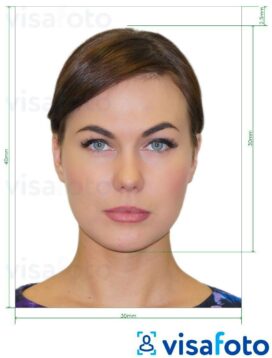
You can upload the photo directly from the employee’s profile in the admin dashboard.
Important
If your company has multiple locations, each Clockster Kiosk device will recognize only those employees assigned to the same location.
This ensures precise time tracking and access control for each site.
Recommendations for Optimal Use
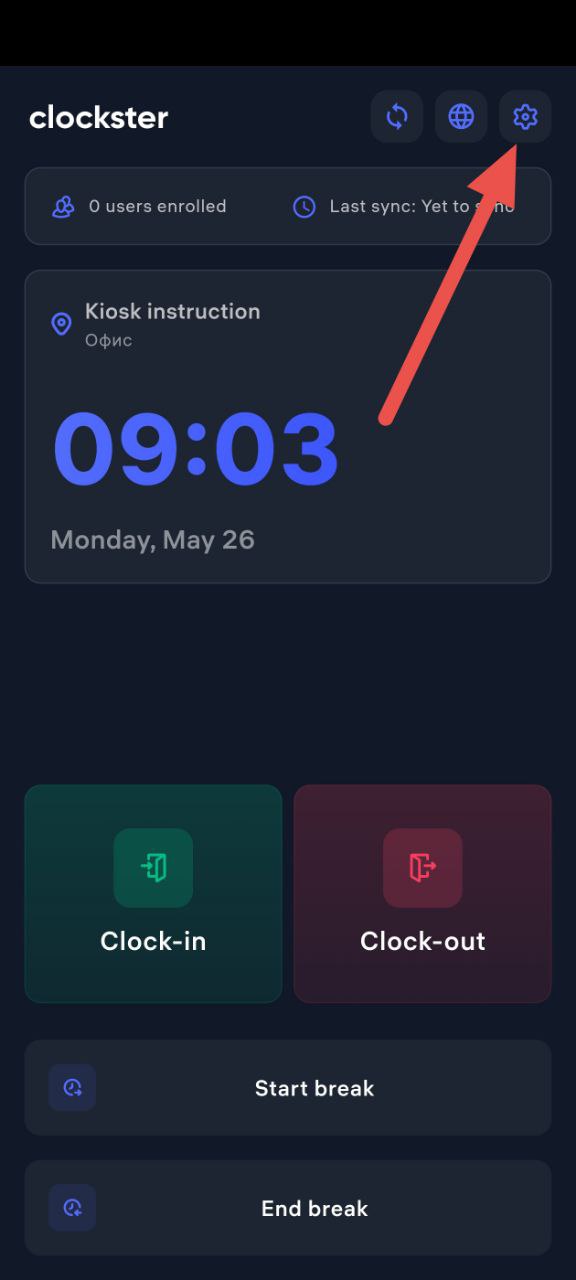
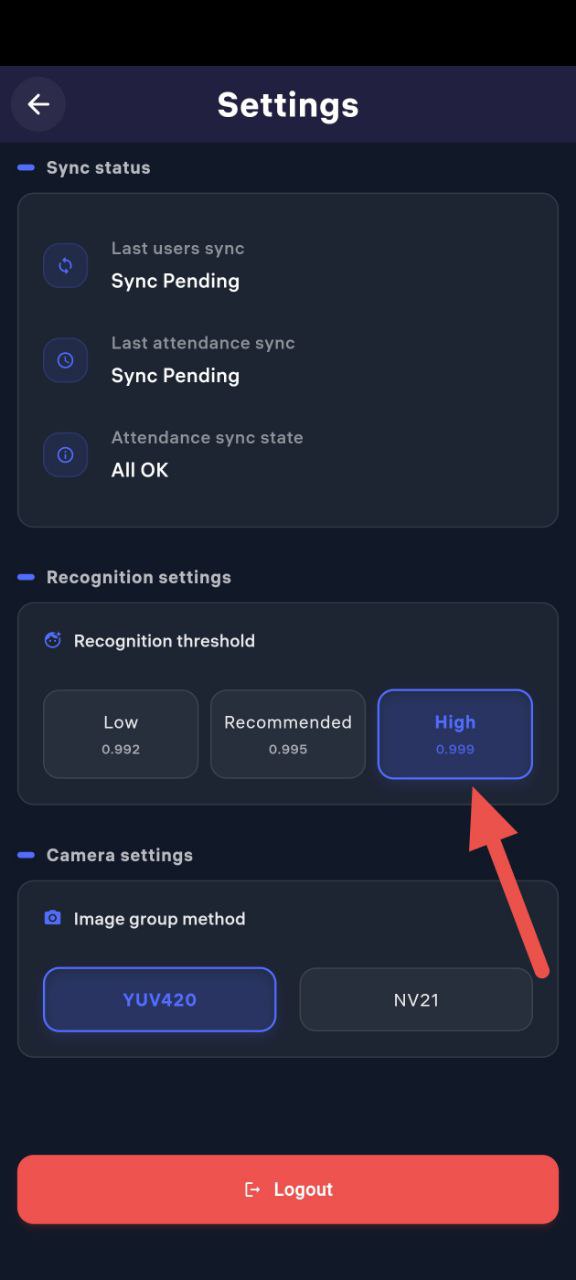
For improved accuracy, you can set the Recognition Threshold to High in the app settings.
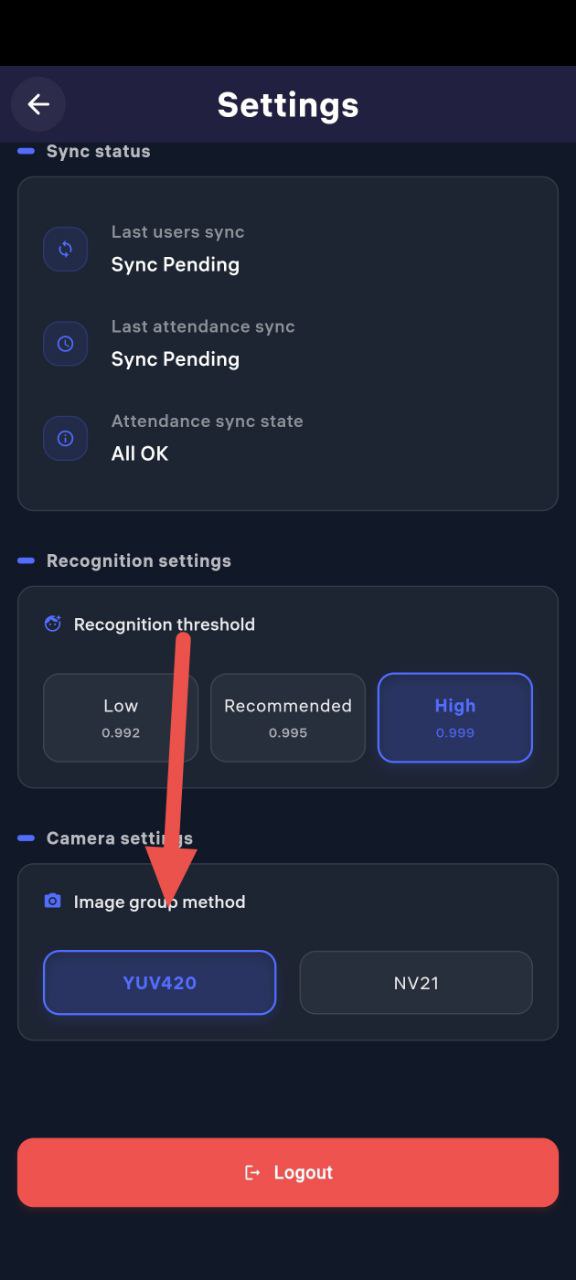
On some Android devices, you may experience issues with face detection (e.g., the face frame not appearing).
This is due to hardware limitations of specific models.
To fix the issue:
In the app settings, change the camera mode from “YUV420” to “NV21”.
This usually resolves detection issues.
⚠️ Note:
YUV420 works reliably on most devices and is set as the default mode.
Switch to NV21 only if you experience problems with the face frame or recognition accuracy.
Biometric Devices
Attendance Tracking
To ensure accurate working hour records, employees must consistently mark their clock-ins and clock-outs.
Clockster offers two ways to register attendance:
1. Clockster Mobile App
Employees can record their arrival, departure, and breaks directly through the Clockster mobile app.
Advantages:
Convenient: employees can mark attendance from their own smartphones.
Flexible: supports geolocation, push notifications, and other features.
No additional equipment required.
Limitations:
Possible errors if employees forget to clock in/out manually.
2. Biometric Devices (Optional)
Clockster also supports integration with select biometric terminals.
These devices can be installed at company locations and automatically register employee arrivals and departures using facial recognition.
Advantages:
Prevents fraudulent clock-ins — the system identifies the actual employee.
Increases discipline and accuracy.
Fully automated — no manual action required from the employee.
Limitations:
Requires purchase and installation of hardware.
May involve maintenance or setup issues (e.g., recognition tuning, connectivity problems).
Devices operate only for employees and locations linked in the system.
📌 Recommendation:
You can use both methods — the mobile app and biometric terminals — depending on your company’s setup.
For example, install terminals at office locations and use the mobile app for remote or field staff.
If you wish to connect biometric devices, please contact our support team to receive a list of compatible models and detailed integration instructions.
Guide: Connecting a Biometric Device in Clockster
Step 1. Device Configuration
When adding a new device, key parameters are entered to enable synchronization with your Clockster admin dashboard.
If you purchased the device through Clockster, it usually comes pre-configured.
If you purchased it independently, request a configuration file from Clockster’s technical support.
Step 2. Device Installation
Once configured, the device must be installed at the designated location where:
There is access to a power source;
For Wi-Fi connection — place it close to the router to ensure a stable signal.
Step 3. Internet Connection
Connect the device to the internet — either via Wi-Fi or Ethernet cable, depending on the model and available options.
Step 4. Linking the Device to a Location
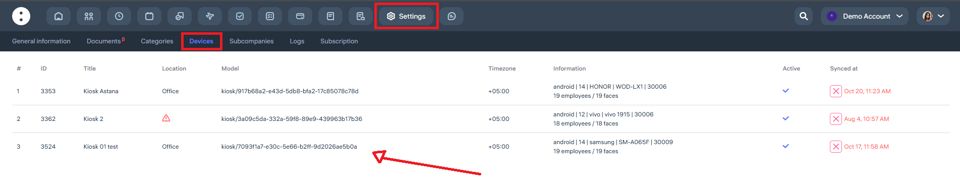
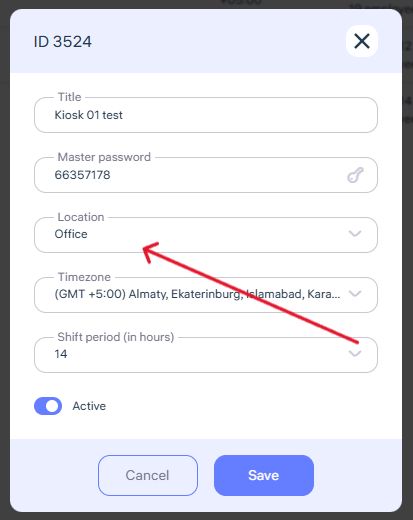
In the Clockster admin dashboard, go to: Settings → Devices, and link the biometric device to the specific location where it’s physically installed.
Step 5. Uploading Employee Photos
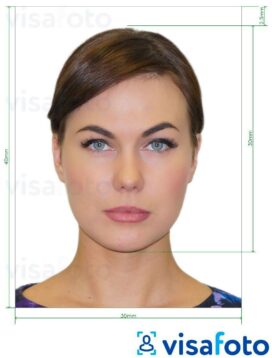
All employees working at that location must have a facial photo uploaded to their profiles.
The photo must meet specific quality and angle requirements for proper recognition:
Format: JPEG / JPG / PNG
Minimum resolution: 600×600 px
Background: light, solid color
Face: no accessories, no smile, no headwear, no filters
Look directly at the camera — the face should occupy at least 70% of the frame
Photo must be clear, in color, and not taken from another photo
Step 6. Data Synchronization
After uploading photos and connecting the device to the internet, Clockster will automatically sync employee images to the terminal.
Once synchronization is complete, the device will start recognizing employees by face.
Step 7. Start Using the Device
From this point, employees can clock in and out using the biometric terminal,
and the system will automatically record attendance and calculate working hours according to their assigned schedules.
Handbook
The “Handbook” section in the Clockster system is a key area for setting up the company’s structure and managing internal information.
Here you can:
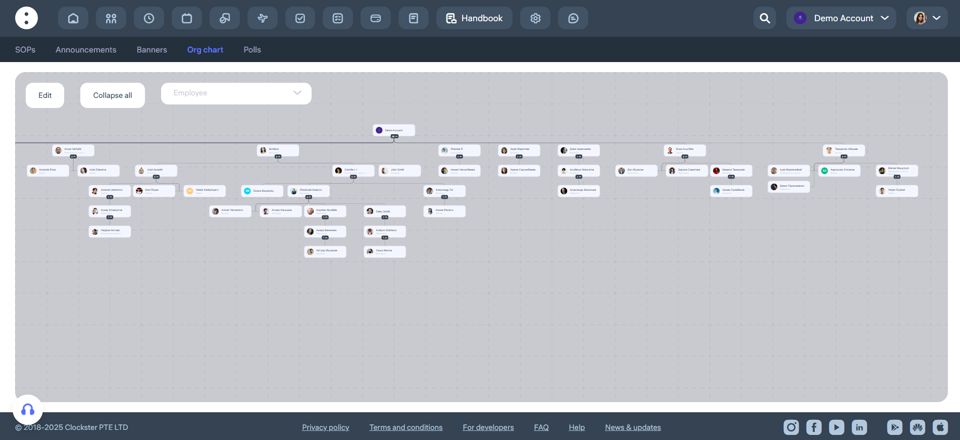
Build an organizational chart— from the CEO down to line employees, establishing clear reporting relationships.
Upload internal documents (such as policies, regulations, and instructions) so employees can easily access them.
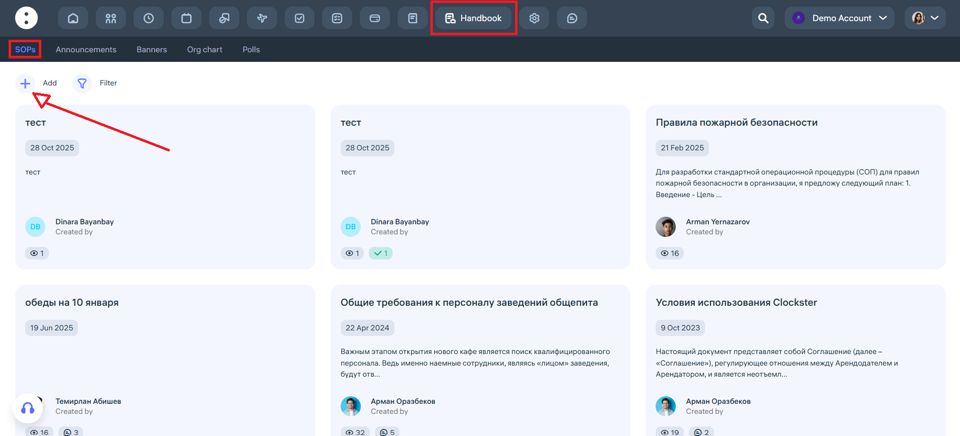
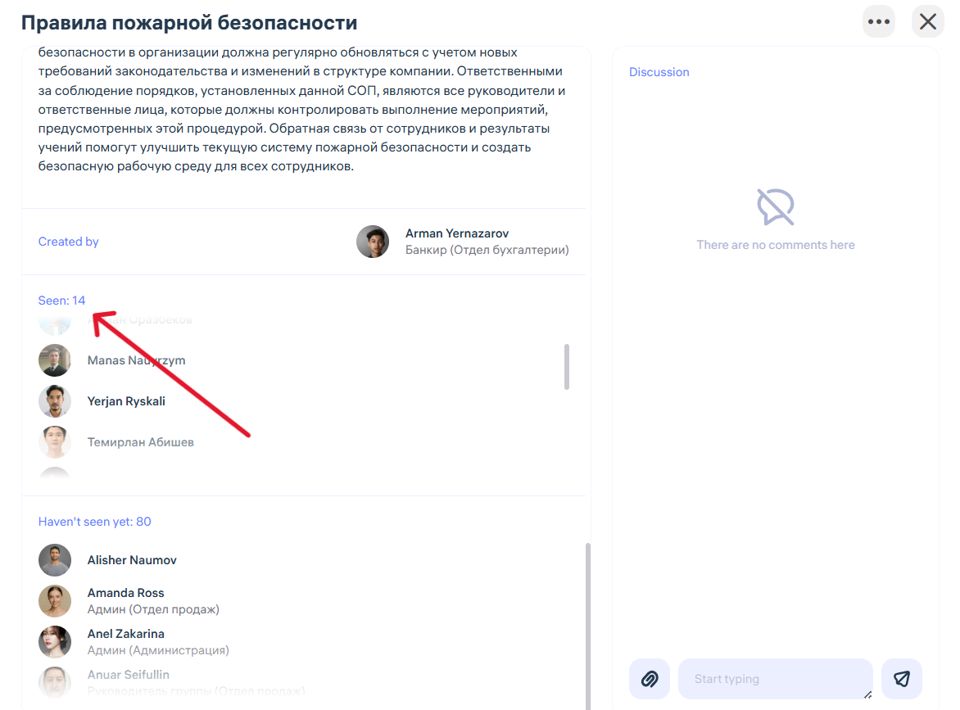
Administrators can also track who has reviewed each document and who has not.
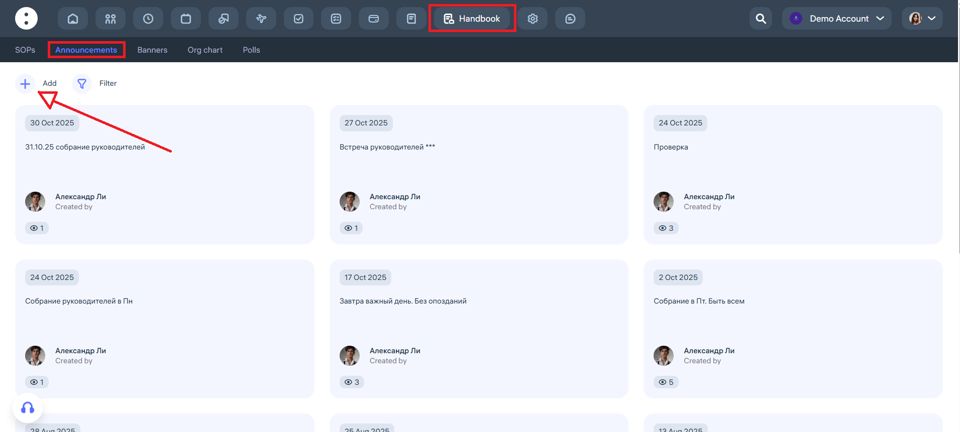
Publish banners and announcements to keep employees informed about important events, updates, and company news.
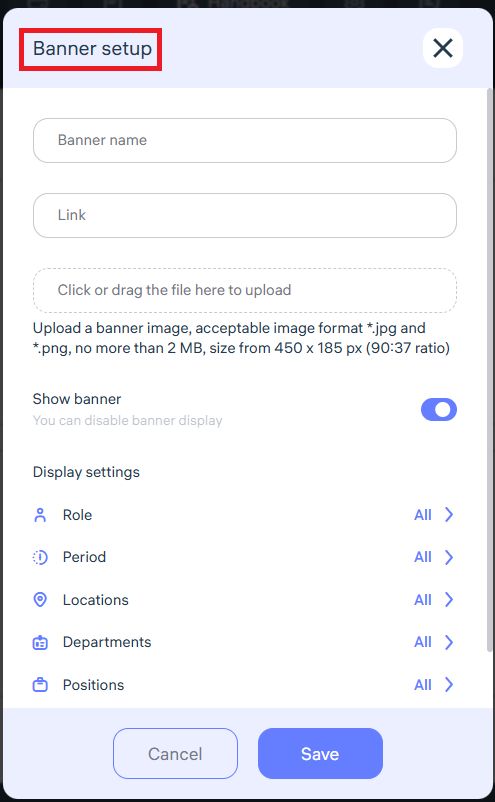
This section allows you to centrally manage the company’s structure and communication, ensuring organization and transparency in all processes.
Documents Section
This section in the Clockster admin workspace allows administrators to:

Upload employee documents (IDs, contracts, medical books, etc.);
View files uploaded by employees through the mobile app;
Assign mandatory documents for upload — for example, during the hiring process;
Monitor document validity and send reminders when updates are required.
What do employees see?
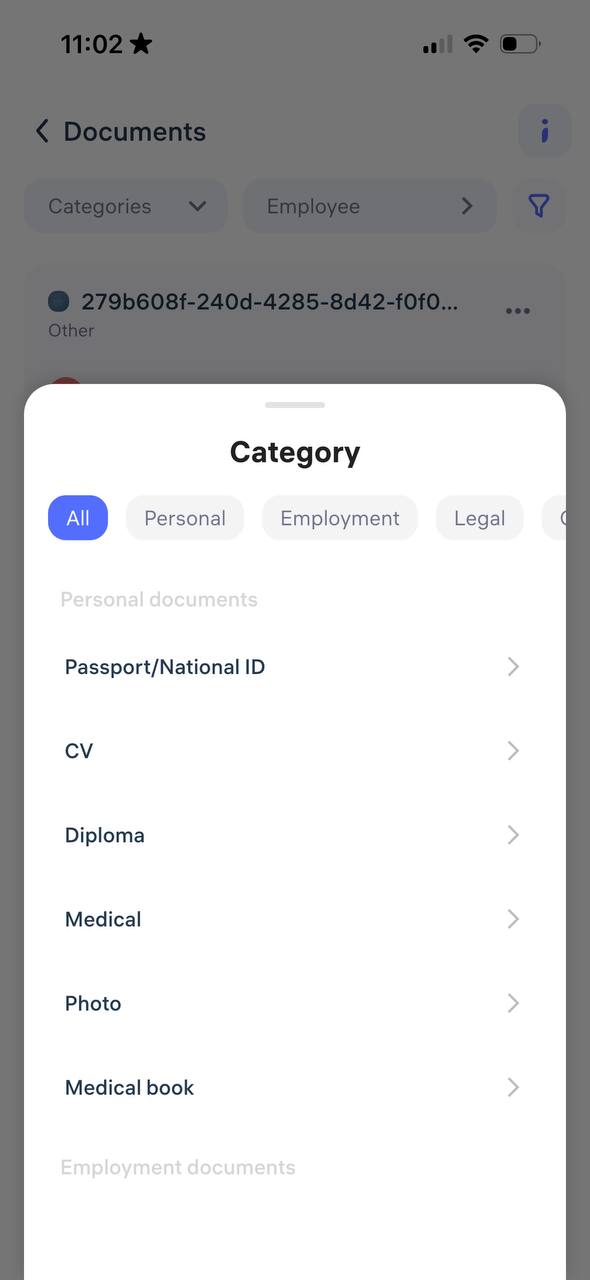
In the Clockster mobile app, employees have access to their personal “Documents” section, where they can:
Upload photos or scans of their documents;
View employment-related documents;
Access legal documents provided by the company;
Read statements, orders, and other files.
Document Signing with Digital Signature via E-gov mobile
Clockster supports a mechanism where employees can sign documents using their Electronic Digital Signature (EDS) through the official Egov mobile app (Republic of Kazakhstan).
This digital signature is legally equivalent to a handwritten one.
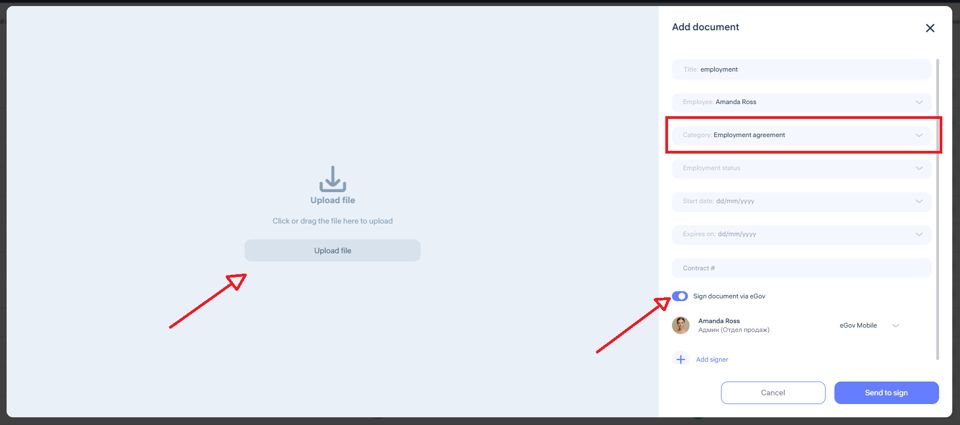
The employee receives a notification in the Clockster mobile app about a document that requires a signature.
They tap “Sign via Egov”.
The system redirects them to the Egov mobile app, where their EDS is already stored.
Once the employee confirms, the document is signed, and this action is automatically recorded in the system.
Advantages
Legal validity — digitally signed documents have full legal force and do not require paper copies.
Time and paper savings — especially useful for bulk notifications.
Security — Clockster does not store EDS data; all signing happens securely within the Egov app.
Archive access — all signed documents remain stored in the employee’s profile.
Important:
For all Clockster client companies in the Republic of Kazakhstan, 100 document signings per month are included as part of the annual subscription.
Setting Up Leave Balances in Clockster
Clockster allows you to set predefined limits for employee leave days. This feature automates leave management and eliminates the need for manual calculations.

How It Works:
Set limits for each type of leave (annual, personal, unpaid, etc.) — either monthly or yearly.
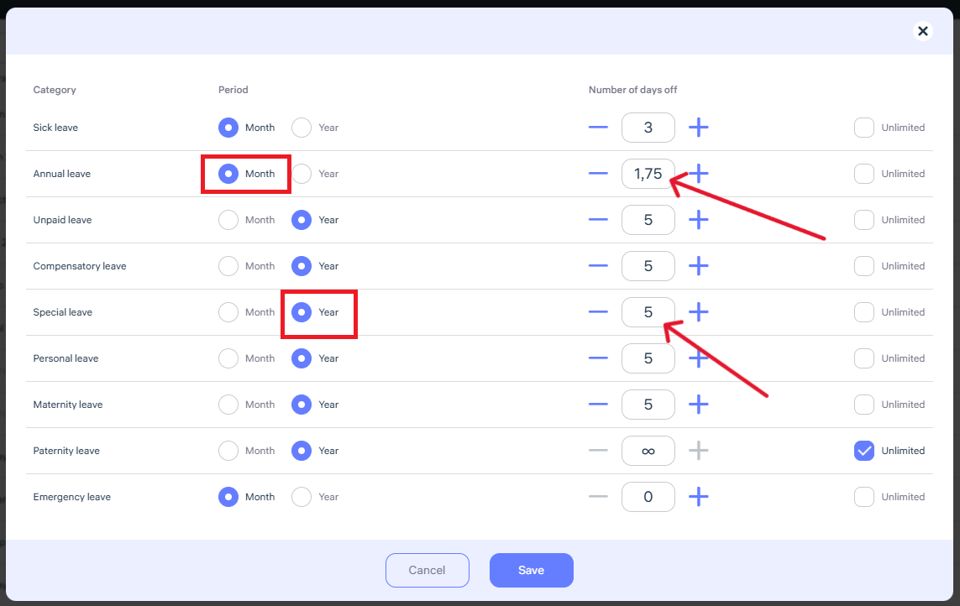
The system begins counting available leave days from the employee’s hire date.
When creating a leave request:
The employee immediately sees how many days are available.
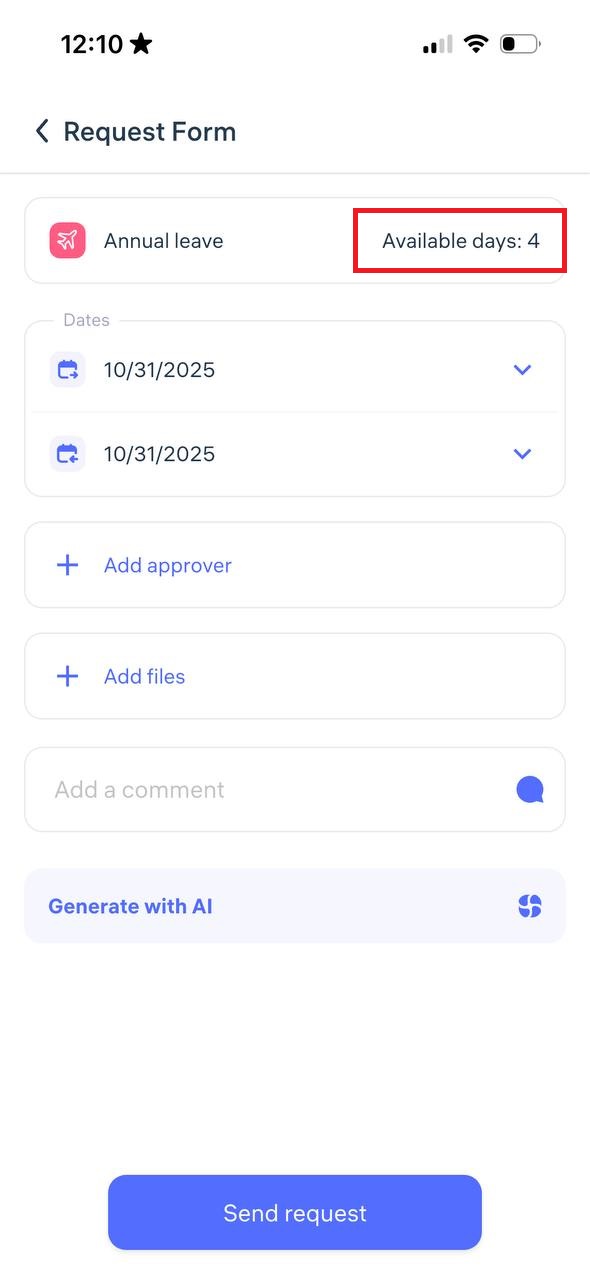
If the employee tries to exceed the limit, the system will not allow the request to be submitted.
Benefits:
No need to manually track leave in spreadsheets.
Fewer errors and unnecessary communication.
Ensures strict compliance with company leave policies.
Example:
If the limit is set to 2 annual leave days per month, and an employee has been working for 3 months, they will be able to request no more than 6 days.
Everything is clear, transparent, and fully automated.
Employee Permissions
To ensure all employees have the same access and permissions, you need to create a unified template and then:
Apply it to all existing employees.
Set it as the default template — so it automatically applies to all new employees.
Step-by-step guide for the administrator:
Go to the Clockster Admin Panel.
Open the Employees section, then select Permissions in the top menu.
Click on Templates.
Click the + Add New Template button.

In the opened window:
Select the Role: Employee
Enter a template name that clearly indicates its purpose (for example, “Basic Access”)
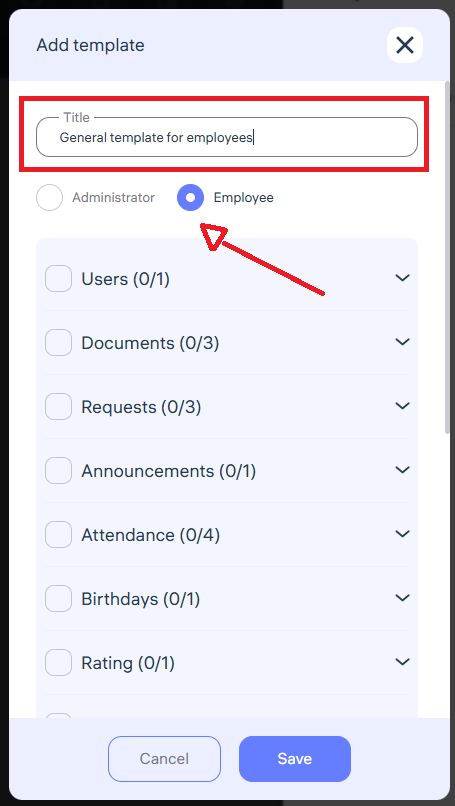
Permission settings:
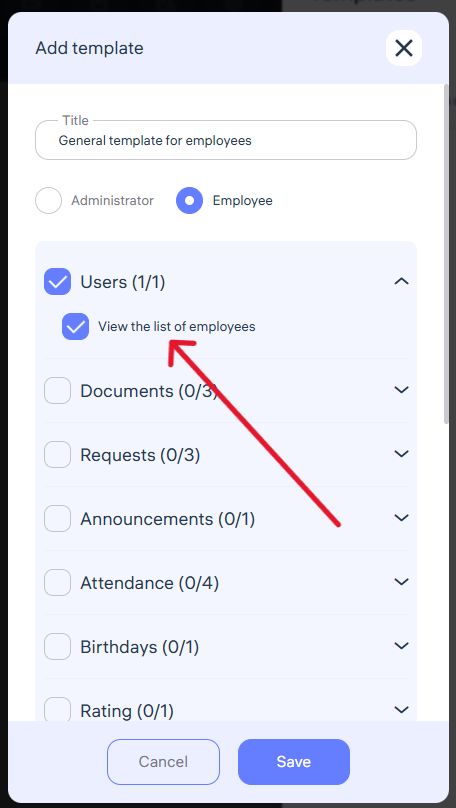
Check the boxes for the features that employees should have access to in the mobile app, for example:
View Colleagues List
Employees will be able to see the full names, contact details, and job titles of their colleagues.
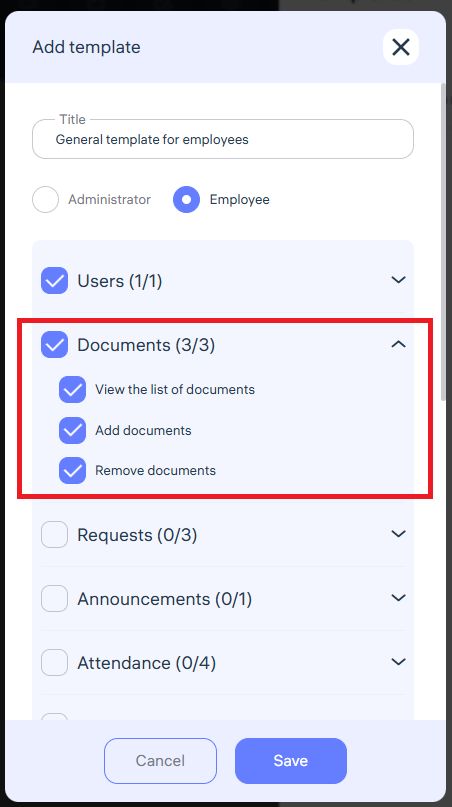
Access to Documents
Employees can upload and delete their personal documents from their phone gallery.
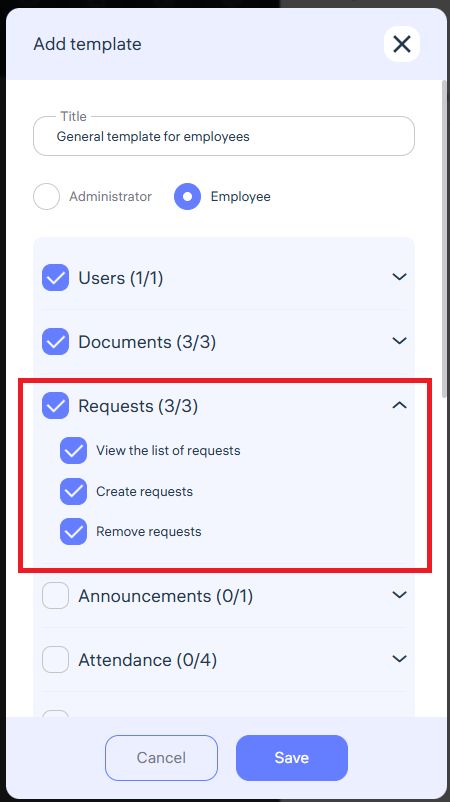
Access to Requests
Allows employees to submit various requests — for leave, sick days, financial issues, or schedule changes.
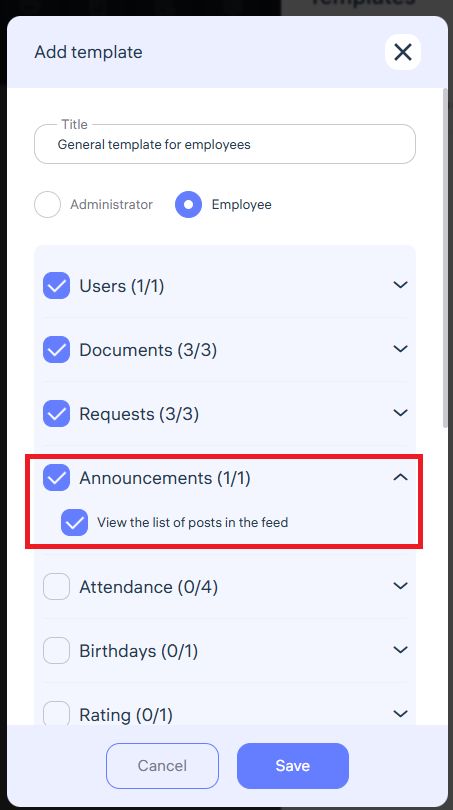
View Announcements
Employees will be able to view company news and announcements.
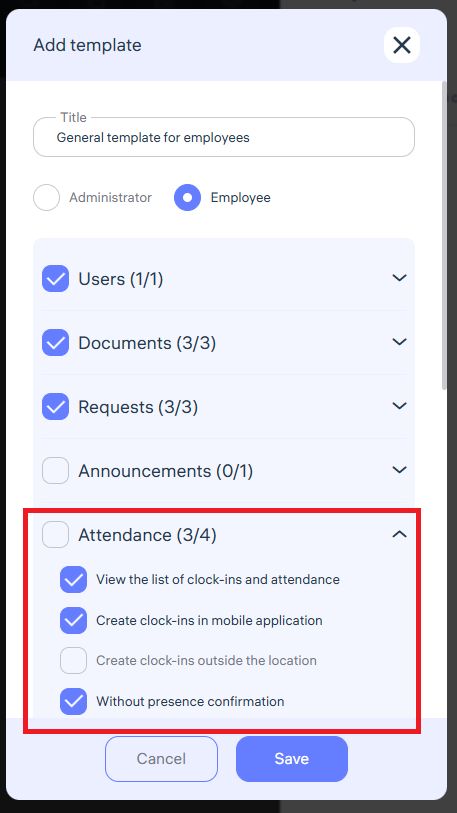
Clock-in/Clock-out Permission in Mobile App
Enables employees to record their attendance via the mobile app.
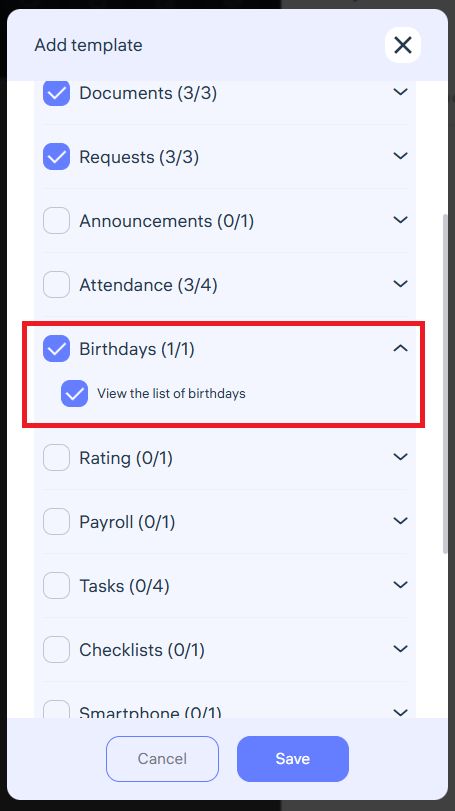
View List of Birthdays
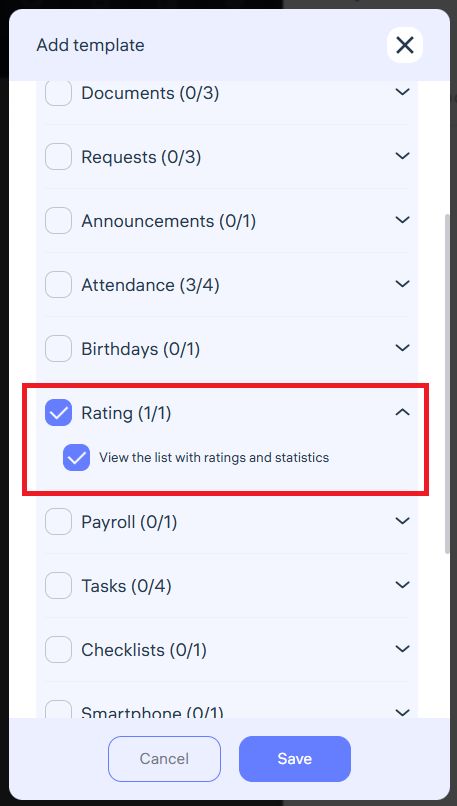
Access to Ratings and Statistics
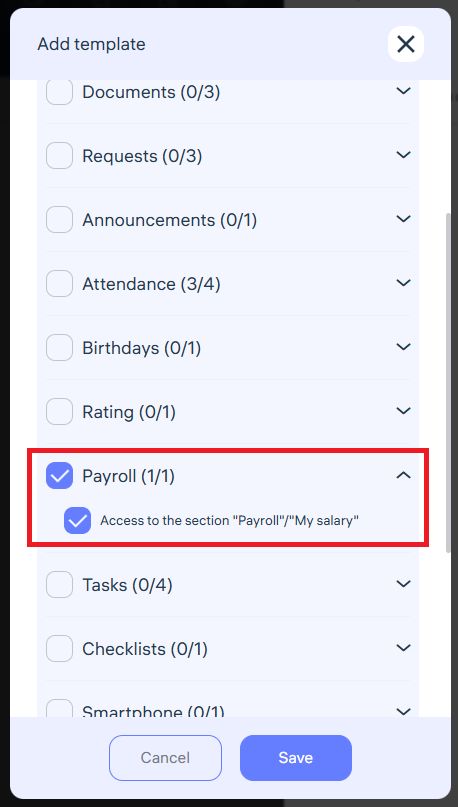
Access to Payroll
Employees can view approved payslips.
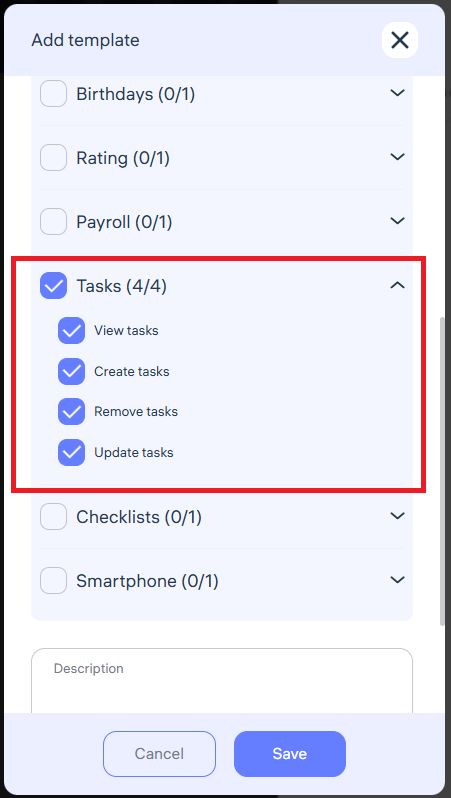
Access to Tasks
Employees can see the tasks assigned by managers, complete them, and submit reports.
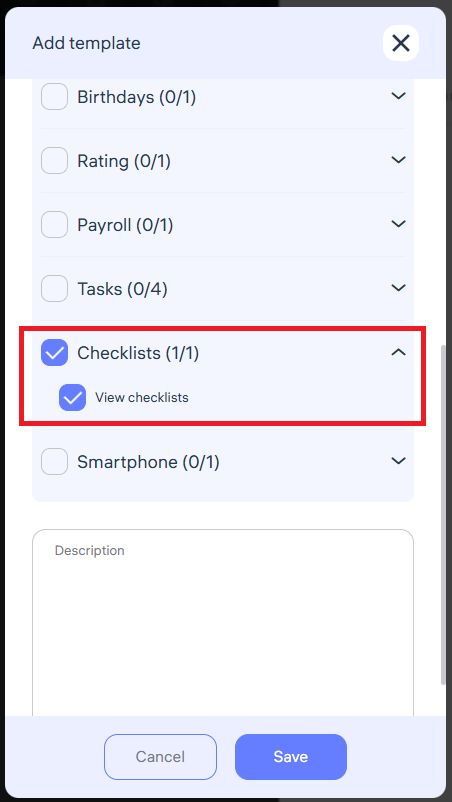
View Checklists
Single Device Mode
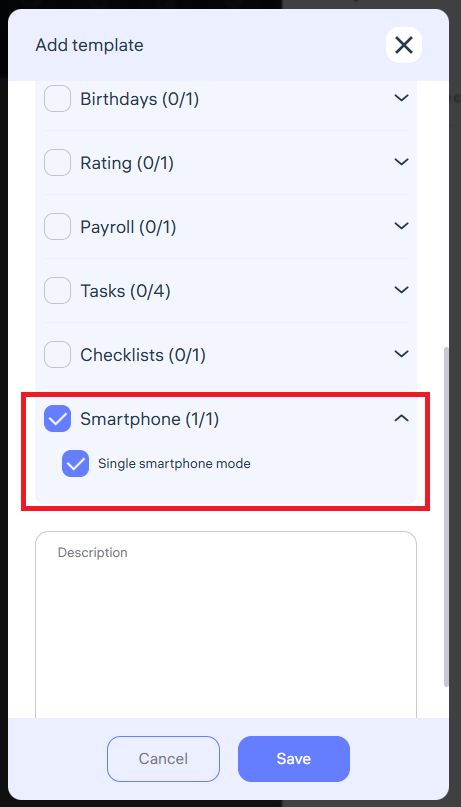
If the “Single smartphone mode” option is enabled, an employee can only use their account on one device (phone).
How it works:
When logging into Clockster from a new device, the system automatically unlinks the previous one.
Attempting to use the same login credentials on multiple devices at once will be blocked.
This ensures that attendance and actions are performed by the actual employee, not someone else.
When it’s useful:
To prevent employees from sharing their shifts or accounts with colleagues.
For additional security and accurate time tracking.
After completing the setup, save the template. Then:
Apply it manually to all current employees.
Set it as the default template for employees, so it automatically applies to all new users.
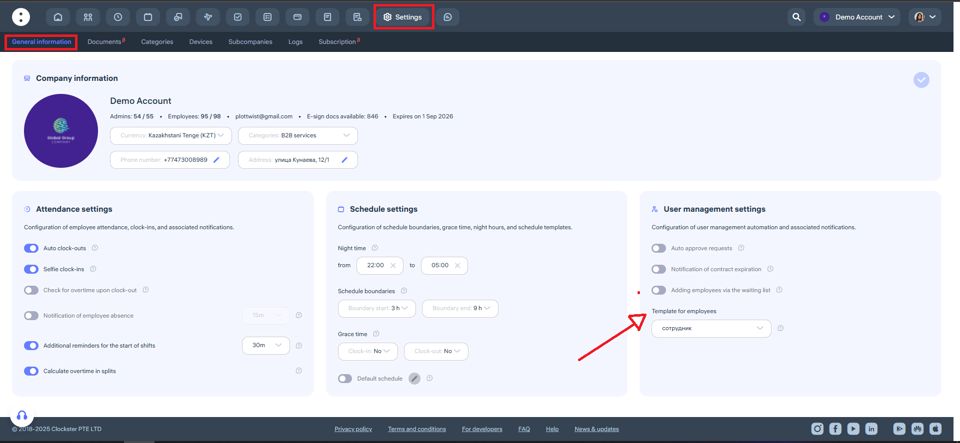
Done!
Now all employees will have consistent and correctly configured permissions — without any extra manual work.
Administrator Roles and Permissions in Clockster
Administrator Roles and Permissions in Clockster
In Clockster, employees can have different levels of access:
Administrators with full access – have complete control over all system functions without restrictions.
Administrators with limited access – have access only to specific functions, departments, or locations.
Regular employees – may have minimal access, which you can manually configure.
How to Change Roles and Permissions
To modify access rights, go to the employee’s profile → Roles and Permissions.
Here you can manually configure:
The level of access
Managed departments
Locations and functions
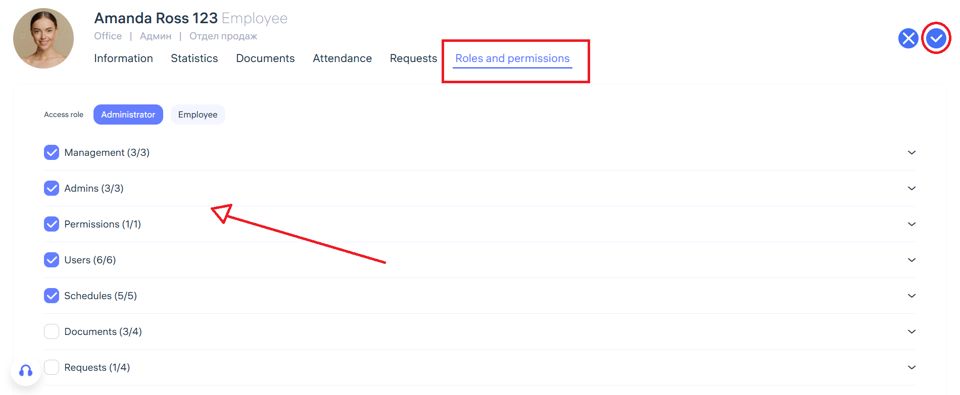
Steps:
Open the employee’s profile.
Go to the “Roles and Permissions” tab to set the access level.
Specify which department or location the employee will manage.
Consider Your Company’s Geography and Structure
✅ If your company has multiple locations across a city, country, or even worldwide, you can:
Assign a separate administrator for each location.
Limit their access within their assigned location.
✅ If your company operates in one location (e.g., a hotel or factory) but includes multiple departments, you can:
Assign an administrator for each department.
Restrict their access to employees within their specific division.
Use Templates to Speed Up the Process
If you have more than two administrators, it’s recommended to:
Create a unified template with the required permissions.
Apply this template to all administrators who should have the same access rights.
If you only have a few administrators, you can configure their roles and permissions manually in each profile.
💡 Tip: Templates save time and reduce the chance of errors when assigning access rights in bulk.
Payroll Calculation
Setting Up Salary and Payroll Schedule in Clockster
1. Setting the Employee’s Salary
In the “Payroll” → “Payslips” section, select the employee for whom you want to add a salary, or click “+ Add Salary” to assign the same salary to multiple employees.
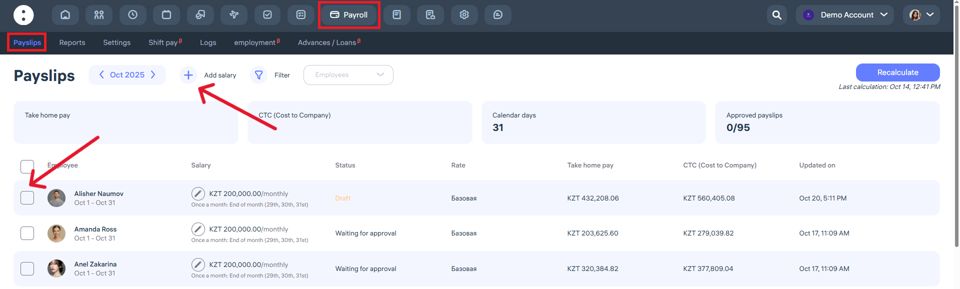
Click “Add Salary.”
In the pop-up window, specify:
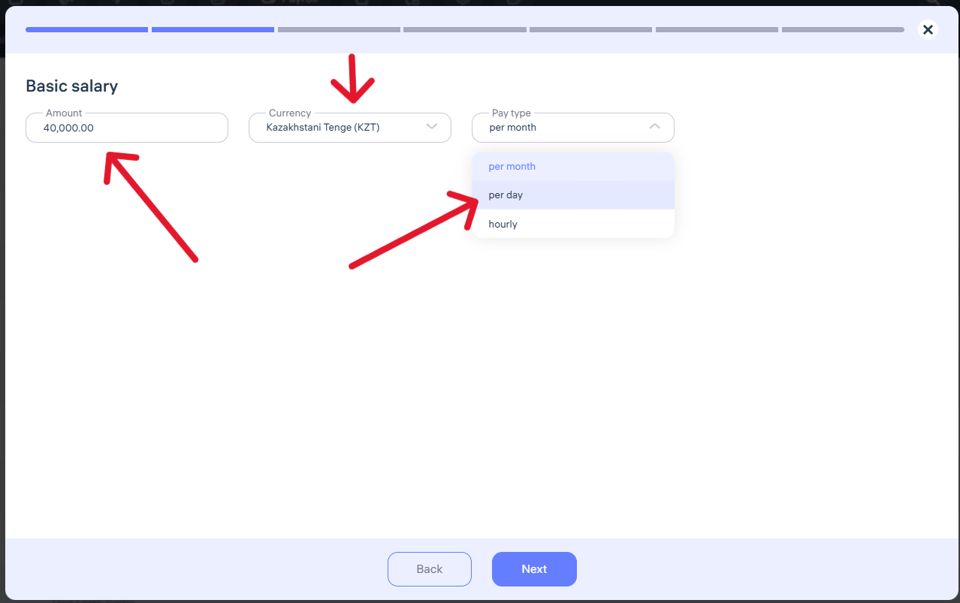
The salary amount (e.g., 40,000 KZT).
The payment currency (Kazakhstani Tenge).
The payment type:
per month
per day
hourly
Click “Next” to continue to the next step.
2. Setting the Payroll Schedule
Choose the payment frequency:
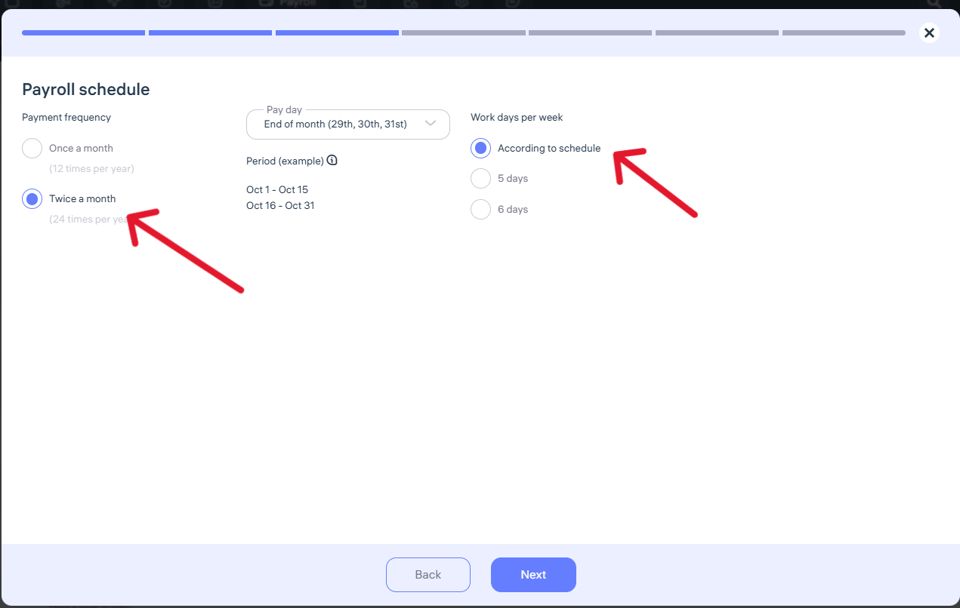
Once a month
Twice a month
How “Work Days per Week” Works When Setting Up Payroll Schedule
In this section, you can choose one of the following options:
1. “As per Schedule”
If you select “According to schedule,” then:
Clockster will calculate worked hours strictly based on the schedule you set for each employee.
This means the system uses the actual shift schedule (e.g., 2/2, 5/2, rotating shifts) and calculates salary according to the number of shifts completed.
The production calendar will not be considered.
This option suits companies with shift-based, rotating, or flexible work schedules, where the number of working days per week can vary.
2. “5 Days” or “6 Days” per Week
If you select “5 days” or “6 days”, then:
Clockster will calculate hours and salary based on the production calendar.
The production calendar is a government-approved calendar that defines:
Working days
Weekends
Public holidays
Hourly norms for the month, quarter, and year
For example:
If you choose “5 days,” the system assumes a five-day work week with two days off and will include official holidays in calculations.
If you choose “6 days,” the system assumes a six-day work week with one day off and accounts for holidays as well.
Final Difference
“As per Schedule” — calculation is based only on your internal shift schedule, without using the production calendar.
“5 or 6 days” — calculation follows the production calendar, regardless of the internal schedule.
This parameter directly affects how working hours and total payroll are calculated.
If your company works with custom shifts, choose “As per Schedule.”
If you have a standard five- or six-day week, choose the respective option for accurate calculations.
Setting Up Taxes and Social Contributions in Clockster
In this section, you can define tax rules and specify who the taxpayer is.
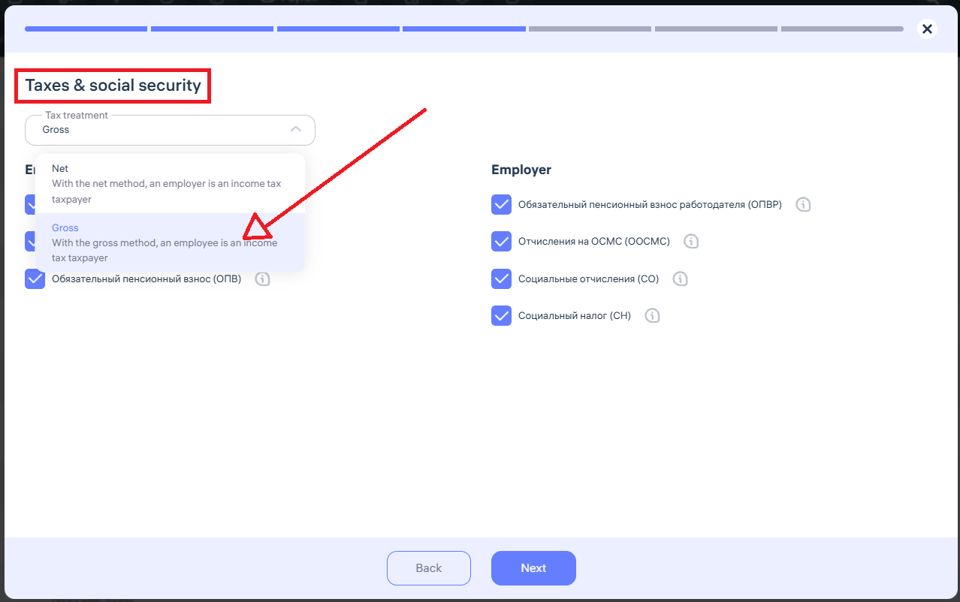
Two main options are available:
Gross (Taxes included in salary)
Taxes are withheld from the specified salary.
The salary already includes taxes, and the employee receives the net amount.
Net (Taxes added on top of salary)
Taxes are added on top of the specified salary.
The employer pays the employee the full salary and covers the taxes separately, increasing company expenses.
Choosing the Taxpayer
For Direct, the employee is the taxpayer.
For Reverse, the employer is the taxpayer.
3. Tax and Contribution Options
On the right side, you can select the applicable taxes and contributions:
Employer’s Mandatory Pension Contribution (ОПВР)
Compulsory Social Medical Insurance (ОСМС)
Social Contributions (СО)
Social Tax (СН)
You can enable only those that apply under your company’s tax system.
After configuring all parameters, click “Next” to proceed with payroll setup.
This step is essential for accurate payroll reports and expense tracking in Clockster.
“Additions” Section in Clockster
In this section, you can configure template-based additions for employees.
How It Works
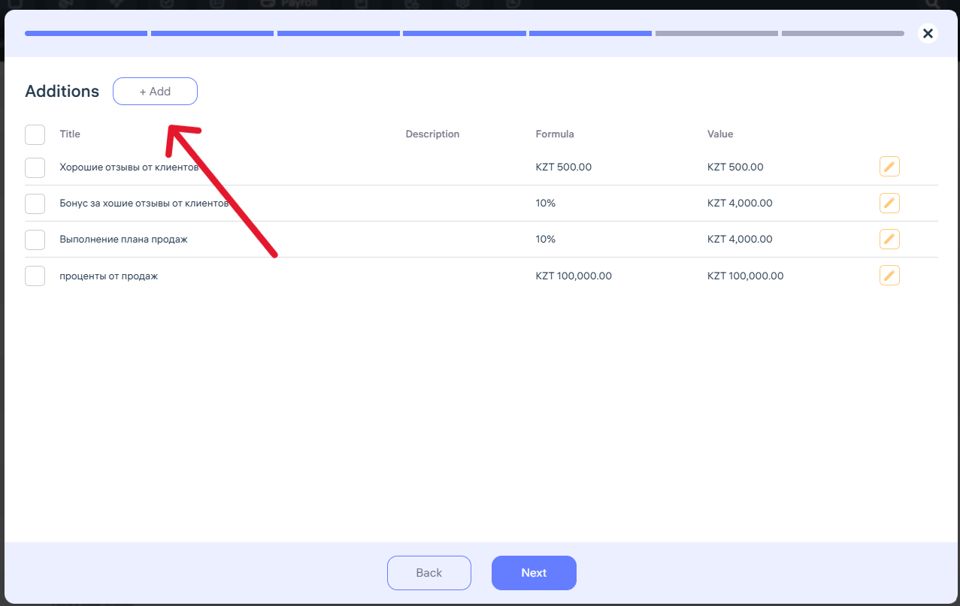
Click “+ Add” to create a new addition.
Specify the type, amount, and conditions of application.
Usage Details
When processing payroll for one month:
You can apply this addition only for the selected payroll month.
If the payslip is not edited later:
Template-based additions will automatically repeat each month during payroll processing.
This helps you automate regular additions and save time when preparing monthly payslips.
“Deductions” Section in Clockster
In this section, you can create deductions that will be withheld from the employee’s salary.
How Deductions Are Applied
If you add a deduction as a template:
It will apply to payroll for the selected month.
If the payslip is not edited in following months, this deduction will automatically repeat every month.
This section helps automate recurring deductions (e.g., for damages, fines, or other withholdings), reducing manual recalculations each payroll cycle.
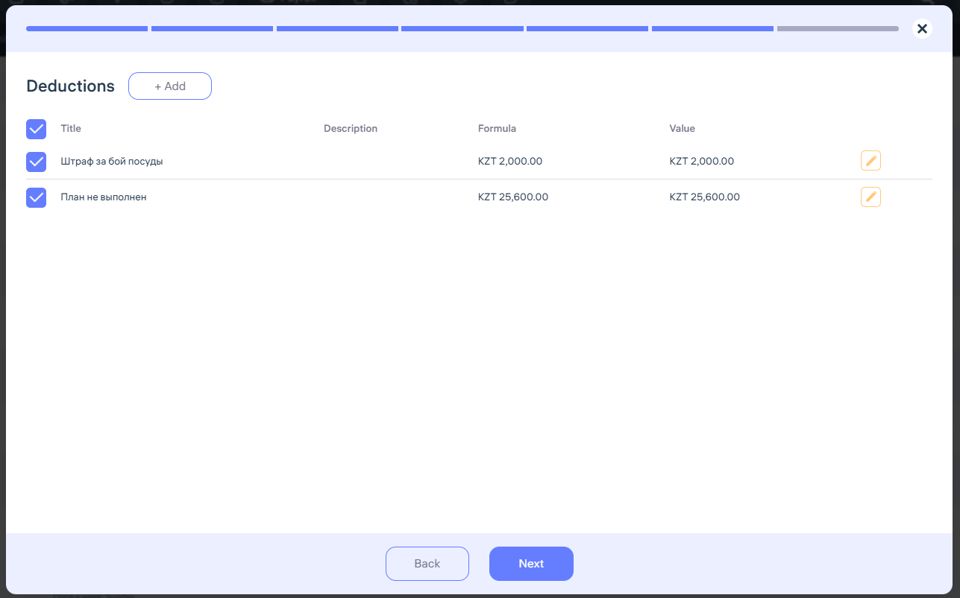
Click “+ Add” to create a new deduction.
Specify:
The deduction name (e.g., “Broken plate, 12 cm diameter”).
The fixed deduction amount or a percentage of the salary.
Add a description if needed for internal tracking.
How Deductions Are Applied
If you add a deduction as a template:
It will apply to payroll for the selected month.
If the payslip is not edited in following months, this deduction will automatically repeat every month.
This section helps automate recurring deductions (e.g., for damages, fines, or other withholdings), reducing manual recalculations each payroll cycle.
“Rates” Section in Clockster
Link a Rate to Payroll
If you haven’t created rates in the Payroll settings yet:
Click “+” to add a new rate.
Enter rate parameters according to your company’s pay structure (e.g., standard shift, holiday work, overtime, or night hours).
Select the needed rate so it applies to the chosen employee when calculating salary.
General Rate Settings
Click the “Settings” button to open general rate settings, where you can choose:
Work Hours Calculation Method:
Standard – hours are calculated based on the employee’s assigned shifts.
Custom – you can set a fixed number of working hours per month, and the system will calculate based on this norm, regardless of the schedule.
Overtime Settings:
Enable or disable counting overtime before the shift starts.
Enable or disable counting overtime after the shift ends.
Why This Section Is Important
The Rates section helps you:
Set unified rate templates for different employee categories.
Automate salary calculations, including additions, bonuses, and overtime.
Simplify payroll and HR work when processing employee payments.
When finished, don’t forget to click “Save” so all changes are applied.

Updating Data in Payslips
The payslip must have the status “Waiting approval”
If the payslip is in “Draft” status, data will not update automatically — even if you click “Recalculate”
Why This Matters
Because when a payslip is marked as “Draft,” it is not yet ready for calculation, and all changes will only apply after it’s moved to “Waiting for approval”
Save this as a small tip — for precise payroll calculations in the future.
How to Request an Absence
If, for a valid reason, you cannot come to work (due to illness, personal circumstances, annual leave, etc.), you can submit an absence request in the Clockster app to notify your administrator and ensure accurate time tracking.
To do this:
Open the Clockster app.
Tap the “+” icon on the bottom of the screen.
Select “Leave Schedule.”
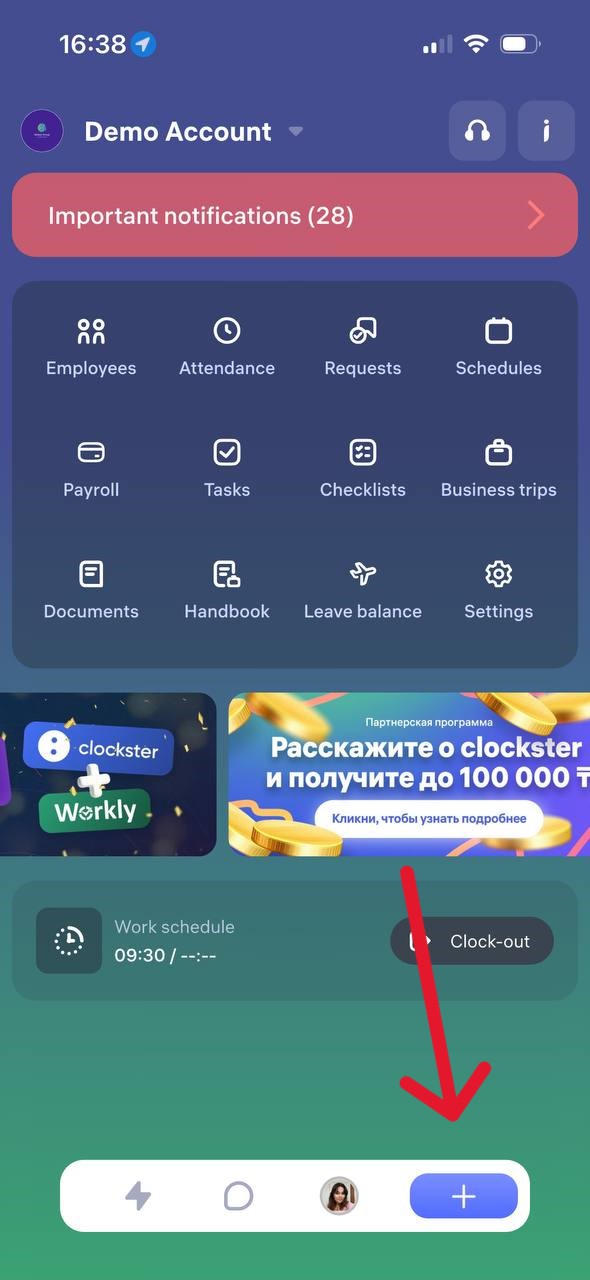
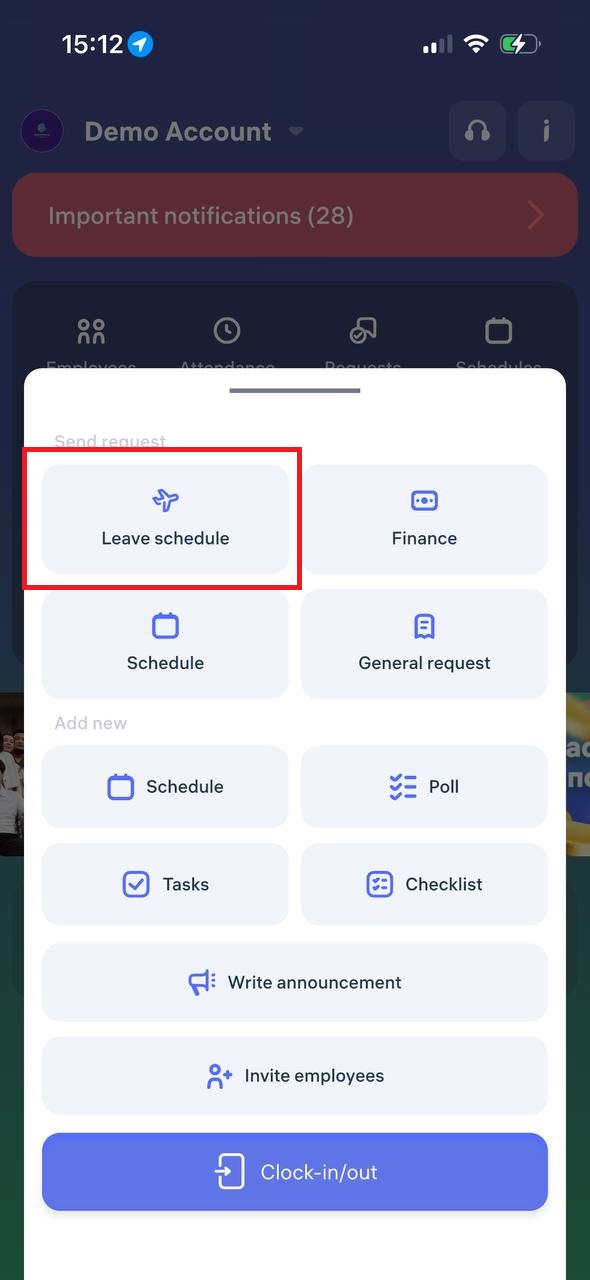
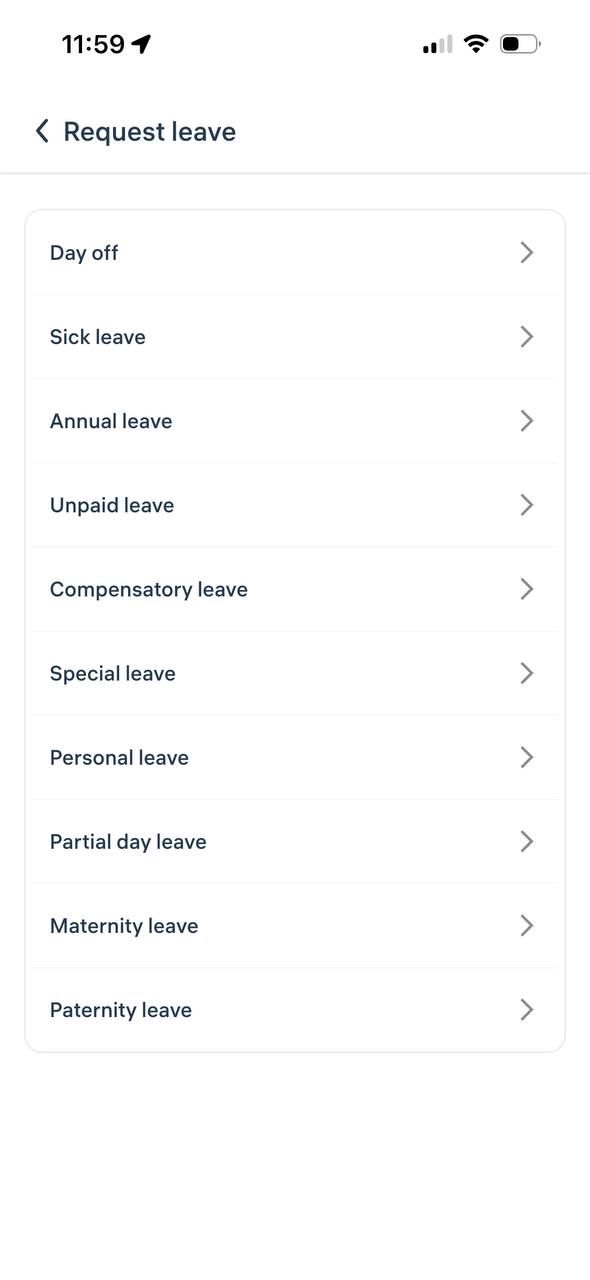
Then choose the reason for your absence request.
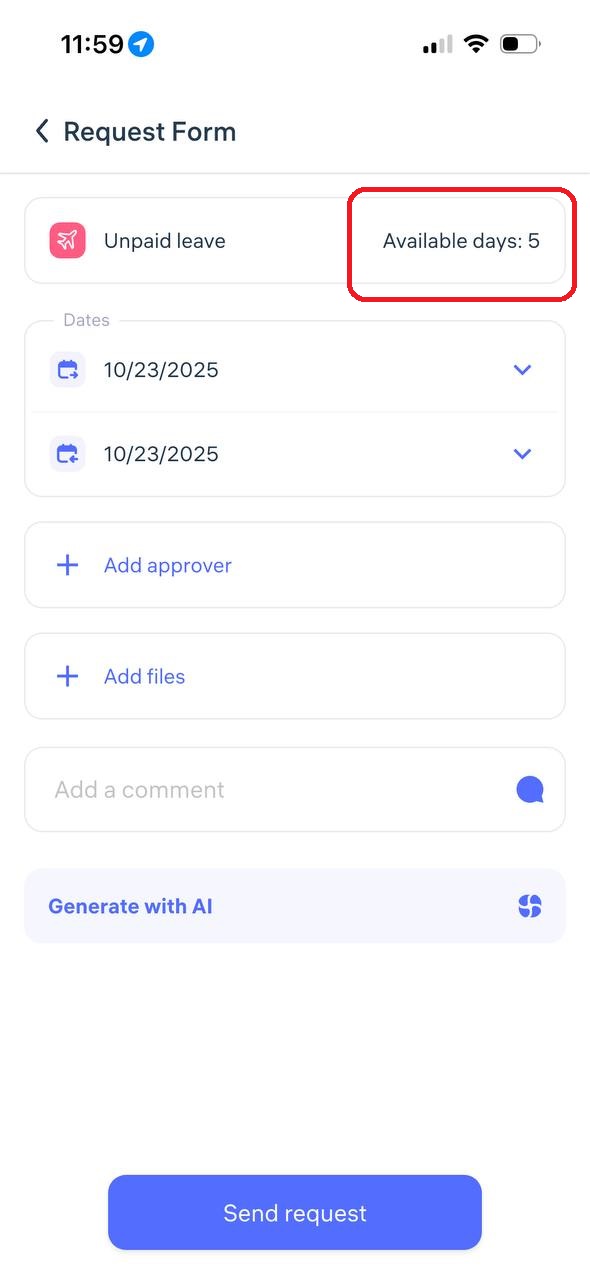
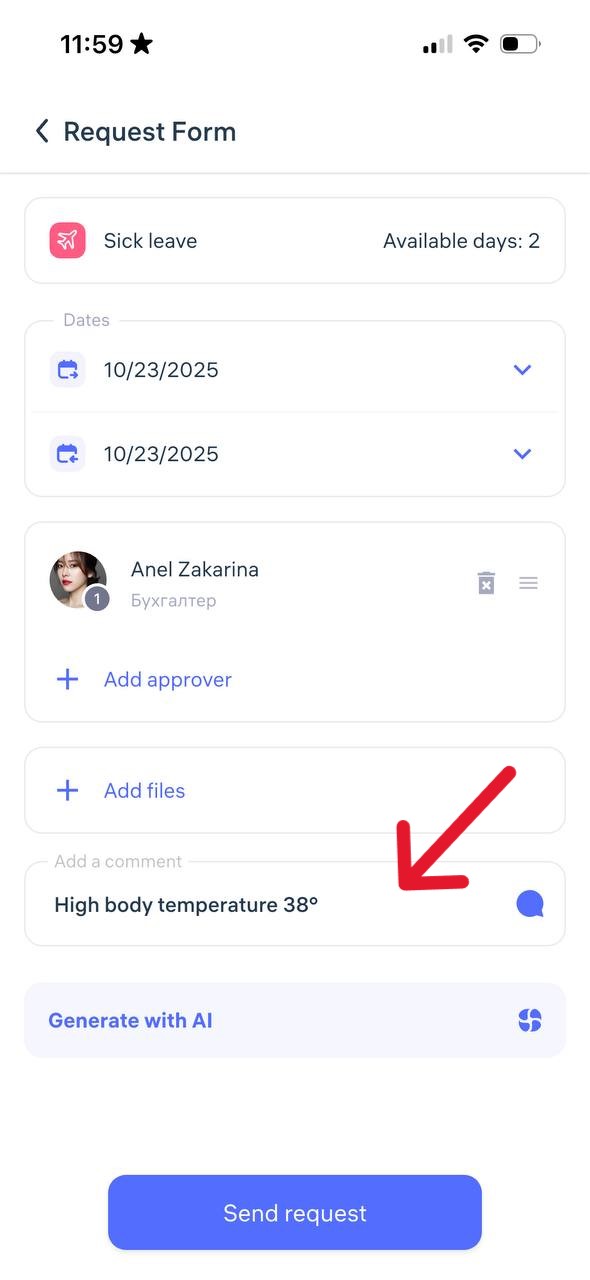
When creating any type of absence request, select the dates or period of your absence.
If your company administrator has set a leave balance, you will see the number of available days you can request.
Choose the manager who should review your request and add a comment explaining the reason for your absence.
Tap “Send Request.”
Track the Status of Your Request
After submission, you can monitor the status in the “Requests” section:
Pending
Approved
Declined
Important:
Submit your request as early as possible, as soon as you know about your upcoming absence.
If you forgot to submit it in advance, do so on the day of your absence and include a comment explaining the situation.
How Can I Request a Schedule Change
If you need to change your work schedule, you can create a request through the Clockster mobile app.
Please note: the availability of this feature depends on your company’s settings. If you don’t see the required request type, contact your administrator.
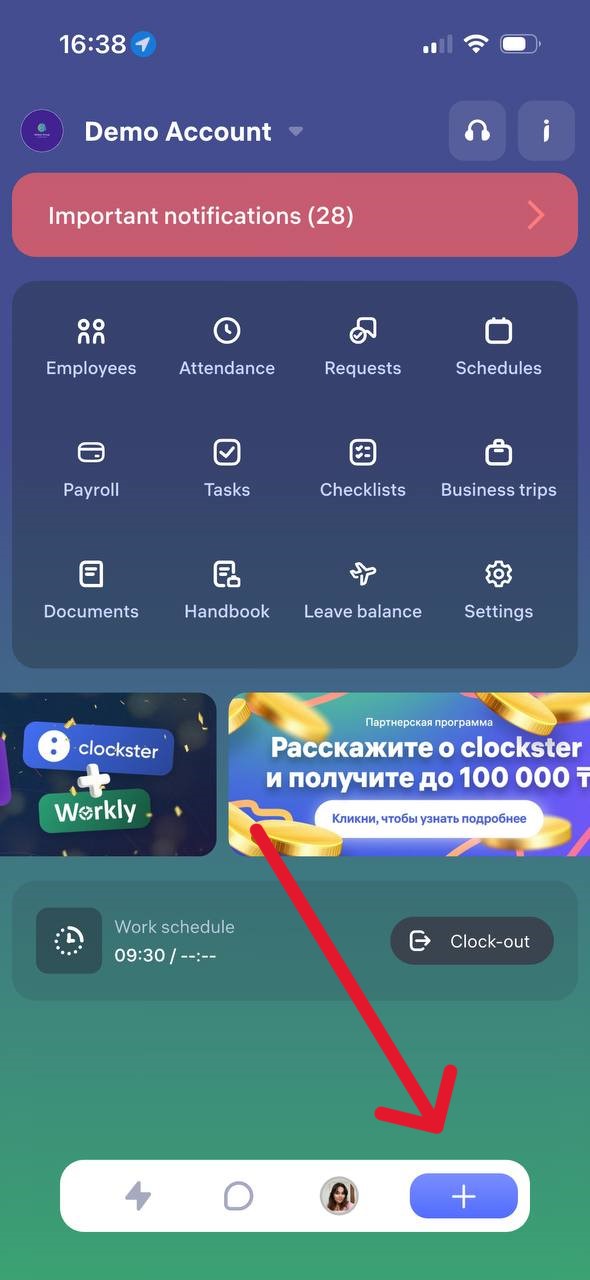
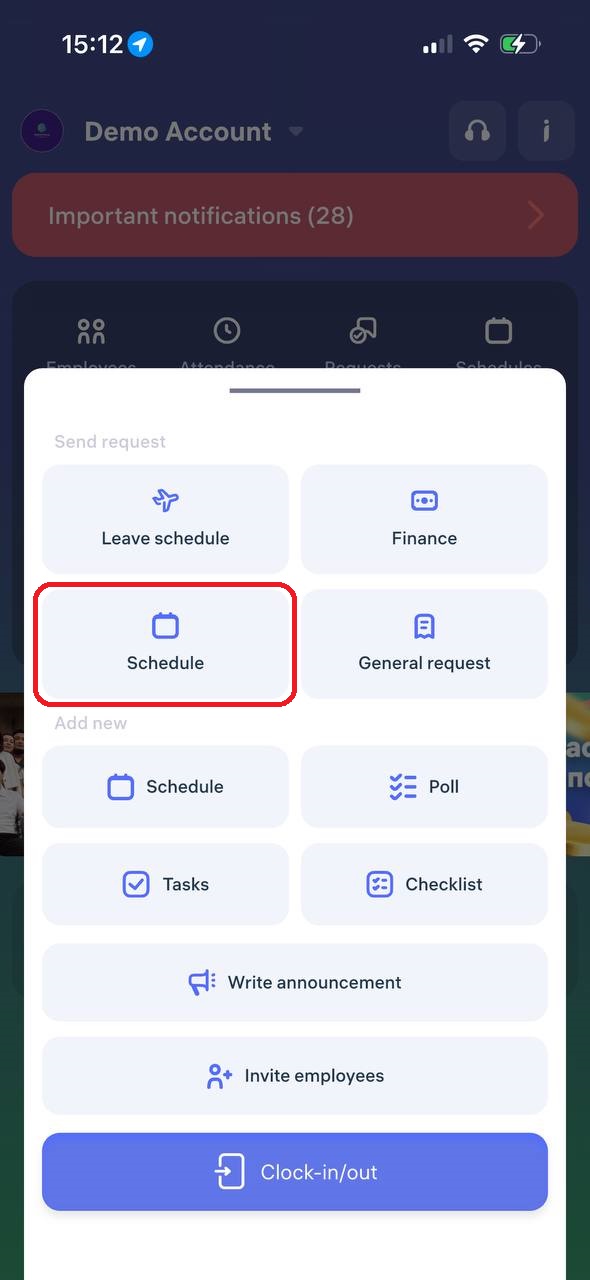
Open the Clockster mobile app, tap the “+” button at the bottom of the screen, and select “Schedule.”
2. Specify the days you want to adjust or add to your work schedule. You can either:
Select a period, or
Set specific dates
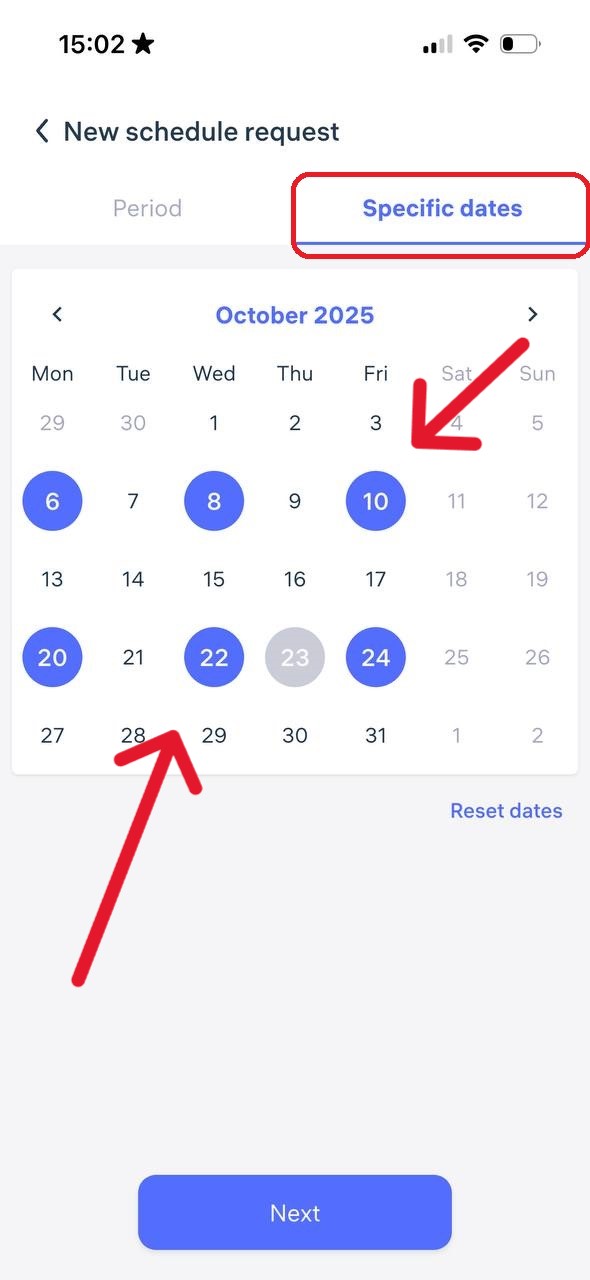
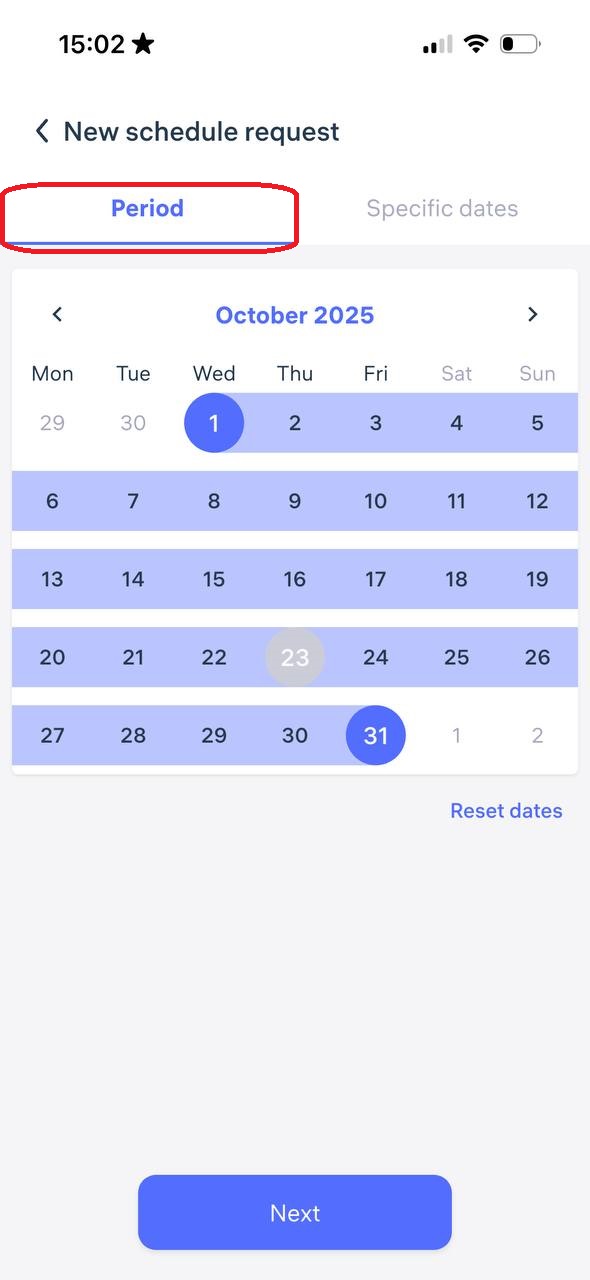
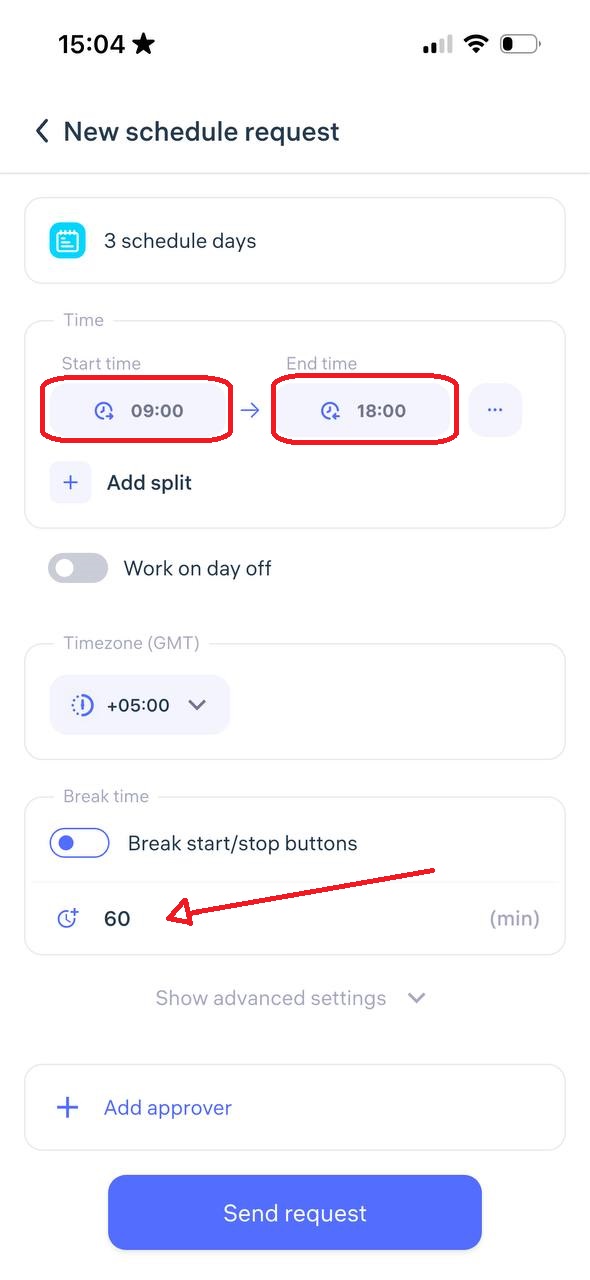
Be sure to set the start time and end time of your workday, specify your lunch break (this time is automatically deducted from your total working hours), and choose the manager who should approve your request.
Review all the details, then tap “Send Request.”
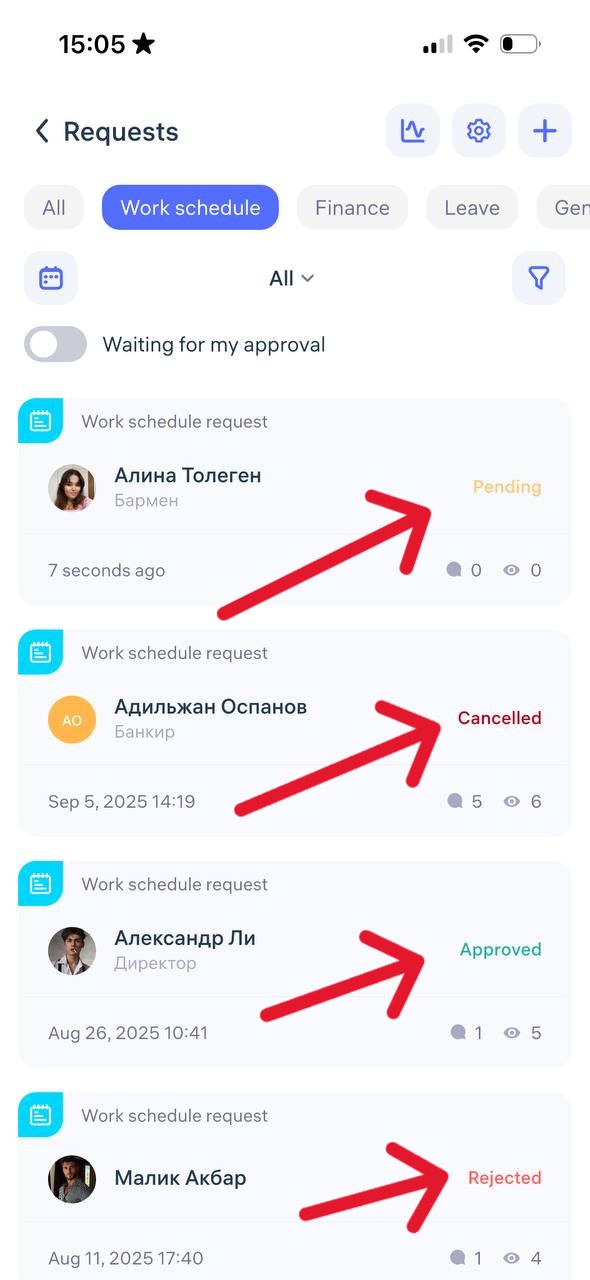
After submission, you can track the status of your request in the “Requests” section:
❌ Declined
🟡 Pending
✅ Approved
or Cancelled
Helpful tip:
If you know in advance that your schedule needs to be changed, submit the request as early as possible so that the administrator has time to approve it and include it in the calculations.
What Financial Requests Can I Create?
If you need to submit a finance-related request — for example, an advance payment, compensation, bonus, or reimbursement — you can do this directly through the Clockster app.
All such requests are sent to your company’s administrator or accountant for approval.
Types of Financial Requests
Depending on your company’s settings, the following types may be available to you:
Advance / Loan
Financial Assistance
Bonus
Payroll Deduction
Purchase of Goods / Equipment
Write-off
Expense claim
Payment for services
Other
Let’s go through each type in more detail:
1. Advance and Loan
Advance — part of your future salary that you receive early, usually before payday. It will later be deducted from your total salary.
Example: If your salary is 100,000 and you took a 30,000 advance, you’ll receive 70,000 on payday.
Loan — money the company lends you, similar to a credit. It’s not salary but a debt you must repay, either in installments or as a lump sum.
When submitting such a request in Clockster, check with your accountant which type to select to avoid confusion.
Enter the requested amount, choose the currency and manager, add a comment, review all details, and tap “Send Request.”
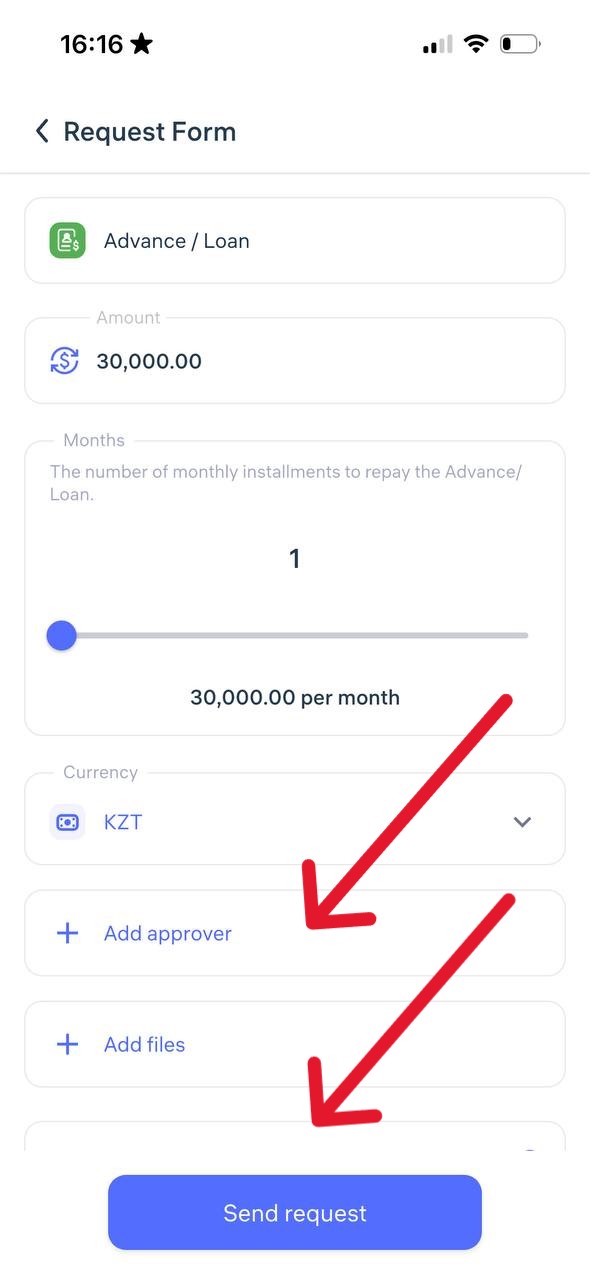
2. Financial Assistance
Financial assistance is money or other material support that the company provides to an employee, usually without repayment.
It’s a voluntary form of help from the employer, often in cases such as:
Serious life circumstances (illness, loss of a loved one, natural disaster)
Birth of a child or wedding
Low income, relocation, and other personal challenges
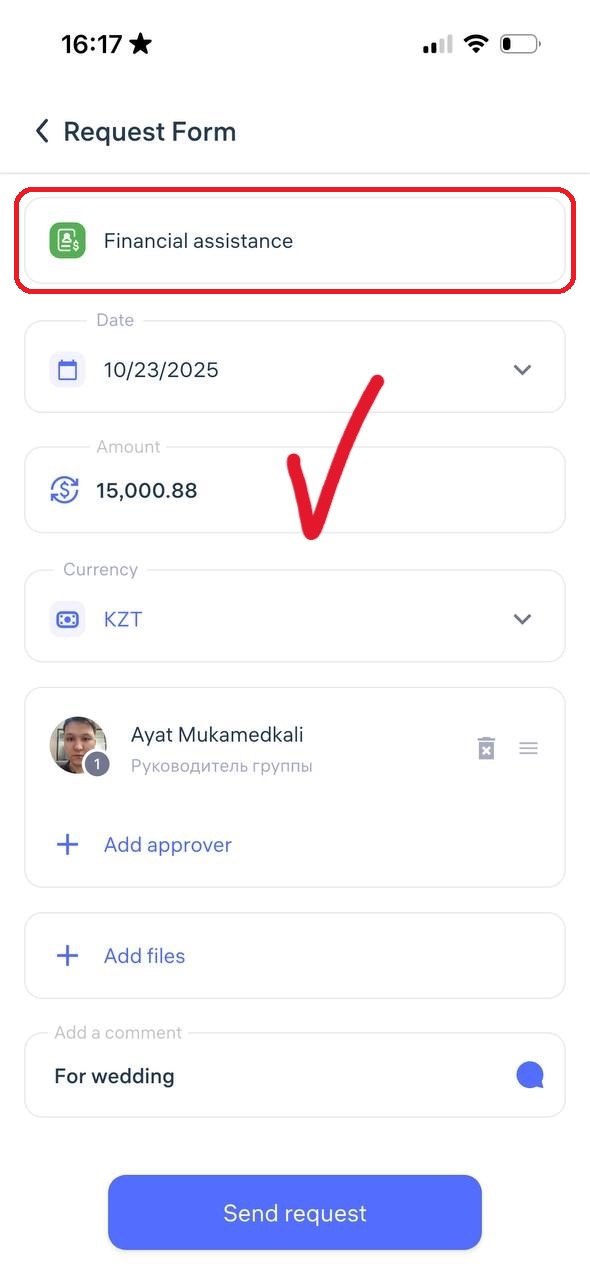
Enter the requested amount, select the currency and manager, add a comment, review the information, and tap “Send Request.”
3. Bonus
A bonus is an additional payment given to an employee on top of their regular salary for good performance, achievements, completing goals, loyalty, length of service, or even for holidays (e.g., New Year 🎄).
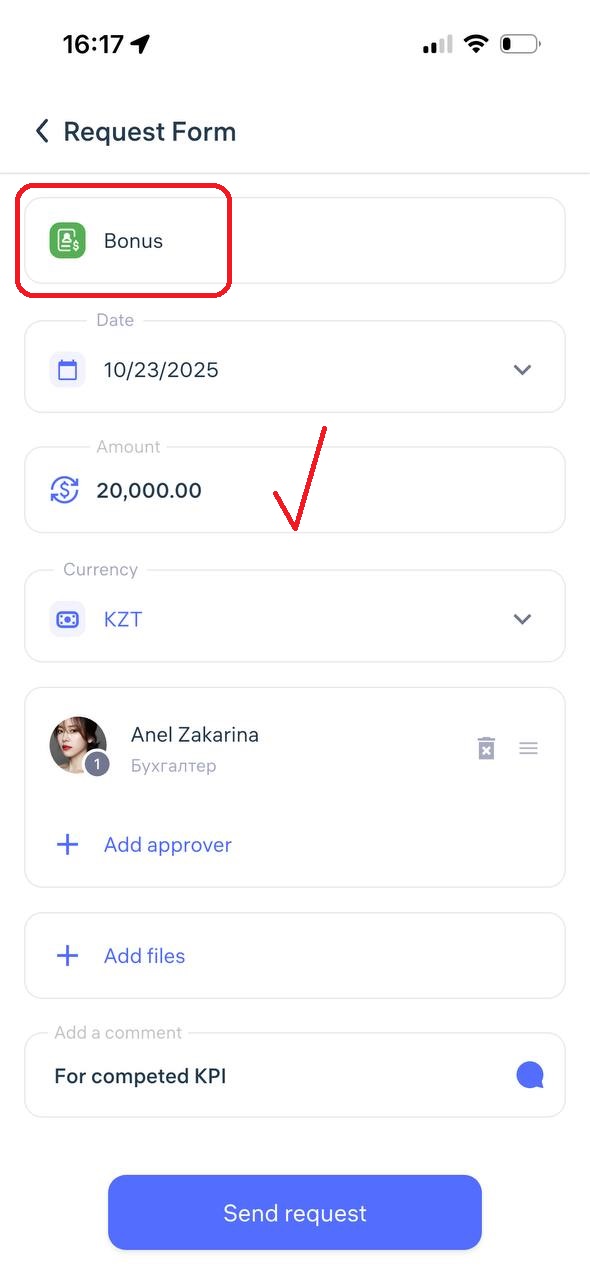
Enter the bonus amount, select the currency and manager, add a comment, review the details, and tap “Send Request.”
4. Payroll Deduction
A payroll deduction is when the employer withholds a certain amount from your salary for valid reasons — for example, repayment of a loan or advance, fines, compensation for lost company property, or voluntary contributions.
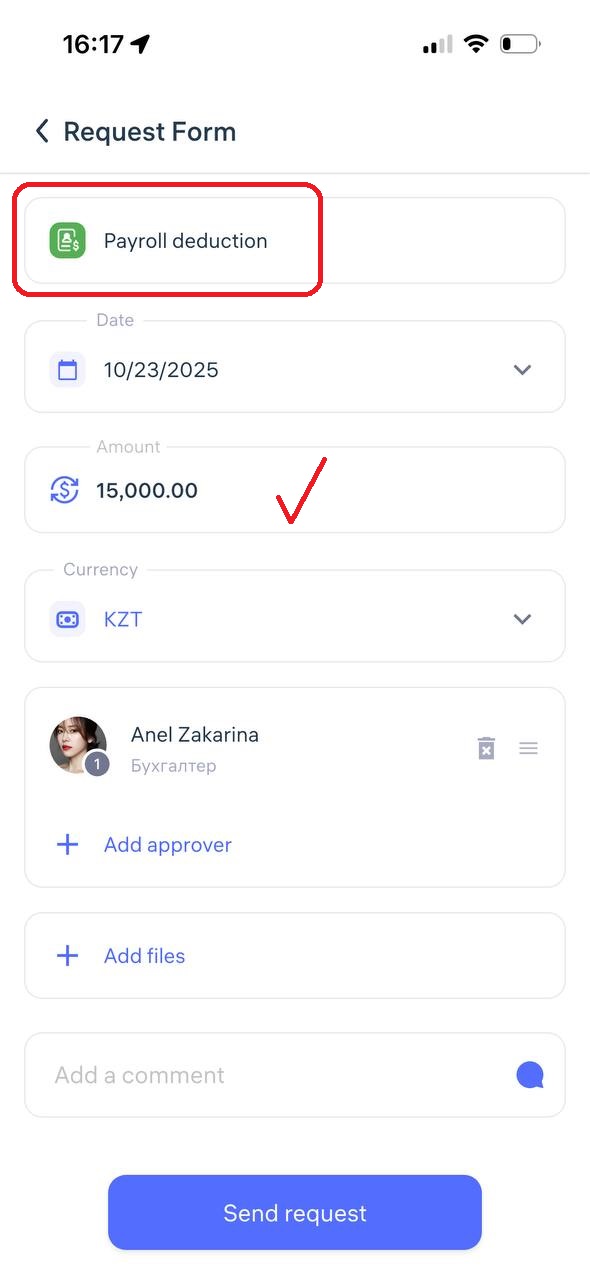
Enter the deduction amount, select the currency and manager, add a comment, review all details, and tap “Send Request.”
5. Purchase of Goods / Equipment
This is a formal request from an employee or manager asking the company to buy materials, equipment, or tools needed for work.
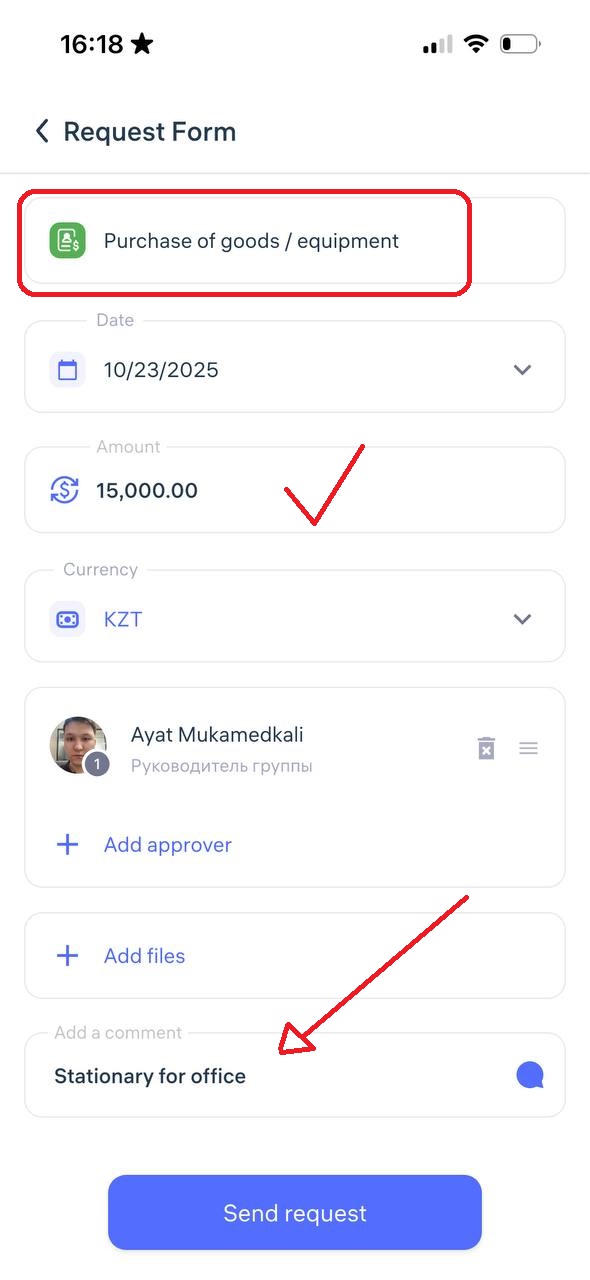
Enter the purchase amount, select the currency and manager, add a comment, review the details, and tap “Send Request.”
6. Write-off
A write-off request is an official acknowledgment that something has lost its value, become obsolete, damaged, lost, or cannot be repaired or returned.
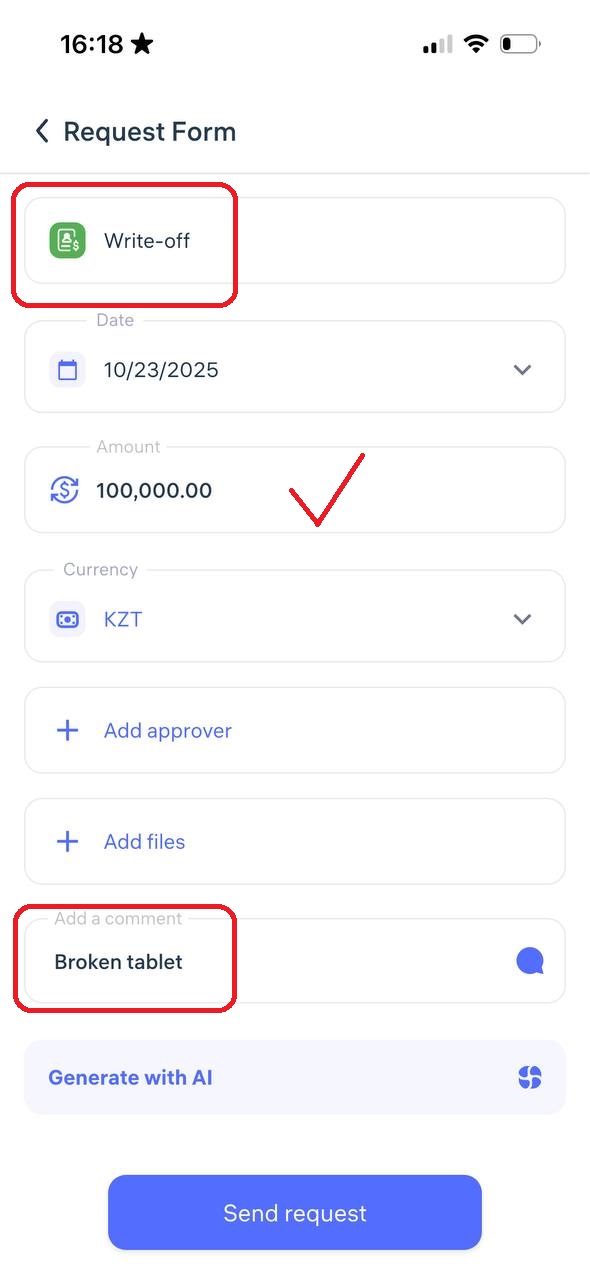
Enter the write-off amount, select the currency and manager, add a comment, review the details, and tap “Send Request.”
7. Expense Claim
Expense reimbursement is when the company refunds money you personally spent for business purposes.
Example: You bought office supplies, paid for transportation, or covered hotel expenses during a business trip — you can request reimbursement for those costs.
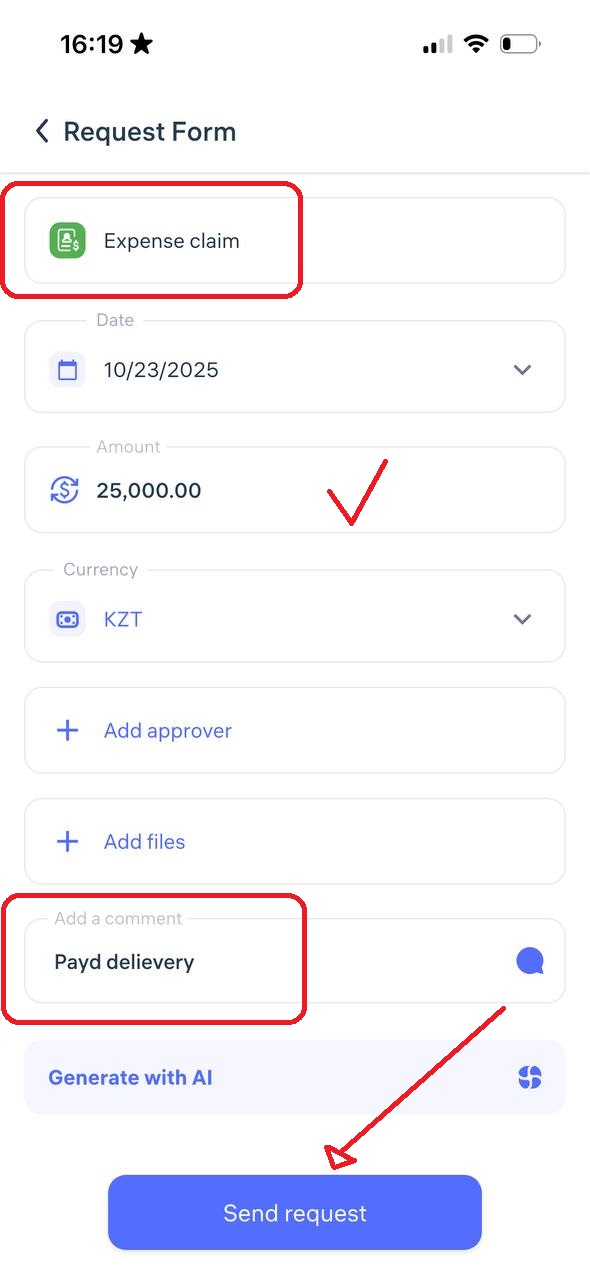
Enter the amount to be reimbursed, select the currency and manager, add a comment, review the details, and tap “Send Request.”
8. Payment for Services
Service payment is when the company pays an individual or organization for completed work or provided services — for example, cleaning, auditing, internet setup, delivery, etc.
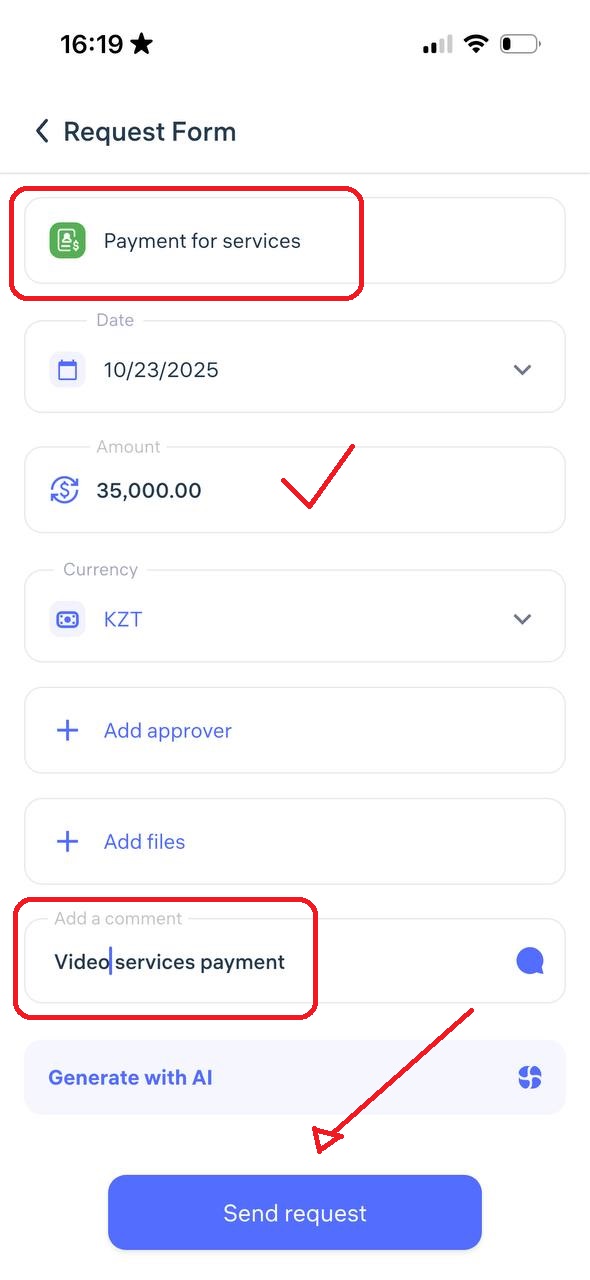
Enter the payment amount, select the currency and manager, add a comment, review all details, and tap “Send Request.”
9. Other
The “Other” category is for financial requests that don’t fit into standard types such as advance, loan, deduction, bonus, or financial aid.
You can use this for:
One-time payments for extra work performed
Any other financial need that requires approval
To ensure proper review, your comment should include:
A clear explanation of the reason for the request
The requested amount
Supporting documents or justification if needed (e.g., receipt, memo, signed report)
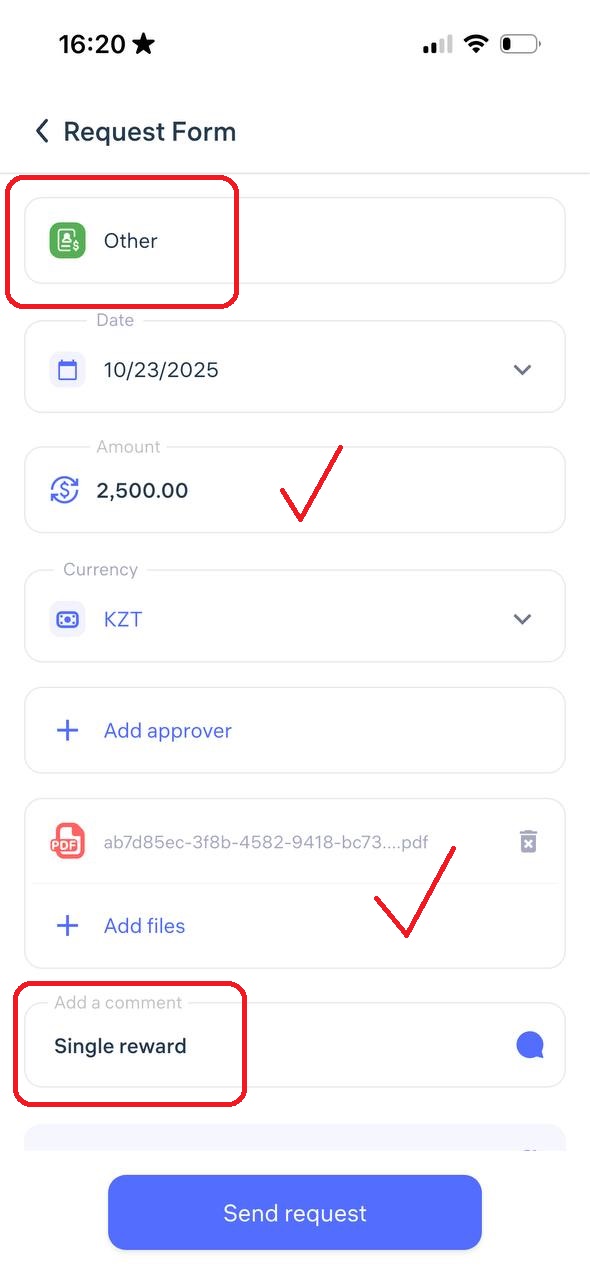
Enter the amount, select the currency and manager, add a comment, review everything, and tap “Send Request.”
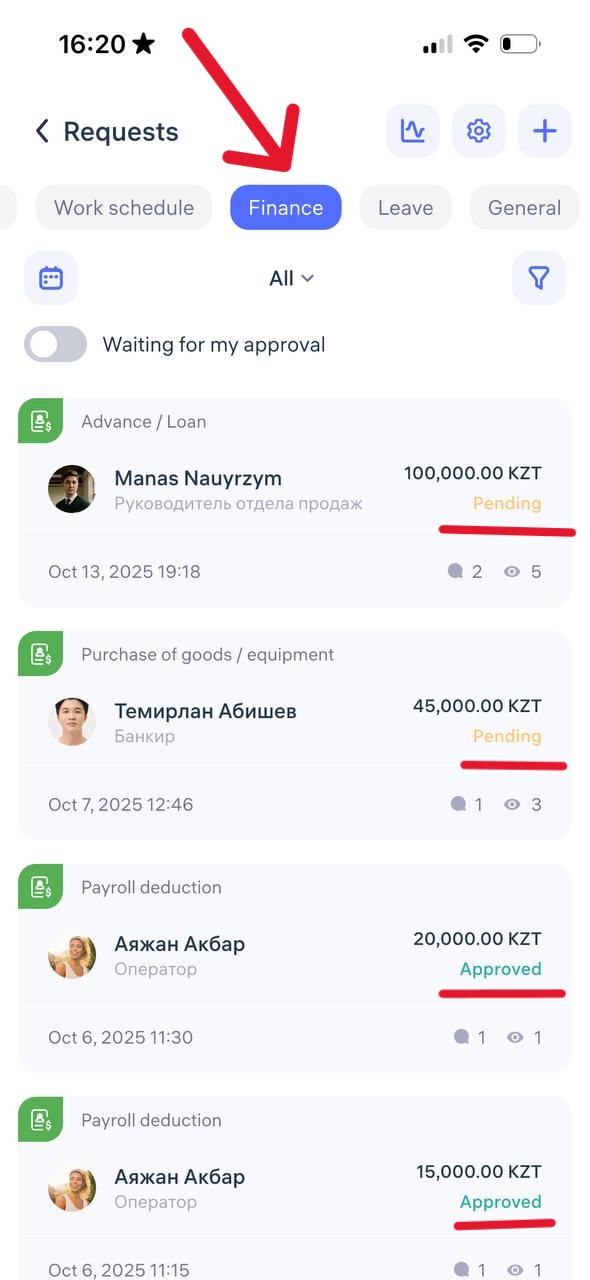
How to Track the Status of a Financial Request
Go to the “Requests” tab
Find your request in the list
Check its current status:
🟡 Pending
✅ Approved
❌ Declined
🔄 Returned for revision
Important Notes
All requests are reviewed according to your company’s internal policies.
Processing times and approval rules may vary — check with your administrator.
If you have questions or don’t see the required type of financial request, contact your HR department, accounting, or Clockster support — we’ll be happy to help.
What are general requests?
In Clockster, general requests refer to requests that are not directly related to payroll, absences, or schedule changes, but still require approval or action from management or HR. These usually involve internal processes, documentation, or technical adjustments.
To create a general request, click the “+” icon at the bottom of the screen and select “General Request”
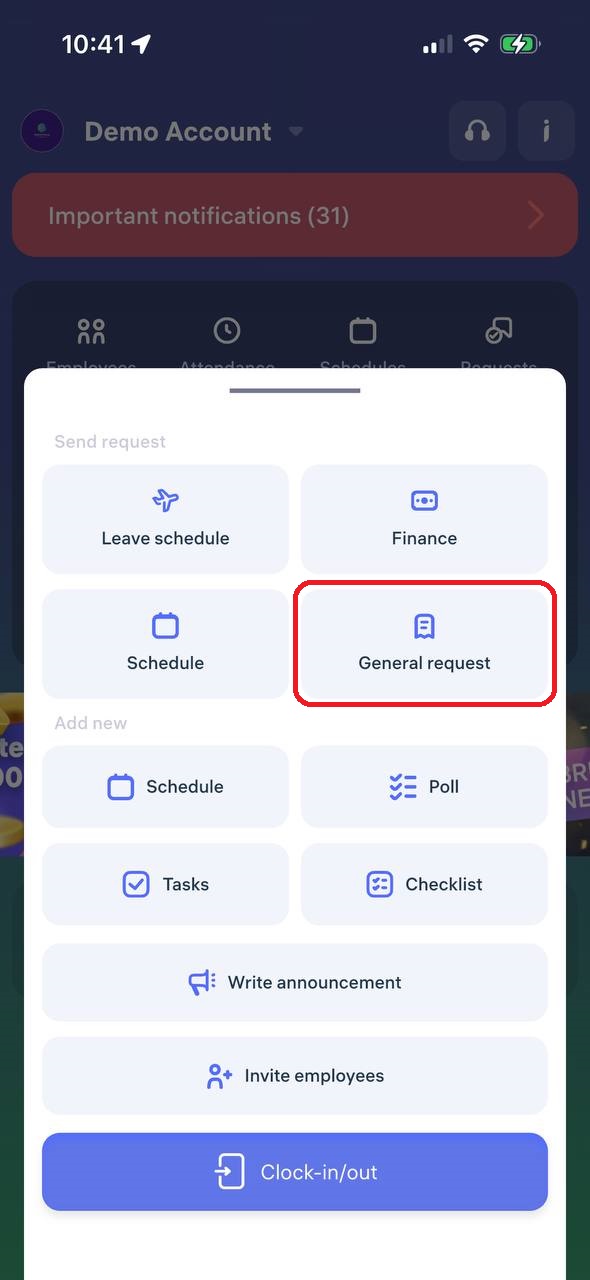
Let’s take a closer look at each type of general request:
Requests related to work schedule changes
1. Recall from annual leave
A recall from annual leave means the employer is requesting the employee to return to work earlier than planned.
This is an official process used when there is a business need, urgent task, or staff shortage.
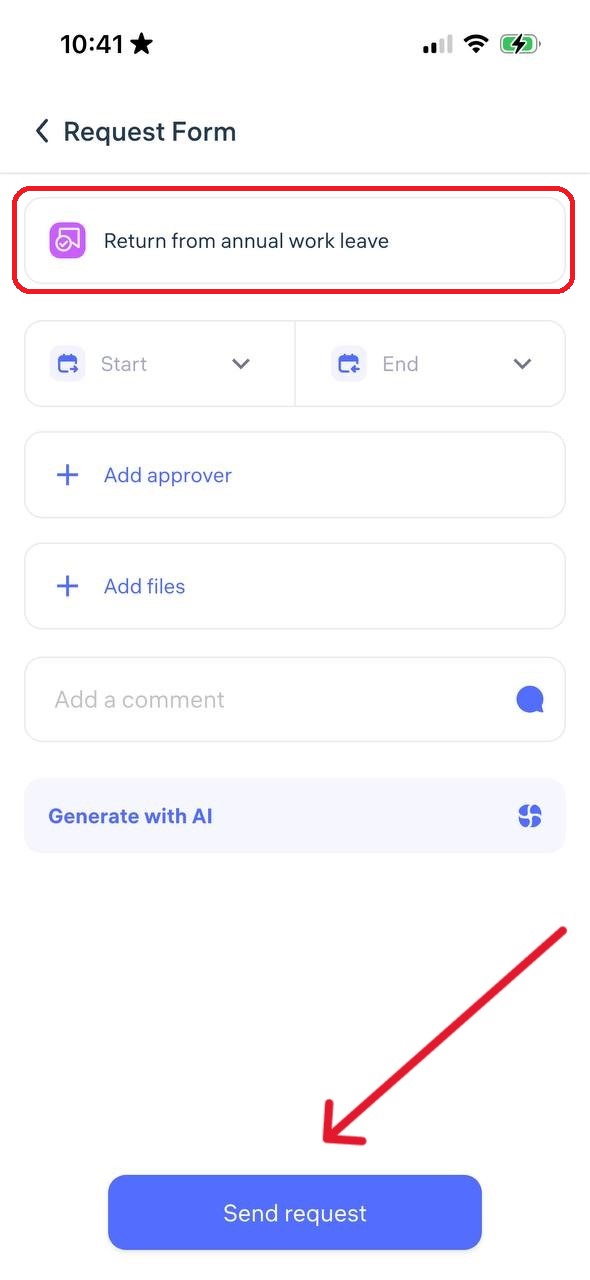
Enter the dates when you are being recalled from leave, select a manager, add a comment, and click “Send Request“
⚠️ Note: This type of request does not modify the employee’s work schedule.
2. Overtime
An overtime request in Clockster is an official request by the employee to record and compensate extra working hours beyond the normal schedule.
Example: The employee stayed late after their shift. To ensure these hours are counted and paid, an overtime request must be submitted.
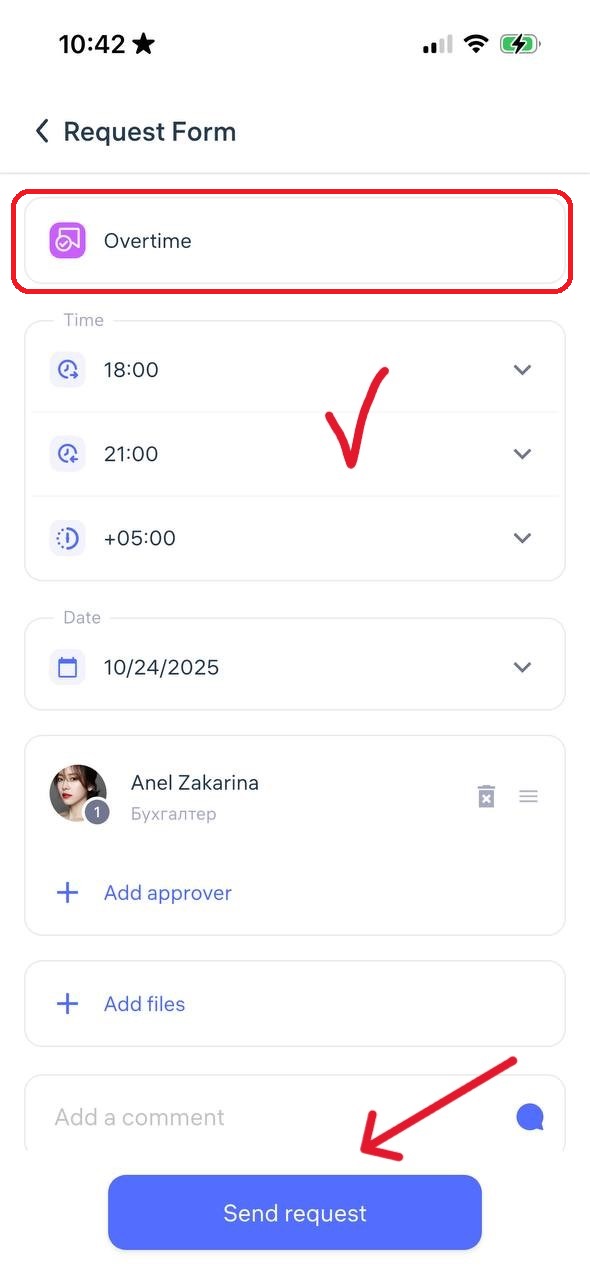
Specify the start and end time of the overtime, select the approving manager, add a comment, and click “Send Request”
3. Suspension
A suspension request is used when an employee is temporarily removed from work duties by the employer, with or without pay (depending on the reason).
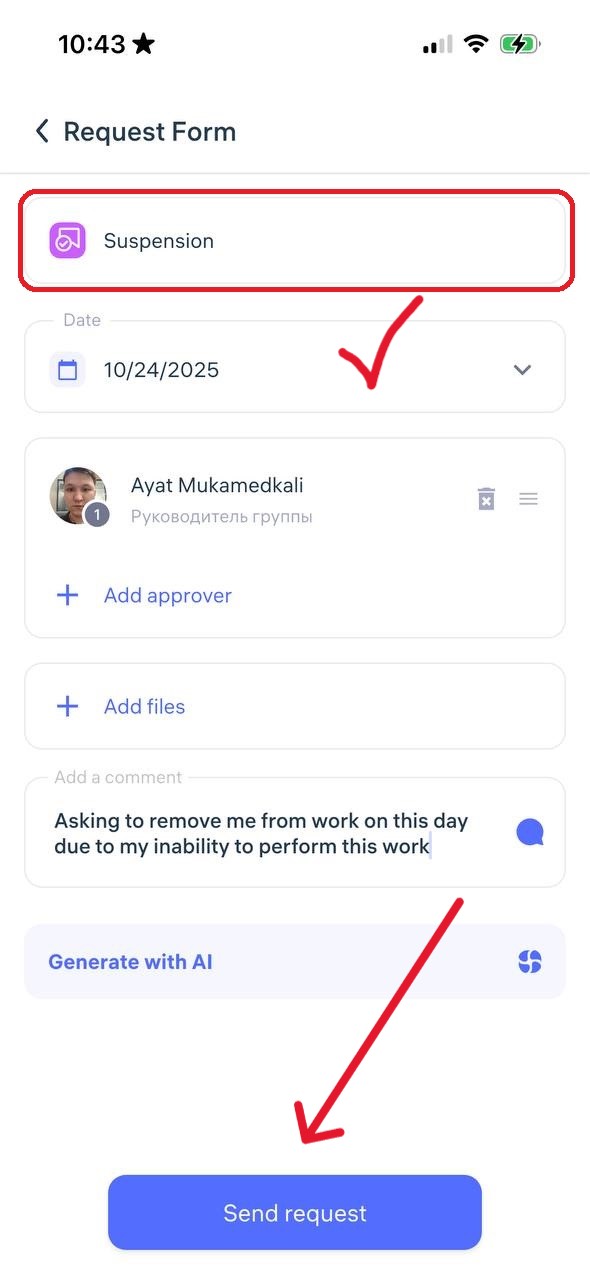
Indicate the suspension date, select a manager for approval, add a comment, and click “Send Request.”
⚠️ Note: This request does not affect the employee’s schedule.
4. Change in working conditions
A change in working conditions request involves modifying key aspects of the employee’s job agreement, such as work hours, responsibilities, or employment type.
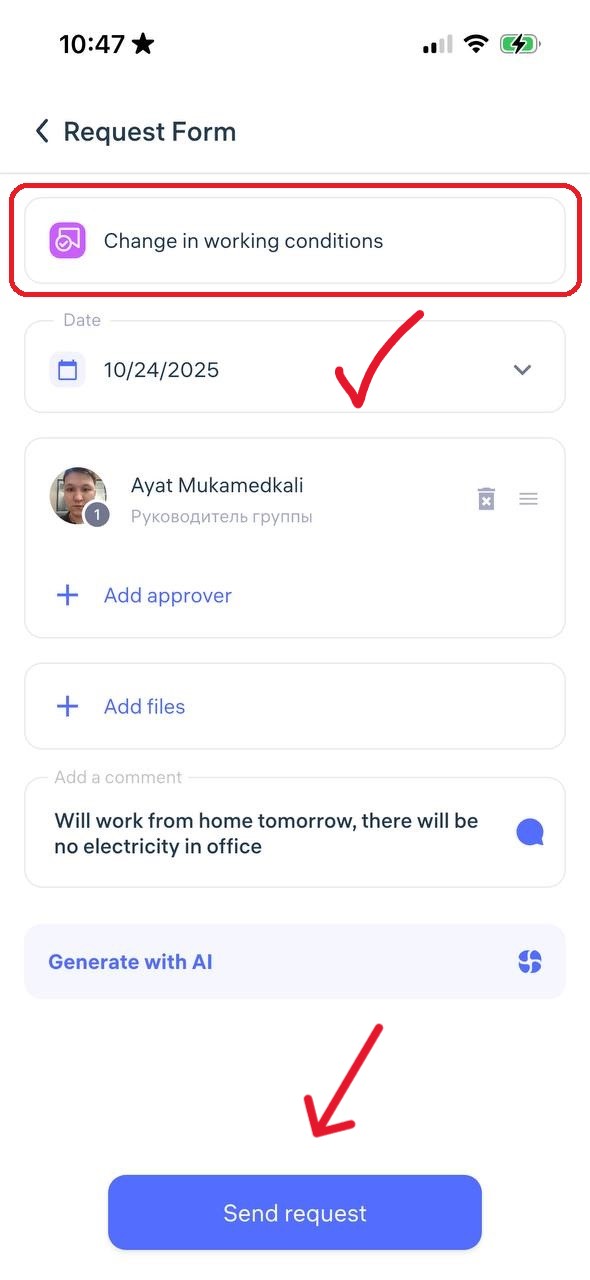
Specify the effective date, choose a manager, add a comment, and click “Send Request.”
⚠️ Note: This request does not modify the work schedule or enable off-location check-ins (such permissions must be set in the employee’s profile).
5. Business trip
A business trip request is used when an employee needs to travel temporarily to another city or location for work purposes.
Enter the departure and return dates. If you enable “I know the route,” you can indicate the travel cost. If you enable “I know where I’ll stay,” you can specify accommodation costs
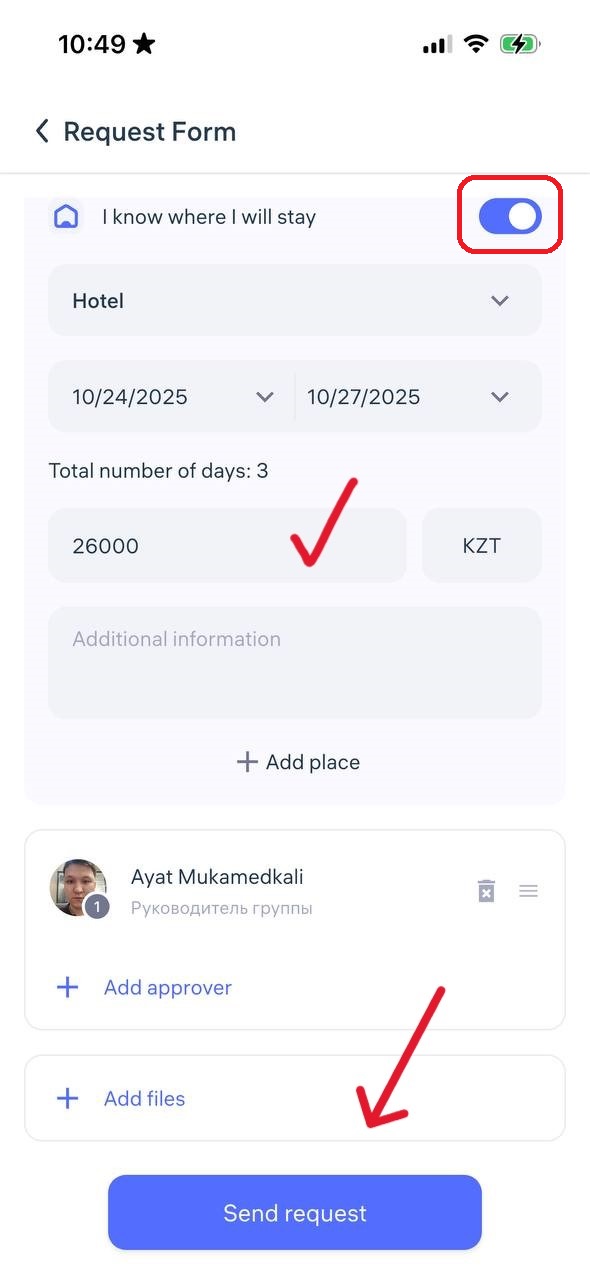
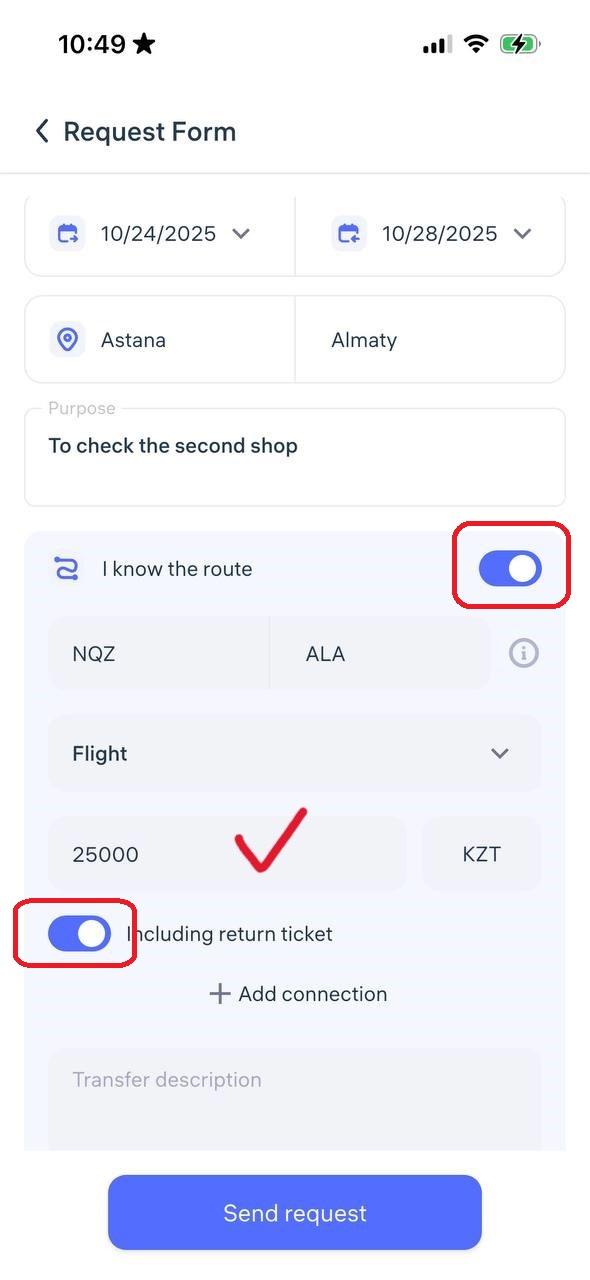
Select a manager and click “Send Request.”
Other types of requests
6. Training
A training request is used when an employee wants to attend a training, course, or seminar to improve their skills.
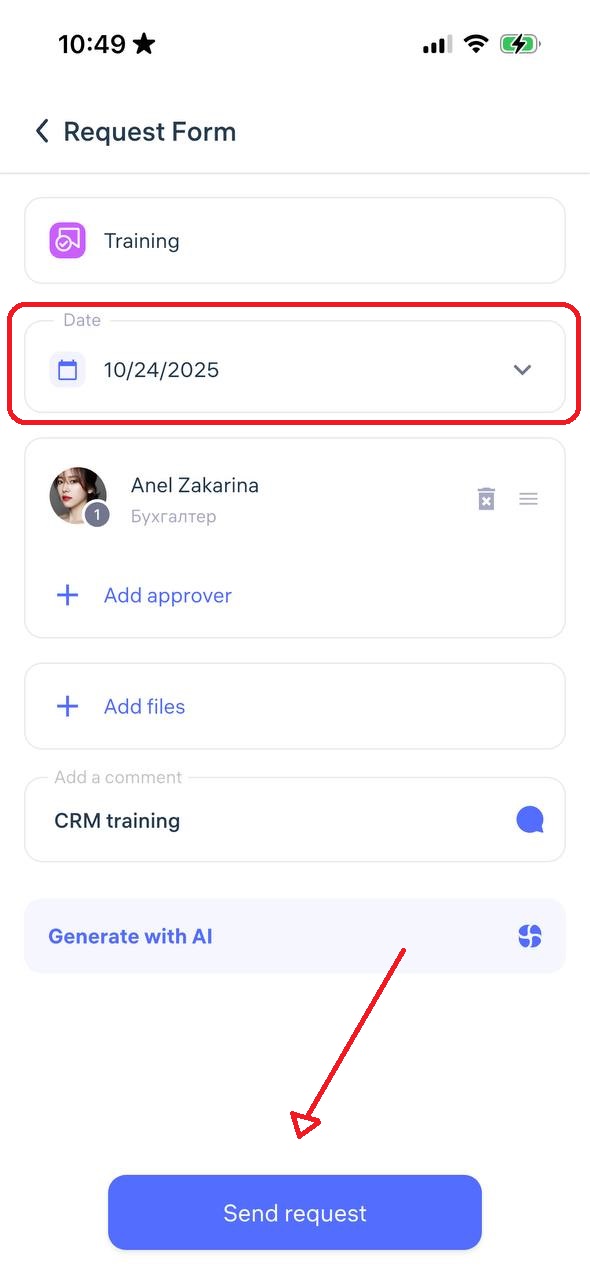
Enter the training date, select a manager for approval, add a comment, and click “Send Request”
7. Disciplinary action
This request is initiated by a manager to document a violation of company policy and begin a disciplinary process.
This is not an employee’s initiative, but an official document issued through the system to record a disciplinary violation and apply the appropriate disciplinary measure.
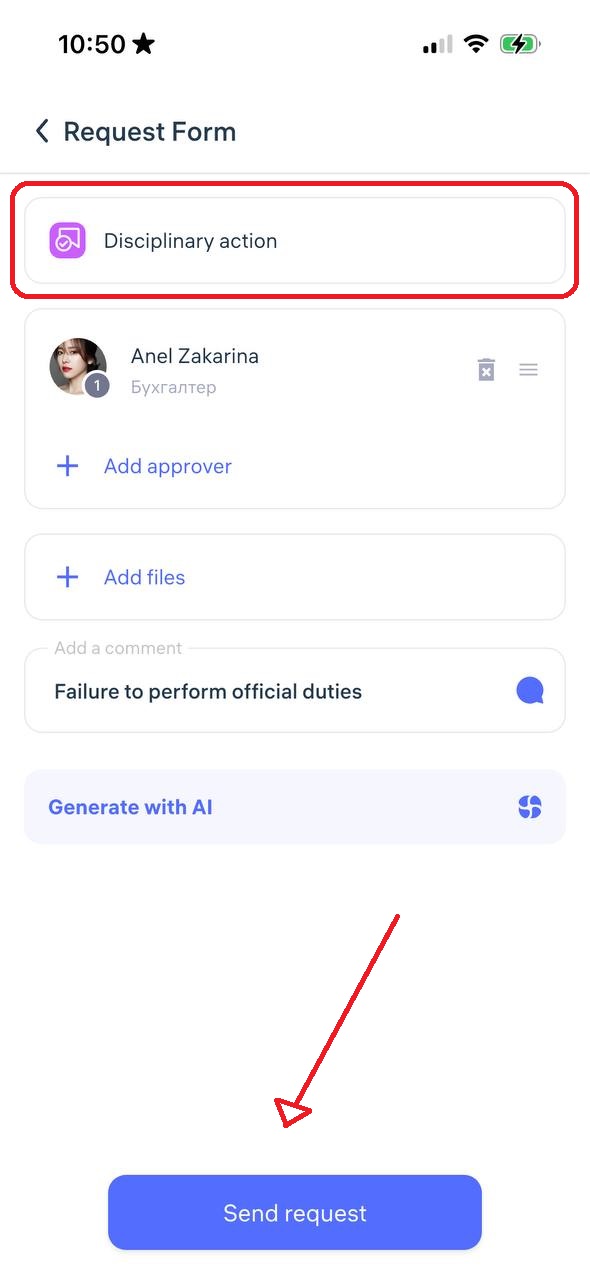
Select the approving manager, add a comment, and click “Send Request”
8. Employment certificate
An employment certificate request allows the employee to request an official document confirming employment, job title, experience, or salary — often needed for banks, consulates, or other organizations.
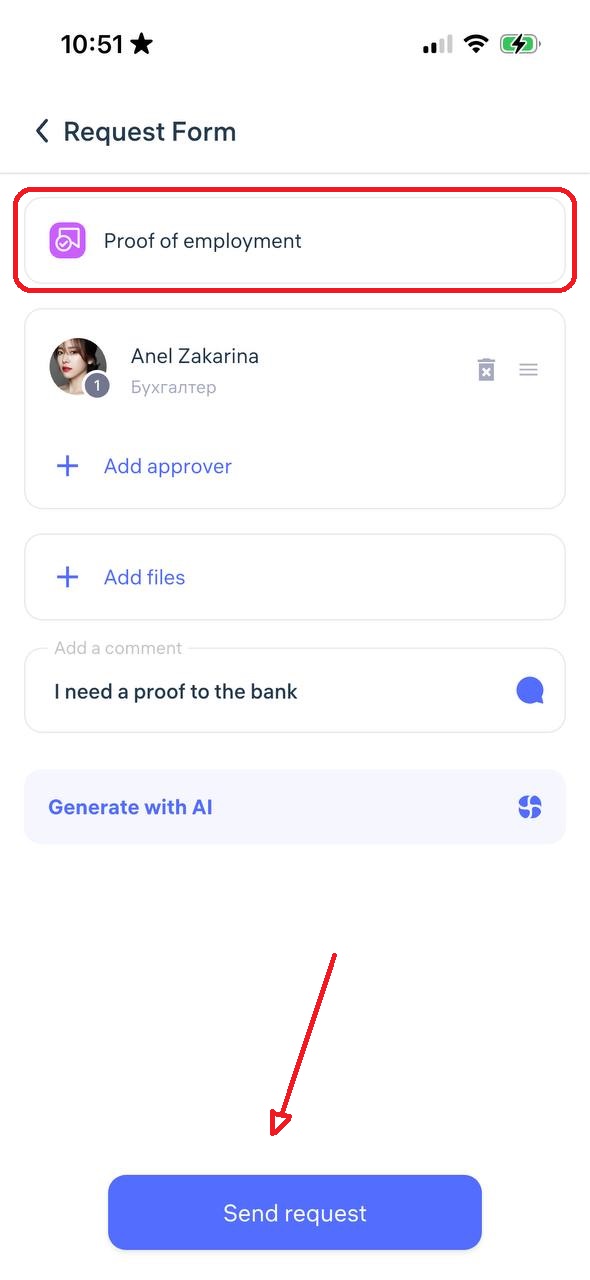
Select a manager, add a comment, and click “Submit Request.”
9. Complaint
A complaint request allows an employee to formally report an issue, conflict, or misconduct related to work, colleagues, or management.
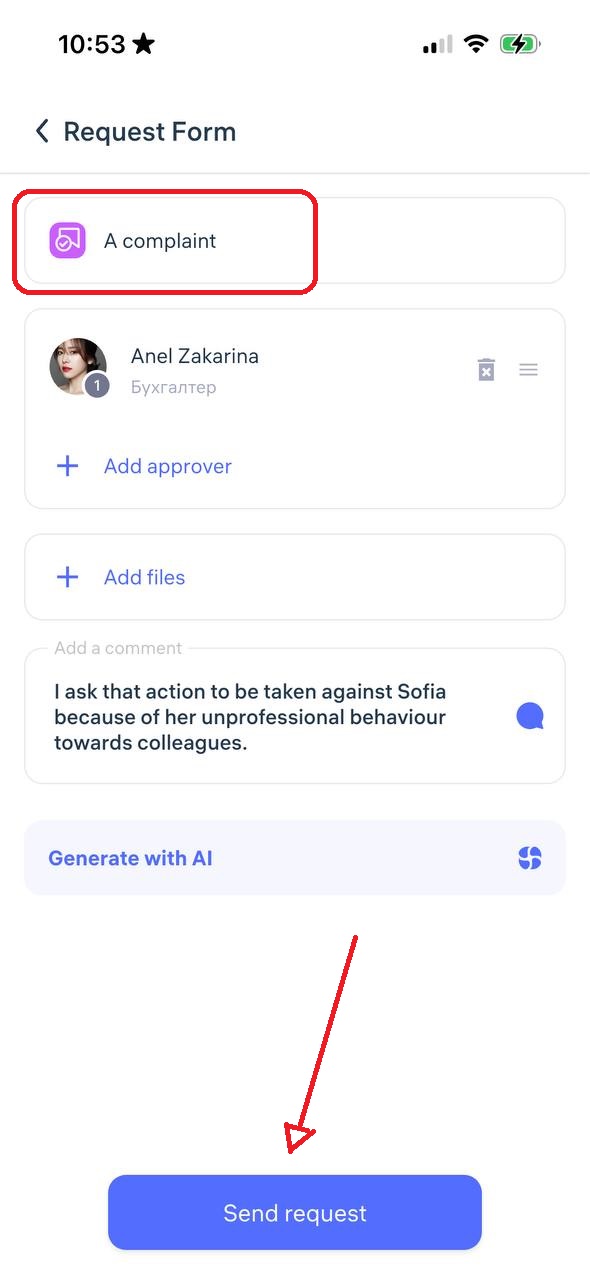
Select the responsible manager or HR, describe the situation, and click “Send Request”
10. Other
This is a general-purpose request type for cases that do not fit into predefined categories.
Describe your situation in detail, select the department (HR, accounting, IT, etc.), specify the approving manager, and click “Send Request”
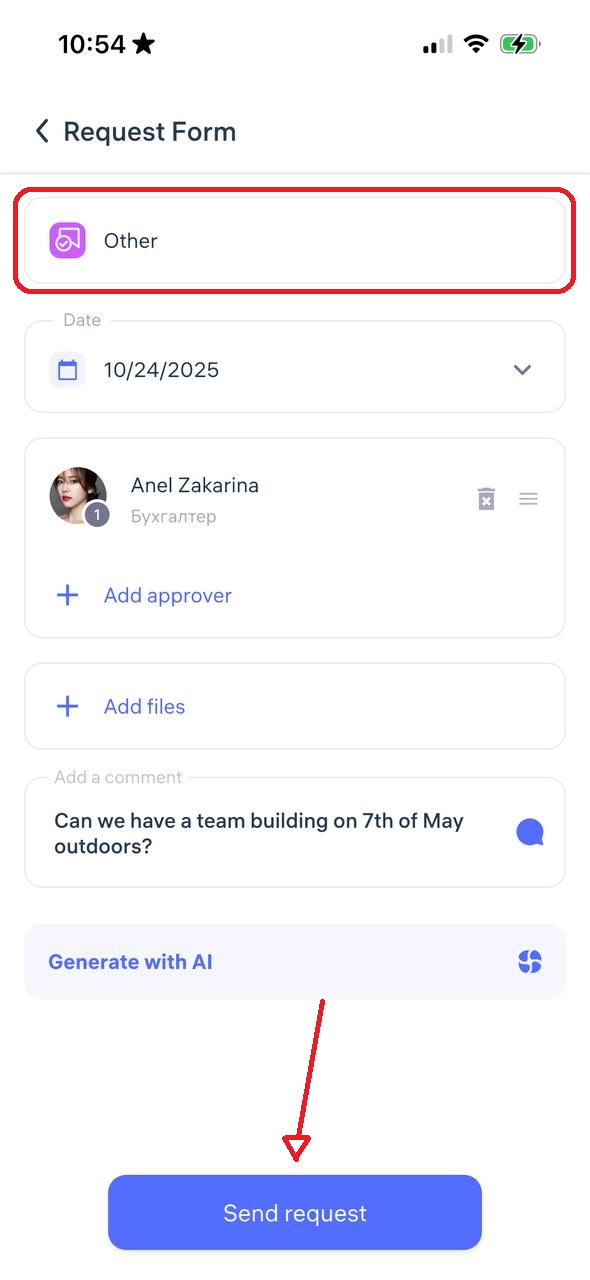
11. Resignation
A resignation request is a formal way for an employee to notify the employer of their intention to leave the company.
This serves as a digital equivalent of a paper resignation letter, including the submission date, reason, and desired termination date.
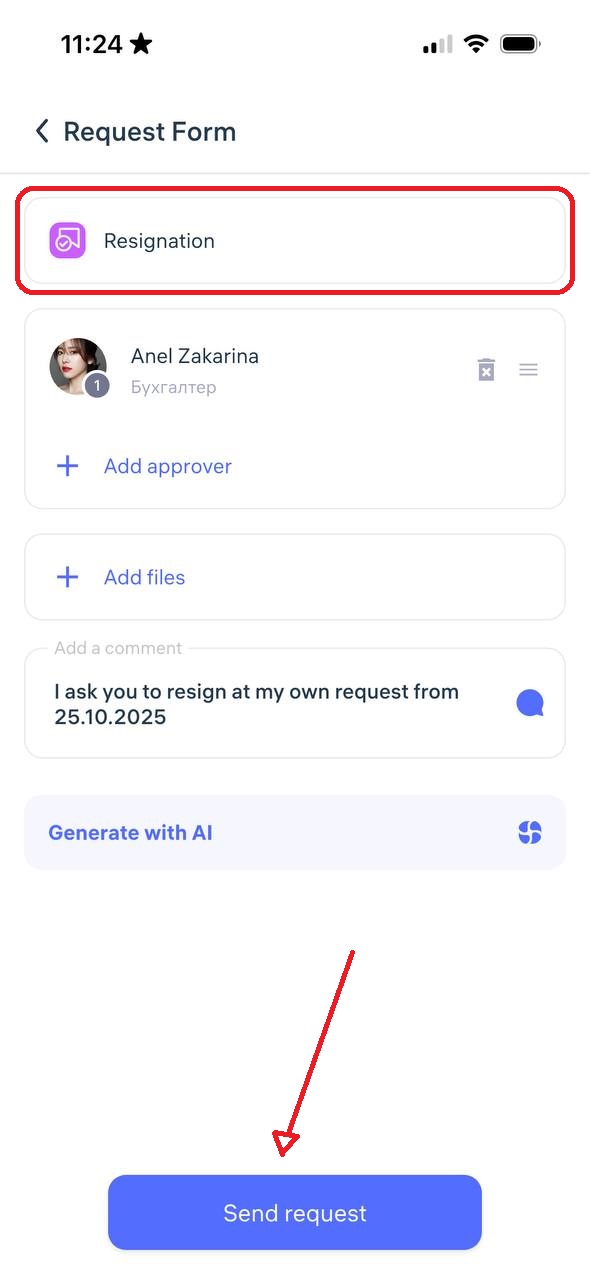
Select a manager, add a comment, and click “Send Request”
12. Clock-in/out | Break hours
An clock-in/out | Break request is used to correct missed or incorrect check-ins, check-outs, or breaks.
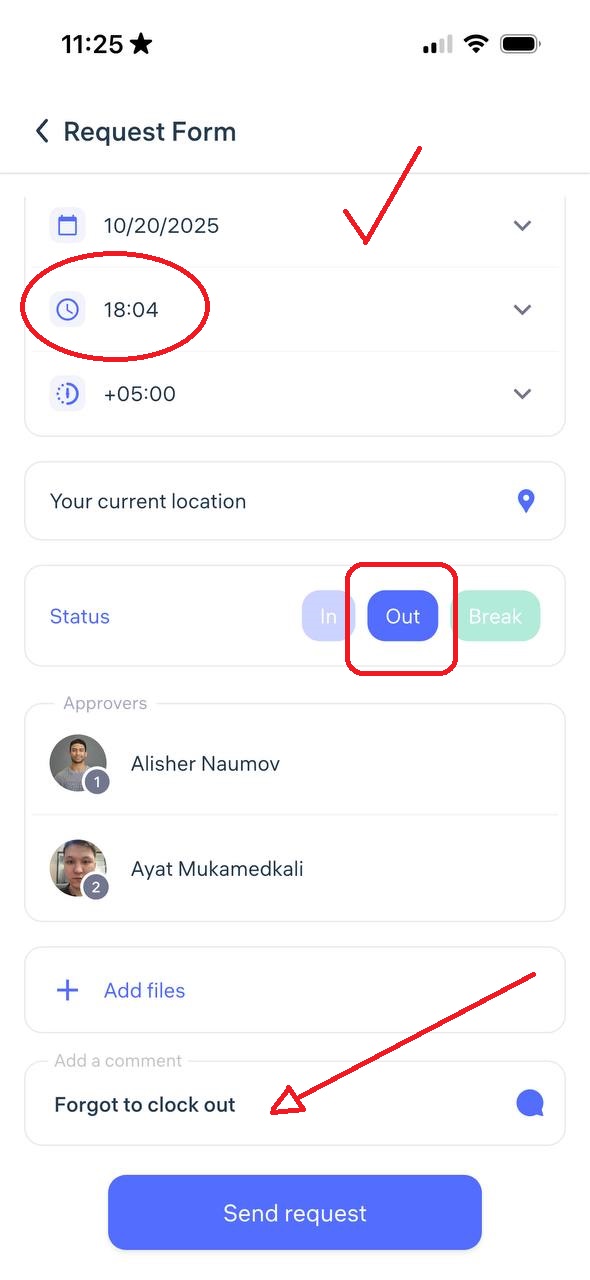
Specify the correct time, ensure the status (Check-in/Check-out or Break) is selected properly, choose a manager, and click “Send Request.
⚠️ Note: All corrections are logged and visible in the system history.
13. Face photo (biometric devices)
A face photo request is used to upload or update the employee’s photo for biometric recognition on Clockster devices.
To submit:
Choose “Face photo (Biometric devices)”
Tap “Open Camera” — the system will show examples of invalid photos
Take a selfie following the requirements below:
Format: JPEG / JPG / PNG
Size: Minimum 600×600 px
Background: Light and plain
Face: No accessories, no smile, no headwear, no filters
Framing: Face must occupy at least 70% of the photo
Photo: Must be clear, color, and not taken from another photo
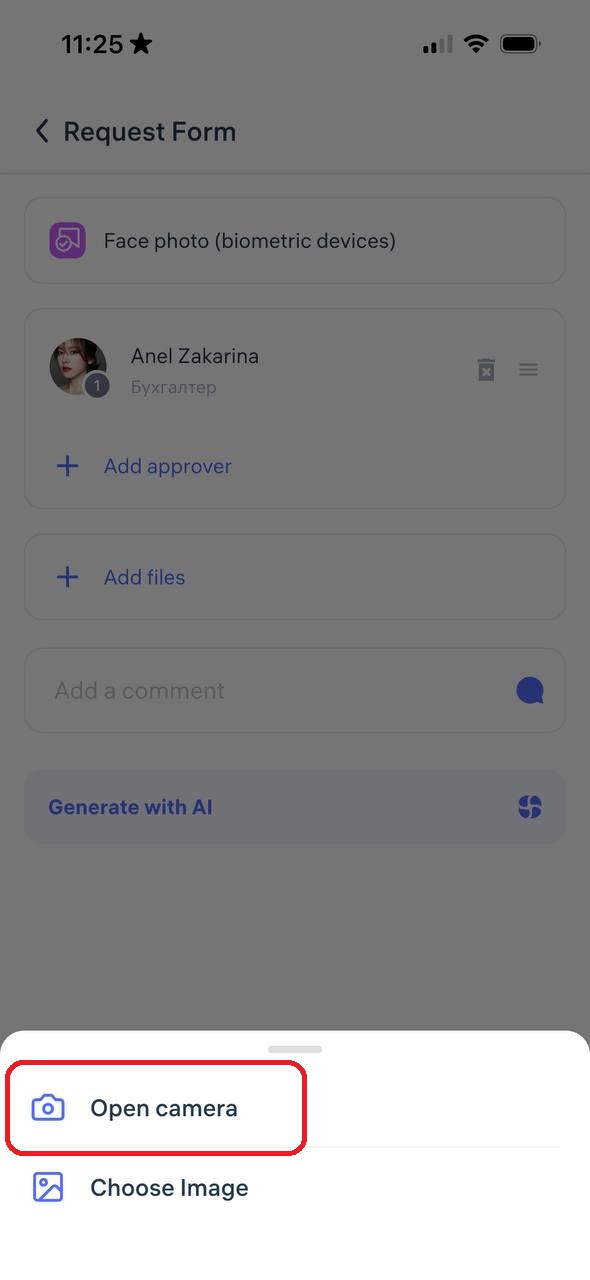
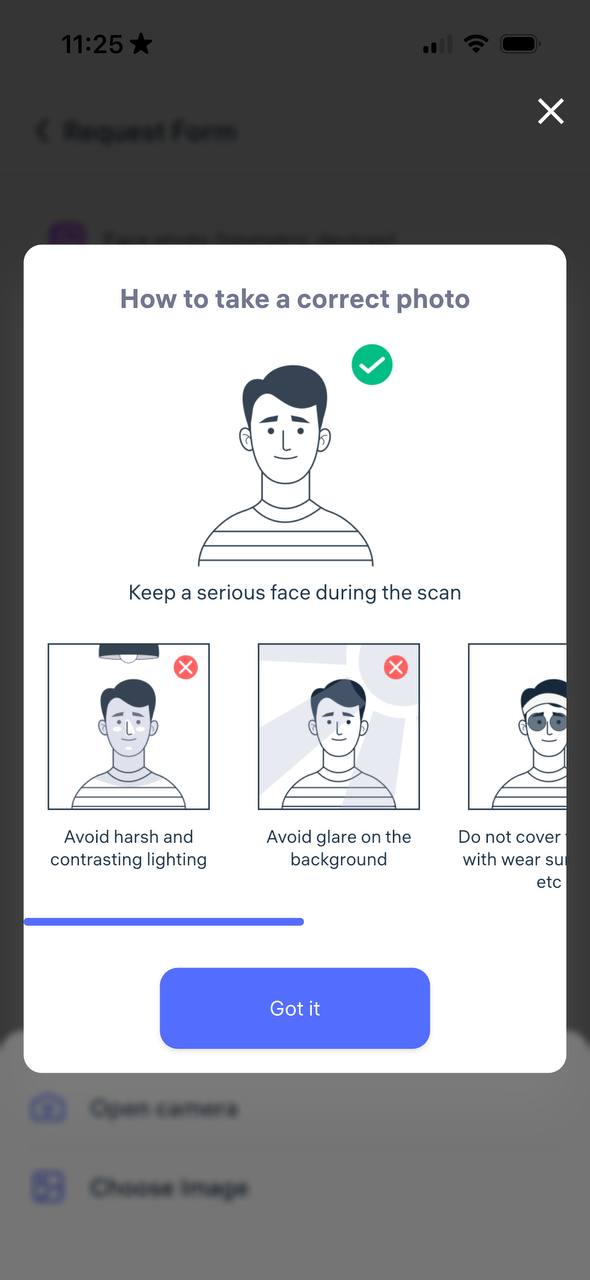
After uploading, click “Send Request” The administrator will review and approve it, after which the data will sync with the assigned locations.
14. Location
This request is used when an employee needs to change their main assigned location.
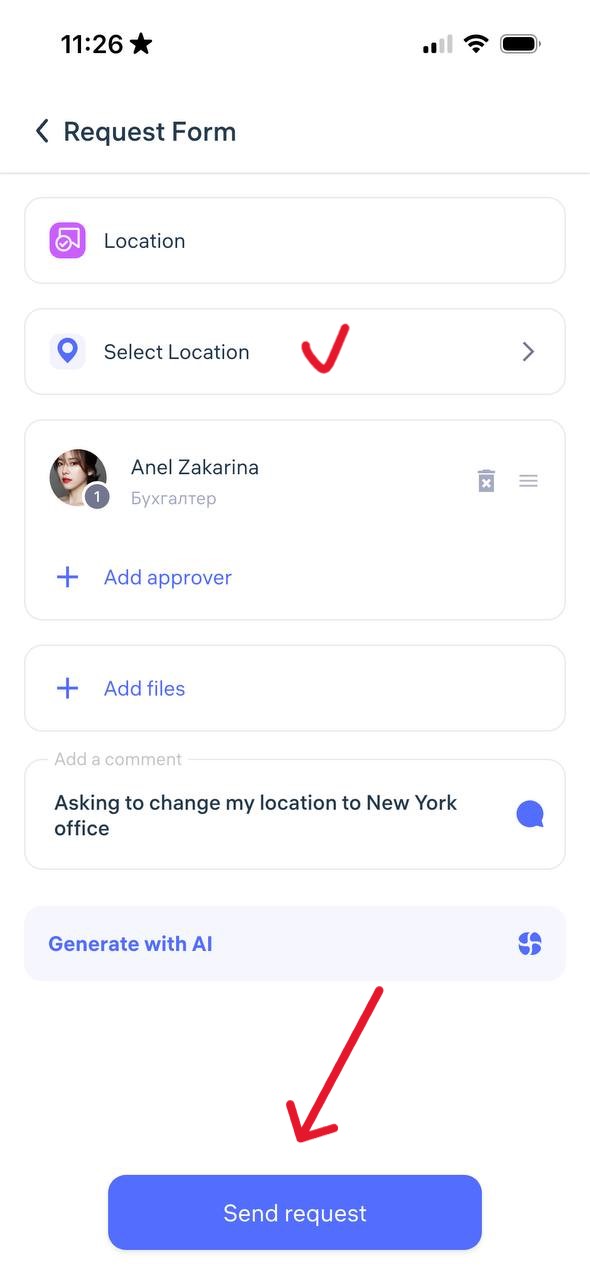
Select the new location from the list, choose a manager for approval, add a comment, and click “Send Request”
Step 3: Schedules
In Clockster, it is extremely important that every employee has a work schedule assigned, as without it the system cannot provide accurate information on worked hours, lateness, or missed time.
When a new employee joins your company, a default schedule is automatically assigned. If necessary, this schedule should be edited to match the employee’s actual working hours.
There are three ways to create schedules in Clockster:
1️⃣ Create a new schedule manually
If you need to set a schedule for a specific time period or define specific working days, this option is for you.
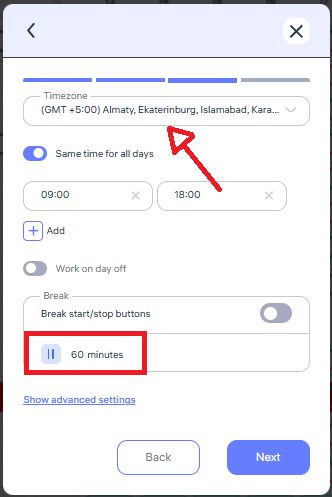
Click “+ Add Schedule” to create a new one, and select a type:
Work,
Free, or
Leave.
Then specify:
The schedule period — either “For the entire period” or “Specific dates”
The period or exact dates
Working days of the week
The location, position, or department
Start and end times of the workday
The employees for whom this schedule applies (you can select them using filters or from the list).

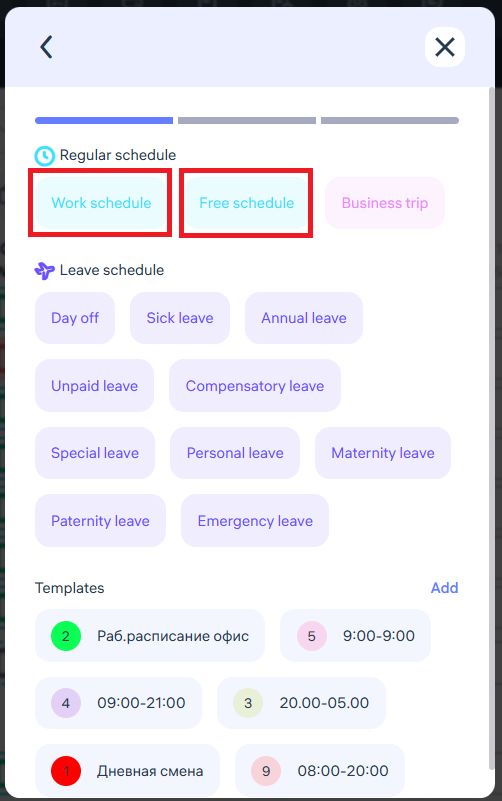
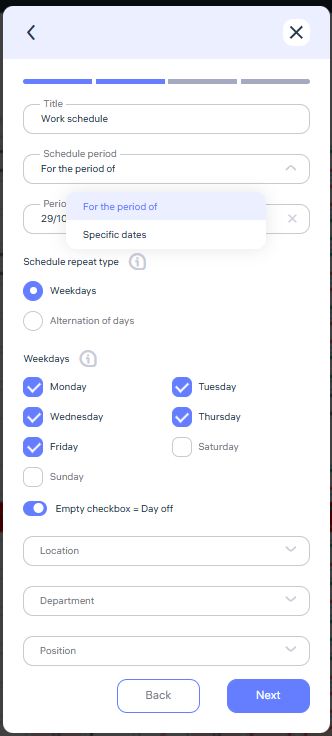
2️⃣ Use schedule templates
This option is convenient if you often edit schedules or have various work patterns in your company.
Templates can be created in the Clockster web app → Schedules → Advanced Settings.

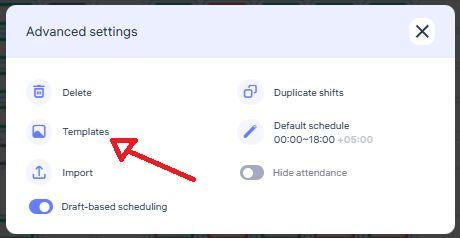
Each template can be assigned a unique code consisting of numbers (1–9) or Latin letters (A–Z).
This allows you to apply templates quickly using hotkeys:
Hold CTRL/CMD and select specific days to edit
Hold ALT and select a time range
Then press the template code (number or letter) to apply it.
If you prefer not to use hotkeys, you can click the “Continue” button in the lower-right corner during editing and select the desired template manually.
Once selected, the schedule will be automatically applied to the chosen days.
You can also use created templates when adding new schedules through “+ Add Schedule”.
3️⃣ Copy existing schedules
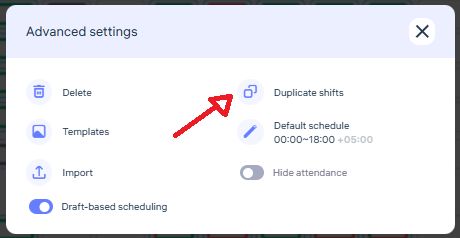
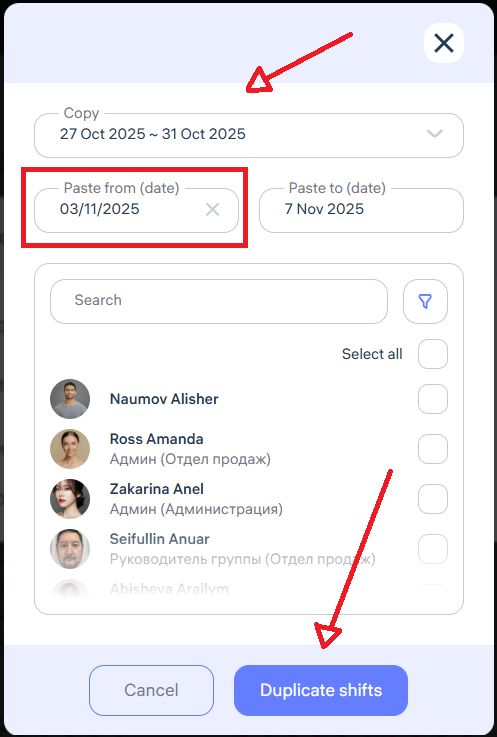
You can copy an employee’s schedule for a selected period (up to 7 days) and apply it to another time interval.
This option is also found under Advanced Settings → Duplicate Shifts.
Important Notes About Schedules in Clockster
Working vs. Free vs. Leave (Day Off) schedules
A Working schedule sets exact start and end times for each shift.
→ Clockster will calculate detailed attendance data: total worked hours, lateness, early departures, and overtime.A Free schedule does not track lateness or early departures.
→ The system measures attendance based on time intervals between “Clock-In” and “Clock-Out” marks.
For example, if an employee checks in in the morning and again midday, the system records two separate time segments and sums them up for the day.A Leave (Vacation or Day off) schedule functions the same way as the Free schedule.
Shift Schedules
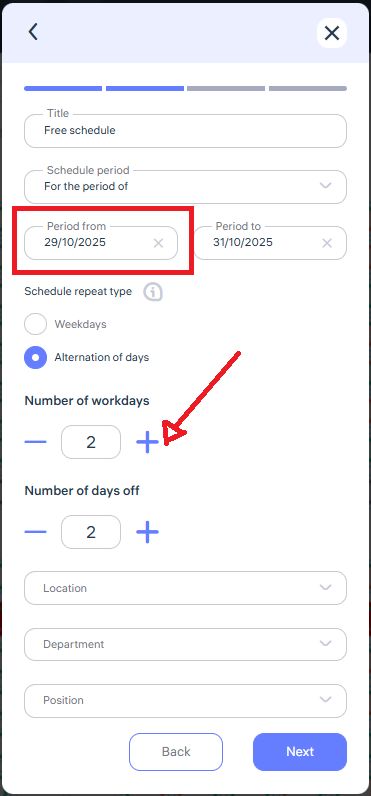
When setting up a rotating schedule (e.g., 2/2 — two working days followed by two off days), note that the pattern starts from the start date specified.
For example:
If the start date is May 8, the system will mark May 8–9 as workdays and May 10–11 as days off, repeating the pattern until the end date.
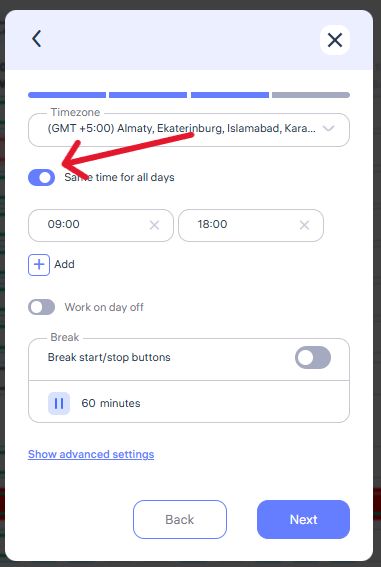
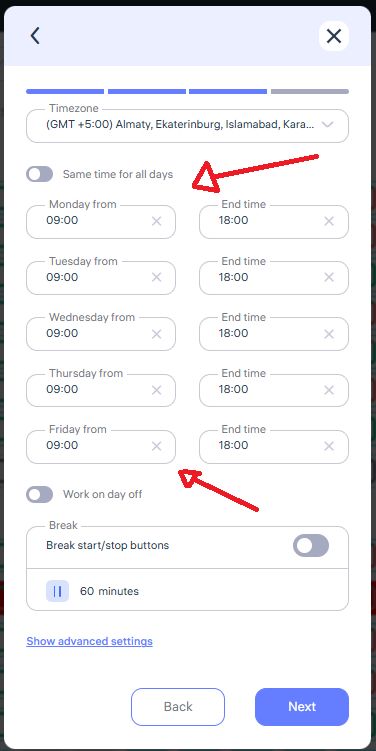
If each day in the shift schedule needs a different start/end time, disable “Same time for all days” to manually set times for each day.
Breaks in Schedules
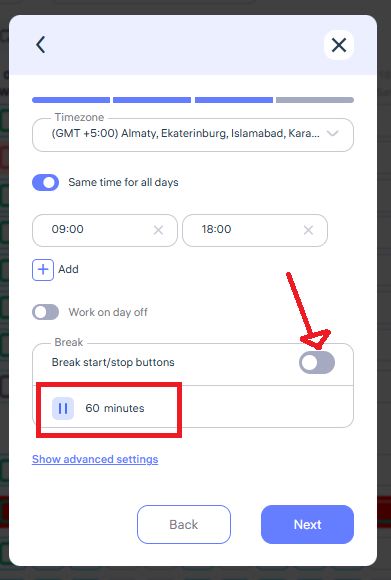
If a fixed break time is specified, the system automatically deducts it from total working hours.
To include break time as part of total working hours, set the break duration to 0 minutes.
For precise tracking of break duration, enable the “Start/End Break Buttons” option.
Employees can then manually mark the beginning and end of their breaks via the Clockster mobile app or kiosk mode.
⚠️ Note: Biometric devices do not support this break-marking feature.
Where to start first
Setting up your company account
Start by configuring the basic information about your company:
On the left panel of the Clockster interface, you will find the main system sections. Please go to the “Settings” section.
Setting up the Attendance section
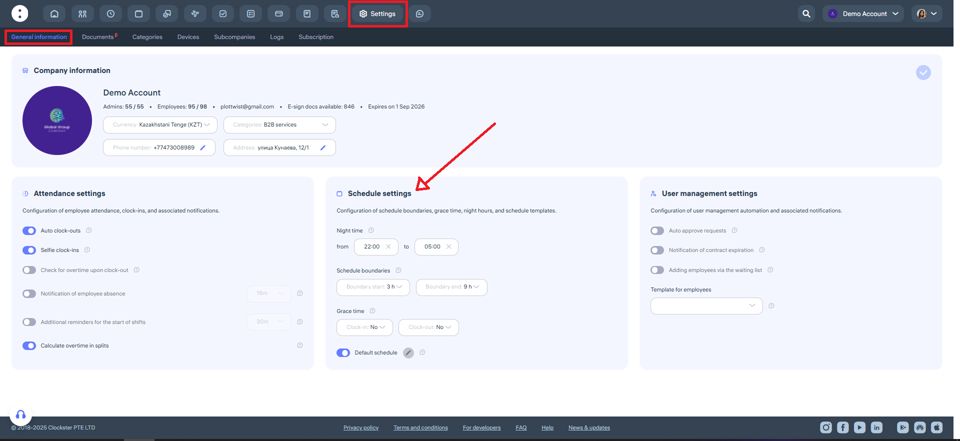
If desired, you can enable automatic check-out records. This means the system will automatically create check-out entries for your employees according to their work schedule, regardless of whether they actually left work at that time.
You can also enable the “Selfie clock-ins” feature, which requires employees to take a photo using their phone camera when clocking in or out in the Clockster mobile app. Uploading photos from the gallery is not allowed — the photo must be taken in real-time using the camera.
If you use the Payroll module, enable the option to check for overtime upon clock-out when employees clock in or out outside their scheduled working hours via the mobile app.
When the absence notification feature is enabled, the system will send push notifications to all Administrators with the appropriate access rights if not all employees have clocked in.
An additional reminder for the start of shifts in Clockster are notifications that are sent to employees shortly before their scheduled work time, reminding them that their shifts are about to begin.
Setting up the Schedule section
Please note: all changes made in this section will affect only future schedules.
You can always set individual schedules manually for each employee when creating or editing them.
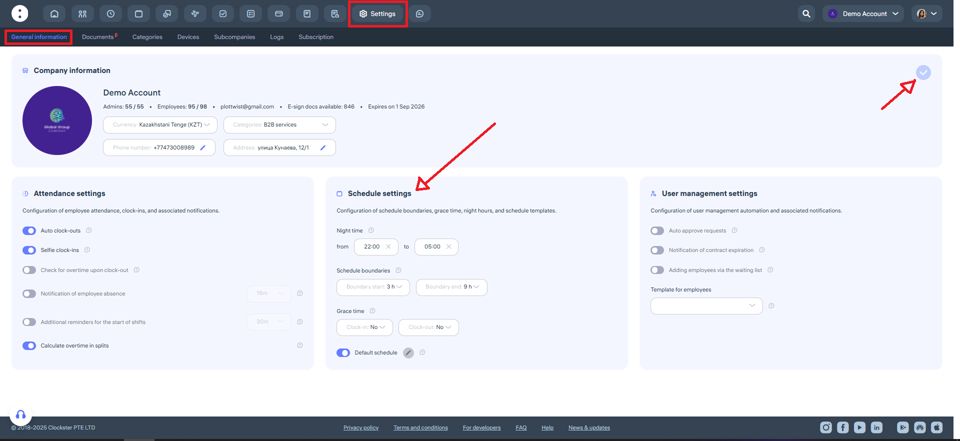
Specify the time interval for night shifts according to your company’s policies.
Set the lower and upper time limits for clock-ins and clock-outs:
The lower limit defines how early an employee can clock in before their shift starts.
The upper limit defines how late an employee can clock out after their shift ends.
If an employee clocks in or out outside of these limits, their working hours will not be counted.
In the timesheet, they will show “0 hours”, and in the Attendance section, they will appear as “Absent.”If this happens, you will need to either:
Edit the employee’s schedule for that day, or
Adjust the time limits in their individual work schedule.
You can also set grace time for lateness and early departures in minutes.
If the employee exceeds this limit, the system will record the full delay time
📘 Example:
If a 5-minute grace time allowed and the employee arrives 6 minutes late, the system records a 6-minute delay. However, if the lateness is less than 5 minutes, it will not appear in the report, and the employee will not be marked as late or as having left early.
Setting up the Employee Management section
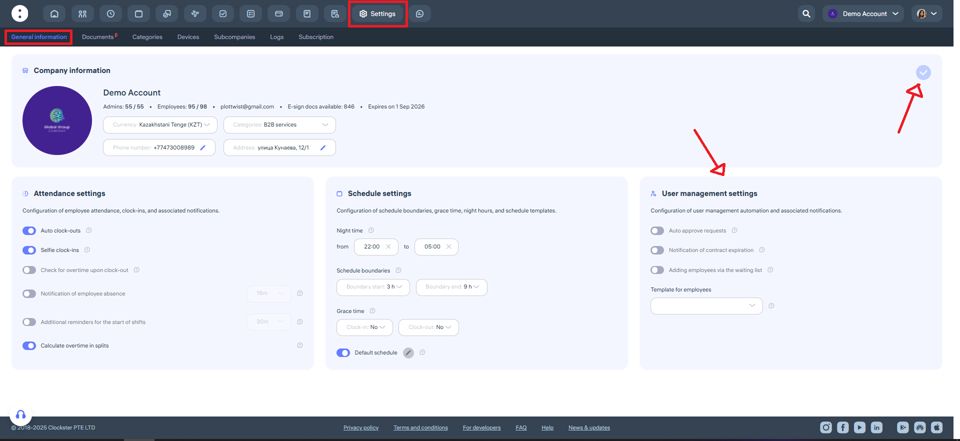
If desired, you can enable auto approve requests. This means all employee requests — regardless of type or reason — will be automatically approved by the system.
When the notification of contract expiration feature is enabled, the system will automatically inform the Administrator one month before an employee’s contract end date (if this date is specified in the employee’s profile).
You can also enable the adding employees via the waiting list feature. This means new employees will only be added to your company after being approved by Administrators with the proper access rights.
✅ Don’t forget to save all your changes in the company settings!
The save icon is located in the top-right corner of the page.
After setting up your company information, move on to the next important section — “Categories.”
We recommend setting up your workspace step by step, following the sequence outlined in this guide!
Next Step – Categories Section
Purpose of the main company categories in Clockster
1. Data organization:
Categories help organize employees by departments, job titles, and locations, simplifying data management within the company.
2. Access management:
Categories can be used to control access levels for employees, granting permissions based on their roles or responsibilities in the system.
3. Reporting and analytics:
By grouping employees into categories, you can easily generate reports and analyze data such as working hours, absences, and other metrics focused on specific employee groups.
4. Schedule management:
Categories can be used when creating and managing work schedules, making it easier to track time and provide flexible scheduling for different employee groups.
Creating Categories
1. Location category
Go to the “Locations” category and click “ + ”.
Create and save all the current locations of your organization where employees are expected to clock in and out.
The created locations will appear in a list during new employee registration, allowing them to be linked to their main workplace.
Setting location coordinates in Clockster is crucial for geo-fencing employee attendance.
When coordinates are defined, the system can accurately verify the employee’s geographical location when they clock in or out.
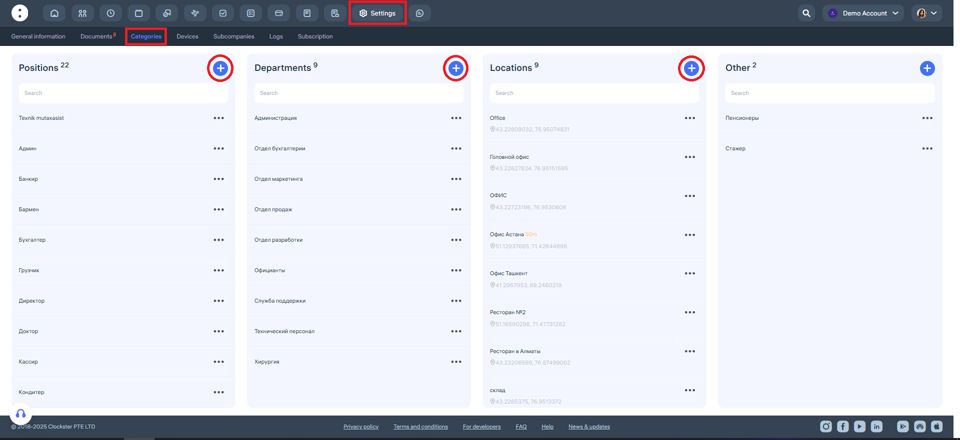
2. Accessing the Categories section
Go to “Settings” on the left side of the screen.
This menu contains all company settings and information.
Find the “Categories” section and open it.
3. Positions category
In the “Positions” category, click “+” and enter all the positions that exist in your company.
4. Department category
In the “Department” category, click “+” and specify the names of your departments, divisions, or functional teams.
For example: “Sales Department,” “HR,” “IT Division,” etc.
5. Other category
The “Other” category is designed for grouping employees by a specific characteristic that:
Is not related to their job title,
Is not related to their department,
But is still important for separate tracking or management purposes.
You can also assign a dedicated manager to the “Other” category, who will be responsible only for the employees within that group.
Note: The “Other” category does not replace an employee’s main department or position — it serves as an additional organizational tool.
An employee can simultaneously have:
A Department,
A Position, and
An “Other” category assigned.
Adding New Employees to the System
Employees Section
Depending on the selected button configuration, you can change how the employee list is displayed.


To add new employees, go to the “Employees” section and select the “Add Employee” option. Depending on the configuration of the devices used for clock-in/out, there are two main methods for adding employees:
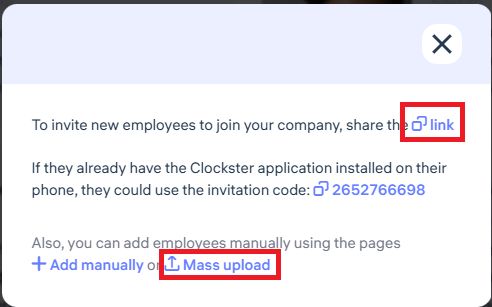
When using the mobile app together with facial recognition devices:
Send all employees a link to join the company.
Employees will fill out their own profiles by installing the mobile app via the link, and they will automatically appear in the “Employees” section in the Administrator’s dashboard.
Bulk upload via Excel form (for facial recognition devices):
If your company uses biometric devices for facial recognition, use the bulk upload feature via Excel. Beforehand, prepare a folder with employee photos on your desktop, as you can upload face images along with the completed Excel form that contains employee data.
Important!
Upload employees in batches of 10 people.
This limitation is due to technical processing capacity and helps prevent system lag, ensuring stable data upload.
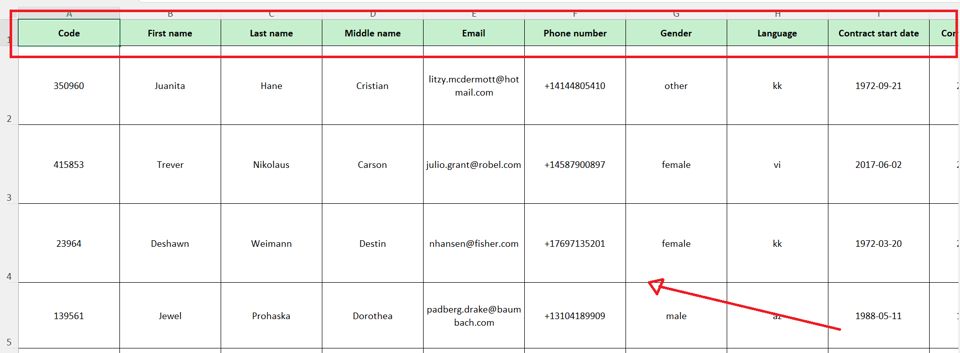
Do not modify the highlighted green row in the Excel template!
The sample employee data provided is for example only — delete it and fill in the fields following the same structure as shown in the examples.
When creating an employee profile via the Administrator’s dashboard, please note:
Creating an employee profile manually does not automatically generate a login account for the mobile app.
An employee’s account is only created when the user registers themselves in the Clockster mobile app, setting up their own login and password.
If you create a profile manually and plan for the employee to use the mobile app, make sure to enter their active phone number in the employee card.
This is important because, during registration, the system will search for a match by phone number and automatically link the mobile account to the existing profile.
✅ This way, you will avoid creating duplicate profiles, and all employee data will remain stored in one place.
Please note:
If the phone number is not added in advance, the employee will create a new separate account during registration, which may cause data inconsistencies.
Administrator Role in Clockster
An Administrator is an authorized company representative responsible for managing all key processes related to time tracking and system administration in Clockster.
This is a critical role: accurate data, correct payroll calculations, and transparent HR processes depend on it.
🕒 Time Tracking
Configure and monitor work schedules (fixed, shift-based, flexible).
Maintain employee timesheets: hours worked, overtime, late arrivals, and early departures.
👥 Attendance Management
Monitor employee check-ins via mobile app, kiosk, or biometric devices.
Review and correct entries in case of missing data or errors.
🧑💼 Employee Management
Add new employees, update profiles, assign job positions and locations.
Manage access rights (e.g., location administrator, department administrator, or category-specific administrator).
📅 Scheduling & Leave Management
Create and edit work schedules of any type.
Manage vacations, sick leaves, and business trips.
📢 Internal Communication
Publish announcements, banners, and internal news.
Conduct surveys and collect employee feedback.
💰 Payroll & Financial Tracking
Calculate wages based on actual hours worked.
Export data for integration with accounting software (e.g., 1C ZUP).
📊 Reporting & Analytics
Generate standard and customizable reports.
Analyze performance, discipline, and labor costs.
⚙️ Device Management
Configure biometric devices and kiosks for employee check-ins.
🌟 Why the Administrator Role Matters
The administrator ensures:
Accuracy in time tracking and payroll,
Transparency in employee management,
Automation of HR processes.
This role is at the heart of a company’s effective use of Clockster.
Creating and Assigning an Administrator
Key Administrator in Clockster
When a company is registered in the Clockster system, the employee who completes the initial registration is automatically assigned the status of Key Administrator.
The Key Administrator is the primary user with full access to all functions and sections of the system within the connected subscription plan.
Responsibilities of the Key Administrator:
Manages all company sections and system settings.
Adds and removes other administrators.
Assigns permissions and access levels to administrators.
Controls organizational structure, schedules, and employee data management.
Ensures overall order and data security in the system.
⚠️ Important: Only the Key Administrator can create other administrators and manage their permissions. It is strongly recommended that this level of access be granted only to a trusted individual.
🛠 How to Add a New Administrator and Configure Access Rights
Log in to the Clockster Administrator Dashboard using the Key Administrator’s credentials.
Navigate to the Employees section.
Select the employee from the list (if the employee is not yet in the system, first send them an invitation to join).
Click on the three-dot menu next to the employee’s name, or click directly on the employee’s profile to edit:
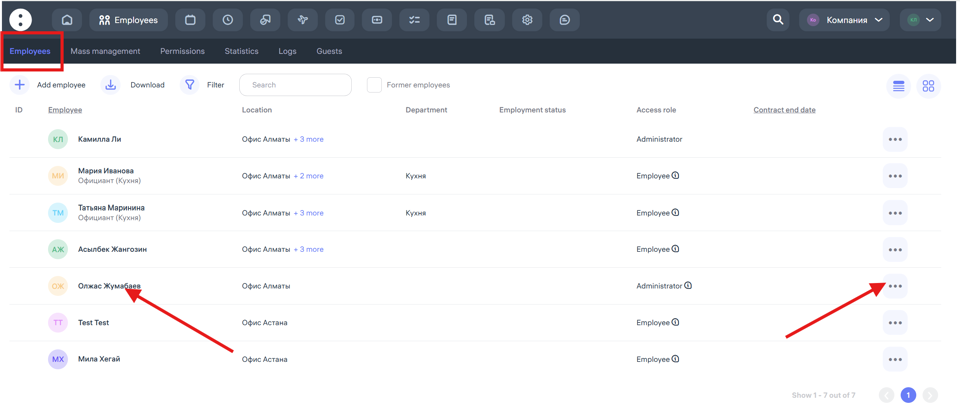
Assign the role Administrator and specify the required access rights to modules (e.g., Schedules only, Payroll only, Reports only, etc.):
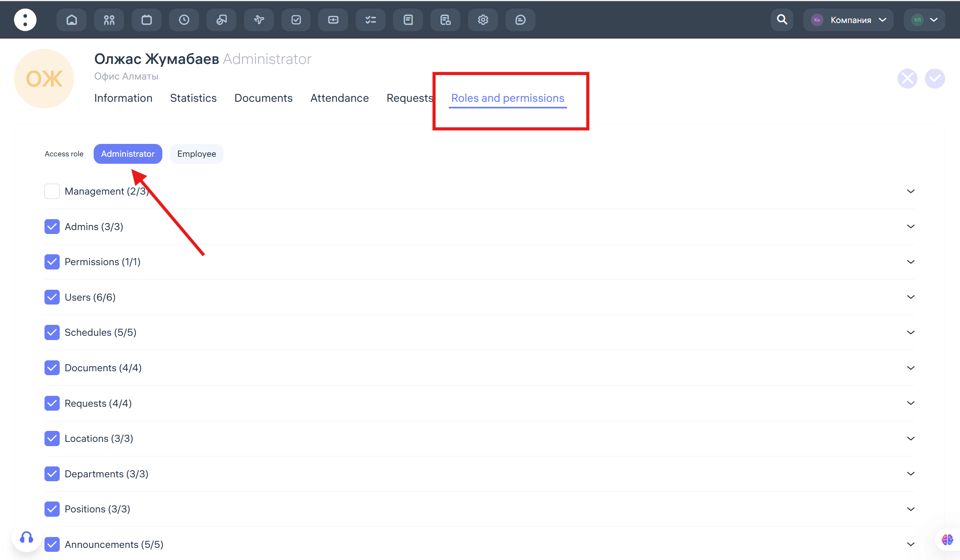
Save your changes.
💡 Tip: You can modify or restrict administrator rights at any time, depending on organizational needs.
Creating Unified Permission Templates for Administrators
Purpose of Permission Templates
If you need to assign identical administrator rights to multiple employees, you can create a unified permission template.
This simplifies configuration and eliminates the need to manually set access rights for each administrator individually.
🛠 How to Create a Permission Template
Go to Employees → Permissions.
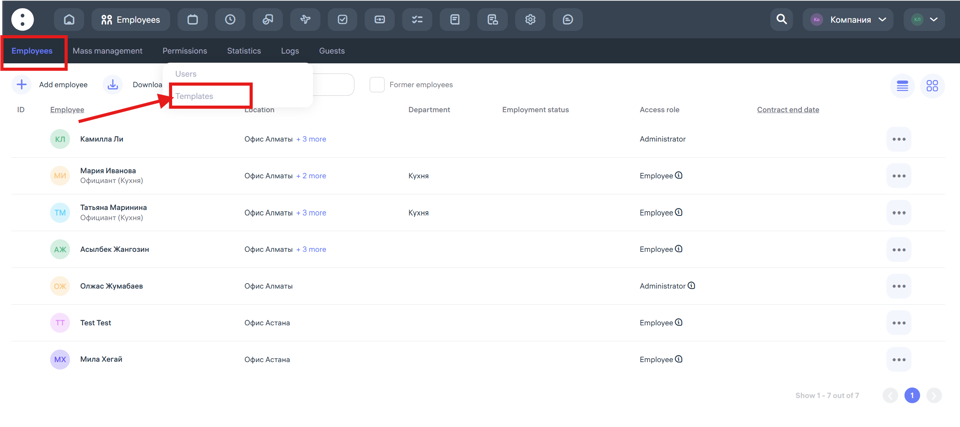
Click Create Template.
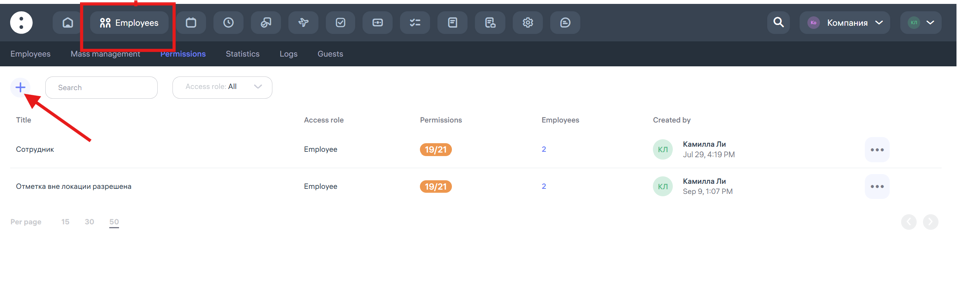
Enter the template name (e.g., HR Administrator, Payroll Administrator).
Select the sections and functions the administrator should have access to.
🌍 Assigning Administrators by Departments and Locations
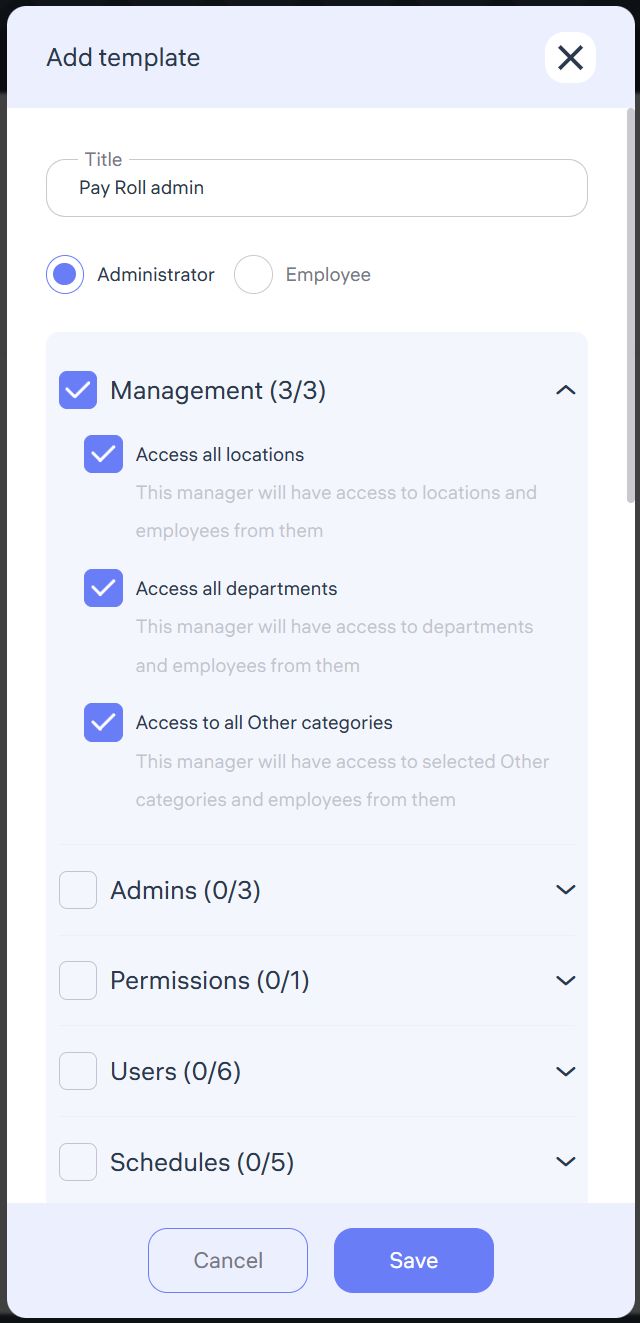
Clockster allows flexible access management: administrators can be assigned to specific departments or locations depending on their functional responsibilities.
For companies with multiple locations:
Go to Management.
Deselect Access to All Locations.
Assign administrators to specific locations.
For companies with one location:
You can delegate management by department.
Deselect Access to All Departments to restrict control.
The “Other” administrator category can be used for isolated groups of employees (temporary projects, external teams, etc.).
👥 Employee & Administrator Management Rights
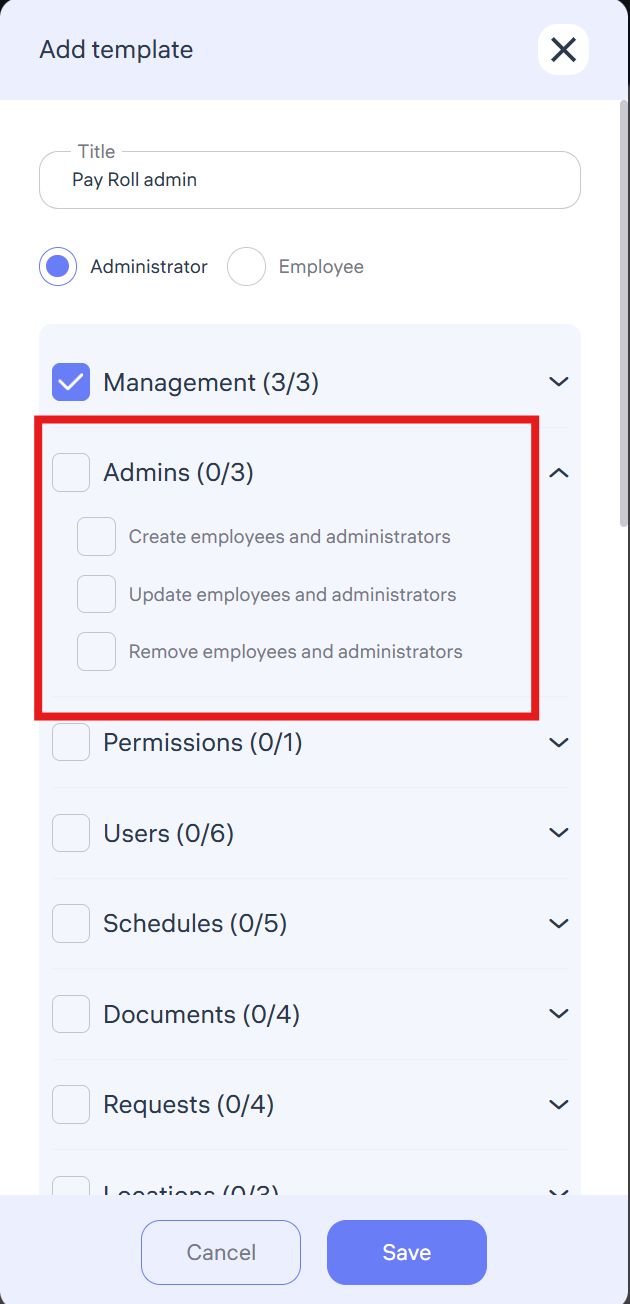
If a permission template includes rights to create, update, and delete employees or administrators, the assigned administrator will be able to:
Add new employees;
Assign new administrators (if permitted);
Edit or remove existing employees and administrators.
⚠️ For cases where an administrator should only be able to create new employees, a separate permission is available. This ensures fine-tuned access based on job responsibilities.
🔑 Managing Permissions and Templates
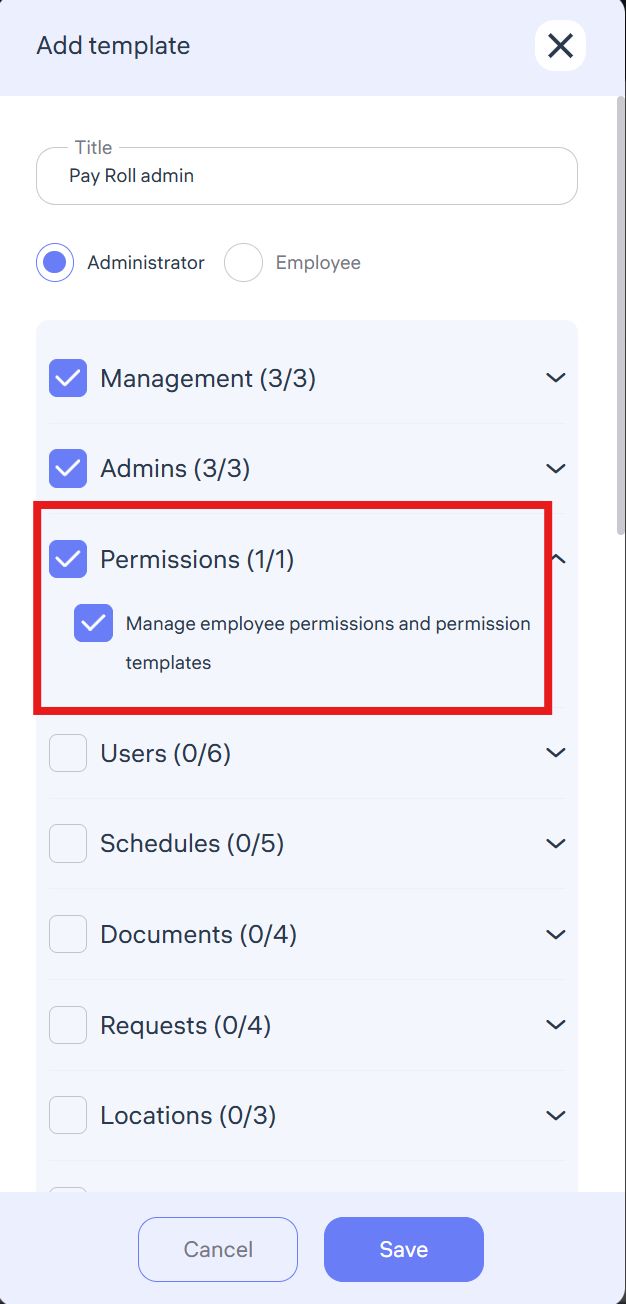
If an administrator has the “Manage Employee Permissions and Templates” right, they can:
Assign permission templates to other employees;
Edit existing access templates;
Grant access to subordinates within the limits of their own rights.
This enables delegated access control within departments or locations without granting full system-wide authority.
👤 Access to User Profiles
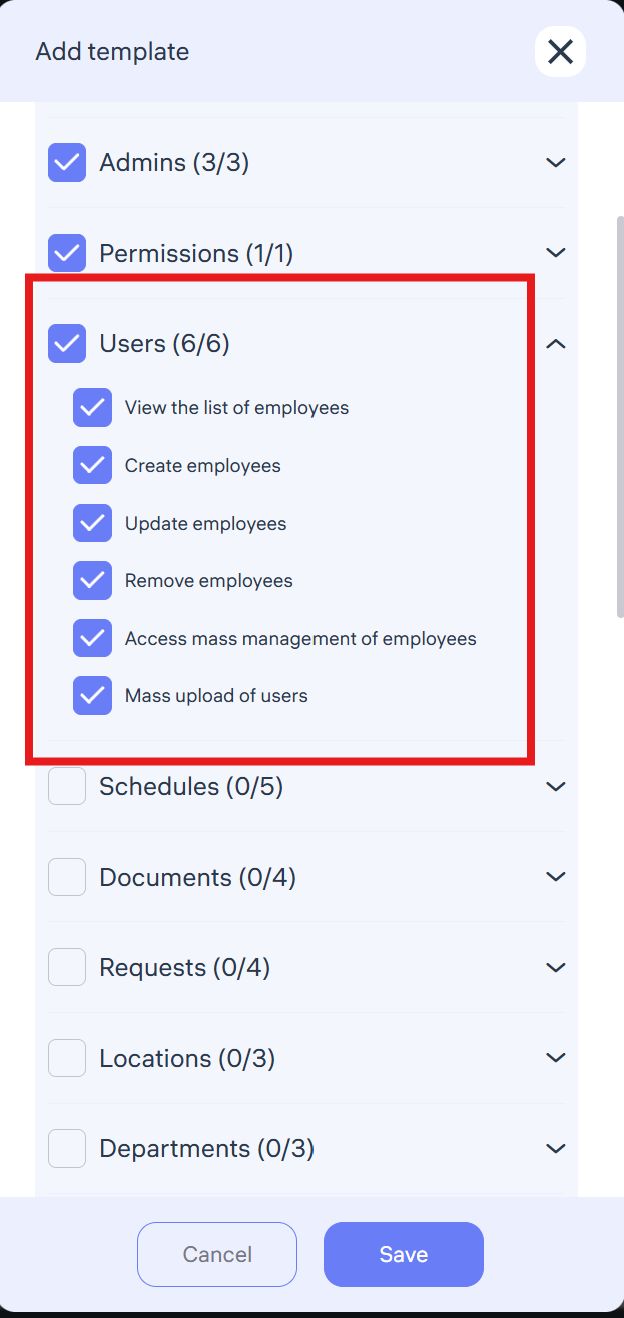
The “Access to Users” permission allows administrators to:
View employee profiles;
Edit personal and employment-related data;
Update records;
Delete employees from the system.
⚠️ This permission is recommended only for HR and personnel administrators directly responsible for employee records.
📅 Access to Schedules
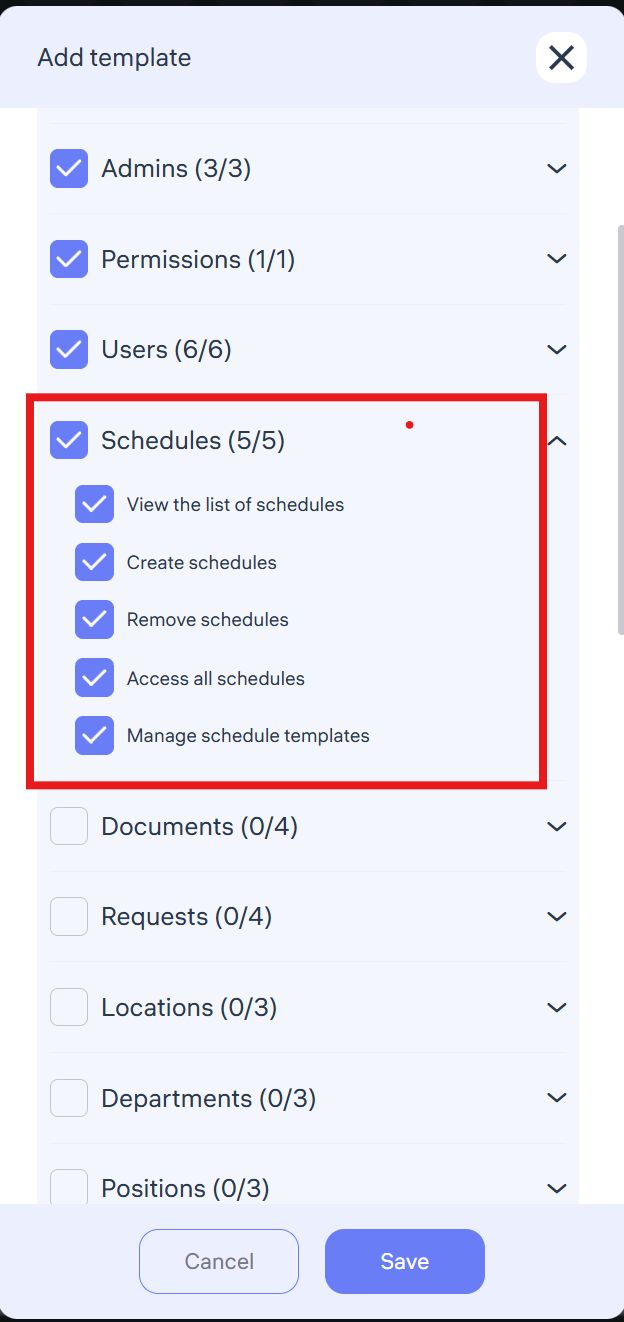
With schedule access, administrators can:
Edit, update, and delete work schedules.
Rights are defined by markers in the permission settings.
⚠️ Be sure to grant only the necessary actions to avoid accidental changes.
📂 Access to Documents
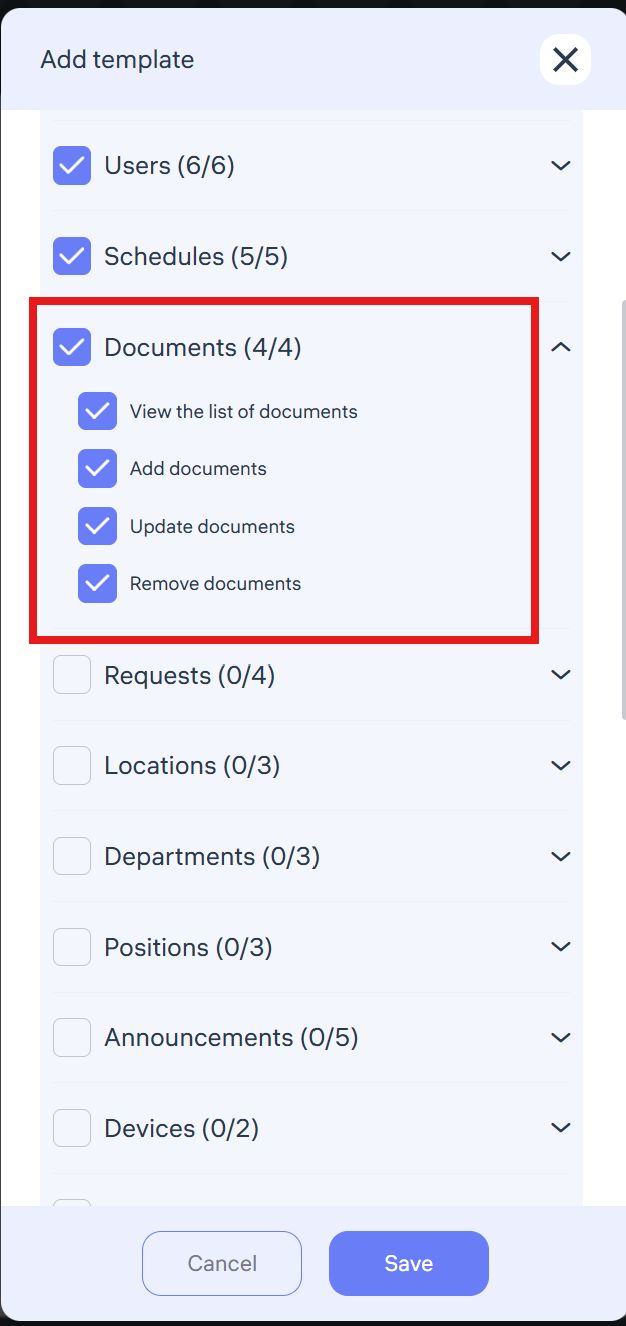
This permission grants administrators the ability to:
Manage documents uploaded by employees via the mobile app;
View, edit, delete, and organize files according to assigned rights.
📨 Access to Requests
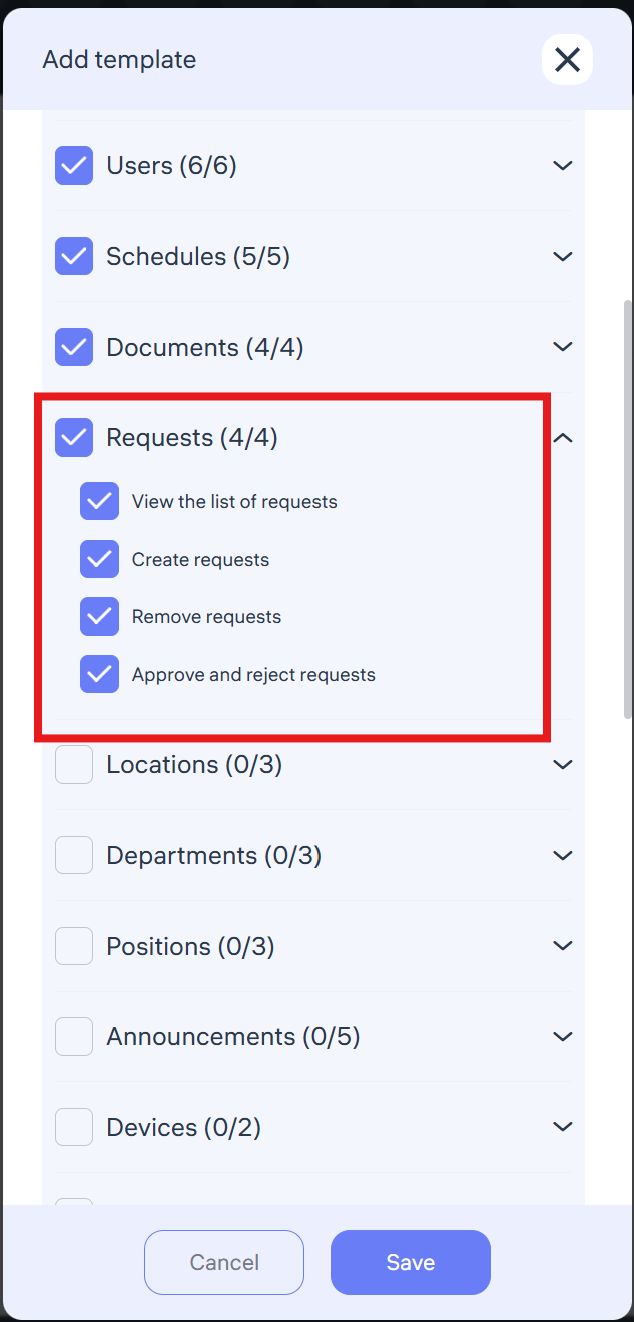
Administrators with this access can:
View all requests (within their departments or locations);
Create new requests;
Approve or reject employee requests assigned to them.
📢 Access to Announcements
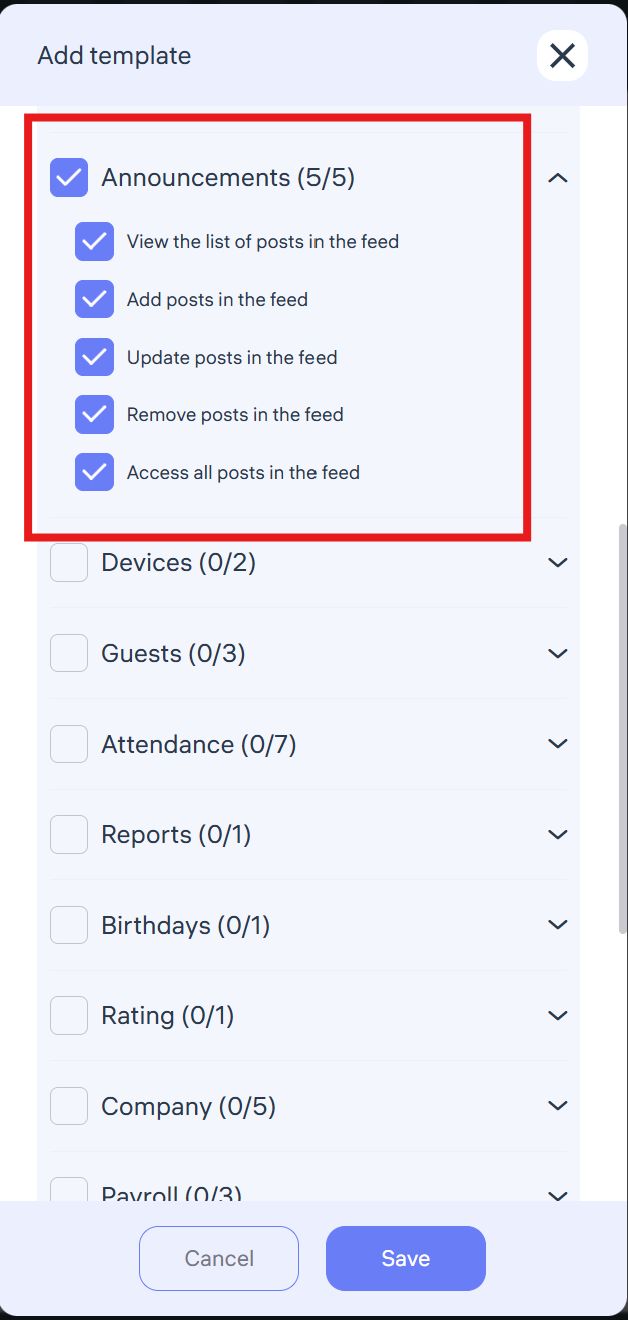
Administrators with announcement rights can:
Create and publish announcements (e.g., company news, policy updates, events).
Edit existing announcements to update or expand content.
Delete outdated announcements.
Download announcement reports and view read-statistics.
Announcements are displayed in both the mobile app and web version depending on employee roles and access.
🖥 Access to Devices
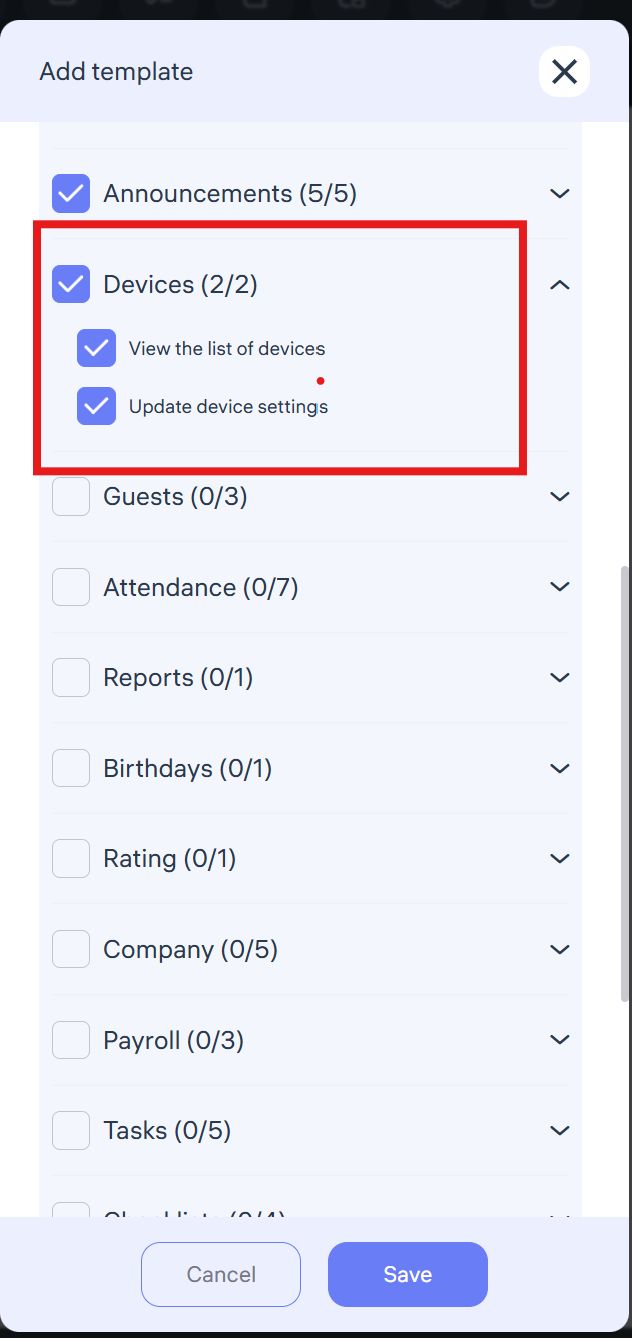
With device access, administrators can:
View the list of connected devices (e.g., biometric terminals).
Monitor device activity (online/offline status, last sync time).
Link devices to specific locations.
Access the master password to configure biometric devices.
🎟 Access to Guests
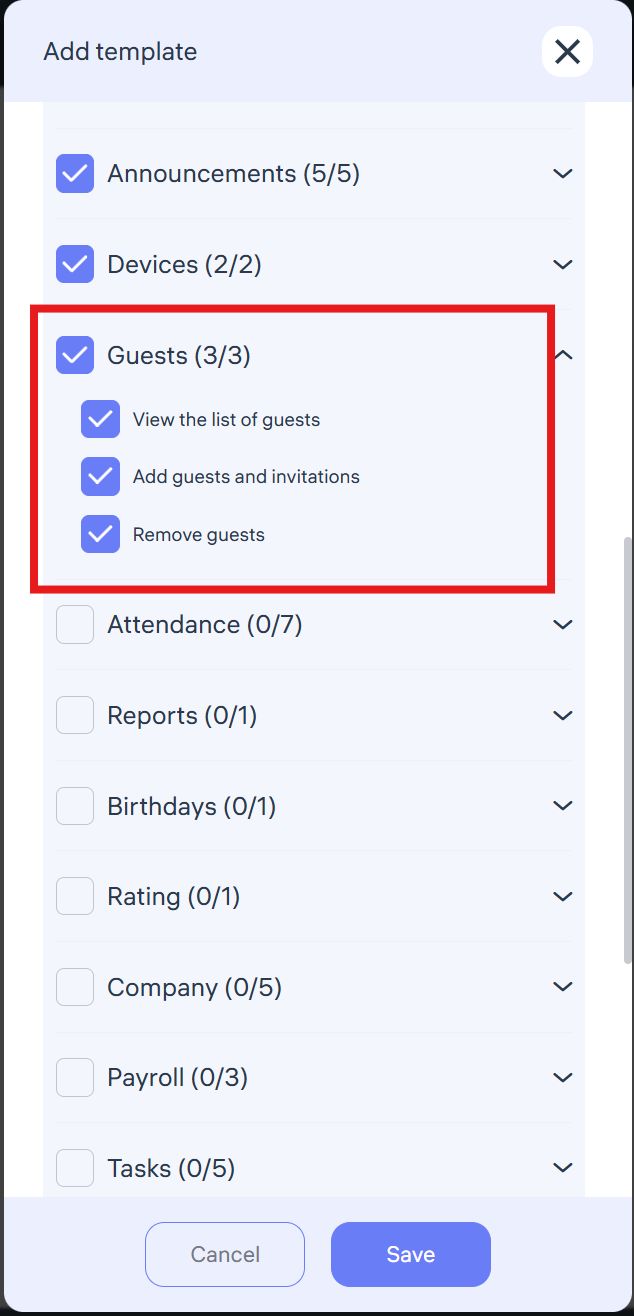
Administrators with guest access can:
View guest lists (visit date, status, location).
Add guests manually, specify purpose of visit, upload or capture a photo for biometric recognition, and send invitations via email.
Delete guest records (e.g., cancelled meetings).
This access is typically assigned to office managers, receptionists, security staff, and location managers.
⏱ Access to Attendance
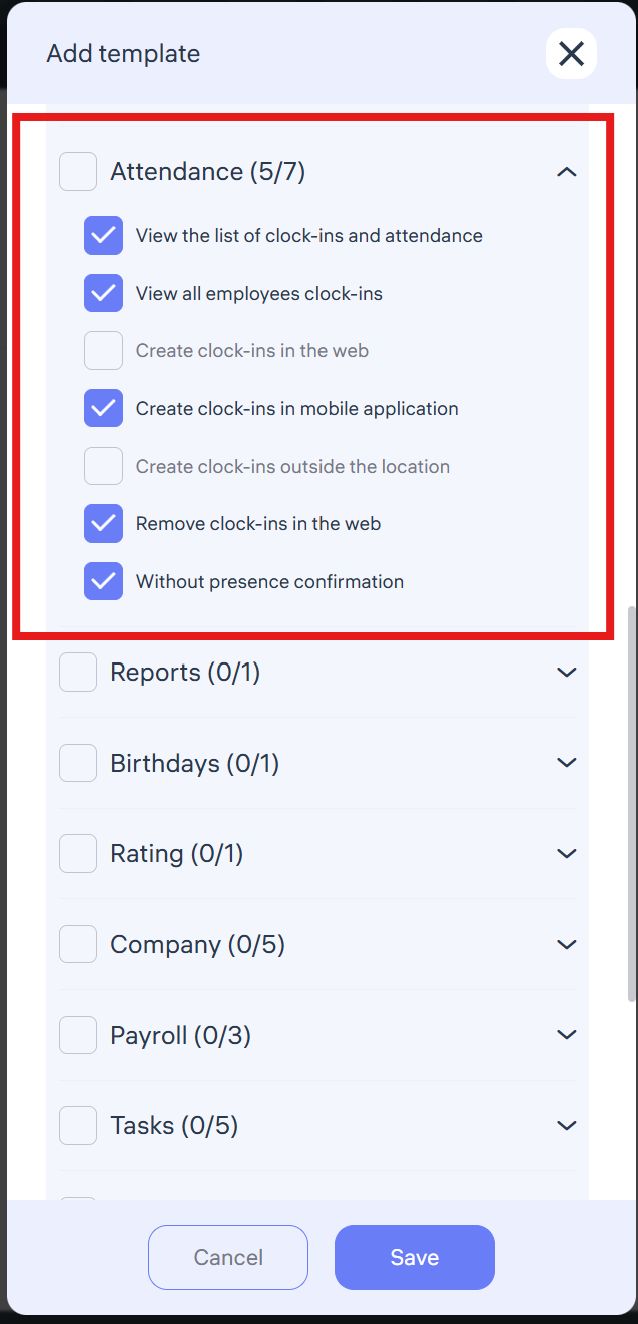
Administrators with attendance rights can:
View their own attendance history.
View employee check-ins (by department/location).
Add check-ins manually through the mobile app.
Delete manually created check-ins in the admin dashboard.
Configure presence verification (random location checks during shifts).
⚠️ Manual check-in creation/deletion is sensitive and should only be assigned to trusted HR administrators.
📊 Access to Reports
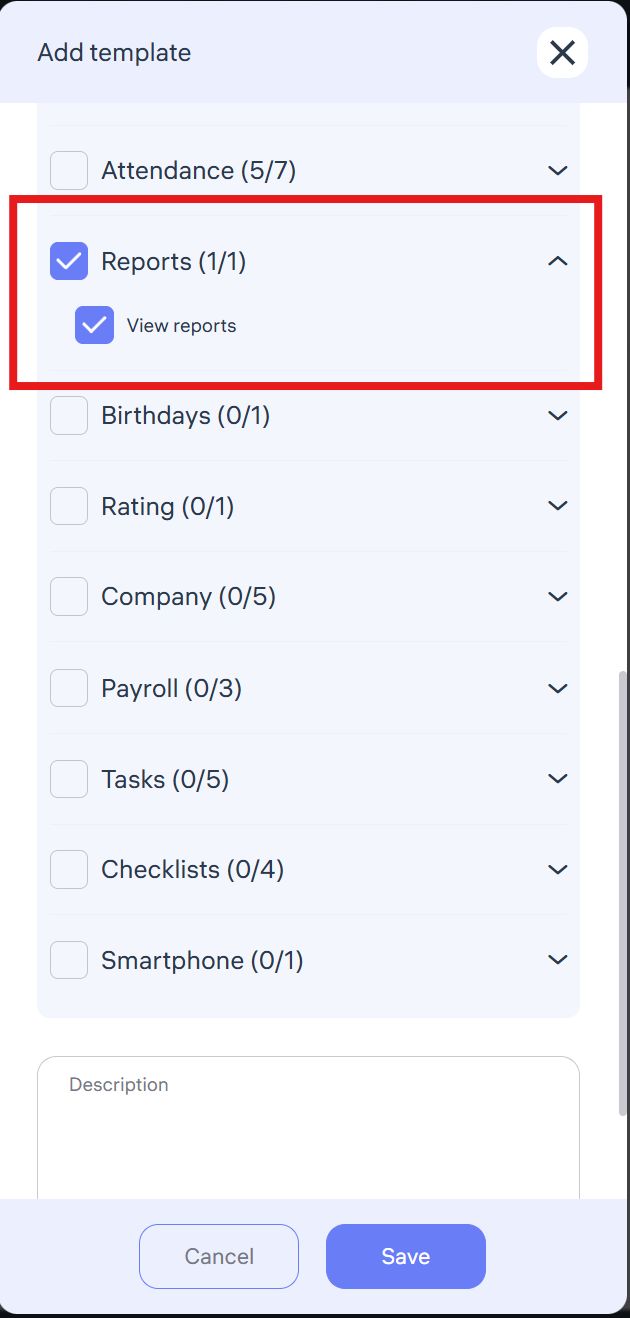
With report access, administrators can:
View all system-generated reports (attendance, time tracking, requests, tasks, performance metrics).
Use data for analysis and decision-making.
Recommended for department heads, HR managers, and efficiency specialists.
🎂 Access to Birthdays
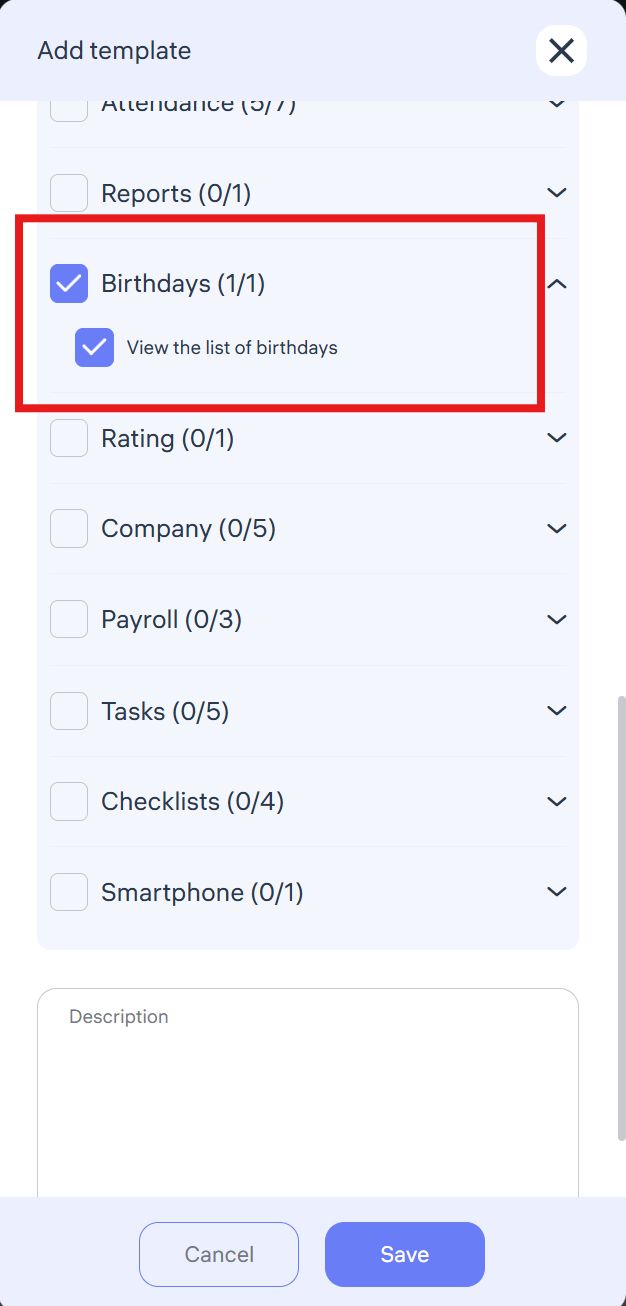
Administrators with this access can view a list of employee birthdays (name, date, position, location).
The list appears in the admin dashboard under Home → Birthdays.
⭐ Access to Ratings
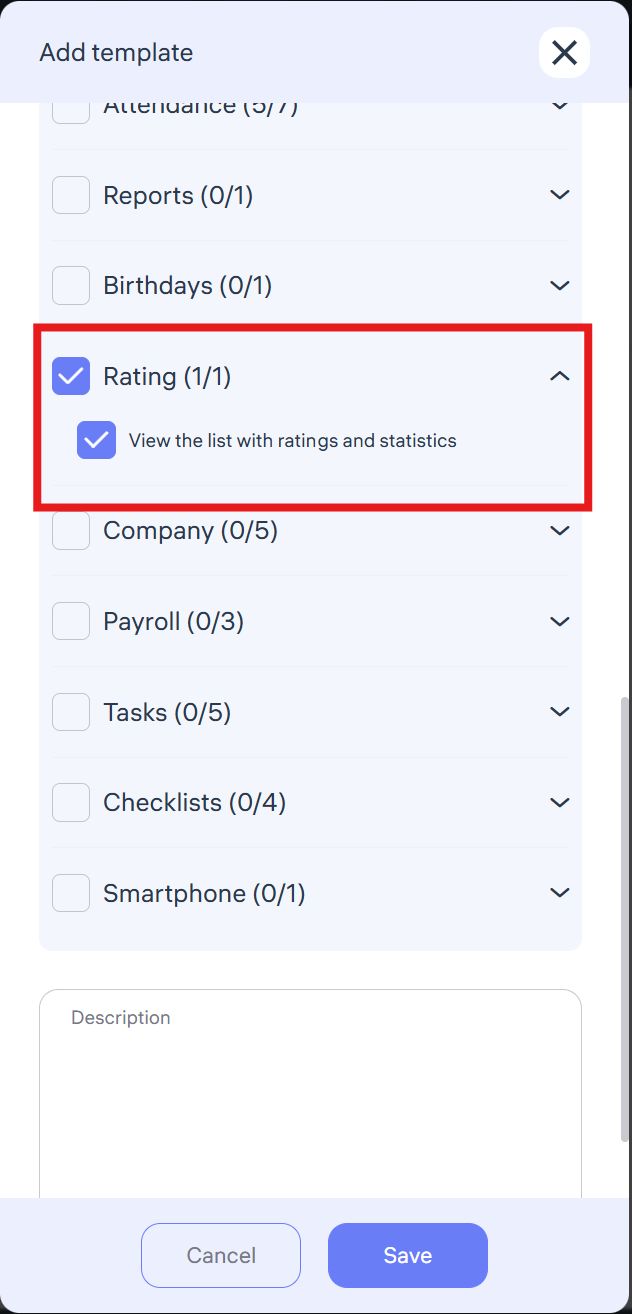
Administrators can:
View employee ratings (attendance, schedule adherence, activity).
Compare performance across departments, locations, and positions.
Identify top performers and underperformers.
Use cases:
Motivation and recognition (e.g., Employee of the Month).
Tracking engagement trends.
Encouraging healthy competition.
🏢 Access to Company
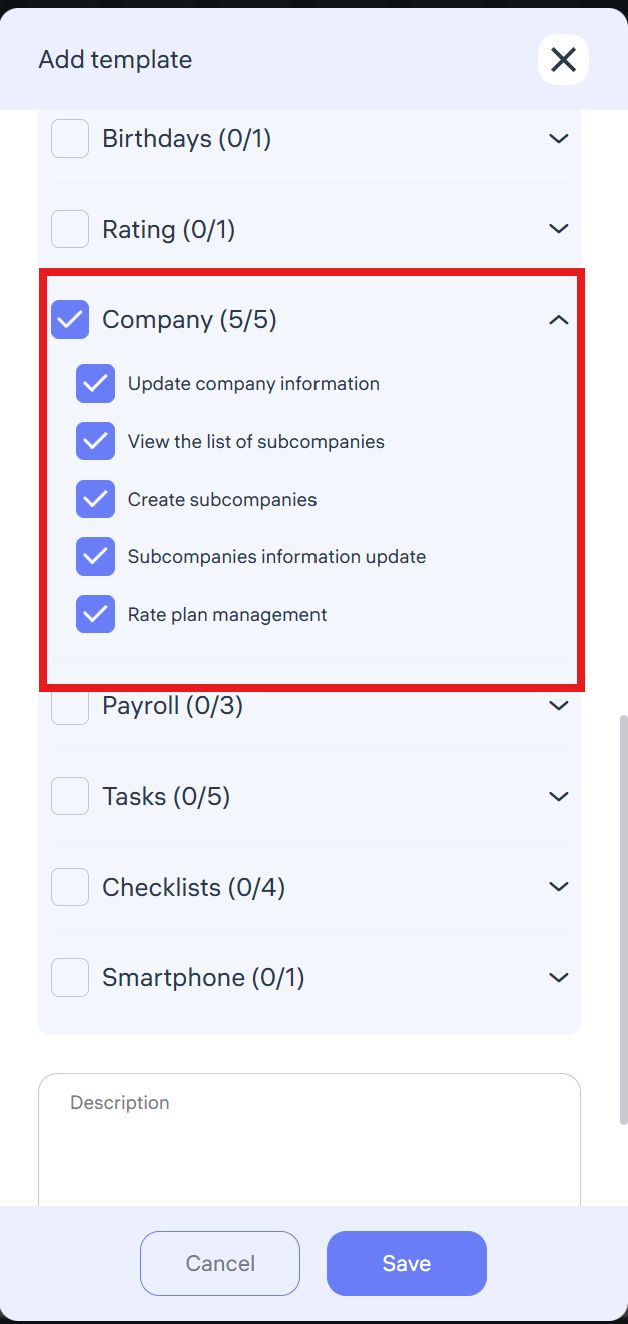
With full access, administrators can:
Update company details (name, logo, contacts, address).
View and manage subsidiaries or branches.
Create new sub-companies.
Edit subsidiary details.
⚠️ Recommended only for Key Administrators or Account Owners, as changes affect the entire system.
💵 Access to Payroll
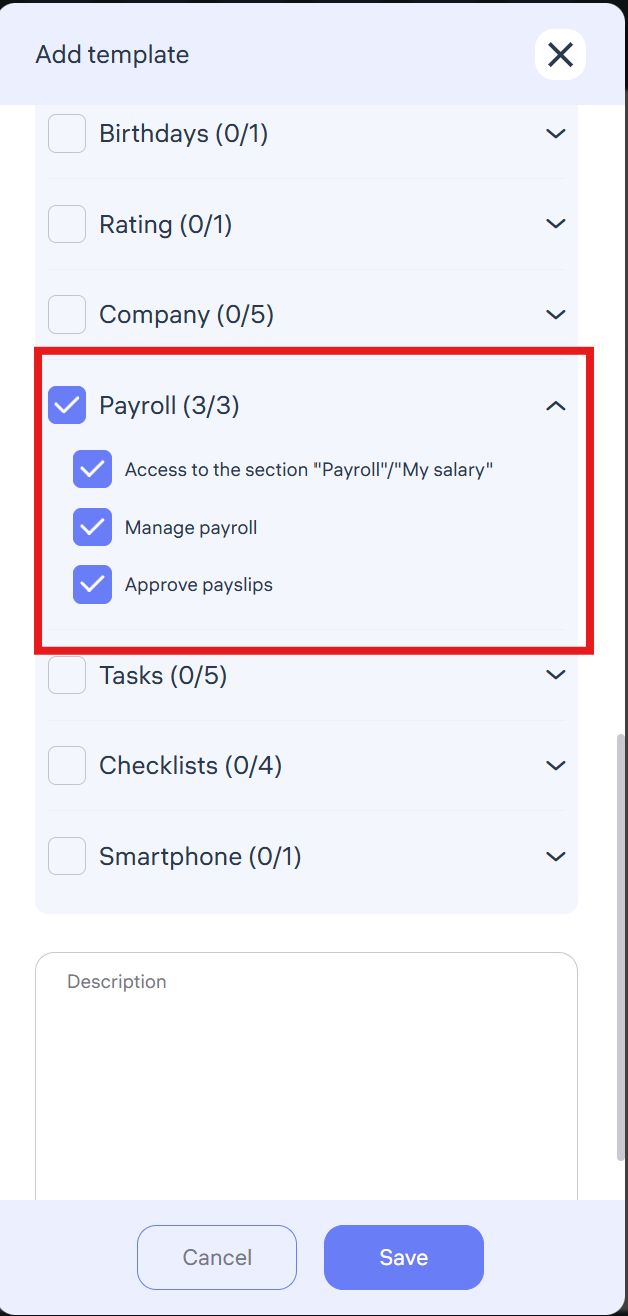
Full payroll access allows administrators to:
View salary details (earnings, deductions, net pay).
Configure payroll data (base salary, bonuses, deductions).
Approve payslips before final payouts.
⚠️ This is highly confidential access. Assign only to payroll specialists, HR, finance managers, or business owners.
✅ Access to Tasks
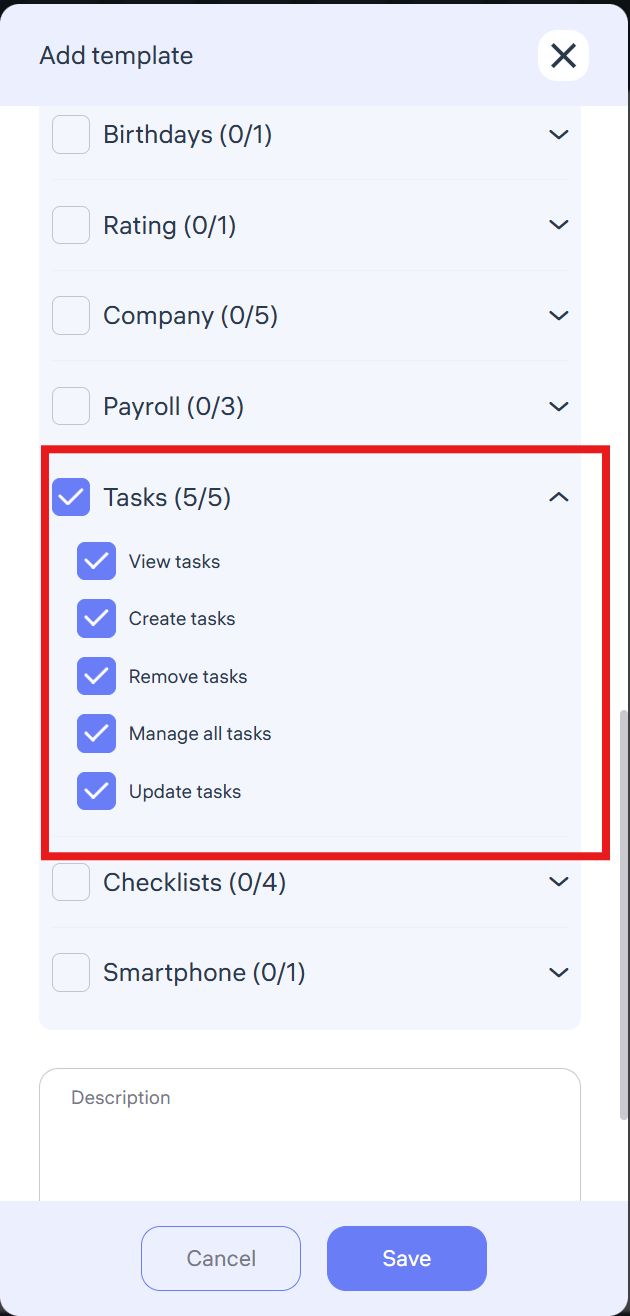
With full task management rights, administrators can:
View all employee tasks and statuses.
Create and assign new tasks.
Delete outdated or erroneous tasks.
Reassign, edit, and update task deadlines.
Modify priorities and task details.
Recommended for team leads, project managers, HR coordinators.
✅ Access to “Checklists”
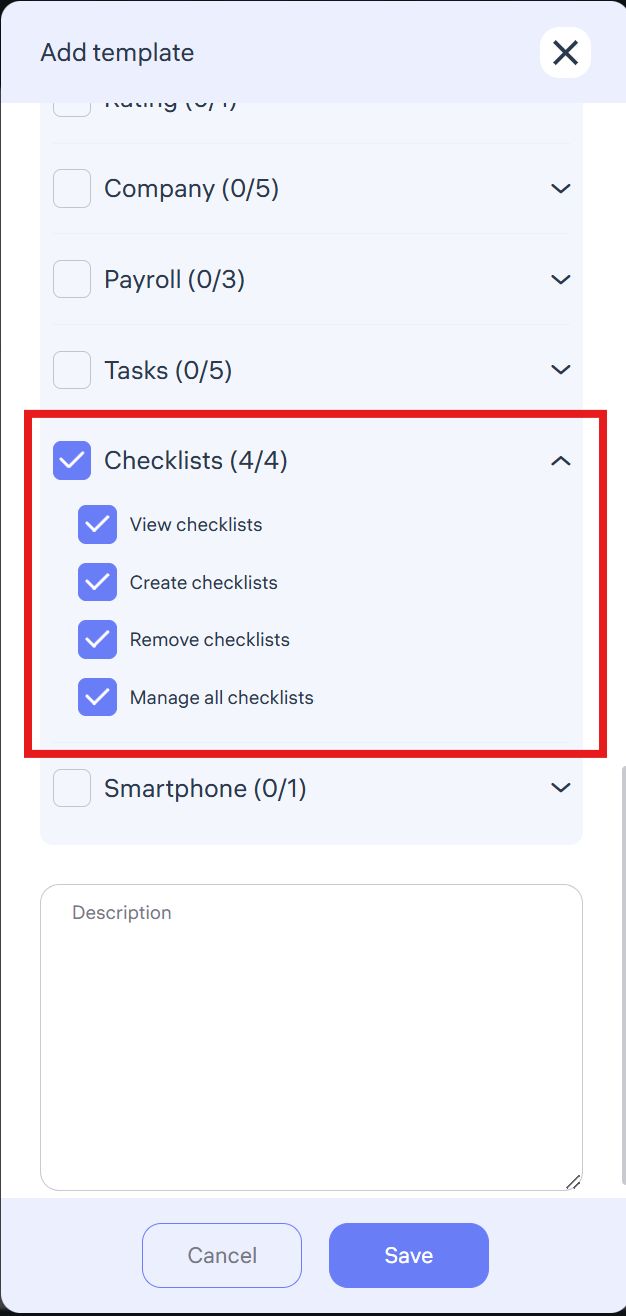
The Checklists section allows administrators to manage task lists and monitor process execution within the company.
Depending on the permissions granted, an administrator can:
View checklists
Access to view all checklists within their assigned location or department.Create checklists
Ability to create new task lists and assign them to employees or teams.Remove checklists
Permission to delete outdated or incorrect checklists.Manage all checklists
Full control: editing, updating, and administrating all company checklists.
Full access to checklists is recommended only for administrators responsible for process organization, quality control, and compliance with internal standards.
✅ Access to the “Smartphone” Section
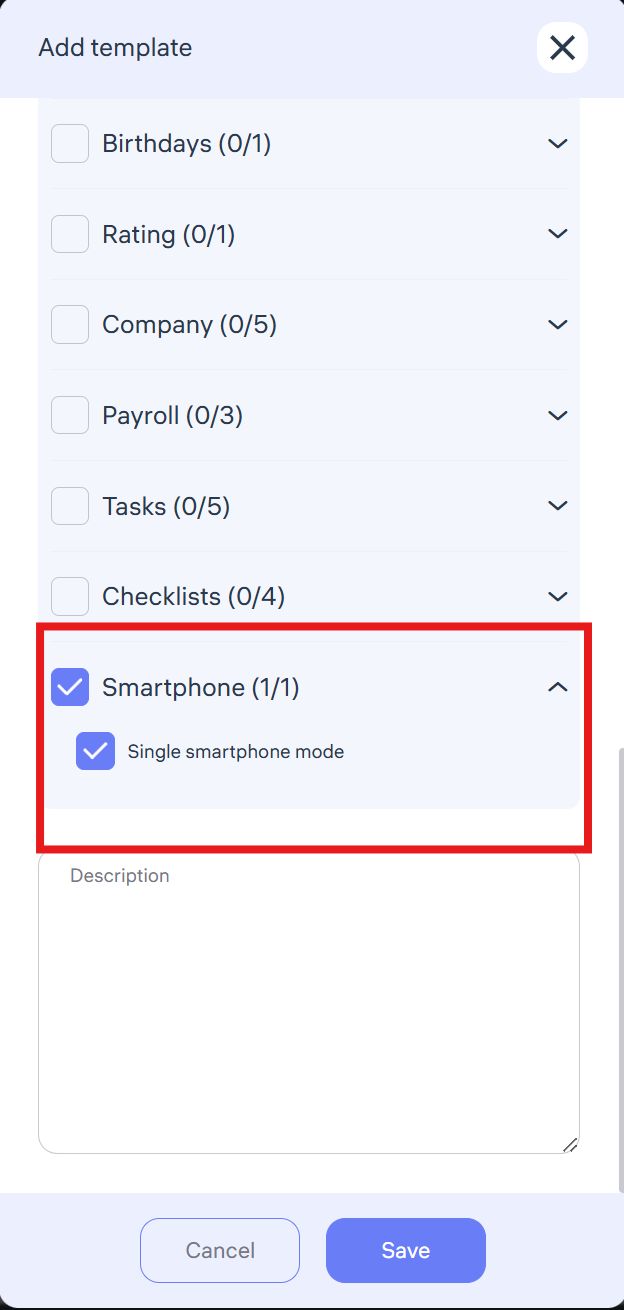
The Single Smartphone Mode setting means that an employee can log into the Clockster mobile app using their personal login and password only from one mobile device.
This restriction ensures:
Data security and transparency,
Prevention of multiple device usage under a single account,
Elimination of attempts to share accounts between employees.
Enabling this mode is recommended to maintain strict control over attendance tracking and to avoid unauthorized access from different devices.
🎯 Key Takeaways
Permission templates simplify and standardize administrator rights management.
Access can be fine-tuned by role, department, or location.
Sensitive permissions (e.g., Payroll, Attendance edits, User management) should only be assigned to trusted individuals.
By using templates, companies can scale administration efficiently while ensuring security and accountability.