
Clockster Kiosk
Clockster Kiosk is Clockster’s proprietary mobile application designed to track employee attendance.
The app can be installed on any Android device and serves as an alternative to biometric terminals — helping companies avoid additional hardware costs.
Key Features of Clockster Kiosk
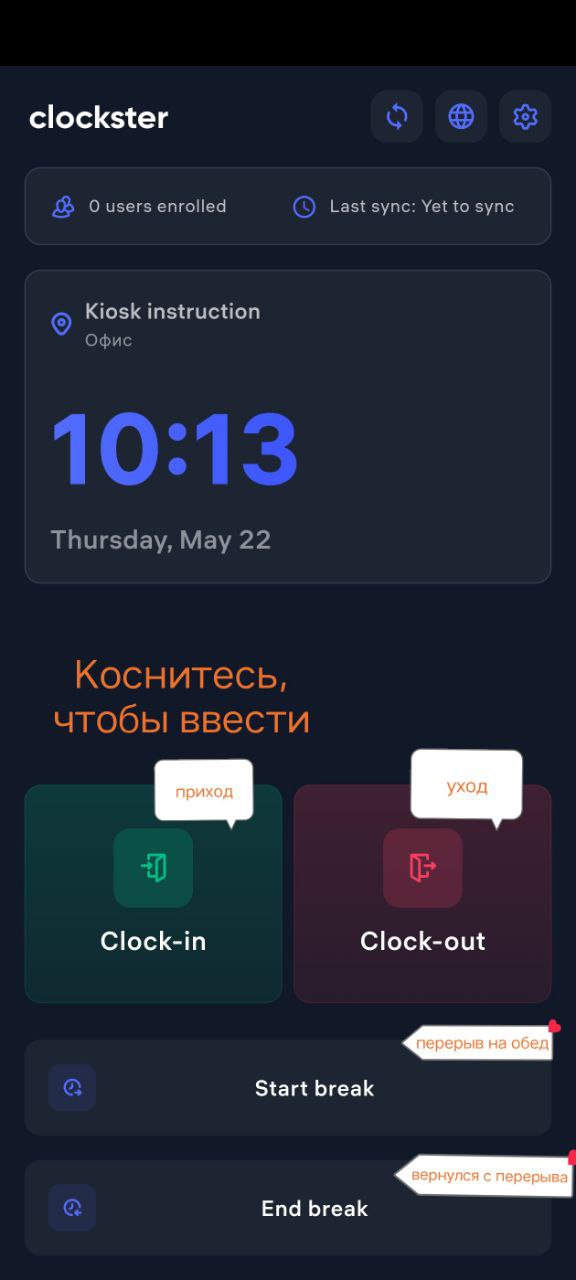
Records employee clock-ins, clock-outs, and break start/end times
Supports facial recognition for authentication
Sends attendance data to the system in real time
Easy installation via Google Play Market
Clockster Kiosk is a convenient solution for companies that want to manage employee time tracking efficiently — without investing in extra technical resources.
How to Install and Set Up Clockster Kiosk
1. Get Access from Clockster
Before installation, contact our support team to obtain:
Admin login and password for the Kiosk
These credentials are required to sign in and link the device to your company account.
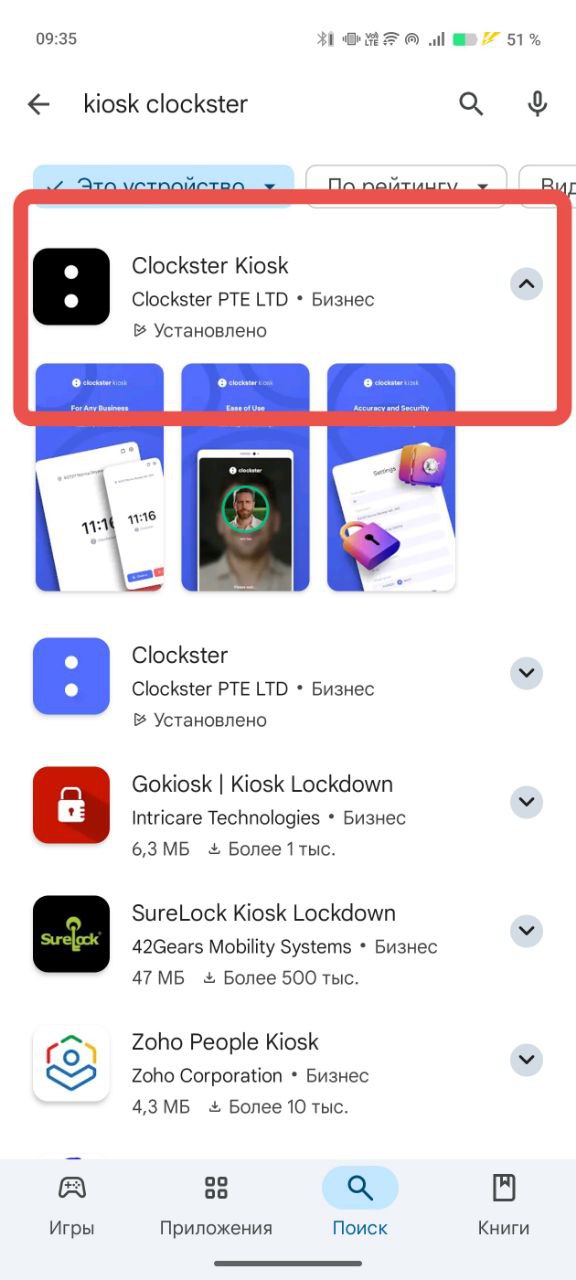
2. Download the Clockster Kiosk App
Open Google Play Market on your Android device and search for Clockster Kiosk,
or use the direct link: Clockster Kiosk on Google Play.
3. Install and Open the App
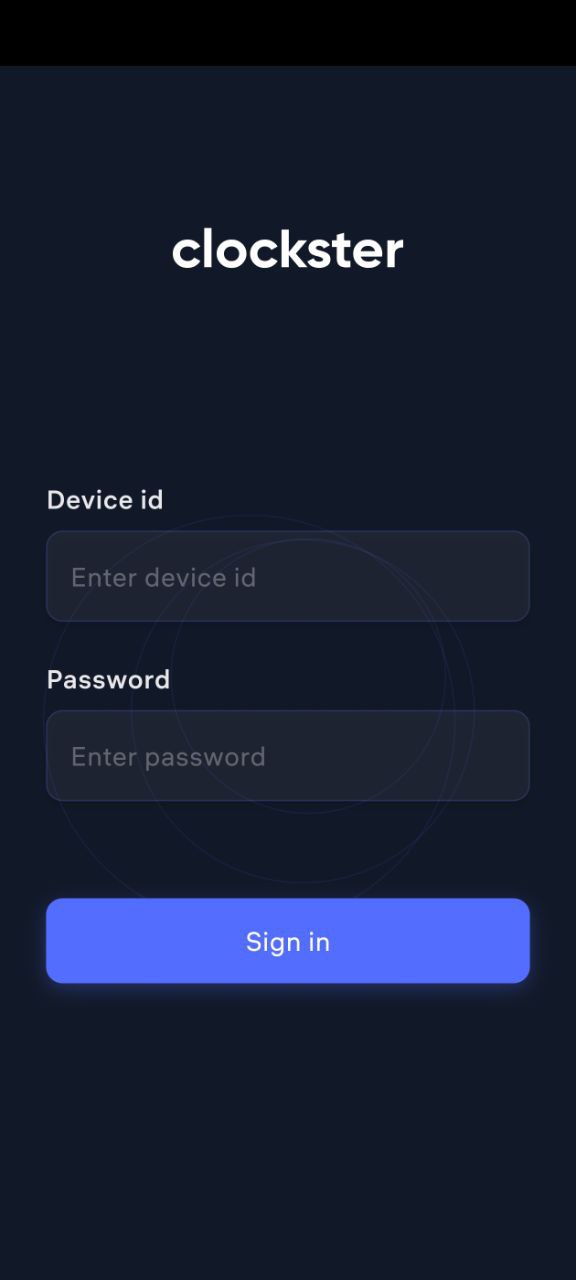
After installation, launch the app and log in using the provided admin credentials to authorize the device.
4. Place the Device in a Convenient Location
Mount the tablet or smartphone in an easily accessible area (e.g., at the office entrance) so employees can quickly clock in, clock out, and mark breaks.
How Clockster Kiosk Recognizes Employees
Once the Clockster Kiosk app is installed, it must be linked to a specific company location:
Open the admin dashboard.
Go to Settings → Devices.
Link the installed device to the corresponding location where it will be used.

Facial Recognition Requirements
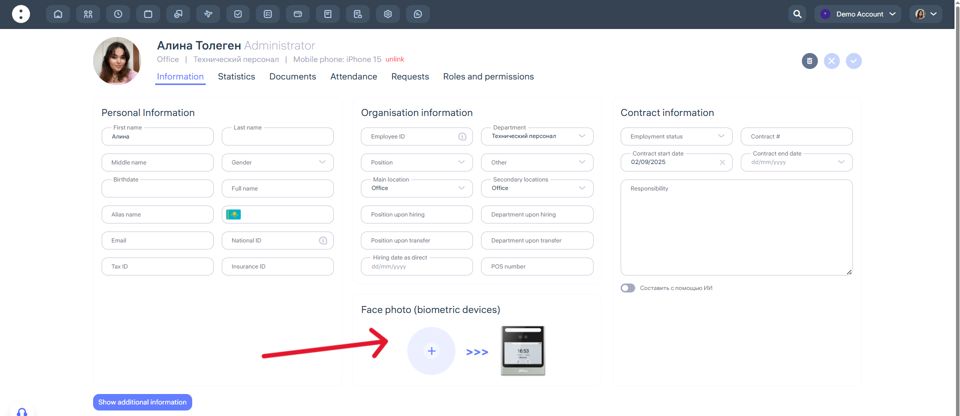
To enable accurate facial recognition, upload a photo of the employee’s face in their profile under Face Photo (Biometric Device).
Photo requirements:
Format: JPEG / JPG / PNG
Minimum resolution: 600×600 px
Background: light and plain
Face: no accessories, no smile, no headwear, no filters
Look directly at the camera, with the face occupying at least 70% of the frame
The photo must be clear, sharp, and in color
Do not upload photos taken from other photos
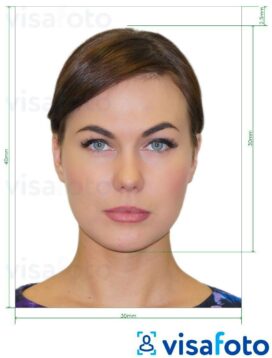
You can upload the photo directly from the employee’s profile in the admin dashboard.
Important
If your company has multiple locations, each Clockster Kiosk device will recognize only those employees assigned to the same location.
This ensures precise time tracking and access control for each site.
Recommendations for Optimal Use
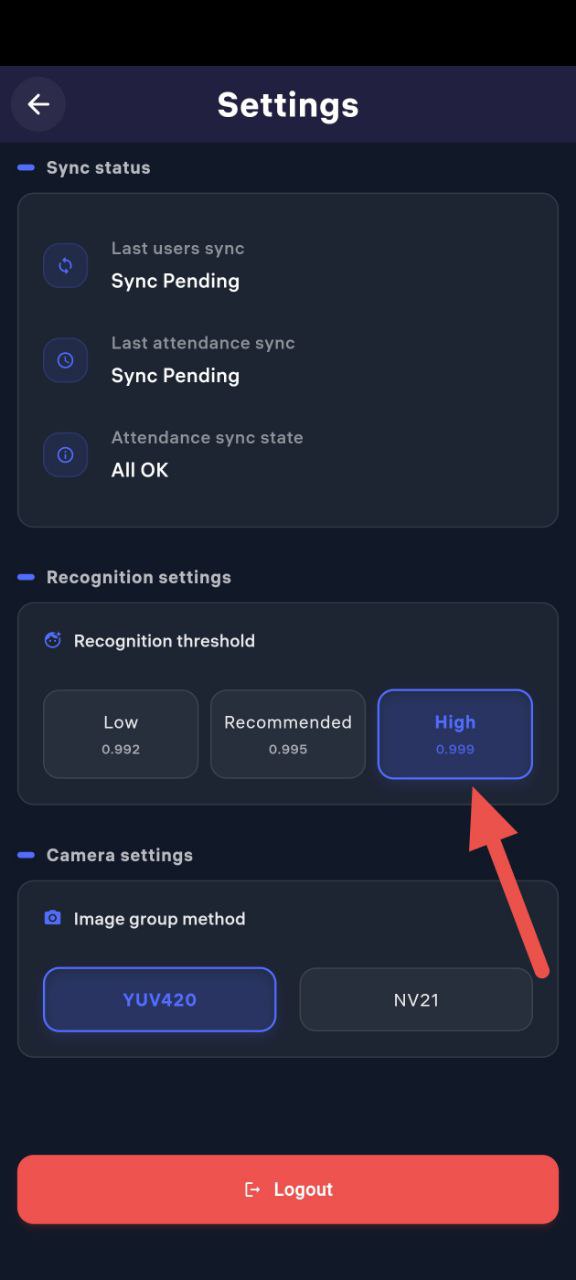
For improved accuracy, you can set the Recognition Threshold to High in the app settings.
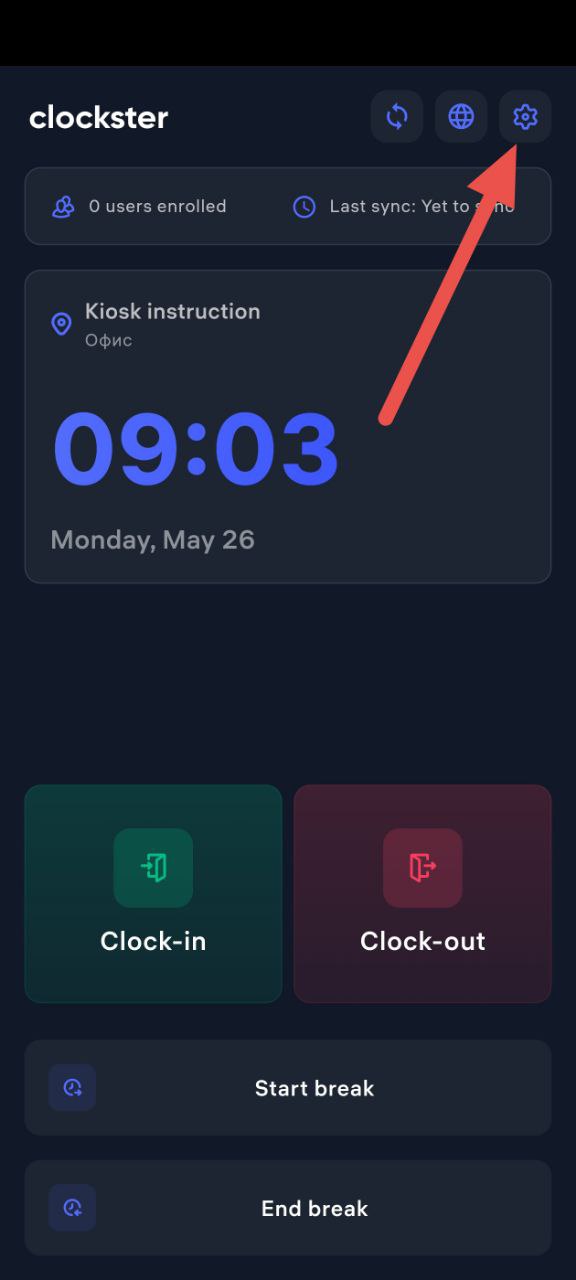
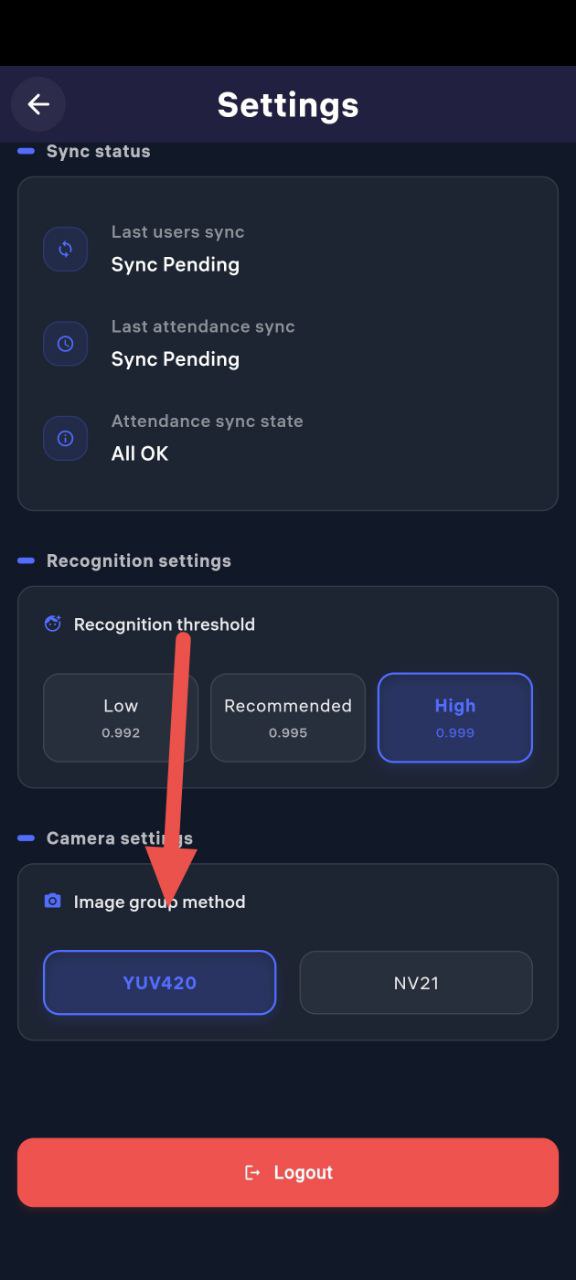
On some Android devices, you may experience issues with face detection (e.g., the face frame not appearing).
This is due to hardware limitations of specific models.
To fix the issue:
In the app settings, change the camera mode from “YUV420” to “NV21”.
This usually resolves detection issues.
⚠️ Note:
YUV420 works reliably on most devices and is set as the default mode.
Switch to NV21 only if you experience problems with the face frame or recognition accuracy.
Updated at